
Alta Labs Integration mit Purple WiFi: Einrichtung und Captive Portal Konfiguration
Dieses technische Referenzhandbuch beschreibt die End-to-End-Integration von Alta Labs AP6 und AP6 Pro Access Points mit dem Cloud-basierten Captive Portal von Purple. Es beschreibt detailliert die Konfiguration externer Weiterleitungen, RADIUS-Authentifizierung, Walled-Garden-Anforderungen und Multi-Tenant-Segmentierung mithilfe von AltaPass Private Pre-Shared Keys. Betreiber von Veranstaltungsorten und IT-Teams erhalten einen reproduzierbaren Bereitstellungsleitfaden für das Gastgewerbe, den Einzelhandel und Smart-Office-Umgebungen.
Diesen Leitfaden anhören
Podcast-Transkript ansehen
Executive Summary
Die AP6 und AP6 Pro Access Points von Alta Labs lassen sich über Standard-RADIUS-Authentifizierung und HTTP-Weiterleitung in das Cloud-Captive Portal von Purple integrieren. Der AP fängt nicht authentifizierten Gast-Traffic ab, leitet ihn auf Ihre Purple-Splash-Page weiter und gewährt Zugriff, sobald der RADIUS-Server von Purple ein Access-Accept zurückgibt. Für Multi-Tenant-Umgebungen weist die AltaPass-Technologie von Alta Labs jedem verbundenen Gerät basierend auf dem verwendeten Passwort ein eindeutiges VLAN und eine Bandbreitenrichtlinie zu – ganz ohne zusätzliche SSIDs. Diese Anleitung bietet Ihnen die genauen Konfigurationsschritte, Walled-Garden-Domain-Listen und RADIUS-Parameter, um die Integration von Grund auf neu bereitzustellen. Purple ist an über 80.000 Live-Standorten im Einsatz und verzeichnete im Jahr 2024 440 Millionen Logins (interne Daten von Purple). Die Hardware von Alta Labs eignet sich hervorragend für MSPs und Smart-Office-Installateure, die eine Segmentierung auf Enterprise-Niveau zu einem wettbewerbsfähigen Preis benötigen.
Technische Architektur
Die Integration erstreckt sich über drei Ebenen: die Cloud-Management-Plattform von Alta Labs, die AP6- oder AP6-Pro-Hardware am Edge und die Cloud-Infrastruktur von Purple, die für Authentifizierung und Analysen zuständig ist.
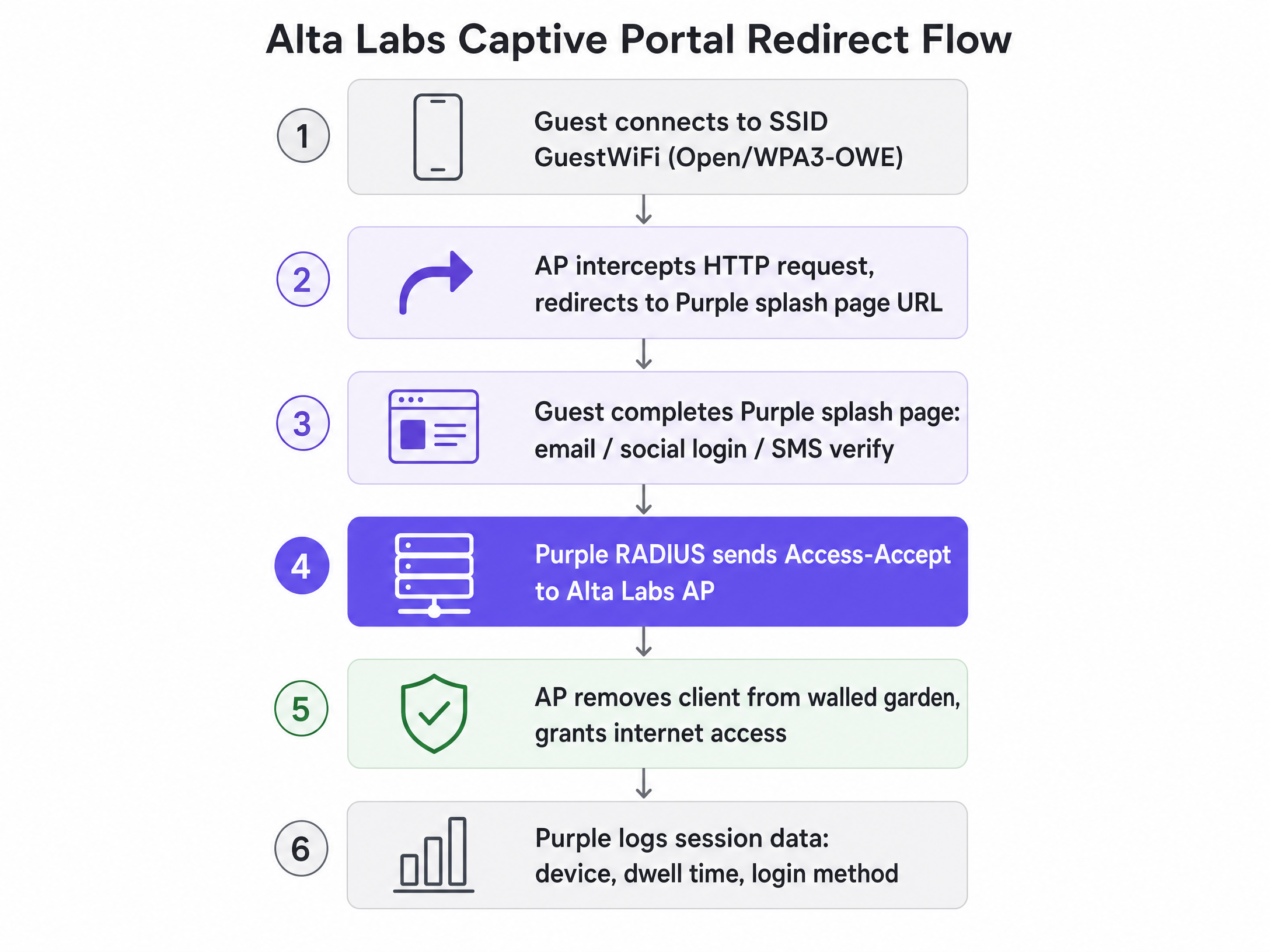
Wenn sich ein Gast mit der offenen oder WPA3-OWE-SSID verbindet, versetzt der AP das Gerät in einen eingeschränkten Pre-Authentication-Zustand. Der gesamte ausgehende HTTP-Traffic wird abgefangen und an die URL der Purple-Splash-Page weitergeleitet. Das Gerät kann bis zum Abschluss der Authentifizierung nur Domains erreichen, die explizit im Walled Garden aufgeführt sind. Sobald der Gast seine Anmeldedaten auf der Purple-Splash-Page eingibt, sendet der RADIUS-Server von Purple ein Access-Accept an den AP, der die Einschränkung aufhebt und den vollen Internetzugang freigibt. Purple protokolliert die Sitzungsdaten – Gerätetyp, Verweildauer, Login-Methode – und stellt sie im WiFi Analytics -Dashboard zur Verfügung.
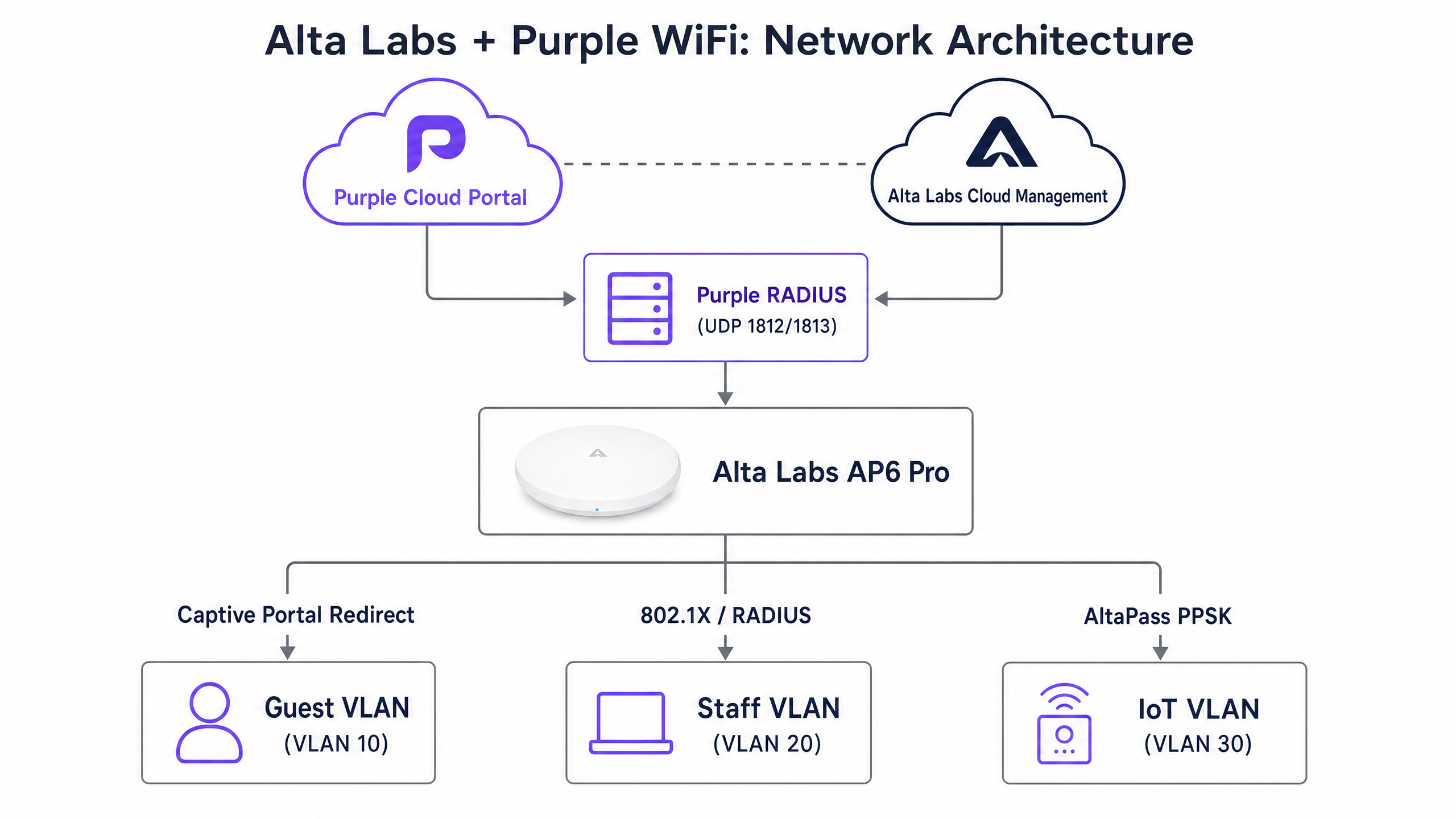
Für Mitarbeiter- und Back-of-House-Netzwerke übernimmt dieselbe AP-Hardware die WPA2/WPA3-Enterprise-Authentifizierung (IEEE 802.1X). Der AP fungiert als RADIUS-Client und leitet Authentifizierungsanfragen an die SecurePass-Infrastruktur von Purple weiter, die wiederum die Anmeldedaten mit Microsoft Entra ID, Okta oder Google Workspace abgleicht. Die RADIUS-Access-Accept-Antwort enthält das Attribut Tunnel-Private-Group-Id, mit dem der AP das Gerät dynamisch dem richtigen VLAN zuweist.
Implementierungsleitfaden
Schritt 1: Standort und Hardware in Purple hinzufügen
Bevor Sie den Alta Labs-Controller konfigurieren, registrieren Sie die Bereitstellung in Purple.
- Melden Sie sich im Purple-Management-Portal an und navigieren Sie zu Management > Locations.
- Wählen Sie Venues and Groups > Add venue und schließen Sie den Einrichtungsassistenten ab.
- Wählen Sie an Ihrem Standort Hardware > Add hardware > Add new hardware.
- Stellen Sie den Hardwaretyp auf WiFi AP ein und wählen Sie den entsprechenden AP-Typ aus.
- Geben Sie die MAC-Adresse jedes Alta Labs AP6- oder AP6 Pro-Geräts ein.
- Klicken Sie auf View Manual Online, um die IP-Adressen des RADIUS-Servers, die Ports und das Shared Secret für diesen Standort abzurufen. Notieren Sie diese Werte – Sie benötigen sie in Schritt 3.
Schritt 2: Gast-SSID in Alta Labs konfigurieren
Melden Sie sich auf der Cloud-Management-Plattform von Alta Labs unter manage.alta.inc an.
- Navigieren Sie zu Settings > WiFi und wählen Sie die für den Gastzugang vorgesehene SSID aus.
- In den Advanced Settings stellen Sie den Netzwerktyp auf Guest ein. Dadurch wird die Client-Isolierung automatisch erzwungen.
- Scrollen Sie zum Bereich Hotspot und wählen Sie External.
- Fügen Sie in das Feld Redirect URL die URL der Purple-Splash-Page ein, die in den Hardware-Einstellungen Ihres Standorts angegeben ist (z. B.
https://region1.purpleportal.net/access/). - Geben Sie das Authorisation Secret (RADIUS Shared Secret) aus Ihren Purple-Standorteinstellungen ein.
- Klicken Sie auf Save.
Schritt 3: RADIUS-Authentifizierung konfigurieren
Sobald die externe Weiterleitung eingerichtet ist, konfigurieren Sie die RADIUS-Einstellungen, damit der AP mit der Authentifizierungsinfrastruktur von Purple kommunizieren kann.
| Parameter | Wert |
|---|---|
| Primary auth server IP | In den Purple-Standorteinstellungen bereitgestellt |
| Authentifizierungs-Port | UDP 1812 |
| Primary accounting server IP | In den Purple-Standorteinstellungen bereitgestellt |
| Accounting-Port | UDP 1813 |
| Shared Secret | In den Purple-Standorteinstellungen bereitgestellt |
Konfigurieren Sie für Hochverfügbarkeitsbereitstellungen den sekundären RADIUS-Server mit der von Purple bereitgestellten Backup-IP-Adresse.
Schritt 4: Walled Garden definieren
Der Walled Garden lässt bestimmte Domains zu, bevor die Authentifizierung abgeschlossen ist. Fehlende Einträge unterbrechen den Ablauf des Captive Portals oder verhindern das Laden von Social Logins. Geben Sie die folgenden Domains in das Feld Additional Authorised Hosts / IPs in der Hotspot-Konfiguration von Alta Labs ein.
Purple-Infrastruktur (erforderlich)
| Domain | Zweck |
|---|---|
region1.purpleportal.net |
Hosting der Splash-Page |
venuewifi.com |
Purple-Weiterleitungsinfrastruktur |
cloudfront.net |
CDN für Portal-Assets |
Captive Portal-Prüfungen des Betriebssystems (erforderlich)
| Domain | Betriebssystem |
|---|---|
captive.apple.com |
iOS / macOS |
connectivitycheck.gstatic.com |
Android |
msftconnecttest.com |
Windows |
Social Login (je nach aktiviertem Anbieter hinzufügen)
| Anbieter | Domains |
|---|---|
accounts.google.com, oauth2.googleapis.com, apis.google.com, gstatic.com |
|
facebook.com, graph.facebook.com, connect.facebook.net, *.fbcdn.net |
|
| Apple | appleid.apple.com, idmsa.apple.com, *.apple.com |
AltaPass PPSK und Multi-Tenant-Segmentierung
AltaPass ist die zum Patent angemeldete Implementierung von Private Pre-Shared Keys (PPSK) von Alta Labs. Sie ermöglicht es, dass eine einzige SSID mehrere eindeutige Passwörter unterstützt, mit jedem Passwort, das einem eigenen VLAN, einer Bandbreitenbegrenzung, einem Zeitplan und einer Hotspot-Bypass-Regel zugeordnet ist. Dadurch entfällt die Notwendigkeit, separate SSIDs für jeden Mieter, jede Mitarbeitergruppe oder jede Gerätekategorie auszustrahlen.
Konfigurieren von AltaPass im Alta Labs Dashboard
- Wählen Sie Ihre SSID aus und navigieren Sie zum Bereich für die Passwortverwaltung.
- Klicken Sie auf die lila Schaltfläche für den Netzwerktyp links neben jedem Passworteintrag.
- Weisen Sie dem Passwort eine VLAN-ID zu. Clients, die sich mit diesem Passwort verbinden, werden dem angegebenen VLAN-Subnetz zugewiesen.
- Legen Sie bei Bedarf Bandbreitenbegrenzungen (Upload und Download) pro Passwort fest.
- Aktivieren oder deaktivieren Sie den Hotspot-Bypass pro Passwort. IoT-Geräte und POS-Terminals umgehen in der Regel das Captive Portal.
- Wenden Sie bei Bedarf Zeitplanbeschränkungen an (z. B. Einschränkung des Internetzugangs für bestimmte Geräte außerhalb der Geschäftszeiten).
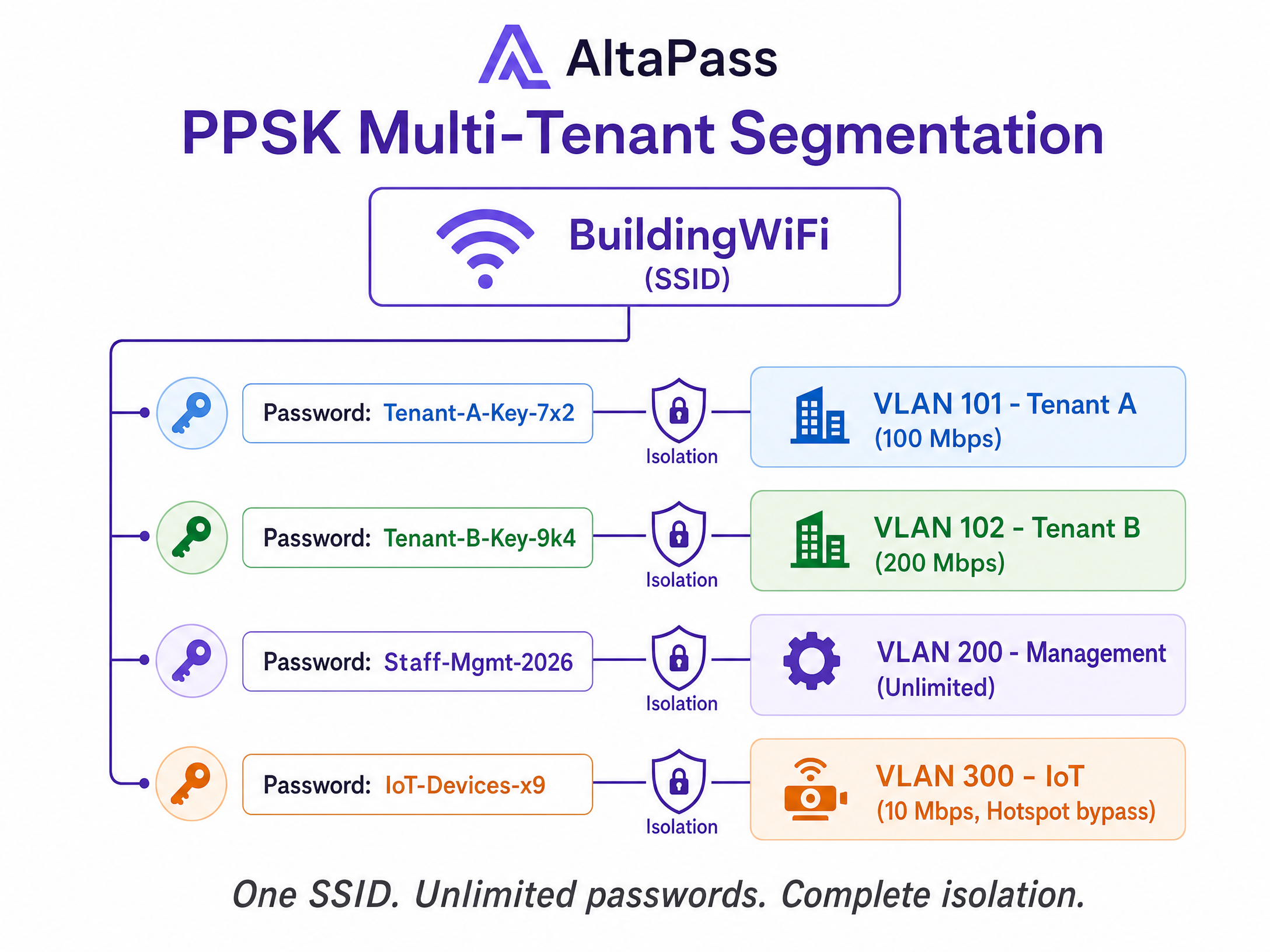
Für ein Wohngebäude mit 72 Einheiten bedeutet dies eine einzige SSID und mehr als 72 eindeutige Passwörter – eines pro Einheit, eines für die Verwaltung und eines für das Gebäudeautomationssystem. Jedes Passwort ist einem isolierten VLAN und Subnetz zugeordnet. Bewohner im Standard-Tarif erhalten 100 Mbit/s. Premium-Bewohner erhalten 300 Mbit/s. Das Gebäudemanagement-Team ist unbeschränkt. IoT-Geräte werden in einem dedizierten VLAN mit aktivierter Deep Packet Inspection isoliert. Dies ist das Bereitstellungsmodell, das die Anzahl der SSIDs von 72 auf eine reduziert.
Dynamische VLAN-Zuweisung via RADIUS
Bei 802.1X-Mitarbeiternetzwerken erfolgt die VLAN-Zuweisung über RADIUS-Attribute anstelle von PPSK. Die RADIUS-Access-Accept-Antwort muss Folgendes enthalten:
| Attribut | Wert |
|---|---|
Tunnel-Type |
13 (VLAN) |
Tunnel-Medium-Type |
6 (IEEE-802) |
Tunnel-Private-Group-Id |
Ziel-VLAN-ID (z. B. "20") |
Wichtig: Stellen Sie das Standard-VLAN auf der SSID auf VLAN 1 ein (oder lassen Sie es ungetaggt), wenn Sie RADIUS-zugewiesene VLANs verwenden. Wenn das Standard-VLAN auf einen bestimmten Wert eingestellt ist, überschreibt der AP möglicherweise die RADIUS-Zuweisung mit dem konfigurierten Standardwert. Dies ist ein bekanntes Verhalten in der aktuellen Firmware von Alta Labs.
Best Practices
Die folgenden Empfehlungen gelten für jede Alta Labs-Bereitstellung mit Purple, unabhängig von der Art des Standorts.
Nutzen Sie die dynamische DNS-Auflösung für Walled-Garden-Einträge. OAuth-Anbieter und CDNs rotieren IP-Adressen häufig. Eine statische IP-Whitelist verliert mit der Zeit an Gültigkeit. Konfigurieren Sie den Alta Labs-Controller so, dass er Walled-Garden-Domains dynamisch auflöst, und legen Sie eine DNS-TTL von mindestens 30 Sekunden fest, um eine übermäßige Abfragelast zu vermeiden.
Grenzen Sie den Walled Garden präzise ein. Setzen Sie nur die Domains auf die Whitelist, die für den Authentifizierungsfluss erforderlich sind. Zu großzügige Whitelists – insbesondere das Hinzufügen von Wildcard-Einträgen für große Domains – schaffen einen Bypass-Vektor, der den Zweck des Captive Portals untergräbt.
Testen Sie vor der Liveschaltung mit nicht authentifizierten Geräten. Verwenden Sie ein Gerät, das noch nie mit dem Netzwerk verbunden war. Zuvor authentifizierte Geräte verfügen möglicherweise über zwischengespeicherte MAC-Autorisierungen oder DNS-Einträge, die Fehler im Walled Garden maskieren. Gehen Sie jede Anmeldemethode durch, die Sie anbieten möchten.
Überprüfen Sie die Walled-Garden-Domains vierteljährlich. Apple, Google und Meta aktualisieren regelmäßig ihre OAuth-Domainstrukturen. Planen Sie eine vierteljährliche Überprüfung in Ihren Betriebskalender ein, um Abweichungen zu erkennen, bevor sie sich auf die Benutzer auswirken.
Segmentieren Sie IoT-Geräte von Anfang an. Verwenden Sie AltaPass, um IoT-Geräten ein dediziertes VLAN mit aktiviertem Hotspot-Bypass zuzuweisen. Die Vermischung von IoT-Traffic mit Gast- oder Mitarbeiter-Traffic birgt unnötige Risiken und erschwert die Reaktion auf Vorfälle.
Für einen umfassenderen Überblick über die WiFi-Sicherheitsarchitektur in Unternehmen lesen Sie unseren Leitfaden Enterprise WiFi Security: A Complete Guide for 2026 .
Fehlerbehebung und Risikominderung
Die Splash-Page wird unter iOS nicht angezeigt. Die häufigste Ursache ist ein fehlender captive.apple.com-Eintrag im Walled Garden. iOS verwendet diese Domain, um Captive Portals zu erkennen. Wenn die Abfrage blockiert wird, startet der Captive Network Assistant nicht und der Benutzer sieht einen allgemeinen Verbindungsfehler.
Der Social Login zeigt einen leeren Bildschirm oder einen CORS-Fehler. Überprüfen Sie den Walled Garden auf fehlende CDN- oder API-Subdomains. Die Einträge *.fbcdn.net von Facebook und gstatic.com von Google werden am häufigsten vergessen. Verwenden Sie die Entwicklertools des Browsers in einer nicht authentifizierten Sitzung, um festzustellen, welche Domain-Anfragen fehlschlagen.
Die VLAN-Zuweisung schlägt mit AltaPass fehl. Stellen Sie sicher, dass der vorgeschaltete Switch-Port, der mit dem AP verbunden ist, als Trunk-Port konfiguriert ist und die getaggten VLANs zulässt. Ein Switch-Port im Access-Modus verwirft getaggte Frames geräuschlos, sodass der Client keine IP-Adresse erhält.
Timeout bei der RADIUS-Authentifizierung. Stellen Sie sicher, dass die UDP-Ports 1812 und 1813 in der Edge-Firewall für ausgehenden Datenverkehr geöffnet sind. Überprüfen Sie, ob das Shared Secret in der Alta Labs-Konfiguration exakt mit dem Wert in den Purple-Standorteinstellungen übereinstimmt – bereits eine Abweichung von einem einzigen Zeichen führt dazu, dass alle Authentifizierungsanfragen fehlschlagen.
Die dynamische VLAN-Zuweisung weist Benutzer dem falschen VLAN zu. Stellen Sie das Standard-VLAN auf der 802.1X-SSID auf VLAN 1 ein. Wenn das Standard-VLAN auf einen bestimmten Wert eingestellt ist, überschreibt der AP möglicherweise das vom RADIUS zugewiesene VLAN. Dies ist ein Verhalten auf Firmware-Ebene, das im Alta Labs-Community-Forum bestätigt wurde.
ROI und geschäftliche Auswirkungen
Die Bereitstellung von Alta Labs-Hardware mit Purple Guest WiFi liefert messbare Erträge in drei Dimensionen: betriebliche Effizienz, Datenerfassung und Sicherheitsniveau.
Auf der betrieblichen Seite reduziert die Konsolidierung mehrerer SSIDs in einem einzigen, von AltaPass verwalteten Netzwerk den Verwaltungsaufwand und verbessert die Wireless-Leistung. Weniger SSIDs bedeuten weniger Beacon-Frame-Overhead, was sich direkt in einem höheren Durchsatz für alle verbundenen Geräte niederschlägt.
Auf der Datenseite erfasst das Captive Portal von Purple bei jeder Anmeldung verifizierte First-Party-Daten. Standorte, die die Capture- und Engage-Tarife von Purple nutzen, berichten von einer Steigerung der Opt-ins in die Marketing-Datenbank um 40 % im Vergleich zu unmanaged Guest WiFi (interne Daten von Purple). Diese Daten f...fließt direkt in WiFi Analytics ein und bietet Marketingteams Einblick in Besucherströme, Verweildauer und Wiederkehrraten.
Auf der Sicherheitsseite isoliert die dynamische VLAN-Zuweisung den Datenverkehr von Gästen, Mitarbeitern und IoT am Edge. In Kombination mit der ISO-27001-zertifizierten Infrastruktur von Purple und der GDPR-konformen Datenverarbeitung erfüllt diese Architektur die Anforderungen der PCI-DSS-Netzwerksegmentierung für Standorte, die Kartenzahlungen verarbeiten.
Speziell für Implementierungen im Gastgewerbe schafft die Kombination aus gebrandeten Splash-Pages, Integrationen von Treueprogrammen und Bandbreitenbegrenzungen pro Gerät ein differenziertes Gästeerlebnis, ohne das Netzwerkbetriebsteam zusätzlich zu belasten.
In Einzelhandelsumgebungen erübrigt die Möglichkeit, POS-Terminals über dieselbe physische Infrastruktur vom Gäste-WiFi zu trennen – mithilfe von AltaPass-Bypass-Regeln –, eine separate Verkabelung oder Hardware, was sowohl die Investitions- als auch die Betriebskosten senkt.
Ähnliche Leitfäden: Arista Cognitive Wi-Fi Integration mit Purple WiFi | Walled-Garden-Konfiguration für Gäste-WiFi
Schlüsseldefinitionen
Captive portal
A web page that intercepts unauthenticated network traffic and requires the user to interact - log in, accept terms, or pay - before granting internet access. Purple hosts the splash page in the cloud; the Alta Labs AP handles the redirect.
The primary mechanism for guest data capture in hospitality, retail, and public-sector WiFi deployments.
Walled garden
A defined list of domains and IP addresses that a client device can access before completing captive portal authentication. Everything outside the list is blocked until the user logs in.
Critical for allowing social login APIs, OS detection probes, and portal CDN assets to function before authentication completes.
PPSK (Private Pre-Shared Key)
A security method where multiple unique passwords can be used on a single SSID, with each password assigning the connecting device to a specific VLAN, bandwidth policy, and access schedule.
Alta Labs implements this as AltaPass. Used in MDUs, smart offices, and stadiums to provide isolated access without SSID proliferation.
RADIUS
Remote Authentication Dial-In User Service. A networking protocol that provides centralised authentication, authorisation, and accounting (AAA) management. Purple acts as the RADIUS server; the Alta Labs AP acts as the RADIUS client.
The mechanism that tells the AP a guest has successfully authenticated and should be granted internet access.
Identity-Based Networking
A network architecture where access rights, VLANs, and bandwidth limits are applied based on the authenticated identity of the user or device, rather than the physical port or SSID they connect to.
Purple's term for the combination of RADIUS, PPSK, and VLAN assignment that enables consistent policies across a distributed estate.
Dynamic VLAN assignment
The process of placing a client device onto a specific Virtual Local Area Network based on authentication credentials returned by a RADIUS server, rather than a static SSID-to-VLAN mapping.
Essential for isolating staff, guest, and IoT traffic on shared wireless infrastructure. Requires correct RADIUS attributes: Tunnel-Type, Tunnel-Medium-Type, and Tunnel-Private-Group-Id.
Captive Network Assistant (CNA)
The built-in OS mechanism on iOS, Android, and Windows that detects a captive portal by probing a known URL. If the probe is redirected, the OS launches a pseudo-browser for the user to log in.
If the CNA probe domains are blocked in the walled garden, the user never sees the splash page. This is the most common captive portal failure mode.
WPA3-OWE
Wi-Fi Protected Access 3 - Opportunistic Wireless Encryption. A standard that encrypts data in transit on open networks without requiring a password, protecting guest privacy while still allowing captive portal redirection.
The recommended security mode for guest SSIDs in 2026. Provides encryption without the friction of a pre-shared key.
AltaPass
Alta Labs' patent-pending implementation of multi-password SSID technology. Allows a single SSID to carry unlimited unique passwords, each with its own VLAN, bandwidth limit, schedule, and hotspot bypass setting.
The primary tool for multi-tenant segmentation on Alta Labs hardware. Replaces the need for multiple SSIDs in residential, hospitality, and smart office deployments.
Ausgearbeitete Beispiele
A 200-room hotel needs to provide tiered WiFi access: a free basic tier (10 Mbps) for standard guests, a premium paid tier (50 Mbps) for loyalty members, and a secure network for housekeeping staff. They want to avoid broadcasting multiple SSIDs to maintain RF performance across 40 Alta Labs AP6 Pro units.
Deploy a single SSID named 'Hotel Guest WiFi' with AltaPass enabled. Create three password profiles in the Alta Labs dashboard: (1) a standard guest password assigned to VLAN 10 with a 10 Mbps download limit and external hotspot redirect to the Purple splash page; (2) a loyalty member password assigned to VLAN 20 with a 50 Mbps limit - Purple can distribute this password post-authentication via its marketing automation; (3) a housekeeping staff password assigned to VLAN 30 with no bandwidth limit, hotspot bypass enabled, and client isolation disabled so staff devices can communicate with back-of-house systems. Configure the switch uplinks as trunks allowing VLANs 10, 20, and 30. The guest and loyalty VLANs route to the internet via NAT. The staff VLAN routes to the property management system subnet.
A retail chain is deploying Purple Guest WiFi across 50 stores using Alta Labs hardware. During testing, the splash page loads correctly on Android devices, but Apple iOS devices show a generic 'No Internet Connection' error and do not display the login screen. The walled garden includes the Purple portal domain and Google OAuth entries.
Add captive.apple.com to the walled garden in the Alta Labs Hotspot configuration. iOS uses this domain as its Captive Network Assistant probe. When the device connects to a new network, iOS sends an HTTP request to captive.apple.com. If it receives the expected response, it assumes the network is open. If it receives a redirect, it launches the pseudo-browser. If the domain is blocked entirely, iOS cannot detect the captive portal and displays a connectivity error. Once the domain is whitelisted, iOS devices will detect the redirect and launch the login screen automatically.
Übungsfragen
Q1. You are deploying Alta Labs AP6 Pro access points in a conference centre. The client requires a captive portal for attendees, but also needs point-of-sale terminals to connect securely to the same access points without seeing the splash page. Both device types should use the same SSID to simplify signage. How do you configure this?
Hinweis: AltaPass allows per-password hotspot bypass settings on the same SSID.
Musterlösung anzeigen
Enable AltaPass on the single SSID. Create one password for POS terminals that assigns them to a secure VLAN (e.g., VLAN 50) with hotspot bypass enabled - these devices connect directly to the network without seeing the captive portal. Create a separate password (or use an open connection) for attendees that triggers the external redirect to the Purple splash page on VLAN 10. Both device types connect to the same SSID but receive different network policies based on their password.
Q2. After configuring the Purple captive portal on an Alta Labs network, Android devices successfully display the splash page, but Apple iOS devices show a generic 'No Internet Connection' error and do not open the login screen. The walled garden includes the Purple portal domain and Google OAuth entries. What is the most likely cause and fix?
Hinweis: iOS uses a specific domain to detect captive portals. If it cannot reach that domain, it assumes the network has no internet access.
Musterlösung anzeigen
The walled garden is missing captive.apple.com. iOS sends an HTTP probe to this domain when connecting to a new network. If the probe is blocked, iOS cannot detect the captive portal and displays a connectivity error instead of launching the Captive Network Assistant. Add captive.apple.com to the walled garden in the Alta Labs Hotspot configuration. Also add connectivitycheck.gstatic.com for Android and msftconnecttest.com for Windows to ensure cross-platform compatibility.
Q3. A stadium IT director has configured RADIUS-assigned VLANs on an Alta Labs 802.1X staff network. The RADIUS server is sending the correct Tunnel-Private-Group-Id attribute (VLAN 20), but all staff devices are landing on VLAN 5, which is the default VLAN configured on the SSID. What is causing this and how do you resolve it?
Hinweis: There is a known behaviour in Alta Labs firmware related to the interaction between the SSID default VLAN and RADIUS-assigned VLANs.
Musterlösung anzeigen
The Alta Labs AP is overriding the RADIUS-assigned VLAN with the SSID default VLAN value. This is a known firmware behaviour: when the default VLAN on the SSID is set to a specific value (VLAN 5 in this case), the AP uses that value instead of the RADIUS-returned VLAN. The fix is to set the default VLAN on the 802.1X SSID to VLAN 1 (or leave it untagged). With the default set to VLAN 1, the AP correctly defers to the RADIUS-assigned VLAN for each authenticated user.
Weiterlesen in dieser Reihe
MikroTik RouterOS Captive Portal und Purple WiFi Integrationsleitfaden
Dieser technische Leitfaden bietet eine Schritt-für-Schritt-Anleitung zur Integration von MikroTik RouterOS in die WiFi-Plattform von Purple. Er behandelt die Guest WiFi Captive Portal-Konfiguration, die Staff WiFi 802.1X-Authentifizierung und Multi-Tenant-WiFi unter Verwendung von Private PSKs für eine dynamische VLAN-Segmentierung.
Aruba ClearPass und Purple WiFi: Integrations- und Bereitstellungshandbuch
Dieser Leitfaden bietet eine vollständige technische Referenz für die Integration von HPE Aruba ClearPass Policy Manager mit der Purple WiFi-Plattform, einschließlich RADIUS-Proxy-Architektur, Captive Portal-Konfiguration und dynamischer VLAN-Rollen-Zuordnung. Er richtet sich an IT-Manager und Netzwerkarchitekten in Umgebungen mit starker Aruba-Präsenz, die ClearPass für NAC beibehalten und gleichzeitig Purple für die Gastauthentifizierung und -analyse einsetzen möchten. Die Implementierung dieser Integration schließt eine kritische Anbieterlücke und ermöglicht Sicherheit und Compliance auf Unternehmensniveau zusammen mit den marktführenden Besucheranalysefunktionen von Purple.
Aruba Central und Purple WiFi: Cloud-verwaltete Integration
Ein umfassender technischer Leitfaden zur Integration von Aruba Central mit der Cloud-basierten Gast-WiFi-Intelligenzplattform von Purple. Dieser Leitfaden behandelt die Architektur, die Schritt-für-Schritt-Konfiguration externer Captive Portals und RADIUS sowie Strategien für die Einführung an mehreren Standorten für IT-Teams von Unternehmen.