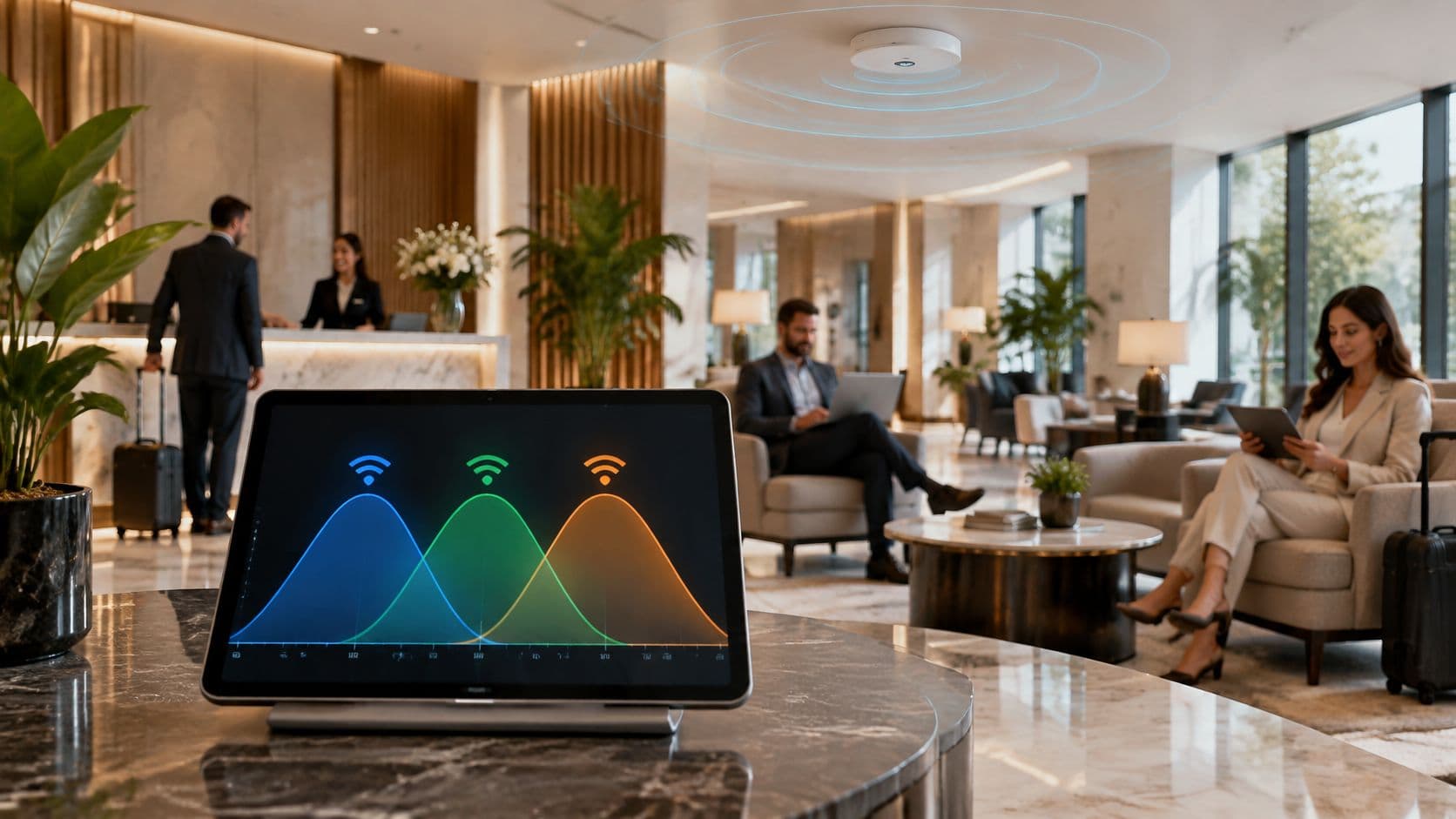
Turn the power up. Add another access point. Tell the guest to move closer to the router. That is still the first advice most venue teams get, and on a busy floor it is often the change that makes service worse. A phone can show full bars while a page, a charting screen or a video call stalls, even when the broadband circuit into the building is fine. The fault is usually the access point signal at the seat someone uses, or the airtime on that channel, not a missing line. What follows is how a senior network lead would brief a hotel or hospital team: concrete dBm targets, an honest look at power and density, and one next change based on a busy-hour check rather than a louder radio.
Why Full Bars Still Feel Like a Weak Signal
A guest in a hotel lobby stares at a loading icon. The Wi-Fi symbol shows full bars. A clinician on a ward sees the same symbol and waits on a page that should already be open. Neither person has the simple coverage hole the icon suggests.

An access point signal is the radio energy one client receives from one access point. Teams usually read that energy in dBm. The useful half of the reading is how clean that energy is against noise. Phone bars squash a vendor-specific icon into a few marks. They don't say whether the fault is weak power, a noisy channel or a busy uplink.
The line into the building is a separate job
A fast broadband circuit does not paint a usable signal into a far bedroom, a meeting room or a ward bay. Treat the edge of the area people use as the test, the habit taken from UK healthcare network practice. Aim near −67 dBm there, and always pair the reading with signal-to-noise ratio (SNR).
Read the ratings, then see what band, walls and transmit power do. Walk the floor with one repeatable check. Only then decide whether to move an access point, lower its power or add a smaller cell.
A higher dBm figure is not automatically a better service.
RSSI SNR and dBm Ratings That Define a Good Signal
dBm is a logarithmic power scale, and Wi-Fi readings on it are negative. A move from −70 dBm to −67 dBm is a real gain, about twice the power, because each extra 3 dB doubles the energy. RSSI is the client's own report of received power from the access point it has joined. SNR is how many decibels that signal sits above the noise floor. A noisy band can spoil a flattering RSSI, which is why the two numbers travel together.
For UK enterprise and healthcare design, NHS England's Wi-Fi performance guidance classifies primary RSSI above −67 dBm as excellent on 2.4 GHz, 5 GHz and 6 GHz, −67 to −75 dBm as good, −75 to −79 dBm as fair, and below −79 dBm as poor. The same guidance calls SNR above 25 dB excellent, 15–25 dB good and below 10 dB poor, and it lists 20–50 ms latency as excellent and 50–250 ms as good.
Access point signal ratings for UK design
| Rating | RSSI | SNR | Latency cue |
|---|---|---|---|
| Excellent | Above −67 dBm | Above 25 dB | 20–50 ms |
| Good | −67 to −75 dBm | 15–25 dB | 50–250 ms |
| Fair | −75 to −79 dBm | No named SNR band between good and poor | No latency band stated |
| Poor | Below −79 dBm | Below 10 dB | No latency band stated |
Why RSSI without SNR misleads
Say a handset in a ward bay reports −65 dBm. On the table that looks better than excellent. If neighbouring access points share the channel, or a microwave, cordless phone or wireless camera lifts the noise floor, SNR can fall into the poor band and pages still stall. The NHS guidance is explicit that a nominally strong −65 dBm signal can deliver a poor experience when co-channel interference or non-Wi-Fi noise reduces SNR.
Work a quick example at the seat. Signal −67 dBm, noise floor −92 dBm, SNR 25 dB. That pair is an excellent signal sitting just at the excellent SNR line. The same −67 dBm against a noise floor of −75 dBm is only 8 dB of SNR, which the guidance treats as poor. The bars would not have told you which case you were in.
Latency is how that radio quality shows up in apps. Voice, video calls and clinical tools feel different at 20–50 ms than they do once delay stretches toward 250 ms. A coverage plot that never checks delay during a busy clinic or check-in rush will sign off a network that fails the moment people use it.
Practical rule: Design to about −67 dBm at the service boundary, confirm at least 15–25 dB SNR, and read channel utilisation while the venue is busy, not only overnight.
Don't sign a lobby, a bay or a bedroom off on RSSI alone. The three checks, edge RSSI, SNR and a busy-hour look at the channel, are the minimum before anyone touches transmit power.
How Band Walls and Power Reshape Coverage
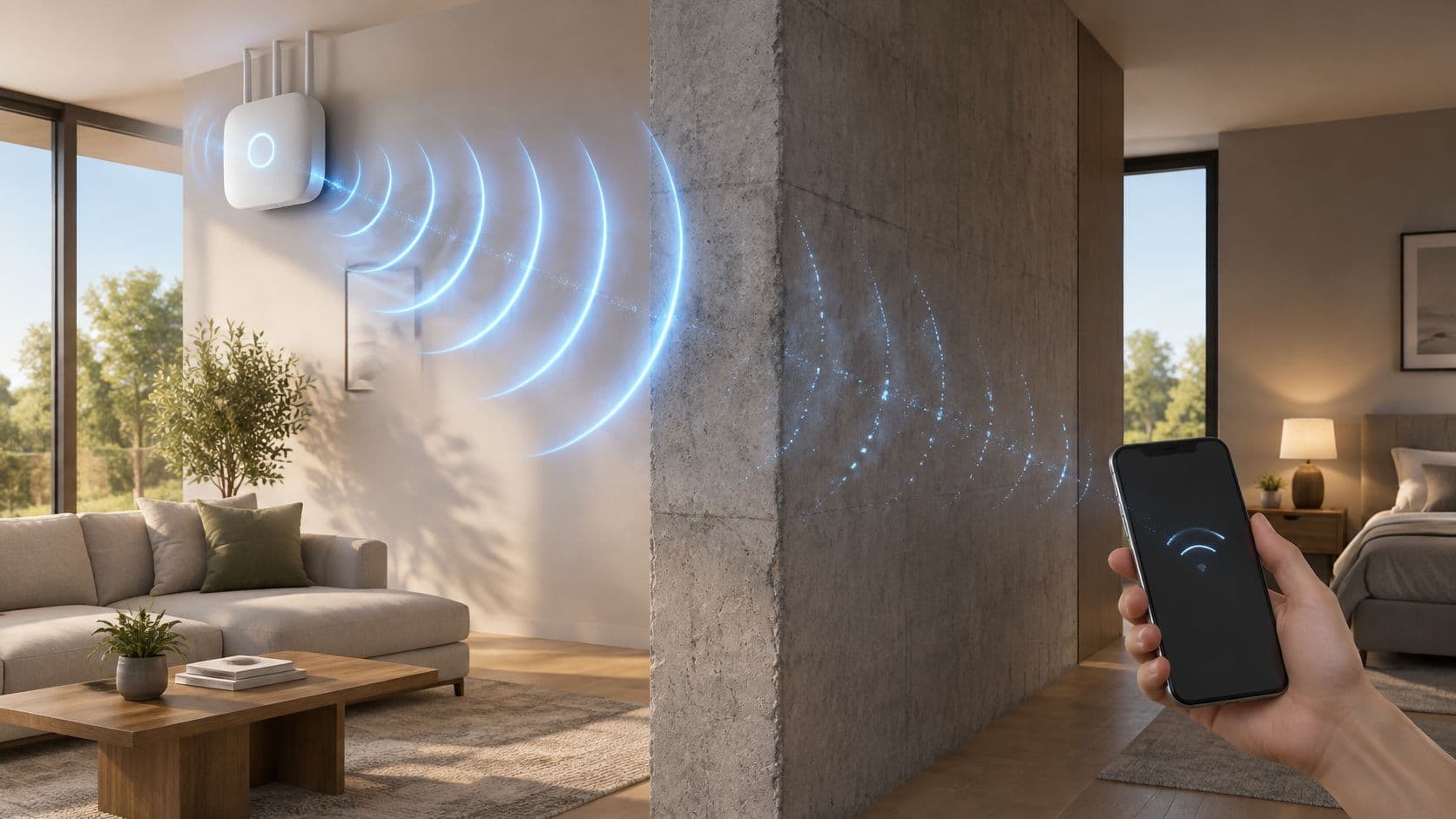
A strong signal at the access point does not guarantee a strong, usable connection at the client. Walls weaken radio signals, while excess transmit power can make an access point audible beyond the range where a phone or laptop can reply. In UK venues, band choice, building materials and busy-hour channel use determine whether to add power or improve coverage another way.
Ofcom's consultation on spectrum access for Wi-Fi reports 83 MHz available for Wi-Fi at 2.4 GHz and 585 MHz at 5 GHz. The 2.4 GHz band generally reaches farther, but is more exposed to interference and has only three non-overlapping 20 MHz channels. The 5 GHz band offers more channel capacity, though walls weaken it more.
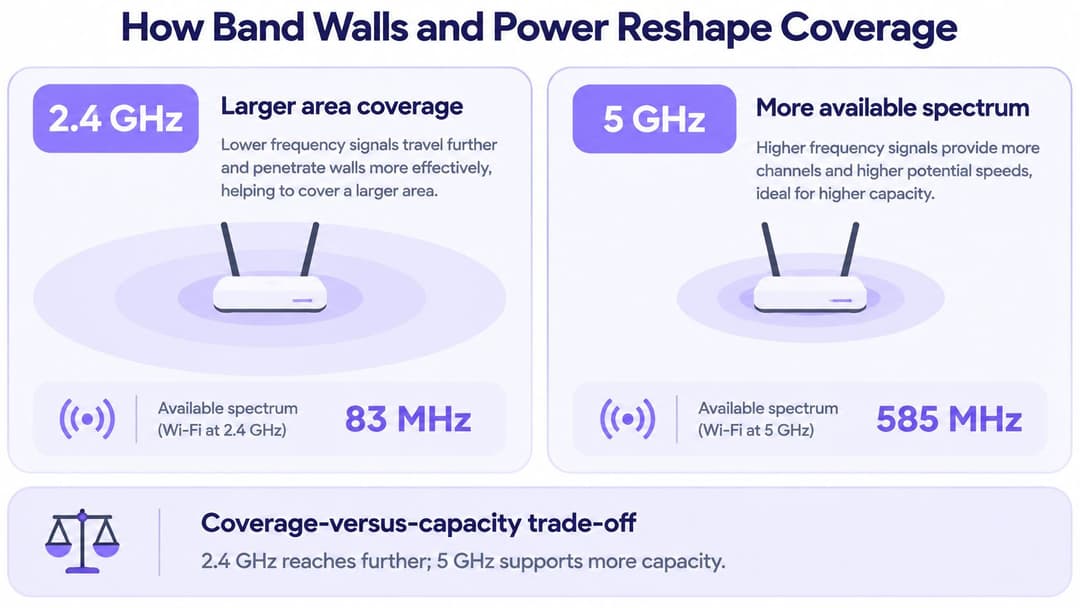
Ofcom's airborne measurements over London found 5 GHz signals attenuated by approximately 6.4 dB more than 2.4 GHz signals. Walls, floors and dense materials add further loss. A corridor may have usable 2.4 GHz coverage while a nearby room has only a fair 5 GHz signal, particularly behind brick, concrete or low-emissivity glass.
The trade-off is like choosing between a voice that carries farther but competes with more background noise, and a clearer conversation that fades sooner behind a closed door. Use each band for the job it can do.
What each Wi-Fi band does to an access point signal
| Band | Spectrum noted for the UK | How the signal behaves | Sensible role |
|---|---|---|---|
| 2.4 GHz | 83 MHz; three non-overlapping 20 MHz channels | Larger area, more interference | Reach and legacy devices only |
| 5 GHz | 585 MHz | About 6.4 dB more attenuation than 2.4 GHz in London airborne tests; weaker through walls | Primary capacity |
| 6 GHz | Newer band with more channels; support depends on client devices | Shorter range indoors than 5 GHz | Extra capacity for capable clients, not a rescue for older devices |
The asymmetric link
Turning up access-point power can create a one-sided connection. The access point may reach a distant seat, but a phone or laptop has a smaller radio and may not send back at the same power. Acknowledgements can fail, data rates can fall and retries can rise, even when the phone reports a strong signal.
Set cell size and channel use to suit the building. In dense spaces, smaller cells and additional access points usually serve users better than one high-powered radio in the middle of the floor. Use 2.4 GHz mainly for reach and older devices, and 5 GHz as the main capacity band. Where interference or client density makes wider channels inefficient, use 20 MHz channels so neighbouring cells can reuse spectrum cleanly. Treat 6 GHz as a shorter-range capacity layer for compatible clients, not a fix for devices that cannot connect to it.
How to Measure an Access Point Signal on Site
Poor access point signal is not the same problem as slow broadband. In a September 2025 survey of 2,000 adults, cited in UK government stakeholder forum papers on audience internet access, 53% said they experienced regular Wi-Fi problems, and 38% said they walked around their homes searching for a better signal. Walking the corridor finds a stronger icon. It doesn't tell you whether RSSI is weak, the channel is full, the client refused to roam, the backhaul is tight, the walls are eating the signal, or one access point is overloaded.
That split matters most in hotels, care settings, student accommodation and multi-tenant buildings. A handset can show a strong signal and still fail because the cell or the uplink is full.
Tools before you walk
Read RSSI and SNR from the client's own Wi-Fi diagnostics, or from a laptop wireless monitor such as Windows wireless details or macOS Wireless Diagnostics. Read channel utilisation and retry counters in the controller or access point dashboard, whether that view is Meraki, Aruba, Ruckus or Mist. Use the same handset model and the same height for every reading. Log each value with its time and seat so the busy-hour check can be repeated. A Wi-Fi heat map is useful after the numbers exist, not instead of them.
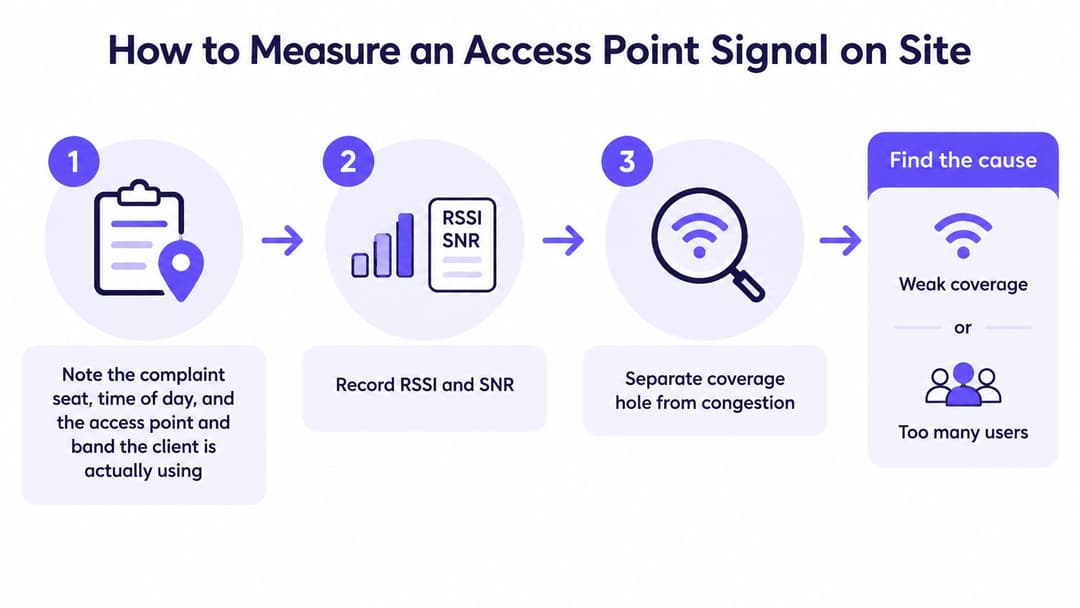
- Note the complaint. Record the seat, the time of day, and the access point and band the client is using, not the one you hoped it would use.
- Record RSSI and SNR at standing and seated height in that seat. A reading taken beside the access point flatters the design and misses the person who complained.
- Compare the pair with the service-edge target near −67 dBm and at least 15–25 dB SNR. Both have to pass.
- Read the busy hour. Check channel utilisation and retransmission or retry counters while the area is in use, not only overnight when the channel looks empty.
- Watch the client. Note the data rate, and whether the device sticks to a distant access point instead of roaming to the nearer cell.
- Check delay if the app cares. For voice or clinical tools, compare latency with 20–50 ms as excellent and 50–250 ms as good.
- Classify the result. Weak RSSI at the edge is a coverage problem. Strong RSSI with high utilisation, retries or a stuck roam points to congestion, backhaul or an overloaded access point.
Transmit power, or another access point, waits until this split is clear. Extra power can worsen contention when the fault is too many radios already sharing the channel. Adding hardware on top of a stuck roam does the same.
Placement and Cell Size That Raise Quality
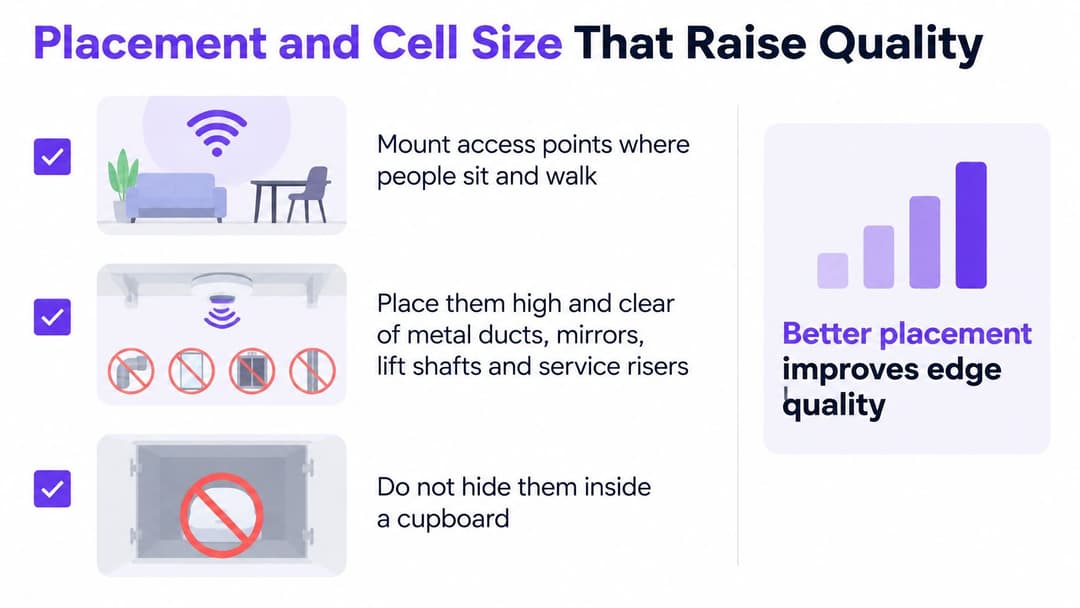
Start at the worst seat, the one that failed the floor check, and fix placement before you touch the power slider. Mount access points where people sit and walk. A corridor mount in a hotel or a block of flats leaves bedrooms on the fringe, which is exactly where guests and residents judge the network.
Put them high and clear of metal ducts, mirrors, lift shafts and service risers. Don't hide a radio in a cupboard to tidy the ceiling. A cupboard is a Faraday cage you installed on purpose. Keep antennas in the orientation the vendor designed. Bending an external antenna "toward the room" often puts a null where users stand.
A grid of quieter cells
Prefer a grid of lower-power cells over one loud access point in the middle of a floor. Overlap neighbouring cells enough for a roam, and not so much that clients camp on the wrong radio all afternoon. An access point calculator helps you sketch how many cells a floor needs before cable is pulled. It doesn't replace the seated reading.
Materials decide the cell, not the corridor
Treat building materials as the design input. Brick, concrete, lift cores and low-emissivity glass steal far more than a plasterboard partition, so an excellent corridor reading can be only fair one room away. Walk that room. If the edge fails, move the access point closer to the seats or add a lower-power cell on the far side of the obstruction. Don't compensate by shouting through the wall.
Set a sensible minimum data rate so a distant legacy client doesn't drag the whole cell down to its speed. Leave channel-width choices to the band plan. Wider isn't kinder in a dense building.
More transmit power is the last lever, not the first.
Prove the move at the same worst seat. Same handset, same height, same band. Compare RSSI and SNR with the design targets, then leave the seat alone until the busy hour and check utilisation again. One change, one re-measure. If you move the radio and raise power in the same visit, you won't know which change helped.
Strong Signal Slow Service and the Right Fix
Louder is not the default fix. A client at a strong RSSI can still crawl when co-channel interference dominates, when dozens of devices share one cell, or when roaming never leaves a distant access point. Newer generations don't cancel that. In stadiums, transport hubs, hospitals and shopping centres, capacity comes from indoor and outdoor separation, channel reuse, client mix and power coordination, not from swapping the badge on the access point to Wi-Fi 6E or Wi-Fi 7.
UK government-backed spectrum-sandbox modelling, set out in a simulation report deposited with Parliament, found that colocating a Wi-Fi access point and mobile equipment reduced downlink throughput by an average of 27%. In some configurations, uplink throughput fell by as much as 34%. Separate economic-assessment work says shared upper-6 GHz use could bring benefits, but interference and the cost of coordination cut those gains, and its scenarios assume Wi-Fi and mobile networks exploit that spectrum from 2026. That coordination cost belongs in the design now, as a projection, not as a surprise later.
Many handsets stay on 5 GHz or 2.4 GHz. A 6 GHz radio doesn't rescue them. In a dense hall, more low-power, well-planned access points beat fewer high-power units, because each client can hear a nearby radio and still get a turn on the air.
What a bad experience means after you have the numbers
| What you see | What it usually is | First change |
|---|---|---|
| RSSI and SNR already good or excellent, high busy-hour utilisation | Congested cell or uplink | Retune channels and shrink the cell; don't raise power |
| RSSI poor at the seat people use | Attenuation or a badly placed cell | Move the access point or add a lower-power cell, then re-measure |
| Strong RSSI but the client stays on a distant access point | Roam failure | Adjust overlap and roam behaviour, not transmit power |
| New 6 GHz radios, many clients still on 5 or 2.4 GHz | Device mix, not a coverage hole | Keep 5 GHz as primary capacity for those clients |
Pick one row. If the radio already looks good and the channel is full at busy hour, retune with a Wi-Fi channel planner, shrink the cell and correct roaming and the uplink. If the seat people use is weak, move the access point or add a quieter cell. If the client clings to a far radio, fix overlap and roam behaviour. Don't stack a second change on top until you have measured the first.
Once that radio plan holds, Purple runs as a cloud overlay on the access points a venue already owns, so there's no rip and replace. The technology is hardware-agnostic, and Connect includes network analytics that monitor speed and venue coverage. Visibility after the design is what stops the next "turn it up" ticket.
Close the loop on one seat. Record RSSI, SNR and busy-hour utilisation, change one variable, and measure again at the same height. If the page still stalls, you have a different row in the table, not a reason to add power.
Purple gives hotels, hospitals, housing and other venues guest, staff and multi-tenant access on the access points you already run, with analytics that watch speed and coverage once the radio plan is honest. If full bars and slow pages are still landing on your desk, start with the worst seat and a single measured change, then see how that overlays your existing hardware. Visit Purple to map the next step for your floor.