Ofcom reports that 83 MHz is available for WiFi at 2.4 GHz and 585 MHz at 5 GHz, a combined 668 MHz across the two established bands, in its consultation on spectrum access for WiFi. That split is why a site chasing the highest advertised speed still runs out of clean air. Width, radar rules and the number of nearby access points decide usable capacity long before the broadband circuit does.
WiFi channels UK venues can legally use are a reuse problem, not a search for one quiet channel. A channel that looks empty in the lobby is often busy on the floor above, and a wide channel that looks fast on a single access point steals spectrum from its neighbours. Plan reach on 2.4 GHz, capacity on 5 GHz, and a 6 GHz layer only for clients that can join it.
Legal WiFi Channels in the UK at a Glance
UK WiFi uses 2.4 GHz channels 1 to 13, 5 GHz channels in the 36 to 165 range, and 6 GHz channels inside the lower band, 5925–6425 MHz. Channel 14 is not used for WiFi in the UK. The table lists channels available for licence-exempt use, not every entry a router menu can display. Set the country code to the United Kingdom before you trust that menu.
| Band | Channels in use | Width options | DFS needed | Best role |
|---|---|---|---|---|
| 2.4 GHz | 1–13, planned on 1, 6 and 11 | 20 MHz | No | Reach, IoT and older devices |
| 5 GHz lower | 36, 40, 44, 48 | 20–80 MHz | No (confirm indoor-only limits for outdoor use) | Core indoor capacity |
| 5 GHz middle | 52–64 and 100–144 | 20–160 MHz | Yes | Capacity where brief radar vacates are acceptable |
| 5 GHz upper (5.8 GHz) | 149–165 | 20–80 MHz | No, DFS no longer required | Clean capacity for high-density sites |
| 6 GHz lower (5925–6425 MHz) | Channels across 5925–6425 MHz | 20–160 MHz | No | High-density capacity for compatible clients |
The planning rule is short. Use 1, 6 and 11 on 2.4 GHz, treat 5 GHz as the primary capacity layer, and keep 6 GHz for compatible devices.
How to read the table
Read it in this order, and stop if a row doesn't match the hardware.
- Check client support. Note which bands each device type can join. A WiFi 6 laptop is not automatically a 6 GHz client.
- Choose width second. A wider channel raises the peak for one radio and removes a clean slot from the neighbours.
- Check DFS before you commit. A channel that needs radar protection can move under you. Lower 5 GHz channels may also carry indoor-only limits, so an outdoor site has to confirm the row before it goes live.
Practical rule: If the country code is wrong, the access point can offer channels the UK doesn't allow, or hide ones it does.
Why 2.4 GHz runs out of clean channels
2.4 GHz works like a small car park with three marked bays: channels 1, 6 and 11 at 20 MHz. Each access point parks in one. A neighbour who straddles the lines blocks more than their own space, because overlapping selections raise both co-channel and adjacent-channel interference. The problem shows up first in dense venues, flats and offices.
The scan is where the planning mistake starts. A survey that shows channel 4 looking quiet tempts a planner off the standard three, but channel 4 overlaps both 1 and 6, so it degrades two cells instead of cleanly using one. On this band, channel choice is an airtime budget, not a search for the emptiest number. Three non-overlapping 20 MHz channels are the entire reuse pool, so the band's total capacity is fixed no matter how many access points get added.
A fourth cell has to share one of the three.
The spectrum above 2.4 GHz is wider, though it brings its own limits. The 5 GHz band supports 20, 40, 80 and 160 MHz widths and higher peak throughput, yet availability is not uniform. Part of the band runs under Dynamic Frequency Selection (DFS) rules, so access points must detect and give way to military and meteorological radar, and wide non-DFS options are limited. That constraint matters in hospitality, retail, healthcare and other high-density sites where the plan has to hold under load.
Back on 2.4 GHz, a 40 MHz channel covers more than one of the three bays. Two cells that both try it end up contending for the same air, even when their centre channels look different on a scan. The workable plan is 20 MHz on 1, 6 and 11, arranged so no two neighbouring access points share a bay. Draw the floor, mark each radio, and refuse any layout that puts adjacent radios on the same number.
What still belongs on 2.4 GHz
2.4 GHz still earns its place. It reaches further through walls, and it is the band that older laptops, printers, sensors and battery IoT devices still speak. That is a reach and compatibility argument, and it carries real weight in buildings where those devices are part of the service. Headline speed is the wrong test here, because width, interference, radar rules above and the count of nearby radios all set what users get. Keep the band for the devices that cannot leave it.
Channel Width Trade-Offs and the 6 GHz Gain
A wider channel raises peak speed for the client that holds the air, and it spends more spectrum per access point. Fewer neighbours can then reuse the same frequencies. That is the whole trade-off. Speed for one radio, fewer independent cells for the floor.
| Width | Peak throughput | Clean channels in the UK | Best use | Main risk |
|---|---|---|---|---|
| 20 MHz | Lowest peak, most reuse | 24 in 6 GHz; many across 5 GHz | Dense venues, IoT, many clients | Lower peak per client |
| 40 MHz | Roughly double 20 MHz | Fewer clean slots, especially at 2.4 GHz | Typical homes and small offices | Overlap with neighbours |
| 80 MHz | Roughly four times 20 MHz | Six in 6 GHz; only one non-DFS in UK 5 GHz | Spaced access points with capable clients | Contention and DFS exposure |
| 160 MHz | Highest theoretical peak | Three in 6 GHz | Single-AP or low-density sites | Hard to reuse in dense layouts |
The UK's lower 6 GHz allocation, 5925–6425 MHz, adds 500 MHz of contiguous spectrum. Ofcom's technical assessment of improved WiFi spectrum access states that this supports 24 non-overlapping 20 MHz channels, six 80 MHz channels and three 160 MHz channels for WiFi 6E and WiFi 7. The initial low-power indoor regime permits up to 250 mW EIRP, with very-low-power operation also available for suitable devices, so indoor capacity can rise without ignoring incumbent services. Ofcom has also decided to remove DFS requirements from the 5725–5850 MHz portion, which simplifies the upper 5 GHz plan.
6 GHz is not a coverage replacement. It has higher propagation loss than 5 GHz and weaker wall penetration, so it suits dense rooms and compatible clients. Space access points more closely, confirm the client has a 6 GHz radio, and keep 5 GHz for longer range and older devices. A practical design sequence for widths, power and reuse is set out in our WiFi RF engineering guide.
Working widths, in plain terms:
- 20 MHz in dense venues and IoT zones, where reuse matters more than a lab speed test.
- 40 MHz in a typical home or small office with few neighbouring radios.
- 80 MHz only where access points are spaced and clients support it.
- 160 MHz mainly for a single access point or a low-density test.
Channel width is a choice about neighbours, not about speed alone.
DFS channels and radar rules explained
DFS is a capacity trade. Channels 52 to 64 and 100 to 144 are usable in the UK only because the access point accepts a condition: listen for radar, and leave if radar appears. A detection can force a channel change and a short client drop. Voice calls, video and point-of-sale traffic notice it; a file download often doesn't.
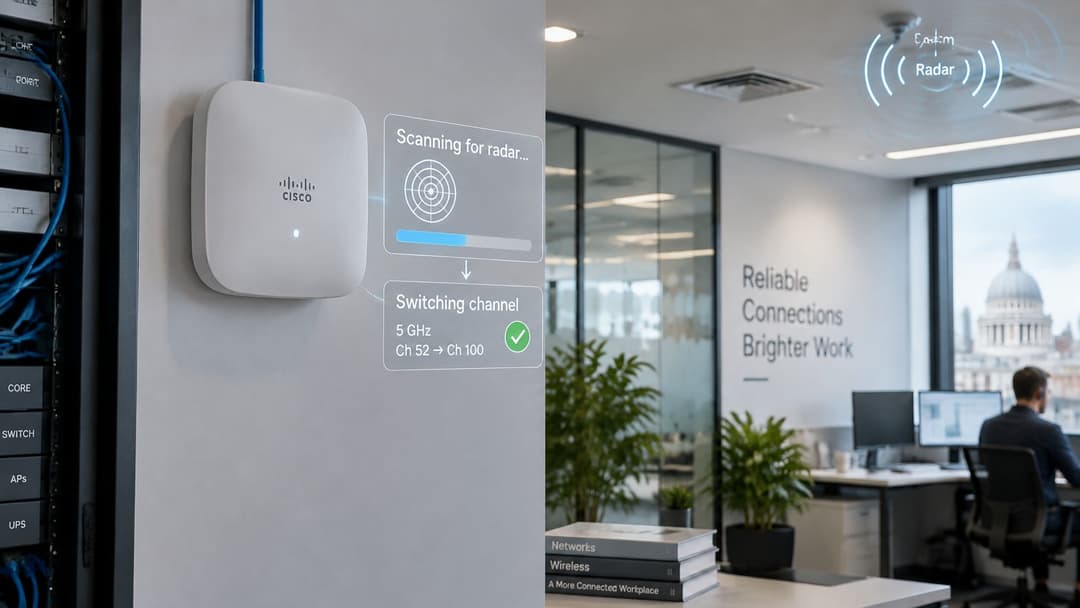
The Ofcom 6 GHz statement gives the spectrum maths: about 585 MHz at 5 GHz versus 83 MHz at 2.4 GHz, with only three non-overlapping 20/22 MHz channels below. That is why 5 GHz carries the reuse plan, and why wider 40, 80 or 160 MHz channels raise peak rate while spending spectrum that could have served neighbouring cells. The same statement is clear on radar: access points must detect it and vacate when required, and those events cause channel changes and temporary client disruption.
The operational response is good practice rather than an Ofcom instruction. Put SSIDs that cannot tolerate a move on non-DFS channels, let general guest traffic use DFS capacity, and use automated RF management where it is available because it reacts to interference faster than a manual plan. Hotels, retail sites, hospitals and multi-tenant buildings feel this first because many independently managed access points compete for the same spectrum.
Where critical SSIDs should sit
Keep voice, clinical alerts and payment SSIDs off the radar-shared range. Indoors that is 36 to 48; where the site permits it, 149 to 165 is the other clean set, and those upper channels no longer carry a DFS requirement. Leave DFS channels for browsing and guest traffic that can survive a brief move. After a complaint, open the controller's DFS event log before changing power or adding radios: a plan that ignores radar can look clean in a quiet survey and fail during the trading peak.
How to plan your channels and confirm the plan
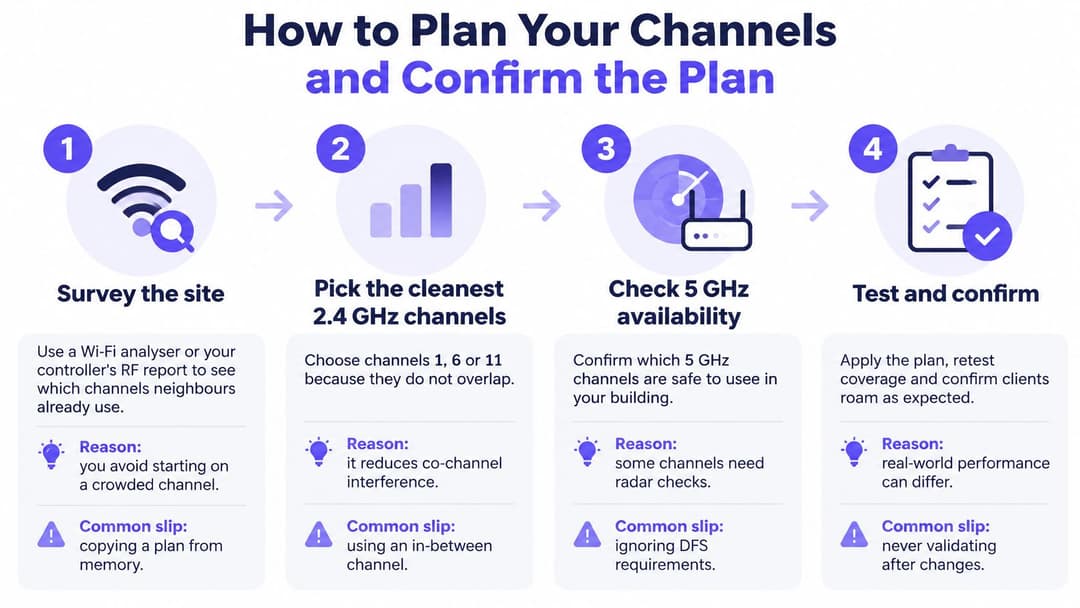
Work in this order. Each step has one reason and one slip that undoes it.
- Survey during the busy hour. Use a WiFi analyser, or the controller RF report, and record which channels neighbours already occupy. Reason: a plan copied from a quiet Sunday misses actual contention. Slip: surveying once, at a time when the building is empty.
- Sort clients by band, not by logo. List what can join 6 GHz, what stops at 5 GHz, and what is stuck on 2.4 GHz. Reason: the migration only helps devices that can hear the new radio. Slip: assuming WiFi 6 support means 6 GHz support.
- Lock 2.4 GHz to 20 MHz on 1, 6 and 11. Neighbouring access points never share a bay. Reason: three non-overlapping slots is the whole band. Slip: enabling 40 MHz because the datasheet looks better.
- Make 5 GHz the primary layer. Use 40 MHz in typical rooms and 80 MHz only where access points are spaced and the scan is clear. Reason: an 80 MHz channel spends four 20 MHz slots. Slip: painting an entire dense floor with 80 MHz.
- Reserve non-DFS channels for critical SSIDs. General traffic can sit on DFS. Reason: a radar move hurts a till or a handset more than a guest browsing. Slip: letting automatic selection park a voice network on a DFS channel.
- Turn on 6 GHz in the dense rooms first. Keep 5 GHz beside it for coverage and older clients. Reason: 6 GHz doesn't punch through walls the way 5 GHz does. Slip: treating 6 GHz as whole-building coverage.
- Constrain automatic selection. Let it run only inside a fixed allowed set, and review it after any new neighbour or hardware change. Reason: an open algorithm will drift back onto the crowded defaults. Slip: leaving selection unrestricted.
Before you roll it out
Check every chosen channel against the UK list above. Record airtime and retry rates, not just signal bars. Validate the plan in one pilot area before you push it across the estate with automated RF management. A healthy result shows modest airtime use, few retries and a stable client count per access point. Change one variable at a time and keep a note of each change, including the date and the floor.
Say a 40-room hotel floor has tills, staff handsets and guest phones on the same radios. Size the access point count for that mix before you argue about 80 MHz. Our access point calculator is the quick check. Purple is a WiFi platform for venues with three products, Guest WiFi, Staff WiFi and Multi-Tenant WiFi, and Staff WiFi runs on the access points a venue already owns, with zero PKI to build. The channel plan still has to be right, or the login layer sits on congested air.
Channel layouts for hotels, offices and retail
A hotel floor, an open-plan office and a supermarket draw from the same UK channel list, yet each needs a different layout. The working split holds across all three: keep 2.4 GHz for long-range, legacy and IoT devices, run 5 GHz selectively as the capacity layer, and reserve 6 GHz for compatible high-throughput clients. Ofcom opened the lower 6 GHz band, 5925–6425 MHz, for licence-exempt WiFi and other radio local-area-network technologies to add capacity where large device counts were congesting the older bands. Congestion stays location-specific. The same channel can be quiet in one room and busy in the next, and it shifts with neighbouring networks, client mix and width.
| Venue | 2.4 GHz role | 5 GHz width | 6 GHz use | Key note |
|---|---|---|---|---|
| Hotel | Legacy and IoT, such as smart locks | 40 MHz in rooms, 80 MHz in corridors | Compatible guest devices in dense rooms | Keep non-DFS channels for staff and payment SSIDs |
| Office | Phones and older laptops | 40 MHz with spaced access points | Meeting rooms and video-heavy desks | Test airtime before enabling 80 MHz |
| Retail store | Scanners and tills on a separate SSID | 40 MHz on the sales floor | Limited, unless devices support 6 GHz | Protect point-of-sale on non-DFS channels |
| Hospital ward | Medical IoT and legacy devices | 20 to 40 MHz to limit overlap | Clinical tablets where supported | Reserve non-DFS channels for latency-sensitive traffic |
| Student or multi-tenant block | Legacy devices and shared areas | 20 to 40 MHz per unit | Compatible devices in dense units | Overlap between units is the main risk |
On a hotel floor with many rooms and independently managed neighbouring access points, airtime reuse sets the ceiling long before the ISP link does. A ward needs its latency-sensitive devices on non-DFS channels even when the survey looks clean. A shop keeps point-of-sale on its own SSID, away from the guest channel. Judge each layout on airtime utilisation and retry rates in that space, because signal strength alone says little about how full the channel already is. The venue layout decides the width.
Move clients onto 6 GHz only when a meaningful share of devices support it, and only after airtime or retries stay high on 5 GHz once channel and width changes have already been tried. A 6 GHz radio needs compatible clients, travels less well through walls, and can demand denser access point placement. Stage it one floor or zone at a time, adding radios where the 6 GHz signal falls short.
Student and multi-tenant blocks are the awkward case, because each unit may run its own kit. Our multi-tenant WiFi guide covers isolation between those units. While you retune radios, close the easy setup paths too: understanding the WPS button shows why that convenience feature suits a home router far better than a shared venue network.
A single "least congested" channel doesn't exist for a whole building. It changes by room, by hour and by how wide you set the radio.
Troubleshooting Channel Interference
The usual complaint is slow WiFi with a strong signal. The radio is loud enough. The air is full. Clients wait their turn, retries climb, and the speed test looks nothing like the datasheet.
| Symptom | Likely cause | Fix |
|---|---|---|
| Slow on 2.4 GHz despite strong signal | Overlapping channels or 40 MHz width in a dense area | Set 20 MHz and move to 1, 6 or 11 without neighbour overlap |
| Frequent drops on 5 GHz at irregular times | DFS radar events forcing a channel change | Move critical SSIDs to non-DFS channels and check the DFS log |
| High retries with few clients | Co-channel contention from neighbouring access points | Lower width and reduce transmit power on dense floors |
| Video calls stutter on one floor only | Overloaded channel shared by several access points | Re-plan channels so neighbours alternate, or add an access point |
| 6 GHz devices fail to connect | Client lacks 6 GHz support or access point is out of range | Confirm device support and add an access point closer to the client |
| Channel changes every few hours | Automatic selection responding to neighbours or radar | Pin critical SSIDs to a fixed set of allowed channels |
A short diagnostic order
Check the channel and the width in use. Then look at airtime and retry rates. Scan for neighbours on the same channel. If drops arrive at irregular times, open the DFS event log before you touch anything else.
Co-channel interference is two or more radios on the same channel, so every client waits for all of them. Adjacent-channel interference is near channels that partly overlap. On 2.4 GHz, channel 1 and channel 6 are the non-overlapping pair. Something parked between them, such as 3 or 4, splatters both. Same-channel sharing is slower but polite. Partial overlap is messier, because the radios don't defer to each other cleanly.
Climb the fixes in this order, and stop when the metric improves.
- Narrow the width first. A dense floor on 40 or 80 MHz often recovers by stepping back to 20 or 40 MHz.
- Move the channel or the access point. Give neighbours different bays before you buy more hardware.
- Lower transmit power on dense floors. A radio that shouts across three rooms creates its own contention.
- Add an access point only after that. Extra radios on the same channel make the queue longer.
Automatic selection can flip channels during radar events or when a neighbour appears. Pin critical SSIDs to an allowed set so a Monday morning scan doesn't move the till network. Retest airtime after each change. If retries fall and the client count per radio stays steady, leave the plan alone.
Purple provides Guest WiFi, Staff WiFi and Multi-Tenant WiFi for venues that already have a channel plan and need secure access on those same radios. If your hotels, offices, shops or multi-tenant buildings are ready to put guests, staff and residents on separate, identity-based WiFi, visit Purple and match the product to the site.