
Fix Windows 11 802.1X & Internet Connectivity Issues Post-Upgrade
Fix Windows 11 802.1X wired and wireless network authentication failures post-upgrade. Detailed troubleshooting for wiped dot3svc profiles, Intune SCEP certificate validation errors, Credential Guard MSCHAPv2 issues, and GPO policies.
Video overview
Listen to this guide
View podcast transcript
📚 Part of our core series: Enterprise WiFi Security Guide →
Windows 11 WiFi & 802.1X Connectivity Diagnostic Assistant
Select your specific Windows 11 connection symptom and deployment environment below to diagnose root causes, generate PowerShell/CLI fix commands, and view enterprise remediation steps.
Missing 802.1X Wired Profile via Intune SCEP/PKCS
Root Cause: Windows 11 feature upgrades reset dot3svc service registry keys and purge exported WLAN/LAN profiles.
netsh lan show profilessc config dot3svc start= autonet start dot3svc- Open Microsoft Intune admin center > Devices > Configuration profiles.
- Create a Wired Network profile for Windows 10 and later using the exported EAP XML.
- Assign the profile to your Azure AD device group and trigger a remote sync via Intune.
Purple Cloud RADIUS automates zero-touch 802.1X certificate distribution and Passpoint profile provisioning without relying on local XML state.
Eliminate Windows 11 802.1X Authentication Outages with Cloud RADIUS
Purple Cloud RADIUS provides zero-touch WPA3-Enterprise authentication, Passpoint profile deployment, and automated certificate management across Cisco, Meraki, Aruba, Ruckus, and UniFi networks.
Windows 11 802.1X & Network Authentication Troubleshooter
Select your Windows 11 build, authentication protocol, deployment mechanism, and error symptom below to generate an immediate CLI repair sequence and Intune/GPO remediation steps.
Wired AutoConfig Service Authentication Loop (EAPOL Timeout)
High ImpactRoot Cause Diagnosis: The 802.1X Wired AutoConfig service (dot3svc) did not initiate EAPOL Handshake after NIC driver initialization, or 802.1X authentication mode is disabled on the Ethernet adapter.
netsh lan set autoconfig enabled=yes interface="Ethernet"
netsh lan restart- Verify that Wired AutoConfig service (dot3svc) Startup Type is set to Automatic in services.msc.
- Execute netsh lan set autoconfig enabled=yes interface="Ethernet" from an elevated Command Prompt.
- Check switch port configuration to ensure 802.1X re-authentication timer is not expiring before client response.
- Re-enable 802.1X authentication in Ethernet Adapter Properties > Authentication tab.
Need Automated Cloud RADIUS & 802.1X Certificate Management?
Purple Cloud RADIUS eliminates Windows 11 upgrade authentication failures by providing automated Passpoint certificate provisioning, zero-touch Intune payload integration, and centralized IEEE 802.1X policy management for enterprise network environments.

Executive summary
The transition to Windows 11 introduces a critical operational issue for enterprise network environments: the silent erasure of IEEE 802.1X wired authentication configurations during in-place OS upgrades. For IT directors, network architects, and system administrators overseeing managed device estates, this issue causes immediate connectivity outages, elevated support desk tickets, and compliance exposure.
The primary root cause is the corruption or complete removal of local XML configuration profiles for the Windows Wired AutoConfig service (dot3svc). When these profiles are purged, endpoints cannot perform port-based network access control authentication as defined by IEEE 802.1X.
This guide provides an authoritative methodology to diagnose, restore, and prevent Windows 11 802.1X authentication failures. It covers root cause mechanics, Event Viewer diagnostic codes, three remediation frameworks (Group Policy, Microsoft Intune, and netsh CLI), and long-term risk mitigation using cloud-native RADIUS authentication.
This guide is part of our comprehensive Enterprise WiFi Security & Authentication Guide .
Technical background and root cause analysis
IEEE 802.1X relies on three core components: the supplicant (client device), the authenticator (network switch or access point), and the authentication server (RADIUS server). On Windows endpoints, port-based authentication for Ethernet connections is handled by the Wired AutoConfig service (dot3svc).
During major Windows 11 feature updates (such as upgrading from Windows 10 to Windows 11, or updating between 22H2, 23H2, and 24H2), the operating system performs a deep migration pass across registry keys and service definitions. Three specific failures occur during this process:
1. Service state reset
The dot3svc service startup type is frequently reset from Automatic to Manual or Disabled. When the device reboots post-upgrade, the service fails to initialize automatically, preventing EAPOL (EAP over LAN) frame transmission across the physical NIC interface.
2. Profile registry purge
Local 802.1X XML profiles stored under HKLM\SOFTWARE\Microsoft\Wired-AutoConfig are often wiped during the migration pass. Without an active profile, Windows 11 cannot present client certificates or EAP credentials to the switch port.
3. Credential Guard and PEAP-MSCHAPv2 incompatibility
Windows 11 enables Virtualization-based Security (VBS) and Credential Guard by default. Credential Guard isolates NTLM and Kerberos secret hashes in a virtualized container, blocking legacy PEAP-MSCHAPv2 password hash extraction. As a result, endpoints relying on legacy PEAP authentication experience persistent Access-Reject responses post-upgrade. Upgrading to certificate-based EAP-TLS is required to restore authentication. For detailed comparison, see our WPA3 Enterprise vs iPSK Security Model guide.
4. Strict RADIUS certificate validation in Windows 11 24H2
Windows 11 24H2 enforces strict server certificate validation rules. If the RADIUS server certificate lacks a valid Subject Alternative Name (SAN) matching the 802.1X profile configuration, or if the issuing Root CA is absent from the Local Computer Trusted Root store, Windows drops the connection with Error Code 0x80070490.
Diagnostic matrix and Event Viewer reference
When troubleshooting an affected Windows 11 endpoint, use the Windows Event Viewer path:
Applications and Services Logs > Microsoft > Windows > Wired-AutoConfig > Operational
| Event ID | Log source | Error condition | Root cause | Elevated command prompt fix |
|---|---|---|---|---|
| 12014 | Wired-AutoConfig | EAPOL start timeout | dot3svc service disabled or stopped |
sc config dot3svc start=auto && net start dot3svc |
| 12015 | Wired-AutoConfig | Authentication failure (APIPA IP) | Switch port unauthenticated; device placed in Guest VLAN | netsh lan reauthenticate interface="Ethernet" |
| 5632 | Wired-AutoConfig | Explicit Access-Reject | Missing client certificate or disabled AD account | netsh lan export profile folder=C:\temp |
| 12013 | Wired-AutoConfig | Server certificate untrusted | Missing Root CA in Local Computer Trusted Store | certutil -store Root |
| 10001 | Wired-AutoConfig | 802.1X profile absent | Netsh LAN XML profile registry keys purged by upgrade | netsh lan add profile filename="C:\temp\Profile.xml" |
Automated PowerShell diagnostic snippet
Run the following elevated PowerShell commands to inspect the physical interface and 802.1X profile state:
# Check Wired AutoConfig service status
Get-Service -Name dot3svc | Select-Object Name, Status, StartType

# Display configured 802.1X wired profiles
netsh lan show profiles

# Display interface authorization state
netsh lan show interfaces
Step-by-step remediation methods
Restoring 802.1X connectivity across an enterprise estate requires selecting the appropriate management toolchain based on infrastructure architecture.
Method 1: Active Directory Group Policy enforcement (GPO)
For domain-joined endpoints, Group Policy provides automated enforcement that restores wiped profiles upon next reboot:
- Open Group Policy Management Console (gpmc.msc) on a Domain Controller.
- Edit the target Group Policy Object linked to your Windows 11 Computer OU.
- Navigate to:
Computer Configuration > Policies > Windows Settings > Security Settings > Wired Network (IEEE 802.3) Policies. - Right-click and select Create A New Wired Network Policy for Windows Vista and Later.
- Enable Use Windows Wired AutoConfig service for IEEE 802.1X network access.
- Under the Security tab, select Microsoft: Smart Card or other certificate (EAP-TLS) and configure trusted Enterprise Root CAs.
- Force policy update across client endpoints:
gpupdate /force.
Method 2: Microsoft Intune deployment (Cloud MDM)
For cloud-managed endpoints, deploy an 802.1X profile payload via Microsoft Intune. For step-by-step SCEP and PKCS certificate profile configuration, refer to our dedicated Microsoft Intune WiFi Certificate Deployment Guide .
- Export a golden 802.1X XML profile from a reference machine:
netsh lan export profile folder=C:\temp interface="Ethernet" - Open Microsoft Intune admin center (
intune.microsoft.com). - Navigate to Devices > Configuration profiles > Create profile.
- Select Windows 10 and later as Platform, and Wired network as Template.
- Paste the exported EAP XML configuration into the XML profile settings field.
- Assign the policy to your Azure AD device group to enforce automated remediation post-upgrade.
Method 3: Netsh CLI manual XML profile import
For standalone endpoints or emergency desktop support, import the profile manually via Command Prompt:
:: 1. Ensure Wired AutoConfig service is active
sc config dot3svc start=auto
net start dot3svc

:: 2. Import the reference 802.1X XML profile
netsh lan add profile filename="C:\temp\MasterWiredProfile.xml" interface="Ethernet"

:: 3. Re-trigger port authentication
netsh lan reauthenticate interface="Ethernet"
Best practices for enterprise deployments
To prevent 802.1X profile loss during future Windows 11 updates, implement the following operational safeguards:
- Embed 802.1X configuration in OS deployment baselines: Ensure Microsoft Autopilot, SCCM, or MDT task sequences apply 802.1X profiles during initial provisioning.
- Centralise policy enforcement: Avoid manually configured endpoints. Enforce network settings via GPO or Intune to ensure self-healing policy re-application.
- Implement pre-upgrade task sequence backups: Export existing profiles to a secure network share (
netsh lan export) before executing major OS upgrades. - Maintain version-controlled XML repositories: Store master XML profiles for each venue and security zone in a central repository to accelerate disaster recovery.
- Migrate from PEAP-MSCHAPv2 to EAP-TLS: Transition from password-based authentication to digital certificates to eliminate Credential Guard compatibility failures. Learn how in our What is RADIUS Authentication and How Does It Work? guide.
Troubleshooting and risk mitigation
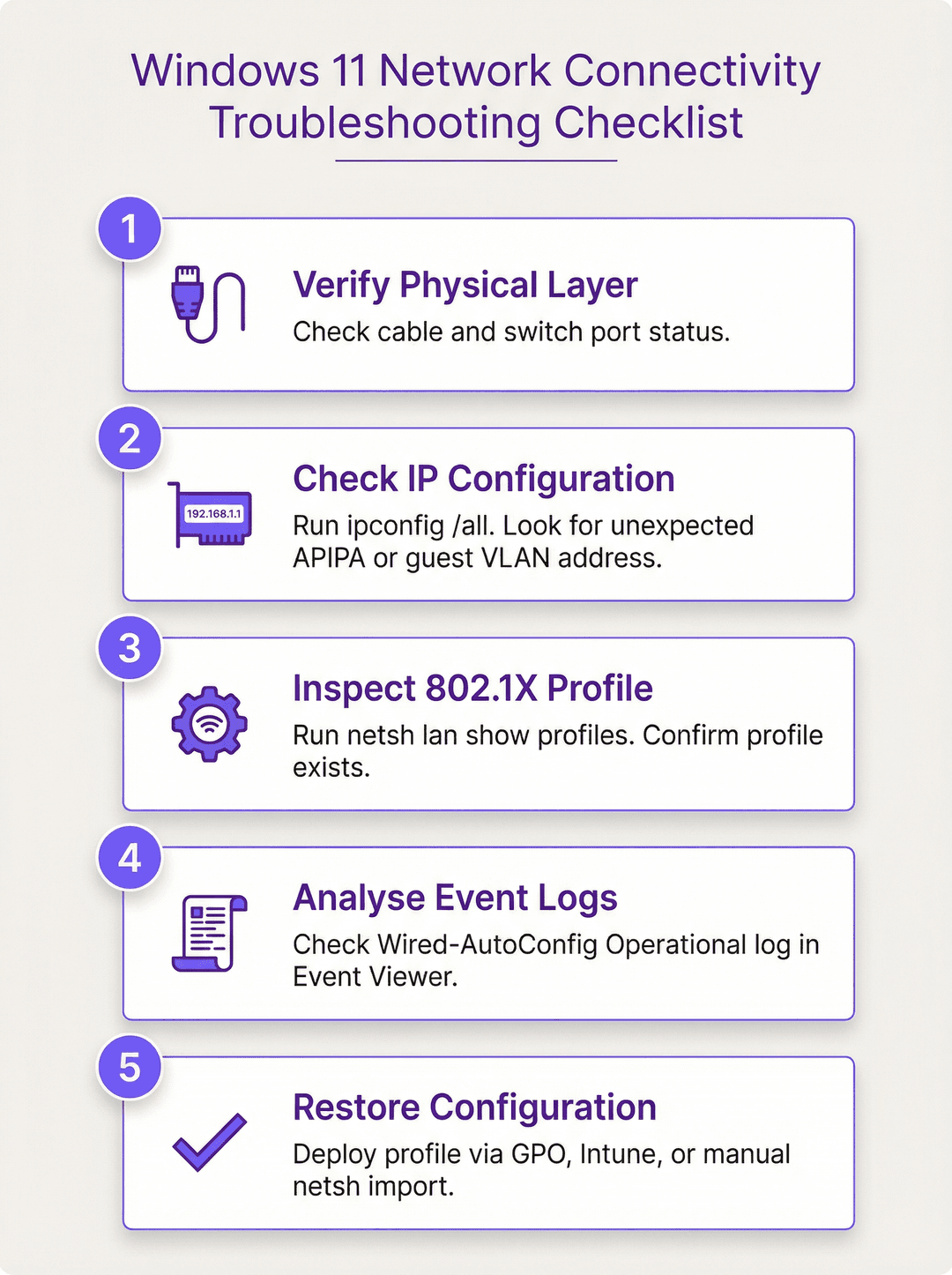
When an endpoint loses network access post-upgrade, execute this systematic diagnostic sequence:
- Verify physical layer and link lights: Confirm Ethernet link status and switch port connectivity.
- Check IP address allocation: Run
ipconfig /all. An APIPA address (169.254.x.x) indicates complete 802.1X authentication failure or switch port blockade. An unexpected subnet indicates placement in an isolated Guest VLAN. - Inspect 802.1X profile state: Run
netsh lan show profiles. If empty, the profile was purged during OS migration. - Analyze Wired-AutoConfig Event Logs: Check Event IDs 12014, 12015, and 5632 to isolate certificate, credential, or service issues.
- Apply centralized policy remediation: Trigger a policy sync via Intune or GPO to restore the profile automatically.
ROI and business impact
Unplanned network outages following OS updates carry substantial financial and operational overhead. Managing 802.1X configurations centrally yields measurable ROI across three key areas:
1. IT support cost reduction
In a 1,000-device enterprise estate, approximately 15% of endpoints experience profile loss or service reset during major OS upgrade cycles. Manually troubleshooting 150 devices at 30 minutes per ticket consumes 75 hours of Level 2 IT support time. At a loaded cost of £60 per hour, a single update cycle costs £4,500 in reactive support.
By deploying centralized Intune or GPO policies (requiring ~4 hours of architect setup time, or £240), organizations achieve full ROI on the first upgrade cycle, with an 80% reduction in network access support tickets.
2. Regulatory compliance adherence
- PCI DSS Requirement 1.2.1: Mandates strict network segmentation between cardholder data environments (CDE) and general corporate networks. Unauthenticated devices falling onto open default VLANs violate segmentation controls.
- ISO 27001 Annex A.12.1.2: Requires formal change management and configuration enforcement. Self-healing network policies satisfy audit controls.
- GDPR Article 32: Requires technical measures to ensure network data confidentiality and integrity.
3. Operational continuity for venue estates
Physical venues - hotels, conference centres, retail chains, and stadiums - depend on authenticated network infrastructure for property management systems, ticketing terminals, and POS systems. Proactive 802.1X management prevents revenue loss caused by front-desk or POS offline downtime.
Permanent resolution with Purple Cloud RADIUS
Manually restoring XML profiles or troubleshooting GPO sync delays after every Windows update creates unnecessary operational burden. Purple Passwordless Staff WiFi and Cloud RADIUS provide a cloud-native 802.1X authentication platform that eliminates local profile corruption.
- Zero-touch identity integration: Automatically authenticate devices via Microsoft Entra ID, Okta, or Google Workspace using certificate-based WPA3-Enterprise or Passpoint (Hotspot 2.0).
- 80% reduction in support tickets: Eliminate shared WPA2 passwords and manual XML profile scripts across your estate.
- Enterprise reliability: Built on hardware-agnostic cloud RADIUS architecture serving 80,000+ live venues with a 99.999% uptime SLA.
Book an enterprise WiFi technical consultation or explore Purple Passwordless Staff WiFi to eliminate 802.1X configuration failures.
Key Definitions
IEEE 802.1X
An IEEE standard for port-based Network Access Control (PNAC) that provides an authentication mechanism to devices wishing to attach to a LAN or WLAN.
Port-based network access control standard for enterprise networks.
Wired AutoConfig Service (dot3svc)
A built-in Windows service responsible for performing IEEE 802.1X authentication on Ethernet network adapters.
Windows service managing 802.1X authentication on Ethernet interfaces.
EAP-TLS
An IETF standard for mutual authentication between a client and a RADIUS server using X.509 digital certificates.
Extensible Authentication Protocol using Transport Layer Security.
netsh lan
A command-line scripting tool in Windows that enables administrators to configure, display, and export 802.1X wired network profiles.
Windows command-line utility for managing wired network settings.
RADIUS Server
Remote Authentication Dial-In User Service server (such as Microsoft NPS, Cisco ISE, or Aruba ClearPass) that authenticates client credentials.
Centralized AAA authentication server in enterprise architecture.
Worked Examples
Following a fleet-wide update to Windows 11, 20% of corporate desktop endpoints report loss of intranet access and acquire 169.254.x.x APIPA IP addresses on Ethernet connections. Running netsh lan show profiles shows zero configured profiles. What is the root cause and how should IT remediate this at scale?
- Root Cause: The Windows 11 feature upgrade migration pass purged the HKLM\SOFTWARE\Microsoft\Wired-AutoConfig registry keys, removing local 802.1X profiles while leaving switch ports in un-authenticated guest/blocked state. 2. Tactical Fix: Export a functional XML profile from a reference endpoint (netsh lan export profile folder=C:\temp) and import it on affected hosts (netsh lan add profile filename=...). 3. Scalable Resolution: Deploy an Active Directory Group Policy Object (GPO) targeting Wired Network (IEEE 802.3) Policies or an Intune Configuration Profile with a Wired Network payload to enforce profile restoration automatically.
A Windows 11 24H2 host fails 802.1X authentication. Event Viewer displays Event ID 12013: "The identity of the authentication server could not be verified". RADIUS logs show Access-Reject. What configuration change is required?
- Windows 11 24H2 enforces strict server certificate trust validation. 2. The client 802.1X profile must have ValidateServerCertificate set to true, with the Root CA present in the computer Trusted Root store. 3. The ServerNames property in the XML profile must match the Subject Alternative Name (SAN) of the RADIUS server certificate.
Practice Questions
Q1. Which Windows service must be set to Automatic startup for 802.1X Ethernet authentication to function?
Hint: Check the startup type of the Windows Wired AutoConfig service.
View model answer
The Wired AutoConfig service (dot3svc) must be set to Automatic startup type. By default on non-domain joined Windows installations, this service is set to Manual and will not perform 802.1X authentication.
Q2. What exact command exports an 802.1X profile from an active Ethernet adapter to an XML file?
Hint: Recall the netsh lan syntax for exporting network profiles.
View model answer
netsh lan export profile folder=C:\temp interface="Ethernet" exports the 802.1X profile as an XML file to the specified directory.
Continue reading in this series
Planning a WiFi 7 deployment in a clinical environment: IoMT devices, interference, and HIPAA
This comprehensive guide explores planning a WiFi 7 deployment in a clinical environment, focusing on 6 GHz band strategy, legacy IoMT device compatibility, IEC 60601 - 1 - 2 RF interference obligations, and HIPAA-aligned network segmentation. It provides actionable architecture advice for healthcare IT leaders to secure mixed device fleets using Purple's cloud RADIUS platform.
Configuring RADIUS Authentication for Guest and Staff WiFi Networks
This technical reference guide outlines the architecture, configuration, and deployment of RADIUS authentication for enterprise guest and staff WiFi networks. It provides network architects and IT managers with the exact protocols, security standards, and troubleshooting methodologies required to build secure, scalable wireless access control systems.
Passpoint and OpenRoaming: Complete Guide
This technical reference guide provides a comprehensive analysis of Passpoint (Hotspot 2.0) and WBA OpenRoaming frameworks within enterprise WiFi networks. It details the underlying authentication protocols, architectural components, and deployment strategies required to establish secure, frictionless guest connectivity. Network architects and IT leaders will learn how to design, implement, and troubleshoot these standards to eliminate manual login barriers while maintaining enterprise-grade security.
Got questions about your specific setup?
Our team works with venue operators, IT managers, and network engineers across 80,000 venues. Book a 20-minute call and we will show you how others like you solved it.