
Guida all'integrazione di MikroTik RouterOS Captive Portal e Purple WiFi
Questa guida tecnica fornisce istruzioni dettagliate per l'integrazione di MikroTik RouterOS con la piattaforma Purple WiFi. Copre la configurazione del Captive Portal per il WiFi ospiti, l'autenticazione 802.1X per il WiFi dipendenti e il WiFi multi-tenant utilizzando PSK privati per la segmentazione dinamica delle VLAN.
Ascolta questa guida
Visualizza trascrizione del podcast

Sintesi operativa
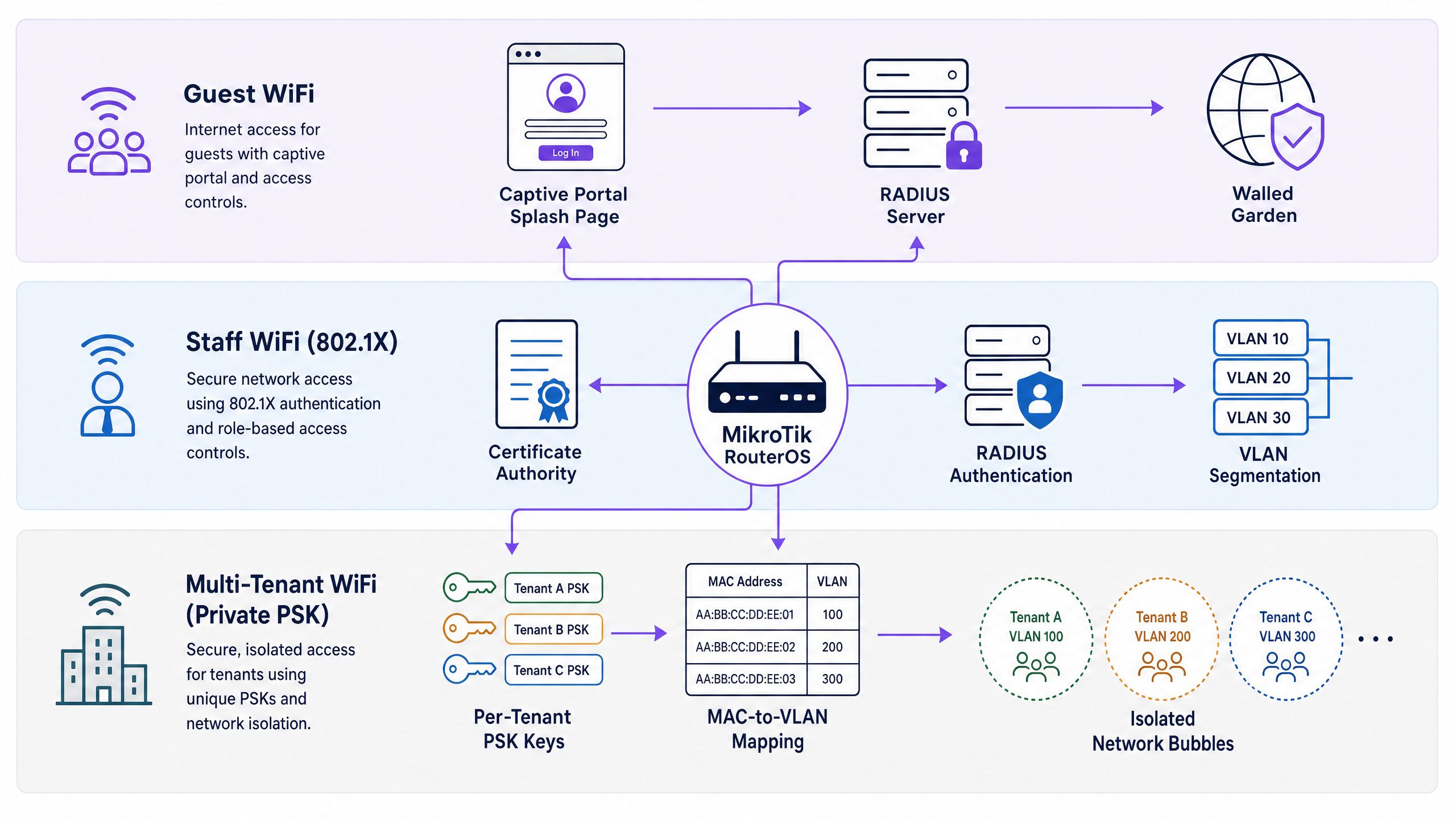
L'integrazione di MikroTik RouterOS con Purple consente di creare una rete unificata e basata sull'identità in ambienti ospiti, dipendenti e multi-tenant. Questa guida fornisce la logica di configurazione specifica richiesta per distribuire l'overlay cloud di Purple sull'hardware MikroTik. Apprenderai come configurare l'Hotspot Gateway di RouterOS per il reindirizzamento del WiFi ospiti , implementare lo standard IEEE 802.1X per un WiFi dipendenti sicuro e distribuire chiavi pre-condivise private (PPSK) per isolare il traffico WiFi multi-tenant.
Seguendo questi modelli di distribuzione, potrai segmentare la tua rete in modo sicuro e, al contempo, acquisire dati di prima parte per WiFi Analytics . Purple ha gestito 440 milioni di accessi nel 2024 con un uptime del 99,999%, rendendo questa architettura ideale per ambienti ad alta densità nei settori Retail , Hospitality e Trasporti .
Approfondimento tecnico
WiFi ospiti: Captive Portal e Walled Garden
L'Hotspot Gateway di MikroTik intercetta il traffico HTTP non autenticato e lo reindirizza al Captive Portal ospitato da Purple. Purple funge da server RADIUS, gestendo l'autenticazione e la gestione delle sessioni.
Per garantire il corretto caricamento del Captive Portal, è necessario configurare un walled garden. Questo consente l'accesso pre-autenticazione ai domini della splash page di Purple, alle reti di distribuzione dei contenuti (CDN) e ai provider OAuth (come Google Workspace e Microsoft Entra ID). Senza queste voci, il ciclo di reindirizzamento si interrompe.
In caso di autenticazione riuscita, il server RADIUS di Purple restituisce gli attributi standard, tra cui Session-Timeout per applicare i limiti di connessione e, facoltativamente, Mikrotik-Rate-Limit per applicare limitazioni di larghezza di banda direttamente dalla dashboard di Purple.
WiFi dipendenti: Autenticazione 802.1X
Per il WiFi dipendenti, l'implementazione dello standard IEEE 802.1X consente di eliminare le password condivise. L'access point MikroTik funge da autenticatore, trasmettendo le credenziali EAP al server RADIUS di Purple. Purple si integra nativamente con Microsoft Entra ID, Okta e Google Workspace, convalidando le credenziali tramite PEAP-MSCHAPv2 o EAP-TLS.
Quando un dipendente si connette, il server RADIUS di Purple può restituire l'attributo Mikrotik-Wireless-VLANID. Questo indica al router MikroTik di inserire il dispositivo autenticato in una VLAN specifica, consentendo la segmentazione della rete basata sui ruoli da un unico SSID. Per una panoramica più ampia sugli standard di sicurezza, consulta Enterprise WiFi Security: A Complete Guide for 2026 .
WiFi multi-tenant: Private PSK (PPSK)
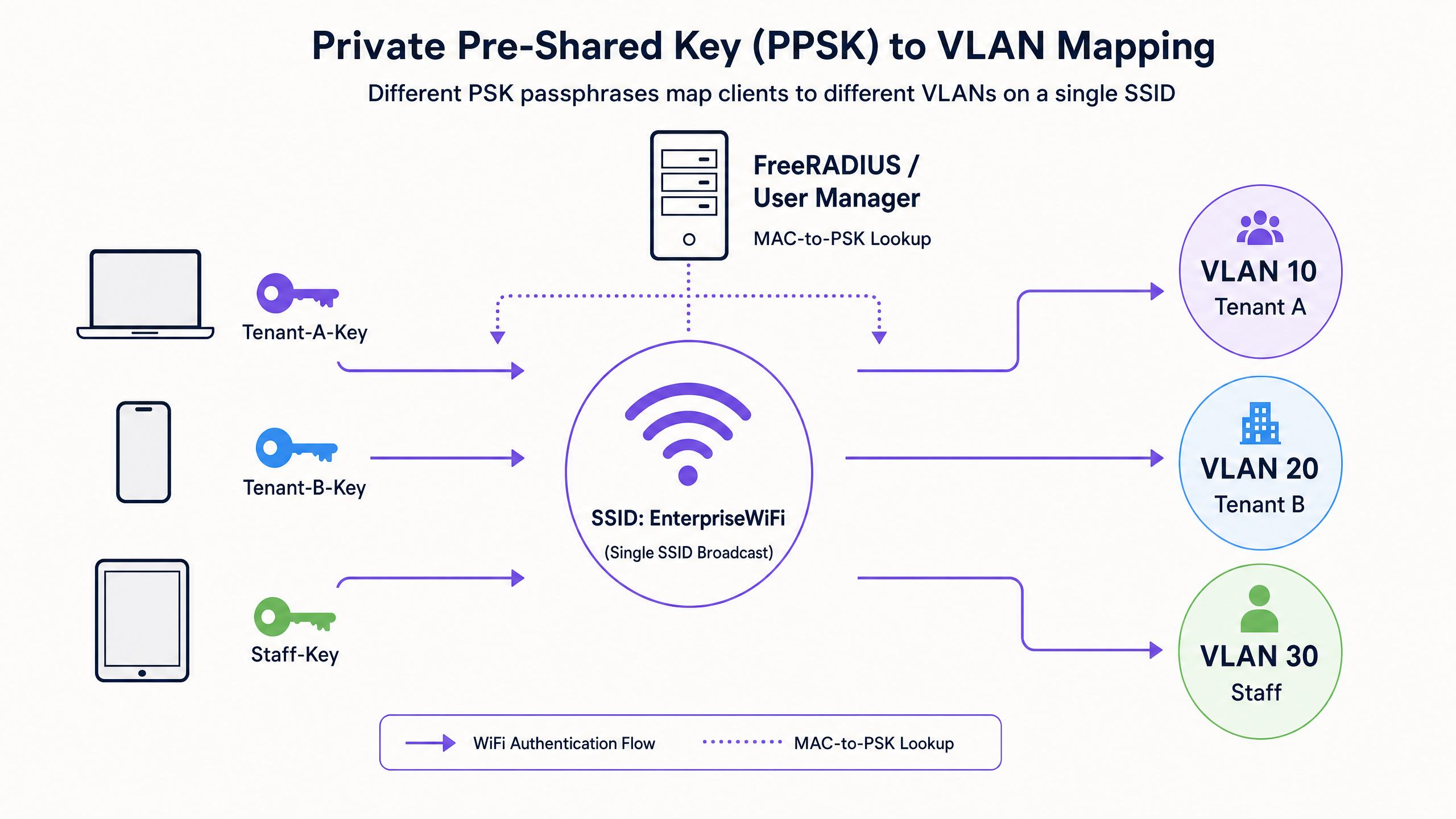
Gli ambienti multi-tenant richiedono un isolamento sicuro senza la complessità dell'802.1X, poiché molti dispositivi consumer (come smart TV e console di gioco) non lo supportano. MikroTik supporta le Private PSK (PPSK) tramite l'autenticazione RADIUS basata su MAC.
Quando un dispositivo si connette all'SSID, il router MikroTik invia l'indirizzo MAC del dispositivo a Purple. Purple restituisce l'attributo Mikrotik-Wireless-Psk (la passphrase univoca per quel tenant) e l'attributo Mikrotik-Wireless-VLANID. Questa architettura consente a centinaia di tenant di condividere un unico SSID pur rimanendo in bolle di rete completamente isolate.
Guida all'implementazione
1. Configurazione del client RADIUS
Innanzitutto, definisci Purple como server RADIUS in RouterOS. Questo passaggio si applica a tutti e tre i casi d'uso.
/radius
add address=YOUR-PURPLE-RADIUS-IP secret=YOUR-SHARED-SECRET service=hotspot,wireless authentication-port=1812 accounting-port=1813 timeout=3000ms
2. Configurazione dell'Hotspot WiFi ospiti
Esegui la procedura guidata di configurazione dell'Hotspot sull'interfaccia VLAN ospite, quindi abilita l'autenticazione RADIUS sul profilo risultante.
/ip hotspot profile
set [ find default=yes ] use-radius=yes radius-accounting=yes
Configura il walled garden per consentire l'accesso all'infrastruttura di Purple.
/ip hotspot walled-garden
add action=allow dst-host=*purple.ai
add action=allow dst-host=*purpleportal.net
3. Configurazione del WiFi dipendenti 802.1X
Configura il profilo di sicurezza wireless per utilizzare WPA2-Enterprise e indirizzalo al server RADIUS.
/interface wireless security-profiles
add authentication-types=wpa2-eap eap-methods=passthrough mode=dynamic-keys name=staff-8021x radius-mac-authentication=no
Assicurati che il filtraggio VLAN del bridge sia abilitato per supportare l'assegnazione dinamica delle VLAN.
/interface bridge
set bridge1 vlan-filtering=yes
4. Configurazione PPSK multi-tenant
Per PPSK, abilita l'autenticazione MAC sul profilo di sicurezza wireless e configura il formato dell'indirizzo MAC.
/interface wireless security-profiles
add authentication-types=wpa2-psk mode=dynamic-keys name=multi-tenant-ppsk radius-mac-authentication=yes radius-mac-format=XX:XX:XX:XX:XX:XX
Best practice
- Standardizzazione su RouterOS 7: L'assegnazione dinamica delle VLAN tramite RADIUS wireless è notevolmente più robusta in RouterOS 7 rispetto a RouterOS 6.
- Aumento dei timeout RADIUS: Il timeout RADIUS predefinito di MikroTik è di 1100 ms. Aumentalo a 3000 ms per prevenire errori di autenticazione intermittenti causati dalla latenza di rete.
- Utilizzo di voci Walled Garden basate su hostname: Utilizza sempre
dst-hostanzichédst-addressper le voci del walled garden, poiché gli indirizzi IP dell'infrastruttura cloud cambge frequentemente. - Abilita Bridge VLAN Filtering: L'assegnazione dinamica della VLAN tramite RADIUS (
Mikrotik-Wireless-VLANID) richiedevlan-filtering=yessull'interfaccia bridge.
Risoluzione dei problemi e mitigazione dei rischi
Se il Captive Portal non si carica, il walled garden è quasi certamente incompleto. Utilizza lo strumento MikroTik Torch per monitorare le query DNS eliminate dai client non autenticati sulla VLAN guest. Aggiungi i domini mancanti al walled garden.
Se i client 802.1X non riescono a autenticarsi, verifica il shared secret e assicurati che il client RADIUS sia configurato con service=wireless. Controlla i log della dashboard di Purple per confermare se l'Access-Reject proviene da Purple o dal tuo provider di identità.
Se i client si autenticano ma ricevono l'indirizzo IP errato, verifica che il filtraggio VLAN del bridge sia abilitato e che il server DHCP sia correttamente associato all'interfaccia VLAN assegnata dinamicamente.
ROI e impatto sul business
L'implementazione di Purple nella tua infrastruttura MikroTik trasforma un centro di costo in un generatore di entrate. Raccogliendo dati di prima parte, le location possono creare profili digitali dettagliati e automatizzare le campagne di marketing. Ad esempio, Avanti West Coast ha ottenuto un ritorno sull'investimento del 463% capitalizzando sui viaggiatori abituali e sulle opportunità di upsell.
Inoltre, il networking basato sull'identità riduce i costi di gestione IT. L'automazione dell'onboarding e dell'offboarding per lo Staff WiFi tramite Entra ID elimina la gestione manuale delle password, mentre il PPSK per il Multi-Tenant WiFi consente ai gestori immobiliari di configurare reti isolate senza dover distribuire hardware dedicato per ogni unità.
Definizioni chiave
Hotspot Gateway
A RouterOS feature that intercepts unauthenticated HTTP traffic and redirects it to a captive portal splash page.
Used to capture guest data and enforce terms of service before granting internet access.
Walled Garden
A list of allowed destinations that unauthenticated users can access.
Critical for allowing guests to reach the Purple splash page, CDNs, and OAuth providers (like Google) to complete the login process.
802.1X
An IEEE standard for port-based network access control that provides an authentication mechanism to devices wishing to attach to a LAN or WLAN.
Used for secure Staff WiFi, allowing authentication via Entra ID or Okta instead of a shared password.
Private PSK (PPSK)
A security architecture where multiple unique Pre-Shared Keys are used on a single SSID, often tied to specific MAC addresses and VLANs.
Ideal for Multi-Tenant WiFi, providing isolated network bubbles for residents and their consumer devices.
RADIUS
Remote Authentication Dial-In User Service. A networking protocol that provides centralised Authentication, Authorization, and Accounting (AAA) management.
The core protocol linking MikroTik hardware to Purple's cloud platform for identity validation.
VLAN Filtering
A RouterOS bridge setting that enforces VLAN tagging and untagging rules on bridge ports.
Must be enabled for dynamic VLAN assignment via RADIUS to function correctly.
CAPsMAN
Controlled Access Point system Manager. MikroTik's centralised wireless management system.
Used to deploy consistent wireless security profiles and RADIUS settings across multiple access points.
EAP-TLS
Extensible Authentication Protocol - Transport Layer Security. A highly secure authentication method requiring client-side certificates.
Supported by Purple for zero-trust Staff WiFi deployments where passwordless authentication is required.
Esempi pratici
A 200-room hotel needs to deploy secure Staff WiFi across their MikroTik access points. They want finance staff on VLAN 10 and operations staff on VLAN 20, using their existing Microsoft Entra ID credentials.
- Integrate Purple with Microsoft Entra ID in the Purple dashboard.
- Configure the MikroTik RADIUS client to point to Purple with
service=wireless. - Create a MikroTik wireless security profile with
authentication-types=wpa2-eap. - Enable
vlan-filtering=yeson the MikroTik bridge. - In Purple, map the Entra ID 'Finance' group to return
Mikrotik-Wireless-VLANID=10and the 'Operations' group to returnMikrotik-Wireless-VLANID=20.
A build-to-rent property manager needs to provide isolated WiFi networks for 50 apartments using a single SSID broadcast from MikroTik CAPsMAN.
- Configure the MikroTik wireless security profile for the SSID with
authentication-types=wpa2-pskandradius-mac-authentication=yes. - Ensure the RADIUS client is configured with
service=wirelesspointing to Purple. - In the Purple dashboard, register the MAC addresses of the residents' devices.
- Assign a unique PSK and VLAN ID to each apartment in Purple.
- When a device connects, Purple returns the
Mikrotik-Wireless-PskandMikrotik-Wireless-VLANIDattributes, placing the device in its isolated network bubble.
Domande di esercitazione
Q1. You have configured the MikroTik Hotspot Gateway and pointed it to Purple's RADIUS server. Guests connect to the SSID, but their browsers display a timeout error instead of the Purple splash page. What is the most likely configuration error?
Suggerimento: Consider what must happen before the guest authenticates.
Visualizza risposta modello
The walled garden is misconfigured or missing entries. Without allowing access to Purple's splash page domains and associated CDNs in the /ip hotspot walled-garden, the unauthenticated guest cannot load the login page, resulting in a timeout.
Q2. A retail chain wants to deploy Staff WiFi using 802.1X and Entra ID. They configure `authentication-types=wpa2-eap` and set up the RADIUS client. However, authentication fails. You check the RADIUS client configuration and see `service=hotspot`. How do you resolve this?
Suggerimento: Different wireless authentication methods require different RADIUS service types in RouterOS.
Visualizza risposta modello
Change the RADIUS client configuration to include service=wireless. The hotspot service type is only used for captive portal authentication. 802.1X and MAC authentication require the wireless service type.
Q3. You are deploying Multi-Tenant WiFi using Private PSKs. Purple successfully returns the `Mikrotik-Wireless-Psk` and `Mikrotik-Wireless-VLANID` attributes, and the device connects. However, the device receives an IP address from the default management subnet, not the isolated tenant subnet. What RouterOS setting is missing?
Suggerimento: Dynamic VLAN assignment requires the bridge to process VLAN tags.
Visualizza risposta modello
Bridge VLAN filtering is disabled. You must set vlan-filtering=yes on the bridge interface. Without this, the bridge ignores the dynamic VLAN tag assigned by RADIUS, and the traffic falls back to the default untagged PVID.
Continua a leggere questa serie
Integrazione di Alta Labs con Purple WiFi: installazione e configurazione del Captive Portal
Questa guida di riferimento tecnico copre l'integrazione end-to-end degli access point Alta Labs AP6 e AP6 Pro con il captive portal ospitato in cloud di Purple. Dettaglia la configurazione del reindirizzamento esterno, l'autenticazione RADIUS, i requisiti di walled garden e la segmentazione multi-tenant tramite AltaPass Private Pre-Shared Keys. I gestori delle sedi e i team IT disporranno di un playbook di implementazione replicabile per ambienti hospitality, retail e smart office.
Integrazione di Zyxel Nebula Cloud e USG con Purple WiFi
Questa guida di riferimento tecnico copre l'integrazione end-to-end di Zyxel Nebula Cloud e dei firewall USG Flex con la piattaforma Purple WiFi. Fornisce istruzioni di configurazione passo-passo per il reindirizzamento del Captive Portal per gli ospiti, l'autenticazione RADIUS, la configurazione del Walled Garden, il WiFi protetto per il personale tramite 802.1X e la segmentazione della rete multi-tenant utilizzando le chiavi pre-condivise private (PPSK) di Zyxel con assegnazione dinamica della VLAN. I responsabili IT, gli MSP e gli architetti di rete che distribuiscono il WiFi in ambienti ricettivi, retail e multi-tenant troveranno indicazioni pratiche basate sugli standard di settore, inclusi PCI DSS, IEEE 802.1X e GDPR.
Aruba ClearPass e Purple WiFi: Guida all'integrazione e alla distribuzione
Questa guida fornisce un riferimento tecnico completo per l'integrazione di HPE Aruba ClearPass Policy Manager con la piattaforma Purple WiFi, coprendo l'architettura proxy RADIUS, la configurazione del Captive Portal e la mappatura dinamica dei ruoli VLAN. È progettata per i responsabili IT e gli architetti di rete in ambienti fortemente basati su Aruba che necessitano di mantenere ClearPass per il NAC pur implementando Purple per l'autenticazione degli ospiti e l'analisi. L'implementazione di questa integrazione colma una lacuna critica tra i fornitori, consentendo sicurezza e conformità di livello aziendale insieme alle capacità di intelligence sui visitatori leader di mercato di Purple.