
MikroTik RouterOS Captive Portal und Purple WiFi Integrationsleitfaden
Dieser technische Leitfaden bietet eine Schritt-für-Schritt-Anleitung zur Integration von MikroTik RouterOS in die WiFi-Plattform von Purple. Er behandelt die Guest WiFi Captive Portal-Konfiguration, die Staff WiFi 802.1X-Authentifizierung und Multi-Tenant-WiFi unter Verwendung von Private PSKs für eine dynamische VLAN-Segmentierung.
Diesen Leitfaden anhören
Podcast-Transkript ansehen

Executive Summary
Die Integration von MikroTik RouterOS mit Purple schafft ein einheitliches, identitätsbasiertes Netzwerk für Gast-, Mitarbeiter- und Multi-Tenant-Umgebungen. Dieser Leitfaden liefert die spezifische Konfigurationslogik, die für die Bereitstellung des Cloud-Overlays von Purple auf MikroTik-Hardware erforderlich ist. Sie erfahren, wie Sie das RouterOS Hotspot Gateway für die Guest WiFi -Weiterleitung konfigurieren, IEEE 802.1X für sicheres Staff WiFi implementieren und Private Pre-Shared Keys (PPSK) zur Isolierung des Multi-Tenant-WiFi-Traffics bereitstellen.
Indem Sie diesen Bereitstellungsmodellen folgen, segmentieren Sie Ihr Netzwerk sicher und erfassen gleichzeitig First-Party-Daten für WiFi Analytics . Purple verarbeitete im Jahr 2024 440 Millionen Logins mit einer Betriebszeit von 99,999 %, wodurch sich diese Architektur hervorragend für Umgebungen mit hoher Dichte in den Bereichen Einzelhandel , Hotellerie und Transportwesen eignet.
Technical Deep-Dive
Guest WiFi: Captive Portal und Walled Garden
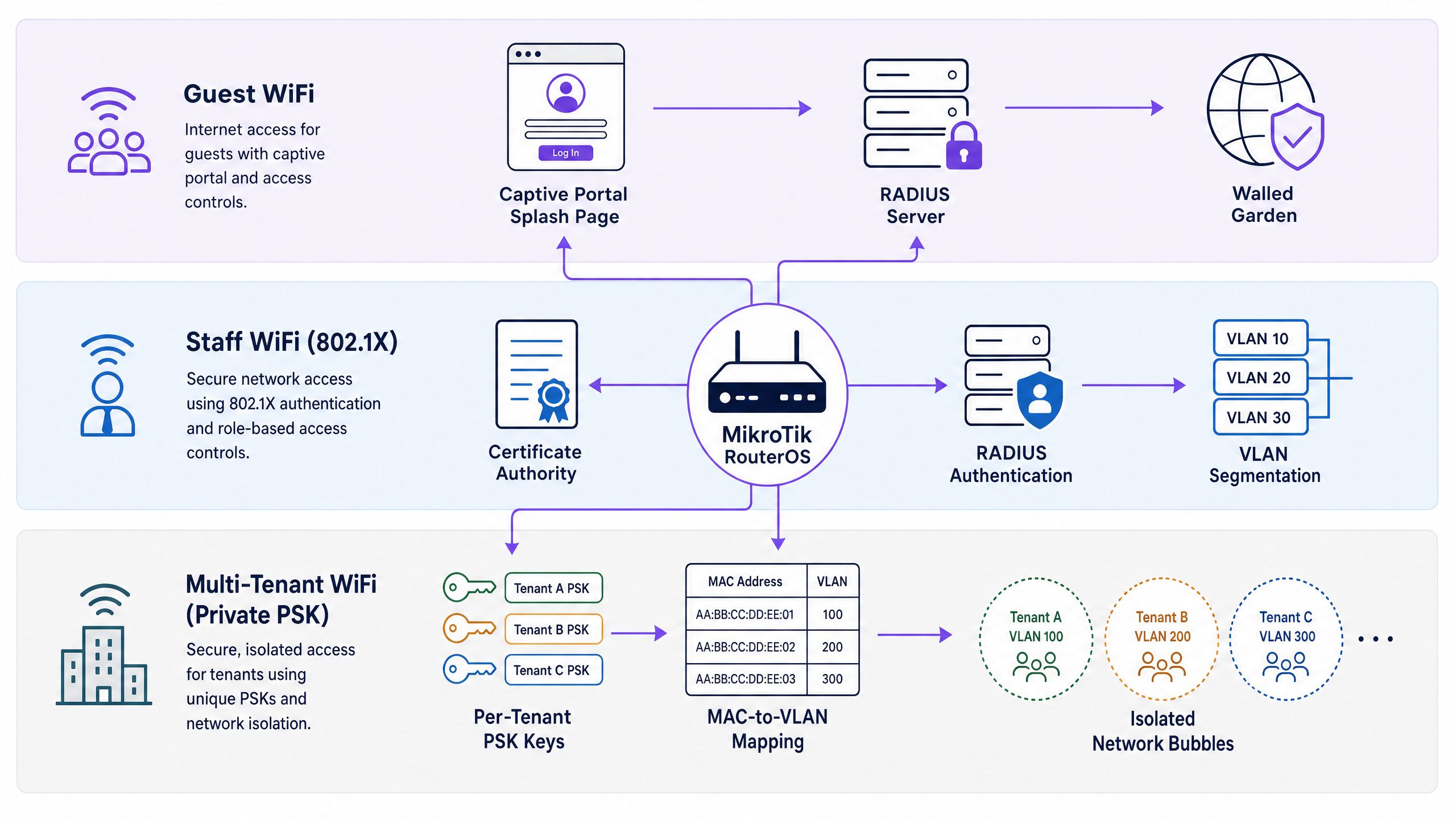
Das MikroTik Hotspot Gateway fängt nicht authentifizierten HTTP-Traffic ab und leitet ihn an das von Purple gehostete Captive Portal weiter. Purple fungiert als RADIUS-Server und übernimmt die Authentifizierung und das Sitzungsmanagement.
Um sicherzustellen, dass das Captive Portal korrekt geladen wird, müssen Sie einen Walled Garden konfigurieren. Dies ermöglicht vor der Authentifizierung den Zugriff auf die Splash-Page-Domains von Purple, Content Delivery Networks (CDNs) und OAuth-Anbieter (wie Google Workspace und Microsoft Entra ID). Ohne diese Einträge wird die Weiterleitungsschleife unterbrochen.
Nach erfolgreicher Authentifizierung gibt der RADIUS-Server von Purple Standardattribute zurück, einschließlich Session-Timeout zur Durchsetzung von Verbindungslimits und optional Mikrotik-Rate-Limit zur Durchsetzung von Bandbreitenbeschränkungen direkt über das Purple-Dashboard.
Staff WiFi: 802.1X-Authentifizierung
Für Staff WiFi eliminieren Sie gemeinsam genutzte Passwörter durch die Bereitstellung von IEEE 802.1X. Der MikroTik-Access-Point fungiert als Authentifikator und leitet EAP-Anmeldedaten an den RADIUS-Server von Purple weiter. Purple lässt sich nativ in Microsoft Entra ID, Okta und Google Workspace integrieren und validiert Anmeldedaten über PEAP-MSCHAPv2 oder EAP-TLS.
Wenn sich ein Mitarbeiter verbindet, kann der RADIUS-Server von Purple das Attribut Mikrotik-Wireless-VLANID zurückgeben. Dies weist den MikroTik-Router an, das authentifizierte Gerät in ein bestimmtes VLAN zu verschieben, was eine rollenbasierte Netzwerksegmentierung über eine einzige SSID ermöglicht. Für einen umfassenderen Überblick über Sicherheitsstandards lesen Sie bitte Enterprise WiFi Security: Ein kompletter Leitfaden für 2026 .
Multi-Tenant-WiFi: Private PSK (PPSK)
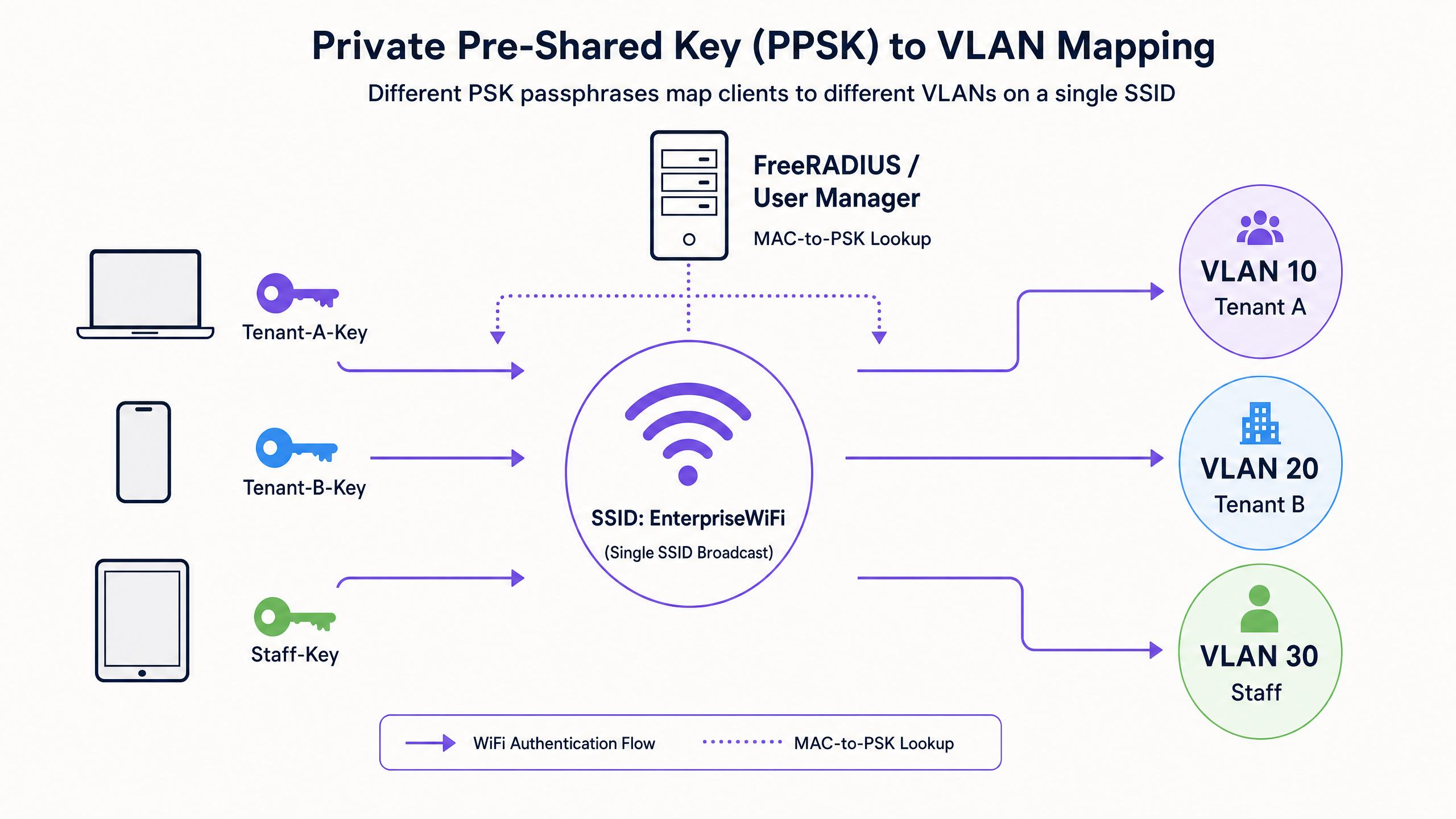
Multi-Tenant-Umgebungen erfordern eine sichere Isolierung ohne die Komplexität von 802.1X, da viele Endgeräte (wie Smart-TVs und Spielekonsolen) dies nicht unterstützen. MikroTik unterstützt Private PSK (PPSK) über MAC-basierte RADIUS-Authentifizierung.
Wenn sich ein Gerät mit der SSID verbindet, sendet der MikroTik-Router die MAC-Adresse des Geräts an Purple. Purple gibt das Attribut Mikrotik-Wireless-Psk (die eindeutige Passphrase für diesen Mandanten) und das Attribut Mikrotik-Wireless-VLANID zurück. Diese Architektur ermöglicht es Hunderten von Mandanten, sich eine einzige SSID zu teilen, während sie in völlig isolierten Netzwerkbereichen verbleiben.
Implementation Guide
1. Konfiguration des RADIUS-Clients
Definieren Sie zunächst Purple als RADIUS-Server in RouterOS. Dies gilt für alle drei Anwendungsfälle.
/radius
add address=YOUR-PURPLE-RADIUS-IP secret=YOUR-SHARED-SECRET service=hotspot,wireless authentication-port=1812 accounting-port=1813 timeout=3000ms
2. Guest WiFi Hotspot-Einrichtung
Führen Sie den Hotspot-Einrichtungsassistenten auf Ihrer Gast-VLAN-Schnittstelle aus und aktivieren Sie dann die RADIUS-Authentifizierung für das resultierende Profil.
/ip hotspot profile
set [ find default=yes ] use-radius=yes radius-accounting=yes
Konfigurieren Sie den Walled Garden, um den Zugriff auf die Infrastruktur von Purple zu ermöglichen.
/ip hotspot walled-garden
add action=allow dst-host=*purple.ai
add action=allow dst-host=*purpleportal.net
3. Staff WiFi 802.1X-Einrichtung
Konfigurieren Sie das Wireless-Sicherheitsprofil für die Verwendung von WPA2-Enterprise und verweisen Sie auf den RADIUS-Server.
/interface wireless security-profiles
add authentication-types=wpa2-eap eap-methods=passthrough mode=dynamic-keys name=staff-8021x radius-mac-authentication=no
Stellen Sie sicher, dass das Bridge-VLAN-Filtering aktiviert ist, um die dynamische VLAN-Zuweisung zu unterstützen.
/interface bridge
set bridge1 vlan-filtering=yes
4. Multi-Tenant-PPSK-Einrichtung
Aktivieren Sie für PPSK die MAC-Authentifizierung im Wireless-Sicherheitsprofil und konfigurieren Sie das MAC-Adressformat.
/interface wireless security-profiles
add authentication-types=wpa2-psk mode=dynamic-keys name=multi-tenant-ppsk radius-mac-authentication=yes radius-mac-format=XX:XX:XX:XX:XX:XX
Best Practices
- Standardisierung auf RouterOS 7: Die dynamische VLAN-Zuweisung über Wireless-RADIUS ist in RouterOS 7 im Vergleich zu RouterOS 6 deutlich robuster.
- RADIUS-Timeouts erhöhen: Der standardmäßige MikroTik-RADIUS-Timeout beträgt 1100 ms. Erhöhen Sie diesen auf 3000 ms, um sporadische Authentifizierungsfehler durch Netzwerklatenz zu verhindern.
- Hostname-Einträge für Walled Garden verwenden: Verwenden Sie für Walled-Garden-Einträge immer
dst-hostanstelle vondst-address, da sich die IP-Adressen von Cloud-Infrastrukturen veränge häufig. - Bridge-VLAN-Filterung aktivieren: Die dynamische VLAN-Zuweisung via RADIUS (
Mikrotik-Wireless-VLANID) erfordertvlan-filtering=yesauf der Bridge-Schnittstelle.
Fehlerbehebung & Risikominderung
Wenn das Captive Portal nicht geladen werden kann, ist der Walled Garden höchstwahrscheinlich unvollständig. Verwenden Sie das MikroTik Torch-Tool, um verworfene DNS-Anfragen von nicht authentifizierten Clients im Gast-VLAN zu überwachen. Fügen Sie die fehlenden Domains dem Walled Garden hinzu.
Wenn die Authentifizierung von 802.1X-Clients fehlschlägt, überprüfen Sie das Shared Secret und stellen Sie sicher, dass der RADIUS-Client mit service=wireless konfiguriert ist. Überprüfen Sie die Protokolle im Purple-Dashboard, um festzustellen, ob das Access-Reject von Purple oder Ihrem Identitätsanbieter stammt.
Wenn sich Clients authentifizieren, aber die falsche IP-Adresse erhalten, stellen Sie sicher, dass die Bridge-VLAN-Filterung aktiviert ist und der DHCP-Server korrekt an die dynamisch zugewiesene VLAN-Schnittstelle gebunden ist.
ROI & geschäftliche Auswirkungen
Die Bereitstellung von Purple in Ihrer MikroTik-Infrastruktur verwandelt eine Kostenstelle in eine Einnahmequelle. Durch die Erfassung von First-Party-Daten können Veranstaltungsorte detaillierte digitale Profile erstellen und Marketingkampagnen automatisieren. Beispielsweise erzielte Avanti West Coast eine Kapitalrendite (ROI) von 463 %, indem das Unternehmen von wiederkehrenden Reisenden und Upselling-Möglichkeiten profitierte.
Darüber hinaus reduziert identitätsgesteuertes Networking den IT-Overhead. Die Automatisierung des Onboardings und Offboardings für das Staff WiFi über Entra ID erübrigt die manuelle Passwortverwaltung, während PPSK für Multi-Tenant WiFi es Immobilienverwaltern ermöglicht, isolierte Netzwerke bereitzustellen, ohne dedizierte Hardware pro Einheit installieren zu müssen.
Schlüsseldefinitionen
Hotspot Gateway
A RouterOS feature that intercepts unauthenticated HTTP traffic and redirects it to a captive portal splash page.
Used to capture guest data and enforce terms of service before granting internet access.
Walled Garden
A list of allowed destinations that unauthenticated users can access.
Critical for allowing guests to reach the Purple splash page, CDNs, and OAuth providers (like Google) to complete the login process.
802.1X
An IEEE standard for port-based network access control that provides an authentication mechanism to devices wishing to attach to a LAN or WLAN.
Used for secure Staff WiFi, allowing authentication via Entra ID or Okta instead of a shared password.
Private PSK (PPSK)
A security architecture where multiple unique Pre-Shared Keys are used on a single SSID, often tied to specific MAC addresses and VLANs.
Ideal for Multi-Tenant WiFi, providing isolated network bubbles for residents and their consumer devices.
RADIUS
Remote Authentication Dial-In User Service. A networking protocol that provides centralised Authentication, Authorization, and Accounting (AAA) management.
The core protocol linking MikroTik hardware to Purple's cloud platform for identity validation.
VLAN Filtering
A RouterOS bridge setting that enforces VLAN tagging and untagging rules on bridge ports.
Must be enabled for dynamic VLAN assignment via RADIUS to function correctly.
CAPsMAN
Controlled Access Point system Manager. MikroTik's centralised wireless management system.
Used to deploy consistent wireless security profiles and RADIUS settings across multiple access points.
EAP-TLS
Extensible Authentication Protocol - Transport Layer Security. A highly secure authentication method requiring client-side certificates.
Supported by Purple for zero-trust Staff WiFi deployments where passwordless authentication is required.
Ausgearbeitete Beispiele
A 200-room hotel needs to deploy secure Staff WiFi across their MikroTik access points. They want finance staff on VLAN 10 and operations staff on VLAN 20, using their existing Microsoft Entra ID credentials.
- Integrate Purple with Microsoft Entra ID in the Purple dashboard.
- Configure the MikroTik RADIUS client to point to Purple with
service=wireless. - Create a MikroTik wireless security profile with
authentication-types=wpa2-eap. - Enable
vlan-filtering=yeson the MikroTik bridge. - In Purple, map the Entra ID 'Finance' group to return
Mikrotik-Wireless-VLANID=10and the 'Operations' group to returnMikrotik-Wireless-VLANID=20.
A build-to-rent property manager needs to provide isolated WiFi networks for 50 apartments using a single SSID broadcast from MikroTik CAPsMAN.
- Configure the MikroTik wireless security profile for the SSID with
authentication-types=wpa2-pskandradius-mac-authentication=yes. - Ensure the RADIUS client is configured with
service=wirelesspointing to Purple. - In the Purple dashboard, register the MAC addresses of the residents' devices.
- Assign a unique PSK and VLAN ID to each apartment in Purple.
- When a device connects, Purple returns the
Mikrotik-Wireless-PskandMikrotik-Wireless-VLANIDattributes, placing the device in its isolated network bubble.
Übungsfragen
Q1. You have configured the MikroTik Hotspot Gateway and pointed it to Purple's RADIUS server. Guests connect to the SSID, but their browsers display a timeout error instead of the Purple splash page. What is the most likely configuration error?
Hinweis: Consider what must happen before the guest authenticates.
Musterlösung anzeigen
The walled garden is misconfigured or missing entries. Without allowing access to Purple's splash page domains and associated CDNs in the /ip hotspot walled-garden, the unauthenticated guest cannot load the login page, resulting in a timeout.
Q2. A retail chain wants to deploy Staff WiFi using 802.1X and Entra ID. They configure `authentication-types=wpa2-eap` and set up the RADIUS client. However, authentication fails. You check the RADIUS client configuration and see `service=hotspot`. How do you resolve this?
Hinweis: Different wireless authentication methods require different RADIUS service types in RouterOS.
Musterlösung anzeigen
Change the RADIUS client configuration to include service=wireless. The hotspot service type is only used for captive portal authentication. 802.1X and MAC authentication require the wireless service type.
Q3. You are deploying Multi-Tenant WiFi using Private PSKs. Purple successfully returns the `Mikrotik-Wireless-Psk` and `Mikrotik-Wireless-VLANID` attributes, and the device connects. However, the device receives an IP address from the default management subnet, not the isolated tenant subnet. What RouterOS setting is missing?
Hinweis: Dynamic VLAN assignment requires the bridge to process VLAN tags.
Musterlösung anzeigen
Bridge VLAN filtering is disabled. You must set vlan-filtering=yes on the bridge interface. Without this, the bridge ignores the dynamic VLAN tag assigned by RADIUS, and the traffic falls back to the default untagged PVID.
Weiterlesen in dieser Reihe
OpenWrt Custom Firmware Integration mit Purple WiFi
Dieses Handbuch bietet das vollständige Integrations-Playbook für die Bereitstellung von OpenWrt Custom Firmware mit Purple WiFi. Es deckt die Konfiguration des CoovaChilli Captive Portal, die Verwaltung des iptables Walled Garden, sicheres Mitarbeiter-WiFi über 802.1X mit hostapd sowie die mandantenfähige PPSK-Segmentierung mit dynamischer VLAN-Zuweisung ab. Damit erhalten IT-Teams die genauen Konfigurationsschritte, die für den Aufbau eines identitätsbasierten Netzwerks auf jeder OpenWrt-fähigen Hardware erforderlich sind.
Huawei AirEngine und CloudCampus Integration mit Purple WiFi
Dieses Handbuch bietet eine Schritt-für-Schritt-Anleitung für die Integration von Huawei AirEngine Access Points und iMaster NCE-Campus mit Purple WiFi. Es deckt die Captive Portal-Konfiguration, die 802.1X-Mitarbeiterauthentifizierung und die dynamische PPSK-VLAN-Steuerung für Unternehmensnetzwerke ab.
Alta Labs Integration mit Purple WiFi: Einrichtung und Captive Portal Konfiguration
Dieses technische Referenzhandbuch beschreibt die End-to-End-Integration von Alta Labs AP6 und AP6 Pro Access Points mit dem Cloud-basierten Captive Portal von Purple. Es beschreibt detailliert die Konfiguration externer Weiterleitungen, RADIUS-Authentifizierung, Walled-Garden-Anforderungen und Multi-Tenant-Segmentierung mithilfe von AltaPass Private Pre-Shared Keys. Betreiber von Veranstaltungsorten und IT-Teams erhalten einen reproduzierbaren Bereitstellungsleitfaden für das Gastgewerbe, den Einzelhandel und Smart-Office-Umgebungen.