
Como Utilizar o Microsoft Intune para Enviar Certificados WiFi para Dispositivos
Uma referência técnica abrangente para líderes de TI sobre a implementação de certificados WiFi 802.1X via Microsoft Intune. Abrange a arquitetura SCEP vs PKCS, passos de implementação, mapeamento de conformidade e cenários de implementação reais para ambientes empresariais.
Ouça este guia
Ver transcrição do podcast
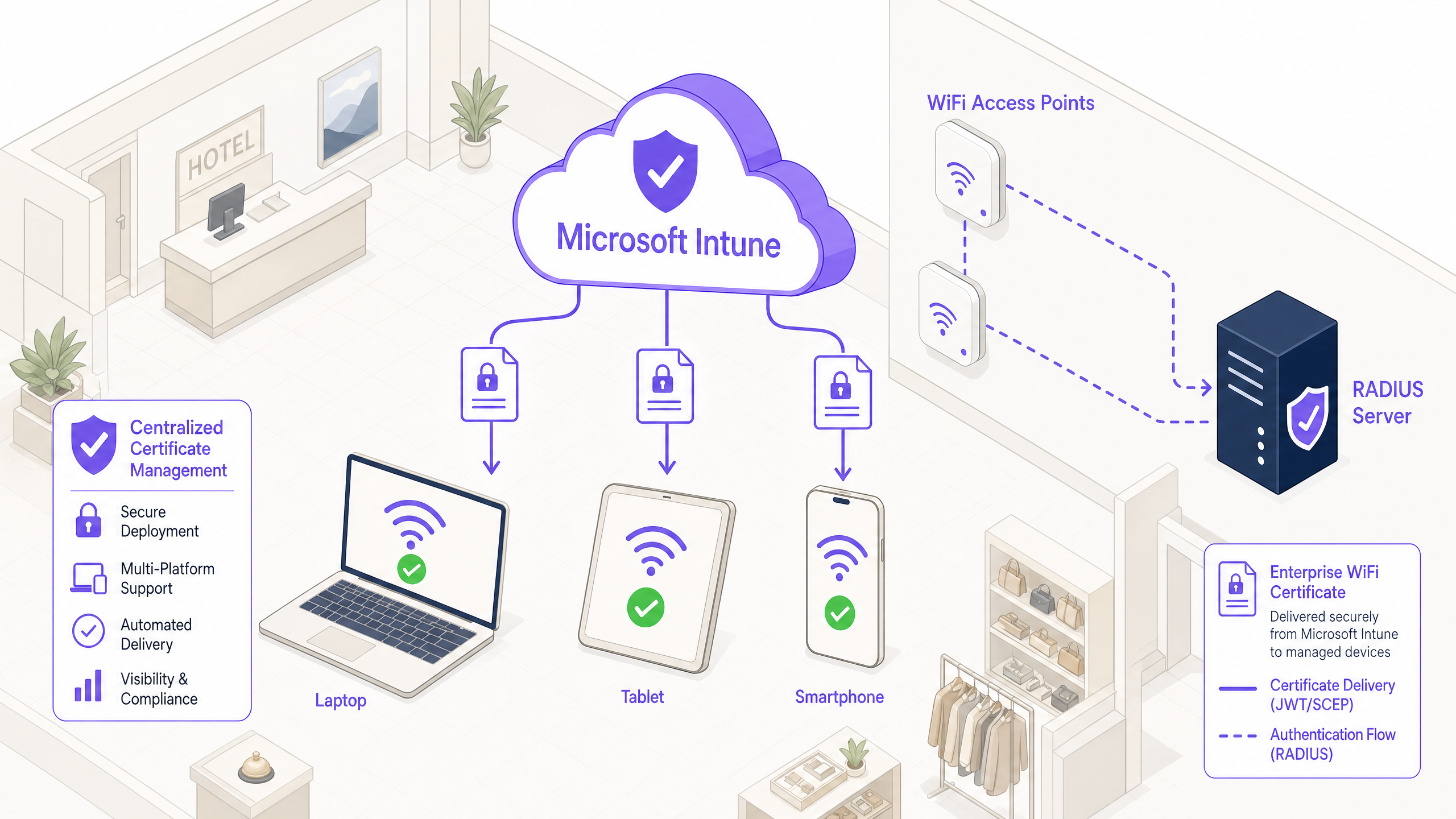
Resumo Executivo
Para líderes de TI empresariais que gerem ambientes de grande escala em Hotelaria , Retalho ou locais do setor público, o acesso sem fios seguro é um requisito operacional básico. Confiar em PSKs partilhadas (Pre-Shared Keys) ou autenticação por nome de utilizador/palavra-passe (PEAP-MSCHAPv2) expõe a rede a roubo de credenciais, phishing e falhas de conformidade. O padrão da indústria para segurança WiFi empresarial robusta é 802.1X com EAP-TLS (Extensible Authentication Protocol com Transport Layer Security), que exige autenticação mútua baseada em certificados entre o dispositivo e a rede.
No entanto, a principal barreira à adoção do EAP-TLS tem sido historicamente a sobrecarga operacional da gestão do ciclo de vida dos certificados. O Microsoft Intune resolve isto automatizando a entrega, renovação e revogação de certificados digitais para dispositivos geridos em escala.
Esta referência técnica detalha a arquitetura, metodologias de implementação (SCEP vs PKCS) e passos de implementação necessários para enviar certificados WiFi via Microsoft Intune. Fornece orientação acionável para arquitetos de rede e engenheiros de sistemas encarregados de proteger as comunicações corporativas, mantendo uma separação rigorosa das redes de visitantes, como as geridas por uma plataforma Guest WiFi .
Análise Técnica Aprofundada: Arquitetura e Protocolos
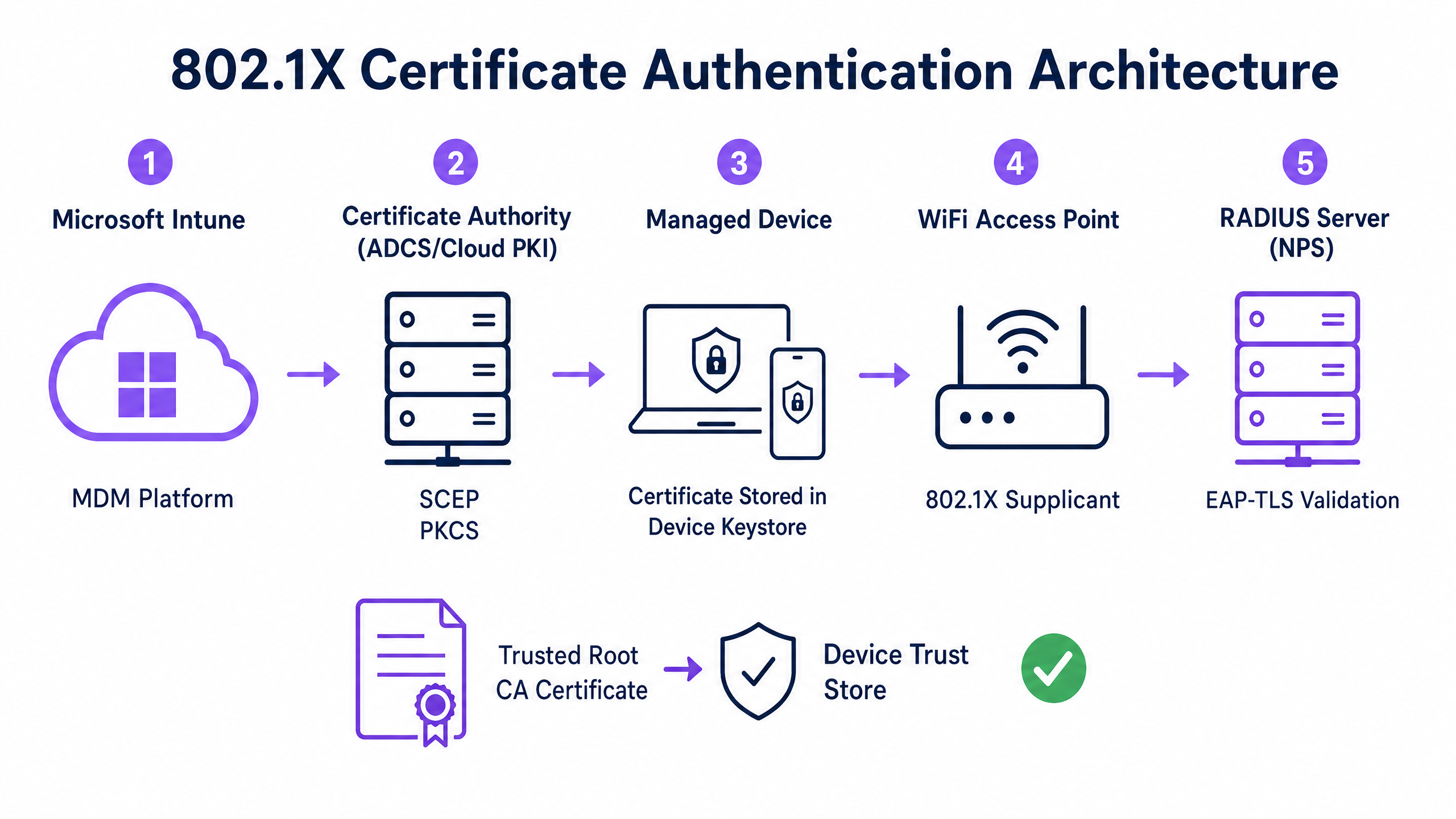
Para implementar a autenticação baseada em certificados de forma eficaz, as equipas de TI devem compreender a interação entre a plataforma de Gestão de Dispositivos Móveis (MDM), a Infraestrutura de Chave Pública (PKI) e a camada de controlo de acesso à rede.
A Estrutura de Autenticação 802.1X
O padrão IEEE 802.1X define o controlo de acesso à rede baseado em porta. Num contexto sem fios, impede que um dispositivo transmita qualquer tráfego (além de frames de autenticação EAP) até que a sua identidade seja verificada. A arquitetura consiste em três componentes:
- Suplicante: O dispositivo cliente (portátil, smartphone, tablet) que solicita acesso à rede.
- Autenticador: O ponto de acesso sem fios ou controlador de LAN sem fios que bloqueia o tráfego até que a autenticação seja bem-sucedida.
- Servidor de Autenticação: O servidor RADIUS (Remote Authentication Dial-In User Service), como o Microsoft Network Policy Server (NPS) ou Cisco ISE, que valida as credenciais e autoriza o acesso.
EAP-TLS e Autenticação Mútua
EAP-TLS é o método EAP mais seguro porque exige autenticação mútua. O servidor RADIUS apresenta o seu certificado ao suplicante para provar que é a rede corporativa legítima (prevenindo ataques evil-twin), e o suplicante apresenta o seu certificado de cliente ao servidor RADIUS para provar que é um dispositivo ou utilizador autorizado.
Mecanismos de Implementação de Certificados Intune: SCEP vs PKCS
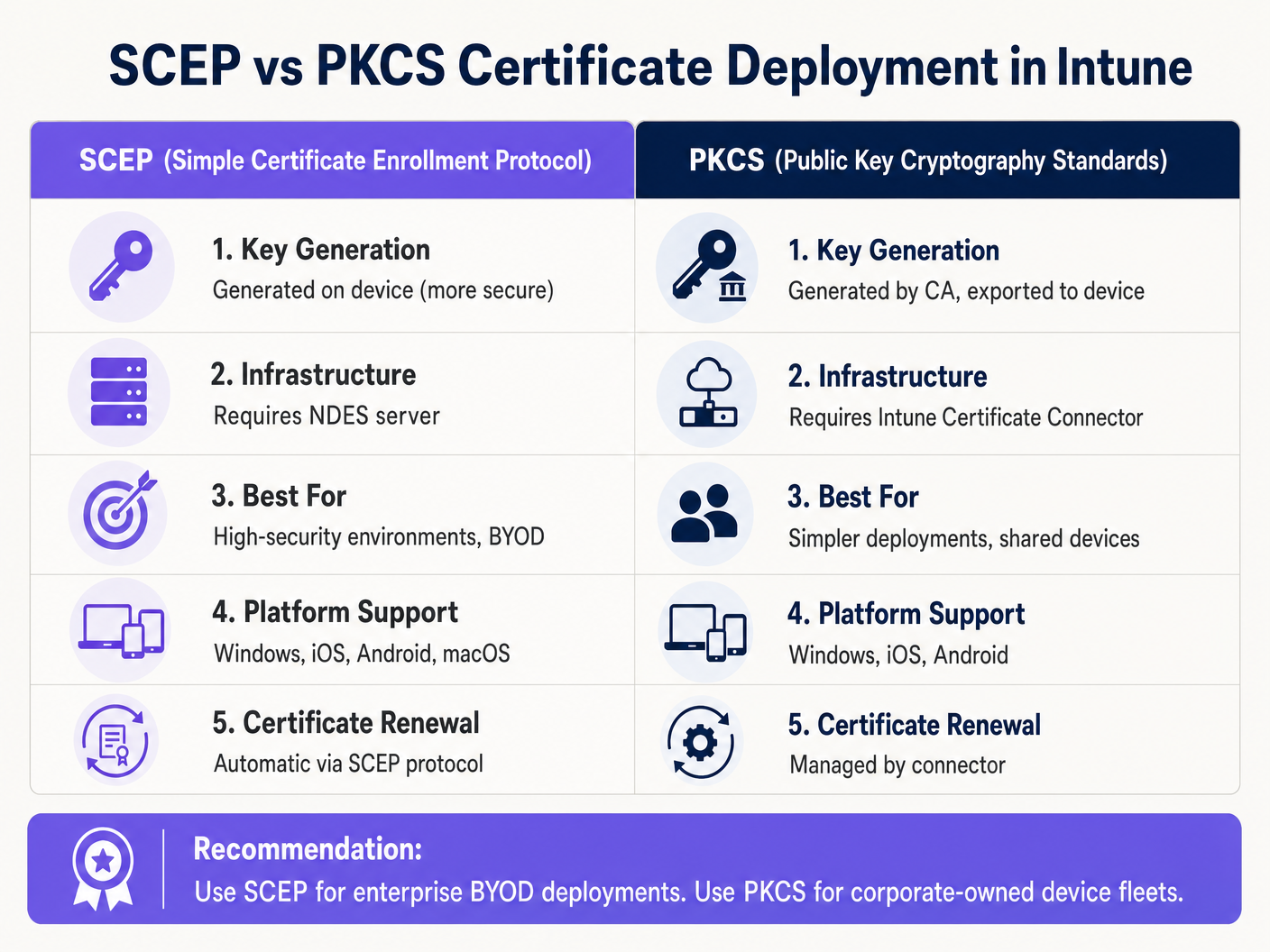
O Microsoft Intune suporta dois protocolos primários para implementar certificados de cliente em dispositivos. Selecionar o mecanismo apropriado é uma decisão arquitetónica crítica.
Protocolo de Inscrição de Certificados Simples (SCEP)
Com SCEP, a chave privada é gerada diretamente no dispositivo cliente. O dispositivo cria um Pedido de Assinatura de Certificado (CSR) e submete-o via Intune para o servidor Network Device Enrollment Service (NDES), que atua como um proxy para a infraestrutura Active Directory Certificate Services (ADCS). A CA emite o certificado, que é devolvido ao dispositivo.
Como a chave privada nunca sai do dispositivo, o SCEP é considerado altamente seguro e é a abordagem recomendada para implementações BYOD (Bring Your Own Device) e arquiteturas de confiança zero.
Padrões de Criptografia de Chave Pública (PKCS)
Com PKCS, o Conector de Certificados Intune solicita o certificado à CA em nome do dispositivo. A CA gera tanto o certificado público quanto a chave privada, que o conector entrega de forma segura ao dispositivo via Intune.
Embora o PKCS simplifique os requisitos de infraestrutura (não é necessário um servidor NDES), a chave privada é transmitida pela rede. Este modelo é geralmente aceitável para frotas de dispositivos corporativos, totalmente geridos, onde a plataforma MDM já é um componente altamente confiável.
Guia de Implementação: Implementação Passo a Passo
A implementação de certificados WiFi via Intune requer sequenciamento preciso. A implementação de perfis fora de ordem é a causa mais comum de falha na implementação.
Passo 1: Preparar a Infraestrutura de Chave Pública (PKI)
Quer utilize ADCS no local ou uma solução nativa da cloud como o Microsoft Cloud PKI, a Autoridade de Certificação deve ser configurada com os modelos apropriados.
- Utilização da Chave: O modelo deve incluir o OID
Client Authentication(1.3.6.1.5.5.7.3.2). - Tamanho da Chave: Configure um tamanho mínimo de chave de 2048 bits (RSA) para alinhar com os padrões criptográficos modernos.
- Nome do Assunto: Para certificados de utilizador, o Subject Alternative Name (SAN) deve ser configurado para usar o User Principal Name (UPN). Para certificados de dispositivo, use o Azure AD Device ID.
Passo 2: Implementar o Certificado Raiz Confiável
Antes que um dispositivo possa autenticar, ele deve confiar na CA que emitiu o certificado do servidor RADIUS.
- Exporte o certificado da CA Raiz (e quaisquer certificados de CA intermédios) em
.cer"formato. - No centro de administração do Intune, navegue para Dispositivos > Perfis de configuração > Criar perfil.
- Selecione a plataforma e escolha o tipo de perfil Certificado fidedigno.
- Carregue o ficheiro
.cere atribua o perfil ao dispositivo de destino ou a grupos de utilizadores.
Nota: Este perfil deve ser aplicado com sucesso aos dispositivos antes de prosseguir para os próximos passos.
Passo 3: Implementar o Perfil de Certificado de Cliente
Crie um perfil de certificado SCEP ou PKCS para entregar o certificado de identidade ao requerente.
- Navegue para Dispositivos > Perfis de configuração > Criar perfil.
- Selecione a plataforma e escolha Certificado SCEP ou Certificado PKCS.
- Configure o formato do Nome do Assunto e SAN de acordo com os seus requisitos de identidade (Utilizador vs. Dispositivo).
- Especifique o Fornecedor de Armazenamento de Chaves (KSP) — tipicamente o Trusted Platform Module (TPM) para segurança baseada em hardware.
- Atribua o perfil aos mesmos grupos visados no Passo 2.
Passo 4: Configurar o Perfil WiFi
O componente final associa os certificados às definições da rede sem fios.
- Navegue para Dispositivos > Perfis de configuração > Criar perfil.
- Selecione a plataforma e escolha o tipo de perfil Wi-Fi.
- Defina o tipo de Wi-Fi para Empresarial e introduza o SSID exato.
- Defina o tipo EAP para EAP-TLS.
- Em Confiança do Servidor, especifique o nome exato do certificado do servidor RADIUS e selecione o perfil de certificado de Raiz Fidedigna implementado no Passo 2.
- Em Autenticação de Cliente, selecione o perfil de certificado SCEP ou PKCS implementado no Passo 3.
- Atribua o perfil aos grupos de destino.
Melhores Práticas e Recomendações Estratégicas
Certificados de Dispositivo vs. Utilizador
Os arquitetos de rede devem decidir se emitem certificados para o dispositivo (autenticação de máquina) ou para o utilizador (autenticação de utilizador).
- Certificados de Dispositivo: Permitem que a máquina se conecte à rede WiFi antes de um utilizador iniciar sessão. Isto é crítico para o aprovisionamento inicial do dispositivo, processamento de Política de Grupo e redefinições de palavra-passe no ecrã de início de sessão. Recomendado para dispositivos empresariais.
- Certificados de Utilizador: Vinculam o acesso à rede à identidade do indivíduo. Isto fornece auditoria granular e controlo de acesso baseado em funções. Recomendado para cenários BYOD.
Segmentação de Rede e Acesso de Convidado
Um princípio de segurança fundamental é a separação lógica estrita da rede corporativa 802.1X das redes de acesso de visitantes ou públicas. A infraestrutura gerida pelo Intune deve ser dedicada exclusivamente a dispositivos corporativos e pessoal autenticado.
Para acesso de visitantes, as organizações devem implementar um SSID Guest WiFi dedicado, suportado por um captive portal. Isto garante que os dispositivos não geridos são isolados, ao mesmo tempo que permite à empresa capturar análises de visitantes através de uma plataforma WiFi Analytics . Para saber mais sobre como proteger a infraestrutura DNS em ambos os segmentos, consulte o nosso guia sobre como Proteger a Sua Rede com DNS e Segurança Robustos .
Abordar o Requisito de Mapeamento de Certificados NPS
Para organizações que utilizam o Microsoft Network Policy Server (NPS) com dispositivos associados ao Azure AD, foi introduzida uma alteração de configuração crítica pela Microsoft. O NPS agora requer um mapeamento de certificados robusto.
Ao utilizar certificados de dispositivo, o objeto de computador no Active Directory no local deve ter o seu atributo altSecurityIdentities preenchido com os detalhes do certificado (tipicamente o X509IssuerSerialNumber). As equipas de TI devem implementar um script agendado ou um fluxo de trabalho orientado por eventos para atualizar este atributo quando o Intune emitir um novo certificado, caso contrário, a autenticação falhará.
Resolução de Problemas e Mitigação de Riscos
Quando uma implementação 802.1X falha, o problema reside quase sempre na cadeia de certificados ou na sequência de perfis do Intune.
Modos de Falha Comuns
- Falha Silenciosa do Perfil WiFi: Se o perfil WiFi do Intune for aplicado a um dispositivo antes de o certificado de cliente ter sido aprovisionado com sucesso, o perfil WiFi frequentemente não será instalado ou falhará silenciosamente. Verifique sempre a presença do certificado na loja Pessoal do dispositivo (
certmgr.mscno Windows) antes de resolver problemas na configuração WiFi. - Erros de Validação de Confiança do Servidor: Se o dispositivo rejeitar o servidor RADIUS, verifique se o nome do servidor especificado no perfil WiFi do Intune corresponde exatamente ao Nome do Assunto ou SAN no certificado do servidor RADIUS. Além disso, garanta que toda a cadeia de certificados (Raiz e Intermédio) está presente na loja de Autoridades de Certificação de Raiz Fidedigna do dispositivo.
- Indisponibilidade da Lista de Revogação de Certificados (CRL): Se o servidor RADIUS não conseguir alcançar o ponto de distribuição CRL da CA para verificar o estado do certificado do cliente, a autenticação será negada. Garanta que o URL da CRL está altamente disponível e acessível a partir do servidor RADIUS.
ROI e Impacto no Negócio
A transição para a autenticação WiFi baseada em certificados via Intune oferece retornos operacionais e de segurança significativos.
- Mitigação de Riscos: Elimina o risco de recolha de credenciais, ataques pass-the-hash e acesso não autorizado à rede via PSKs partilhadas.
- Eficiência Operacional: Reduz os tickets do helpdesk de TI relacionados com expirações de palavra-passe e problemas de conectividade WiFi. A gestão automatizada do ciclo de vida significa que os certificados são renovados de forma transparente sem intervenção do utilizador.
- Habilitação de Conformidade: Satisfaz requisitos regulamentares rigorosos. Para ambientes de retalho, aborda diretamente os requisitos PCI DSS para encriptação e autenticação sem fios robustas. Para o setor público e saúde, alinha-se com os princípios de acesso à rede de confiança zero (ZTNA).
Ao alavancar o Microsoft Intune para a implementação de certificados, as equipas de TI podem alcançar uma experiência sem fios sem atritos e altamente segura que opera silenciosamente em segundo plano, permitindo que o negócio se concentre nas operações principais.
Definições Principais
802.1X
An IEEE standard for port-based network access control that prevents unauthorized devices from accessing a LAN or WLAN until they successfully authenticate.
The foundational security protocol that replaces shared WiFi passwords with enterprise-grade authentication in corporate environments.
EAP-TLS
Extensible Authentication Protocol with Transport Layer Security. An authentication framework that requires both the client and the server to prove their identities using digital certificates.
The specific protocol configured in the Intune WiFi profile to enforce mutual certificate authentication, eliminating the risk of credential theft.
SCEP
Simple Certificate Enrollment Protocol. A mechanism where the client device generates its own private key and requests a certificate from the CA via an intermediary server.
The preferred deployment method for BYOD environments because the private key is never transmitted across the network.
PKCS
Public Key Cryptography Standards. In the context of Intune, a deployment method where the CA generates the private key and the Intune Connector securely delivers it to the device.
A simpler deployment architecture often used for corporate-owned device fleets, as it removes the need for an NDES server.
NDES
Network Device Enrollment Service. A Microsoft server role that acts as a proxy, allowing devices running without domain credentials to obtain certificates from an Active Directory Certificate Authority.
A mandatory infrastructure component when deploying certificates via SCEP in an on-premises ADCS environment.
RADIUS
Remote Authentication Dial-In User Service. A networking protocol that provides centralized Authentication, Authorization, and Accounting (AAA) management.
The server (like Microsoft NPS or Cisco ISE) that receives the authentication request from the WiFi access point and validates the device's certificate.
Supplicant
The software client on the end-user device (laptop, smartphone) that initiates the 802.1X authentication process.
The Intune WiFi profile configures the native OS supplicant (e.g., Windows WLAN AutoConfig) to use the correct certificates and EAP methods.
Certificate Revocation List (CRL)
A digitally signed list published by the Certificate Authority containing the serial numbers of certificates that have been revoked and should no longer be trusted.
Crucial for security compliance; the RADIUS server must check the CRL to ensure a connecting device hasn't been reported lost or stolen.
Exemplos Práticos
A 400-location retail chain is deploying corporate-owned tablets for inventory management. The devices are fully managed via Intune and joined to Azure AD. They need immediate network access upon boot to sync inventory databases, before any specific user logs in. The network infrastructure uses Cisco ISE as the RADIUS server. What is the optimal certificate deployment strategy?
The IT team should implement PKCS device certificates.
- Configure a device certificate template on the CA.
- Deploy the Root CA certificate to the tablets via Intune.
- Create a PKCS certificate profile in Intune, setting the Subject Name format to the Azure AD Device ID ({{AAD_Device_ID}}).
- Create an Enterprise WiFi profile specifying EAP-TLS, referencing the ISE server's certificate name and the deployed PKCS profile.
- Assign all profiles to the device group containing the tablets.
A large teaching hospital allows medical staff to use their personal smartphones (BYOD) to access clinical scheduling applications. The devices are enrolled in Intune via a Work Profile. Security policy mandates that no corporate credentials be stored on personal devices, and network access must be revoked immediately if a device is compromised. How should the WiFi authentication be designed?
The hospital must implement SCEP user certificates combined with Intune Compliance Policies.
- Deploy an NDES server to proxy requests to the CA.
- Create a SCEP user certificate profile in Intune, with the SAN configured to the User Principal Name ({{UserPrincipalName}}).
- Create an Intune Compliance Policy requiring a minimum OS version, an active screen lock, and no jailbreak/root access.
- Configure the CA to publish a highly available Certificate Revocation List (CRL).
- Configure the RADIUS server to strictly enforce CRL checking on every authentication attempt.
Perguntas de Prática
Q1. Your organisation is migrating from PEAP-MSCHAPv2 (username/password) to EAP-TLS for the corporate WiFi. During the pilot phase, several Windows 11 laptops receive the Intune configuration profiles successfully but fail to connect to the network. Reviewing the Windows Event Logs shows Event ID 20271 indicating the RADIUS server certificate was rejected. What is the most likely cause?
Dica: Consider the chain of trust required for mutual authentication.
Ver resposta modelo
The devices lack the Trusted Root CA certificate that issued the RADIUS server's certificate. In EAP-TLS, the device must validate the RADIUS server's identity. The IT team must ensure the 'Trusted certificate' profile containing the Root CA (and any Intermediate CAs) is deployed to the devices via Intune and successfully installed before the WiFi profile attempts to connect.
Q2. A public sector venue is deploying 802.1X for staff devices using Intune and PKCS certificates. They also operate a separate visitor network managed by a Guest WiFi platform. An auditor notes that if a staff laptop is stolen, the certificate remains valid for 12 months. How should the network architect address this risk?
Dica: How does the authentication server know a certificate is no longer valid before it expires?
Ver resposta modelo
The architect must implement a robust Certificate Revocation workflow. First, ensure the CA publishes a Certificate Revocation List (CRL) to a highly available distribution point. Second, configure the RADIUS server (e.g., NPS) to mandate CRL checking during every authentication attempt. Finally, establish an Intune operational procedure to explicitly revoke the certificate of any device marked as lost or stolen, which updates the CRL and blocks network access.
Q3. You are designing the Intune deployment for a fleet of shared kiosk devices in a retail environment. These devices reboot daily and must immediately connect to the corporate network to download updates before any user interacts with them. Should you deploy User certificates or Device certificates, and what Subject Alternative Name (SAN) format should be used?
Dica: Consider the state of the device immediately after a reboot.
Ver resposta modelo
You must deploy Device certificates. Because the kiosks need network access before a user logs in, a User certificate would be unavailable at boot time. The Subject Alternative Name (SAN) in the Intune certificate profile should be configured to use the Azure AD Device ID ({{AAD_Device_ID}}) or the device's fully qualified domain name, allowing the RADIUS server to authenticate the specific hardware asset.
Continue a ler esta série
O Que É a Autenticação por Endereço MAC? Quando Usá-la e Quando Evitá-la
Este guia de referência técnica abrangente aborda a autenticação por endereço MAC em ambientes WiFi empresariais — como a autenticação MAC baseada em RADIUS funciona na Camada 2, as suas vulnerabilidades de segurança inerentes (incluindo a falsificação de MAC e o impacto da aleatorização de MAC ao nível do SO), e os contextos operacionais precisos onde continua a ser uma ferramenta válida para gerir dispositivos IoT e sem interface. Fornece orientação prática de implementação para gestores de TI e arquitetos de rede em hotelaria, retalho, saúde e locais do setor público, com exemplos práticos do mundo real, estruturas de decisão e contexto de integração para a plataforma de guest WiFi e análise da Purple.
Como Configurar WiFi Empresarial em iOS e macOS com 802.1X
Este guia abrangente fornece aos líderes de TI seniores passos acionáveis para implementar WiFi empresarial 802.1X em dispositivos iOS e macOS. Abrange autenticação baseada em certificados (EAP-TLS), perfis de configuração MDM e integração de arquitetura para proteger redes corporativas, ao mesmo tempo que apoia iniciativas BYOD.
Como Configurar WiFi Empresarial em Dispositivos Android com EAP-TLS
Este guia de referência técnica fornece aos líderes de TI seniores um plano abrangente para implementar a autenticação 802.1X EAP-TLS em dispositivos Android. Abrange a mecânica arquitetónica, estratégias de implementação manual e impulsionadas por MDM, e metodologias de resolução de problemas necessárias para proteger redes sem fios empresariais.