

Behebung von hoher Latenz und Jitter im Mitarbeiter-WiFi
Dieser maßgebliche technische Leitfaden untersucht die Ursachen hoher Latenz und Jitter in Unternehmens-WiFi-Netzwerken für Mitarbeiter und bietet Netzwerkarchitekten und IT-Direktoren umsetzbare Strategien zur Diagnose und Behebung von Leistungsbeeinträchtigungen, die Echtzeitanwendungen wie Microsoft Teams und Zoom betreffen. Er behandelt die Optimierung der HF-Umgebung, die End-to-End-QoS-Implementierung, Roaming-Mechanismen und Client-Management-Techniken. Betreiber von Veranstaltungsorten und IT-Teams finden konkrete Implementierungsanleitungen, Fallstudien aus der Praxis und messbare Benchmarks, um sicherzustellen, dass ihre drahtlose Infrastruktur eine nahtlose Mobilität und Zusammenarbeit der Mitarbeiter unterstützt.
Diesen Leitfaden anhören
Podcast-Transkript ansehen
Executive Summary
Für Unternehmensstandorte – von weitläufigen Retail -Flächen über Stadien mit hoher Dichte bis hin zu Hospitality -Immobilien – ist die Leistung des Mitarbeiter-WiFi eine kritische betriebliche Abhängigkeit, keine Annehmlichkeit. Wenn die One-Way-Latenz 50 ms überschreitet oder der Jitter über 20 ms schwankt, verschlechtern sich Echtzeit-Kommunikationsplattformen wie Microsoft Teams und Zoom sichtbar: Audio wird robotisch, Videos frieren ein und Anrufe brechen ab. Dieser Leitfaden bietet Netzwerkarchitekten und IT-Direktoren die technische Tiefe und umsetzbaren Strategien, die erforderlich sind, um die Ursachen von hoher Latenz im WiFi in Unternehmens-WLANs zu identifizieren, zu diagnostizieren und zu beheben. Durch die Behebung von HF-Interferenzen, die Implementierung von End-to-End Quality of Service und die Abstimmung von Roaming-Parametern gemäß IEEE 802.11r/k/v können Unternehmen eine robuste drahtlose Erfahrung bieten, die eine nahtlose Mobilität der Mitarbeiter unterstützt. Die Investition ist direkt messbar: reduzierte Helpdesk-Tickets, verbesserter operativer Durchsatz und eine Netzwerkinfrastruktur, die mit dem Unternehmen skaliert.
Technical Deep-Dive
Latenz und Jitter: Der Kernunterschied
Latenz ist die Zeit, die ein Datenpaket benötigt, um von der Quelle zum Ziel zu gelangen. Jitter ist die Variation dieser Verzögerung über aufeinanderfolgende Pakete hinweg. Im Kontext von 802.11-Netzwerken werden beide Metriken stark durch die Halbduplex-Natur der drahtlosen Übertragung und das Carrier Sense Multiple Access with Collision Avoidance (CSMA/CA)-Protokoll beeinflusst – den Mechanismus, mit dem Geräte um Sendezeit konkurrieren.
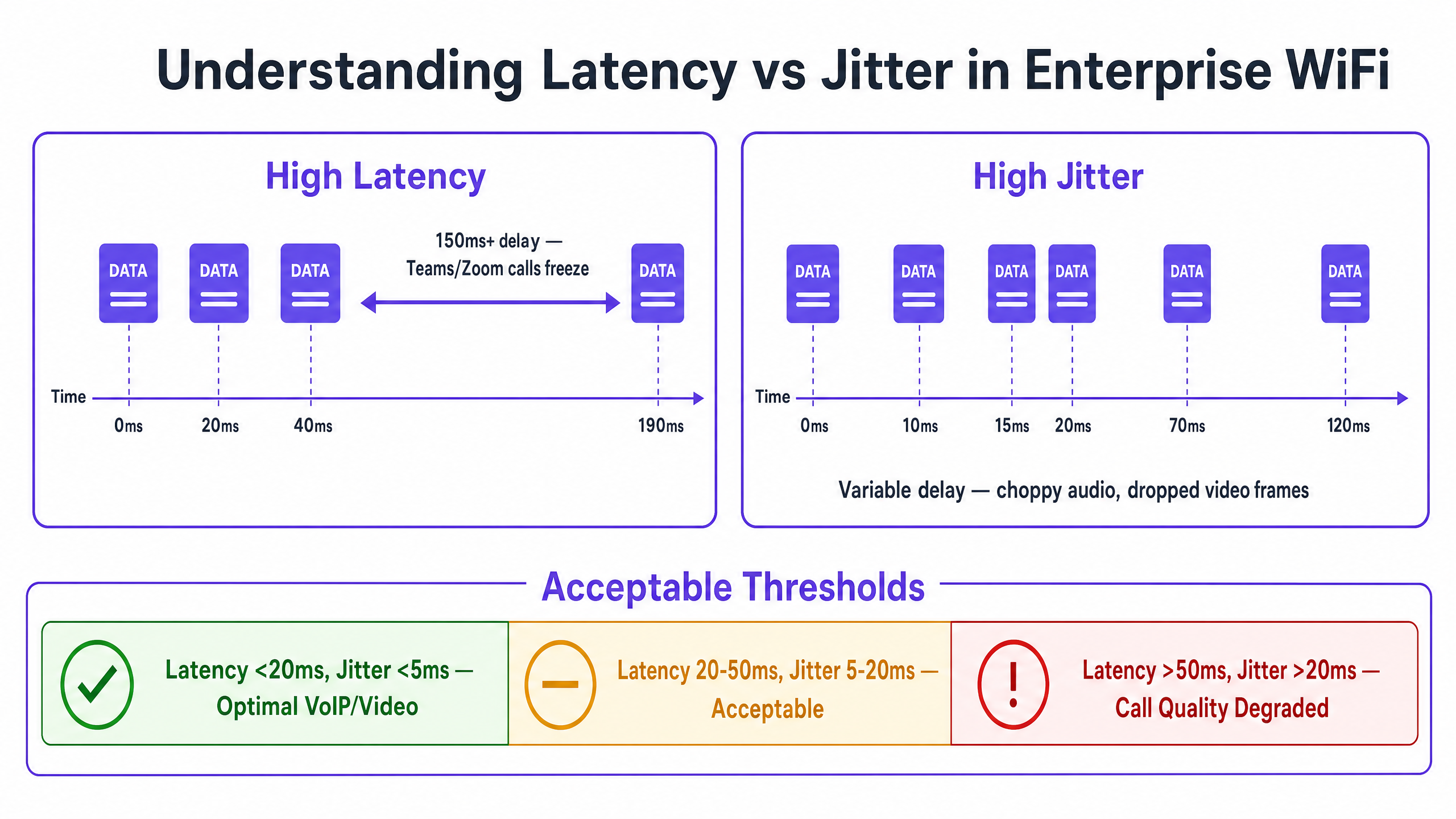
Sprach- und Video-Codecs sind mit festen Jitter-Puffern konzipiert. Wenn der Jitter die Puffertiefe überschreitet – typischerweise 20–30 ms für VoIP auf Unternehmensniveau – werden Pakete verworfen, was das charakteristische abgehackte oder robotische Audio erzeugt, das einen verschlechterten Anruf signalisiert. Hohe Latenz hingegen verursacht die Gesprächsverzögerung, die die Echtzeit-Zusammenarbeit erschwert. Die ITU-T G.114-Empfehlung spezifiziert eine maximale One-Way-Verzögerung von 150 ms für akzeptable Sprachqualität, wobei 50 ms das Ziel für Unternehmensimplementierungen sind.
| Metrik | Optimal | Akzeptabel | Verschlechtert |
|---|---|---|---|
| One-Way Latency | < 20ms | 20–50ms | > 50ms |
| Jitter | < 5ms | 5–20ms | > 20ms |
| Packet Loss | < 0.1% | 0.1–1% | > 1% |
Ursache 1: HF-Umgebung und Gleichkanalinterferenz
Gleichkanalinterferenz (CCI) ist die primäre HF-Ursache für erhöhte Latenz in dichten Unternehmensumgebungen. Wenn mehrere Access Points auf demselben Kanal arbeiten, teilen sie sich die Sendezeit unter CSMA/CA. Jeder AP muss die Übertragung zurückstellen, wenn er einen anderen AP auf demselben Kanal sendend erkennt, wodurch der Datenverkehr effektiv serialisiert und die Warteschlangenverzögerung erhöht wird. In einem Einzelhandelsgeschäft mit 20 APs auf drei nicht überlappenden 2,4-GHz-Kanälen kann jeder Kanal von sechs oder sieben APs gemeinsam genutzt werden – eine Konfiguration, die unter Last zu erheblicher Latenz führt.
Das 5-GHz-Band bietet mit seinem breiteren Kanalplan (bis zu 25 nicht überlappende 20-MHz-Kanäle unter 802.11ac/ax in vielen Regulierungsbereichen) wesentlich mehr Kapazität für die Kanalwiederverwendungsplanung. Das Verständnis der gesamten Frequenzlandschaft ist unerlässlich; der Leitfaden Wi Fi Frequencies: A Guide to Wi-Fi Frequencies in 2026 bietet eine umfassende Referenz für Frequenzplanungsentscheidungen.
Nachbarkanalinterferenz (ACI) stellt ein sekundäres Risiko dar. ACI tritt auf, wenn Kanäle nicht ausreichend getrennt sind, was zu einer teilweisen Überlappung führt, die Frames beschädigt und Neuübertragungen erzwingt – jede Neuübertragung trägt direkt zur beobachteten Latenz bei.
Ursache 2: Veraltete Datenraten und Ineffizienz der Sendezeit
In einem Standard-802.11-BSS werden allen verbundenen Clients Übertragungsmöglichkeiten zugewiesen. Ein Client, der mit 1 Mbit/s sendet, belegt den Kanal etwa 100-mal länger als ein Client, der mit 100 Mbit/s sendet, um dieselbe Nutzlast zu übertragen. Dieser unverhältnismäßige Sendezeitverbrauch – verursacht durch ältere Geräte oder Clients am Rande der Abdeckung – erhöht die Warteschlangenverzögerung für alle anderen Clients am AP. Das Deaktivieren von Datenraten unter 12 Mbit/s im 5-GHz-Band und unter 5,5 Mbit/s im 2,4-GHz-Band zwingt Clients, effizientere Modulationen zu verwenden, wodurch die Sendezeit pro Frame reduziert und die Gesamt-Latenz verbessert wird.
Ursache 3: QoS-Fehlkonfiguration
Ohne Quality of Service wird eine Massendateiübertragung identisch mit einem Teams-Anruf behandelt. Wi-Fi Multimedia (WMM), die 802.11e QoS-Implementierung, definiert vier Zugangskategorien: Voice (AC_VO), Video (AC_VI), Best Effort (AC_BE) und Background (AC_BK). Jede Kategorie hat unterschiedliche Contention Window-Parameter, die bestimmen, wie aggressiv sie um Sendezeit konkurriert. Sprachverkehr verwendet kleinere Contention Windows und kürzere Arbitration Inter-Frame Spaces (AIFS), was ihm eine statistische Priorität gegenüber Massendaten verleiht.
Das entscheidende Implementierungsdetail, das viele Bereitstellungen übersehen, ist die Vertrauensgrenze in der kabelgebundenen Infrastruktur. WMM arbeitet auf Schicht 2 innerhalb der drahtlosen Domäne. Damit QoS End-to-End aufrechterhalten wird, müssen die Switch-Ports, die APs und Wireless LAN Controller verbinden, so konfiguriert werden, dass sie den von der drahtlosen Infrastruktur angewendeten DSCP-Markierungen vertrauen. Ohne dies werden Pakete am ersten kabelgebundenen Hop als Best Effort reklassifiziert, wodurch die drahtlose QoS-Konfiguration über den AP hinaus unwirksam wird.
Für Healthcare -Umgebungen, in denen klinische Kommunikation über VoWLAN sicherheitskritisch ist, ist diese End-to-End-QoS-Kette nicht verhandelbar.
Ursache 4: Roaming-Latenz und Authentifizierungs-Overhead
Roaming-induzierte Latenz ist die betrieblich störendste Ursache für die Verschlechterung der Anrufqualität in mobilen Mitarbeiterumgebungen. Wenn ein Client zwischen APs wechselt, umfasst der Prozess: aktive oder passives Scannen zur Erkennung von Kandidaten-APs, Authentifizierung und Re-Assoziation. Unter WPA3-Enterprise mit 802.1X erfordert die Authentifizierungsphase einen vollständigen RADIUS-Austausch, der je nach RADIUS-Server-Antwortzeit und Netzwerktopologie 300–800 ms dauern kann. Diese Verzögerung wird direkt als Gesprächsabbruch wahrgenommen.
IEEE 802.11r (Fast BSS Transition) löst dies, indem es dem Client ermöglicht, den Pairwise Transient Key mit dem Ziel-AP vor dem Roaming vorzuverhandeln, unter Verwendung eines vom WLC verteilten, zwischengespeicherten PMK-R1-Schlüssels. Dies reduziert die Authentifizierungsphase auf einen Zwei-Frame-Austausch, wodurch die gesamte Roaming-Zeit unter 50 ms sinkt. Für Umgebungen mit erheblicher Personalmobilität – Transport -Drehkreuze, Krankenhausstationen, Lagerhallen – ist 802.11r nicht optional; es ist eine grundlegende Anforderung.
IEEE 802.11k (Radio Resource Measurement) stellt Clients einen Nachbarschaftsbericht zur Verfügung, wodurch die Notwendigkeit entfällt, jeden möglichen Kanal zu scannen, um Kandidaten-APs zu entdecken. IEEE 802.11v (BSS Transition Management) ermöglicht es dem Netzwerk, Clients proaktiv bessere APs vorzuschlagen, wodurch das Problem der „sticky clients“ behoben wird. Eine umfassende Behandlung der Roaming-Architektur finden Sie unter Behebung von Roaming-Problemen in Unternehmens-WLANs .
Implementierungsleitfaden
Phase 1: HF-Audit und Kanalplanung
Beginnen Sie mit einer umfassenden drahtlosen Standortuntersuchung unter Verwendung eines Spektrumanalysators, um Störquellen zu identifizieren, einschließlich Nicht-WiFi-Quellen wie Bluetooth, DECT-Telefonen und Mikrowellenherden. Dokumentieren Sie die AP-Platzierung, Sendeleistungspegel und Kanalzuweisungen. Identifizieren Sie APs mit einer Kanalauslastung, die konstant über 50 % liegt – dies sind Ihre primären Latenz-Hotspots.
Reduzieren Sie die AP-Sendeleistung auf das Mindestniveau, das zur Aufrechterhaltung einer ausreichenden Abdeckung erforderlich ist (-67 dBm RSSI am Zellrand für Sprachanwendungen). Dies reduziert den CCI-Footprint jedes APs und ermöglicht eine engere Kanalwiederverwendung. Aktivieren Sie die automatisierte HF-Verwaltung auf dem WLC, konfigurieren Sie jedoch Zeitbeschränkungen, um Kanalwechsel während der Geschäftszeiten zu verhindern, die kurze Konnektivitätsunterbrechungen verursachen können.
Phase 2: Datenratenoptimierung
Deaktivieren Sie im 5-GHz-Band alle obligatorischen und unterstützten Raten unter 12 Mbit/s. Deaktivieren Sie im 2,4-GHz-Band Raten unter 5,5 Mbit/s. Dies zwingt Clients, sich mit höheren Raten zu verbinden, wodurch der Airtime-Verbrauch pro Frame reduziert wird. Aktivieren Sie Airtime Fairness, um zu verhindern, dass ein einzelner Client den Kanal monopolisiert.
Phase 3: End-to-End QoS-Implementierung
Aktivieren Sie WMM auf allen Unternehmens-SSIDs. Konfigurieren Sie DSCP-zu-WMM-Mappings: DSCP EF (46) zu AC_VO, DSCP AF41 (34) zu AC_VI. Konfigurieren Sie in der kabelgebundenen Infrastruktur Switch-Ports, die mit APs und WLCs verbunden sind, mit mls qos trust dscp (Cisco IOS-Syntax) oder Ähnlichem. Überprüfen Sie die QoS-Kette mithilfe einer Paketerfassung am WAN-Router, um zu bestätigen, dass der Sprachverkehr mit den korrekten DSCP-Markierungen ankommt.
Nutzen Sie WiFi Analytics , um bandbreitenintensive Anwendungen zu identifizieren, die unverhältnismäßig viel Airtime verbrauchen, und wenden Sie Ratenbegrenzungen oder Traffic-Shaping-Richtlinien an, um Sprach- und Videoverkehr zu schützen.
Phase 4: Roaming-Optimierung
Aktivieren Sie 802.11r, 802.11k und 802.11v auf der Mitarbeiter-SSID. Beachten Sie, dass einige ältere Clients diese Standards möglicherweise nicht unterstützen; testen Sie gründlich vor der Bereitstellung. Konfigurieren Sie den WLC so, dass Clients mit einem RSSI unter -75 dBm getrennt werden, um „sticky clients“ zu adressieren. Legen Sie den minimalen RSSI-Schwellenwert für die Assoziation auf -80 dBm fest, um zu verhindern, dass Clients sich mit entfernten APs verbinden.
Best Practices
Sicherheit und Leistung: Implementieren Sie WPA3-Enterprise mit 802.1X für die Mitarbeiter-SSID. Während 802.1X einen anfänglichen Authentifizierungs-Overhead mit sich bringt, eliminiert 802.11r diesen während des Roamings. Stellen Sie sicher, dass RADIUS-Server mit Redundanz und Antwortzeiten unter 100 ms bereitgestellt werden. Die Einhaltung von GDPR und PCI DSS erfordert, dass Mitarbeiter- und Guest WiFi -Verkehr logisch mithilfe von VLANs und separaten SSIDs getrennt wird.
Netzwerksegmentierung: Sorgen Sie für eine strikte Trennung zwischen Mitarbeiter- und Gastnetzwerken. Gastverkehr sollte auf eine dedizierte SSID mit Captive Portal-Authentifizierung isoliert werden, um zu verhindern, dass Gastgeräte die Netzwerkleistung der Mitarbeiter beeinträchtigen. Dies ist besonders relevant für Hospitality -Immobilien, wo die Gast-WiFi-Dichte extrem hoch sein kann.
Überwachung und Baselinierung: Ermitteln Sie Basiswerte für Latenz- und Jitter-Messungen während der Nebenzeiten. Konfigurieren Sie SNMP-Traps oder Streaming-Telemetrie, um bei einer Kanalauslastung von über 50 % oder einem Client-RSSI unter -70 dBm zu alarmieren. Proaktive Überwachung verhindert reaktives „Firefighting“.
Für eine umfassendere Strategie zur Arbeitsplatzkonnektivität bietet Office Wi Fi: Optimieren Sie Ihr modernes Büro-Wi-Fi-Netzwerk ergänzende Anleitungen zum Design von Unternehmens-WLANs.
Fehlerbehebung & Risikominderung
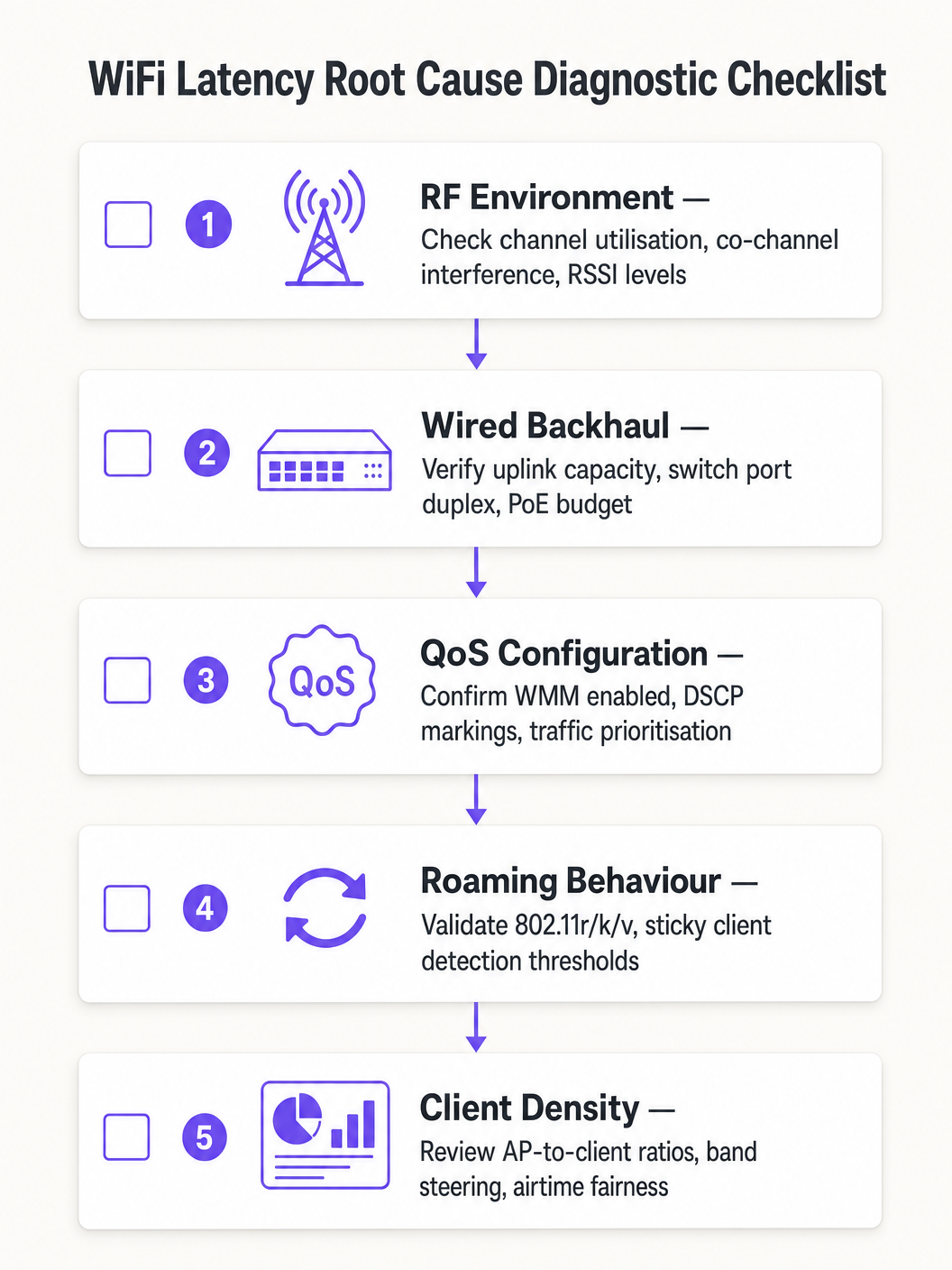
Befolgen Sie einen strukturierten Diagnoseansatz, um eine falsche Zuordnung der Ursache zu vermeiden:
- Domäne isolieren: Pingen Sie das lokale Standard-Gateway vom betroffenen Client aus an. Ist die Latenz gering, funktioniert das drahtlose Netzwerk einwandfrei und das Problem liegt im kabelgebundenen oder WAN-Bereich. Ist die Latenz hoch, fahren Sie mit der drahtlosen Diagnose fort.
- Kanalauslastung prüfen: Eine hohe Auslastung (>50 %) deutet auf CCI oder Kapazitätsengpässe hin. Eine geringe Auslastung bei hoher Latenz weist auf QoS- oder Roaming-Probleme hin.
- Client-Assoziation überprüfen: Identifizieren Sie Clients, die mit niedrigen Datenraten oder schwachem RSSI verbunden sind. Diese verursachen wahrscheinlich eine ineffiziente Airtime-Nutzung oder haben eine schlechte Abdeckung.
- QoS End-to-End validieren: Erfassen Sie Pakete an der WAN-Schnittstelle und überprüfen Sie die DSCP-Markierungen für Sprachverkehr.
- Roaming testen: Verwenden Sie ein WiFi-Diagnosetool, um die Roaming-Übergangszeiten zu messen. Alles über 100 ms deutet darauf hin, dass 802.11r nicht korrekt funktioniert.
Häufige Fehlerursachen:
| Symptom | Mögliche Ursache | Lösung |
|---|---|---|
| Latenzspitzen während Spitzenzeiten | CCI / hohe Kanalnutzung | AP-Leistung reduzieren, auf 5GHz migrieren |
| Audioaussetzer beim Gehen | Langsames Roaming / fehlendes 802.11r | 802.11r aktivieren, RSSI-Schwellenwerte anpassen |
| Konstant hohe Latenz, geringe Auslastung | QoS-Vertrauensgrenze fehlt | DSCP-Vertrauen an Switch-Ports konfigurieren |
| Intermittierender Paketverlust | ACI / Kanalüberlappung | Kanalplan korrigieren, Kanalabstand erhöhen |
ROI & Geschäftsauswirkungen
Das Business Case für die Optimierung der WiFi-Latenz ist eindeutig. In einem Lager- oder Logistikbetrieb kann die Reduzierung der Scanner-Latenz von 150 ms auf unter 20 ms den Durchsatz beim Kommissionieren und Verpacken um 10–15 % steigern, was sich direkt auf die Betriebskosten auswirkt. In einem Unternehmensumfeld reduziert die Eliminierung abgebrochener Teams-Anrufe die Anzahl der IT-Helpdesk-Tickets – deren Bearbeitung typischerweise 25–50 £ pro Ticket kostet – und verbessert die Produktivität von Führungskräften und Mitarbeitern.
Für Gesundheitsorganisationen , die VoWLAN für die klinische Kommunikation einsetzen, ist der Wert der Risikominderung sogar noch höher: Unzuverlässige Kommunikation in einem klinischen Umfeld birgt Auswirkungen auf die Patientensicherheit, die die Kosten der Netzwerkoptimierung bei Weitem übertreffen.
Messen Sie den Erfolg anhand dieser KPIs: durchschnittliche One-Way-Latenz für Sprachverkehr, Jitter-Messungen, Roaming-Übergangszeiten, Prozentsätze der Kanalnutzung und das Volumen der Helpdesk-Tickets im Zusammenhang mit der WiFi-Leistung. Legen Sie Vor- und Nach-Optimierungs-Baselines fest, um die Verbesserung zu quantifizieren und den Business Case für fortlaufende Investitionen zu untermauern.
Schlüsseldefinitionen
Latency
The one-way time delay for a data packet to travel from source to destination, measured in milliseconds.
High latency causes conversational delay in voice calls and video conferencing. The ITU-T G.114 standard specifies a maximum acceptable one-way latency of 150ms, with 50ms as the enterprise target.
Jitter
The statistical variation in packet arrival times, representing the inconsistency of latency across a stream of packets.
High jitter causes choppy or robotic audio as the receiving application's jitter buffer is overwhelmed and packets are discarded. Target jitter below 20ms for enterprise voice applications.
CSMA/CA (Carrier Sense Multiple Access with Collision Avoidance)
The medium access protocol used in 802.11 WiFi networks, where devices listen for channel activity before transmitting and back off randomly if the channel is busy.
The half-duplex nature of CSMA/CA means only one device can transmit at a time on a given channel. In dense environments, this contention mechanism is the primary source of variable latency.
Co-Channel Interference (CCI)
Interference caused when multiple Access Points or clients transmit on the same frequency channel within range of each other.
CCI forces APs to defer transmission, increasing queuing delay. It is the primary RF cause of high latency in dense enterprise deployments and is mitigated through careful channel planning and power management.
WMM (Wi-Fi Multimedia)
The 802.11e QoS implementation for wireless networks, defining four Access Categories (Voice, Video, Best Effort, Background) with differentiated contention parameters.
WMM is the mechanism that gives voice and video traffic statistical priority over bulk data on the wireless medium. It must be enabled on all SSIDs carrying real-time traffic.
802.11r (Fast BSS Transition)
An IEEE standard that allows a client to pre-negotiate security credentials with a target AP before roaming, eliminating the need for a full RADIUS re-authentication during the handoff.
Without 802.11r, roaming under WPA2/WPA3-Enterprise can take 300–800ms, causing audible call dropouts. With 802.11r, roaming completes in under 50ms.
Sticky Client
A wireless device that remains associated to an AP with a degraded signal, even when a closer AP with a stronger signal is available.
Sticky clients experience high latency due to poor signal quality and consume disproportionate airtime at low data rates. WLC-side RSSI threshold enforcement is required to force these clients to roam.
Airtime Fairness
A wireless scheduling mechanism that allocates equal transmission time to all associated clients, rather than equal numbers of transmission opportunities.
Without airtime fairness, a single slow client can monopolise the channel, increasing latency for all other clients on the AP. Enabling airtime fairness protects high-speed clients from the impact of legacy or distant devices.
DSCP (Differentiated Services Code Point)
A 6-bit field in the IP header used to classify and prioritise network traffic for QoS purposes.
DSCP EF (46) is used for voice traffic; DSCP AF41 (34) for video. These markings must be trusted by wired switches to maintain QoS end-to-end from the wireless client to the WAN.
Ausgearbeitete Beispiele
A 1,200-delegate conference centre reports that staff using mobile devices experience dropped Zoom calls when moving between exhibition halls. Signal strength is consistently above -65 dBm throughout the venue, and the wireless controller shows no obvious errors. The issue is intermittent and correlates with staff movement.
A wireless packet capture during a roaming event revealed that clients were taking 480–650ms to complete the roaming process due to full 802.1X re-authentication with the RADIUS server at each AP transition. The RADIUS server was located off-site, adding approximately 80ms of round-trip WAN latency to each authentication exchange.
The resolution involved three steps: First, enable 802.11r (Fast BSS Transition) on the staff SSID to eliminate full RADIUS re-authentication during roams. Second, deploy a local RADIUS proxy or cache to reduce authentication latency for initial associations. Third, enable 802.11k to provide clients with neighbour reports, reducing the scanning phase from 200ms+ to under 30ms. Post-implementation roaming times measured at 35–45ms, eliminating all call dropouts during staff movement.
A national retail chain with 85 stores reports that inventory management scanners on the warehouse floor experience severe latency (150–200ms) during peak trading hours, despite a recent AP hardware refresh. Signal strength is strong, and the WLC dashboard shows no alarms. The issue is worst between 10am and 2pm.
Analysis of the WLC RF dashboard revealed channel utilisation on the 2.4GHz band exceeding 75% during peak hours. The store had 18 APs deployed, all operating on the 2.4GHz band across channels 1, 6, and 11 — meaning six APs per channel were competing for airtime. Additionally, the scanner devices were legacy 802.11n devices operating at data rates as low as 6 Mbps.
The remediation plan: Migrate the scanner SSID exclusively to the 5GHz band, leveraging the wider channel plan to reduce co-channel contention. Disable data rates below 12 Mbps on the 5GHz SSID. Enable WMM and configure the scanner traffic (UDP, port 9100) to be marked as DSCP AF41 (Video class) at the WLC. Configure switch ports to trust DSCP. Post-implementation latency measured at 8–12ms during peak hours.
Übungsfragen
Q1. You are the network architect for a 450-bed hospital deploying VoWLAN handsets for clinical staff across three floors. During UAT, nurses report that calls drop for approximately half a second when moving between wards. Signal strength throughout the building is consistently -62 to -68 dBm. The WLC shows no errors and channel utilisation is below 35%. What is the most likely root cause and what is your recommended resolution?
Hinweis: Consider what happens at the network layer when a client moves from one AP to another under WPA2-Enterprise authentication. Signal strength and channel utilisation are both healthy, so the issue is not RF-related.
Musterlösung anzeigen
The root cause is roaming latency caused by full 802.1X re-authentication at each AP transition. With healthy RSSI and low channel utilisation, the RF environment is not the issue. The half-second dropout is characteristic of a RADIUS authentication exchange occurring during the roam. The recommended resolution is to enable IEEE 802.11r (Fast BSS Transition) on the VoWLAN SSID, which pre-negotiates the PMK-R1 key with the target AP before the roam occurs, reducing transition time to under 50ms. Additionally, enable 802.11k to provide clients with neighbour reports and reduce scanning time, and verify that the RADIUS server response time is below 100ms. Test all handset models for 802.11r compatibility before full deployment.
Q2. A large retail distribution centre has 40 APs deployed across a 20,000 sq ft warehouse floor, all operating on the 2.4GHz band using channels 1, 6, and 11. Barcode scanners used by warehouse operatives are experiencing 120–180ms latency during peak shift hours, causing the inventory management system to time out. Signal strength is strong throughout. What is the primary architectural problem and what is the remediation strategy?
Hinweis: Calculate how many APs are sharing each channel. Consider the fundamental limitation of the 2.4GHz band in terms of non-overlapping channel availability.
Musterlösung anzeigen
The primary problem is severe Co-Channel Interference (CCI). With 40 APs sharing only three non-overlapping channels, approximately 13–14 APs are competing for airtime on each channel. Under CSMA/CA, this creates extreme contention and queuing delay, producing the observed 120–180ms latency. The remediation strategy is: (1) Migrate the scanner SSID exclusively to the 5GHz band, which provides up to 25 non-overlapping 20MHz channels in most regulatory domains, dramatically reducing per-channel AP density. (2) Disable data rates below 12 Mbps to reduce per-frame airtime consumption. (3) Enable WMM and mark scanner UDP traffic as DSCP AF41 to protect it from bulk data traffic. (4) Configure switch ports to trust DSCP markings. (5) Reduce AP transmit power to minimise the CCI footprint of each AP.
Q3. Your network team has implemented WMM on all corporate SSIDs and configured DSCP EF markings for Teams voice traffic at the wireless controller. However, a packet capture taken at the WAN firewall shows Teams voice traffic arriving with DSCP 0 (Best Effort). Helpdesk tickets for call quality issues have not reduced. What has been missed and how do you resolve it?
Hinweis: QoS is only effective if it is maintained end-to-end. Consider what happens to DSCP markings as packets traverse the wired network infrastructure between the AP and the WAN firewall.
Musterlösung anzeigen
The wired network infrastructure is not configured to trust the DSCP markings applied by the wireless controller. When packets leave the AP and traverse the access layer switches, the switch ports are re-marking all traffic to DSCP 0 (Best Effort) because they are not configured to trust incoming DSCP values. The resolution is to configure all switch ports connecting to APs and the WLC with DSCP trust (e.g., 'mls qos trust dscp' in Cisco IOS, or equivalent in other vendor platforms). Additionally, verify that distribution and core layer switches are configured to honour DSCP markings in their QoS policies. After implementing the trust boundary configuration, re-capture at the WAN firewall to confirm that Teams voice traffic is now arriving with DSCP EF (46).