
Captive Portal for Cisco Meraki
Ein maßgebliches technisches Referenzhandbuch auf mittlerem Niveau für die Integration von Cisco Meraki MR Access Points mit dem Cloud-basierten Captive Portal von Purple. Es behandelt Schritt-für-Schritt-Konfigurationen des Meraki Dashboards, RADIUS-Server-Einstellungen (Ports 1812/1813), Walled-Garden-Wildcard-Domain-Ausnahmen und Session-Timeout-Parameter für leistungsstarke Guest-WiFi-Bereitstellungen.
Diesen Leitfaden anhören
Podcast-Transkript ansehen
📚 Part of our core series: Multi-Tenant-WiFi →
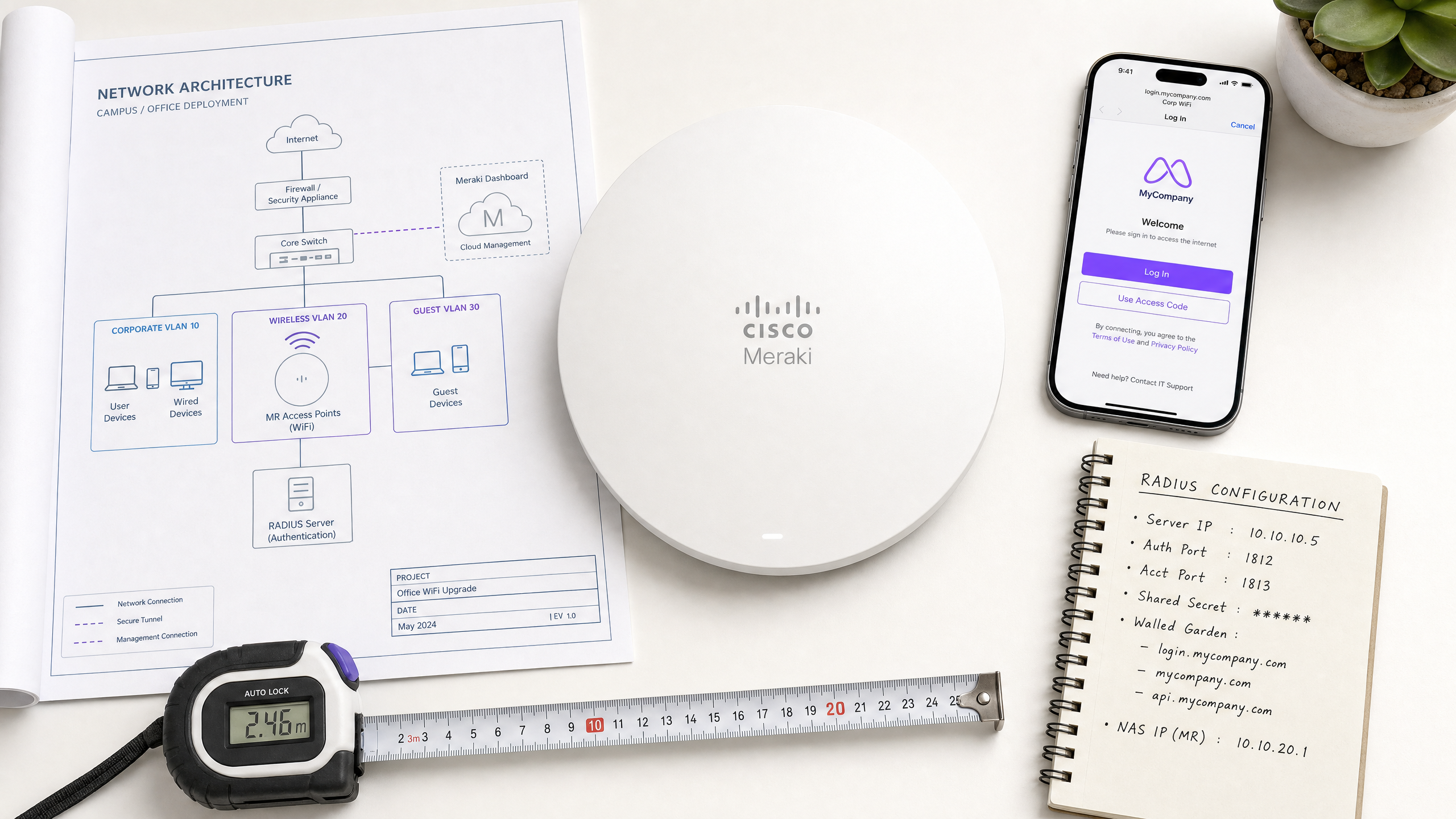
Executive Summary
Dieses maßgebliche Referenzhandbuch bietet einen umfassenden, schrittweisen Konfigurationsrahmen für die Integration von drahtlosen Cisco Meraki-Netzwerken mit dem Cloud-basierten Captive Portal von Purple. Dieses Dokument wurde für IT-Manager, Netzwerkarchitekten und Managed Service Provider (MSPs) entwickelt und beschreibt die genauen Konfigurationen, die im Meraki Dashboard erforderlich sind, um eine sichere, leistungsstarke Guest-WiFi-Lösung bereitzustellen [1].
Durch die Entkopplung der Guest-Intelligence-Ebene von der Hardware können Unternehmen an ihren Standorten die zertifizierten Plattformen Guest WiFi und WiFi Analytics von Purple nutzen, um wertvolle, GDPR-konforme First-Party-Daten zu erfassen und gleichzeitig die Netzwerkintegrität und die Einhaltung gesetzlicher Vorschriften zu gewährleisten [2]. Dieses Handbuch behandelt kritische Integrationsparameter, einschließlich RADIUS-Authentifizierung (Ports 1812/1813), Walled-Garden-Domain-Ausnahmen, CDN-Wildcard-Auflösung und Mechanismen zur Weiterleitung von Gästen in verschiedenen physischen Umgebungen wie Einzelhandel , Gesundheitswesen , Gastgewerbe und Transportwesen .
Technischer Deep-Dive
Um Cisco Meraki MR Access Points (APs) erfolgreich in ein externes Captive Portal wie Purple zu integrieren, müssen Netzwerkingenieure die zugrunde liegende Control- und Data-Plane-Architektur verstehen. Im Gegensatz zu herkömmlichen On-Premise-Wireless-Controllern, bei denen RADIUS-Authentifizierungsanfragen vom physischen Controller oder von einzelnen APs stammen, nutzt Cisco Meraki eine Cloud-verwaltete Architektur [1].
Trennung von Control Plane und Data Plane
Wenn sich ein Gast-Client mit einer offenen SSID verbindet, die für ein externes Captive Portal konfiguriert ist, versetzt der Meraki MR AP den Client in einen Pre-Authentication-Status. In diesem Zustand wird der gesamte Datenverkehr blockiert, mit Ausnahme von DNS-Abfragen, DHCP und Datenverkehr, der an IP-Adressen oder Hostnamen gerichtet ist, die explizit im Walled Garden definiert sind [3].
Die eigentlichen RADIUS-Access-Request-Nachrichten werden nicht vom lokalen Meraki MR AP generiert. Stattdessen stammen sie aus der Cisco Meraki Dashboard Cloud-Infrastruktur [1]. Dies ist eine entscheidende architektonische Unterscheidung:
> "RADIUS-Access-Request-Nachrichten für eine Splash-Page stammen aus dem Dashboard, nicht von den lokalen Meraki-Geräten. Daher kann die private LAN-IP-Adresse des RADIUS-Servers hier nicht angegeben werden." [1]
Folglich müssen die vorgeschalteten Firewalls, die Ihre RADIUS-Server schützen, eingehenden Datenverkehr aus dem gesamten Block der ausgehenden IP-Bereiche des Meraki Dashboards zulassen, die dynamisch und regionsspezifisch sind [1]. Diese Bereiche können dynamisch über das Meraki Dashboard unter Hilfe > Firewall-Info abgerufen werden [1].
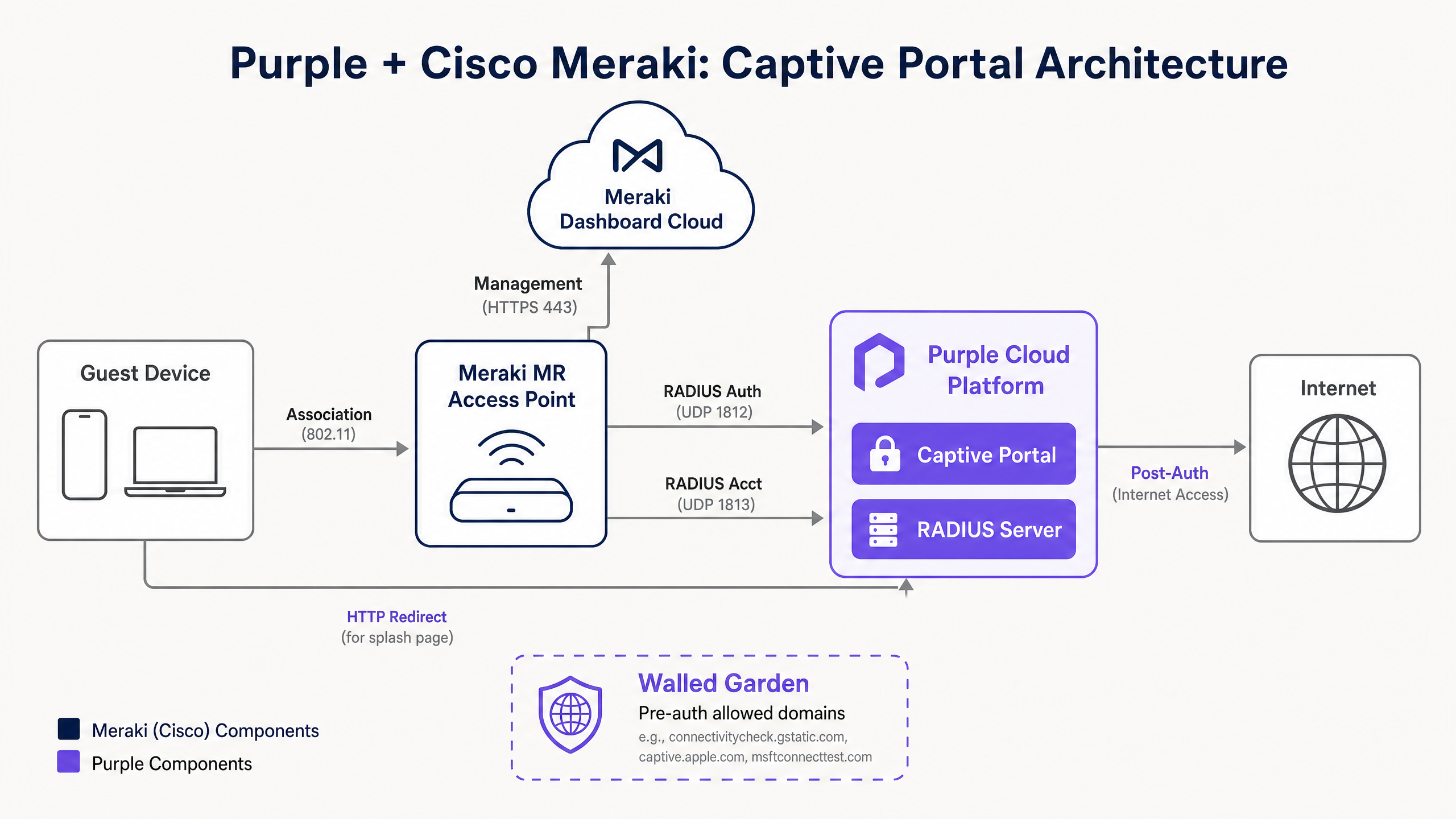
RADIUS-Authentifizierungsprotokoll (PAP)
Für die Authentifizierung auf der Sign-On-Splash-Page verwendet Meraki das Password Authentication Protocol (PAP) [1]. Obwohl PAP historisch unverschlüsselt ist, mindert die Meraki-Purple-Integration Sicherheitsrisiken durch eine mehrschichtige Verschlüsselung:
- Client-to-Cloud-Verschlüsselung: Der Gast-Client stellt eine sichere HTTPS-Verbindung (SSL/TLS) direkt mit dem gehosteten Captive Portal von Purple her. Die Anmeldedaten (z. B. Social-Login-Token, E-Mail-Formulare) werden bei der Übertragung vom Browser des Clients zu den Servern von Purple verschlüsselt [1].
- RADIUS Shared Secret-Verschlüsselung: Wenn die Meraki Cloud den RADIUS-Access-Request an den Cloud-RADIUS-Server von Purple sendet, verschlüsselt sie das Passwort des Benutzers unter Verwendung des konfigurierten RADIUS Shared Secret und einer Standard-XOR-Funktion gemäß RFC 2865 [1]. Dadurch wird sichergestellt, dass Anmeldedaten im Klartext niemals über das öffentliche Internet übertragen werden.
Unterstützte RADIUS-Attribute
Die Meraki Cloud und der Purple Cloud RADIUS tauschen während des Authentifizierungs-Handshakes mehrere Schlüsselattribute aus, um Sitzungsparameter und Richtlinien durchzusetzen:
| RADIUS-Attribut | Typ | Richtung | Beschreibung & praktischer Kontext |
|---|---|---|---|
| User-Name | String | Request | Die Kennung des Gastbenutzers (z. B. E-Mail-Adresse, MAC-Adresse) [1]. |
| User-Password | String | Request | Das verschlüsselte Benutzerpasswort oder Sitzungstoken [1]. |
| Called-Station-ID | String | Request | Formatiert als AP_MAC:SSID_NAME (z. B. AA-BB-CC-DD-EE-FF:GuestWiFi). Entscheidend für standortbasiertes Richtlinien-Routing [1]. |
| Calling-Station-ID | String | Request | Die physische MAC-Adresse des Clients (z. B. 11-22-33-44-55-66). Wird für die Geräteverfolgung und Sitzungswiederaufnahme verwendet [1]. |
| Session-Timeout | Integer | Accept | Die maximale Sitzungsdauer in Sekunden. Nach Ablauf wird der Client zurück zum Captive Portal weitergeleitet [1]. |
| Idle-Timeout | Integer | Accept | Die maximale Inaktivitätszeit in Sekunden. Wenn keine Daten übertragen werden, wird die Sitzung beendet. Erfordert RADIUS-Accounting [1]. |
| Filter-Id | String | Accept | Überträgt den Namen einer bestimmten Meraki-Gruppenrichtlinie, die auf den Client angewendet werden soll (z. B. zur Begrenzung der Bandbreite oder zum Blockieren bestimmter Kategorien) [1]. |
Implementierungsleitfaden
Diese schrittweise Konfigurationsanleitung beschreibt, wie Sie Cisco Meraki MR Access Points in das externe Captive Portal von Purple integrieren.
Schritt 1: SSID-Zugriffskontrolle konfigurieren
Navigieren Sie im Meraki Dashboard zu Wireless > Configure > Access control [1]. Wählen Sie Ihre Ziel-Gast-SSID aus und konfigurieren Sie die folgenden Parameter:
- Association Requirements: Auf Open (no encryption) festlegen [1]. Dies sorgt für einen reibungslosen Onboarding-Prozess. Wenn Sie eine verschlüsselte Gastübertragung benötigen, erwägen Sie die Implementierung von Passpoint / Hotspot 2.0 mit Cloud RADIUS [4].
- Splash Page: Wählen Sie Sign-on with und wählen Sie my RADIUS server aus dem Dropdown-Menü [1].
- RADIUS-Server: Klicken Sie auf Add server und geben Sie die primären und sekundären Endpunkte von Purple Cloud RADIUS ein [1]:
- Host-IP:
116.203.120.121(Primär) und195.201.123.149(Sekundär) - Port:
1812(Authentifizierung) [1] - Secret: [Ihr Purple Shared Secret]
- Host-IP:
- RADIUS-Accounting: Stellen Sie dies auf RADIUS accounting is enabled ein und fügen Sie die Accounting-Server hinzu:
- Host-IP:
116.203.120.121(Primär) und195.201.123.149(Sekundär) - Port:
1813(Accounting) - Secret: [Ihr Purple Shared Secret]
- Host-IP:
- Captive Portal-Stärke: Wählen Sie Block all access until sign-on is complete [1]. Dies stellt strikt sicher, dass Clients nicht auf das Internet zugreifen können, ohne die Splash Page zu durchlaufen.
Schritt 2: Konfigurieren der benutzerdefinierten Splash Page-URL
Navigieren Sie zu Wireless > Configure > Splash page [1]. Wählen Sie Ihre Gäste-SSID aus und konfigurieren Sie Folgendes:
- Custom Splash URL: Wählen Sie Or point to a custom URL und geben Sie die Purple-Weiterleitungs-URL ein:
https://login.venuewifi.com/ip/v2/meraki
- Splash Page Redirect: Stellen Sie dies auf The URL they were trying to fetch ein oder leiten Sie sie auf eine bestimmte Landingpage weiter (z. B. die Homepage Ihres Standorts) [3].
Schritt 3: Walled Garden-Domainnamen-Ausnahmen konfigurieren
Um sicherzustellen, dass Gäste-Clients das Captive Portal laden, Assets von Content Delivery Networks (CDNs) herunterladen und die Social-Media-Authentifizierung (z. B. Google- oder Facebook-OAuth) abschließen können, müssen Sie den Walled Garden aktivieren und konfigurieren [3].
Navigieren Sie zurück zu Wireless > Configure > Access control und suchen Sie den Bereich Walled Garden [1].
- Stellen Sie Walled Garden auf Walled garden is enabled ein [1].
- In dem Feld Walled garden ranges geben Sie die erforderlichen FQDNs und Wildcard-Domains ein [1].
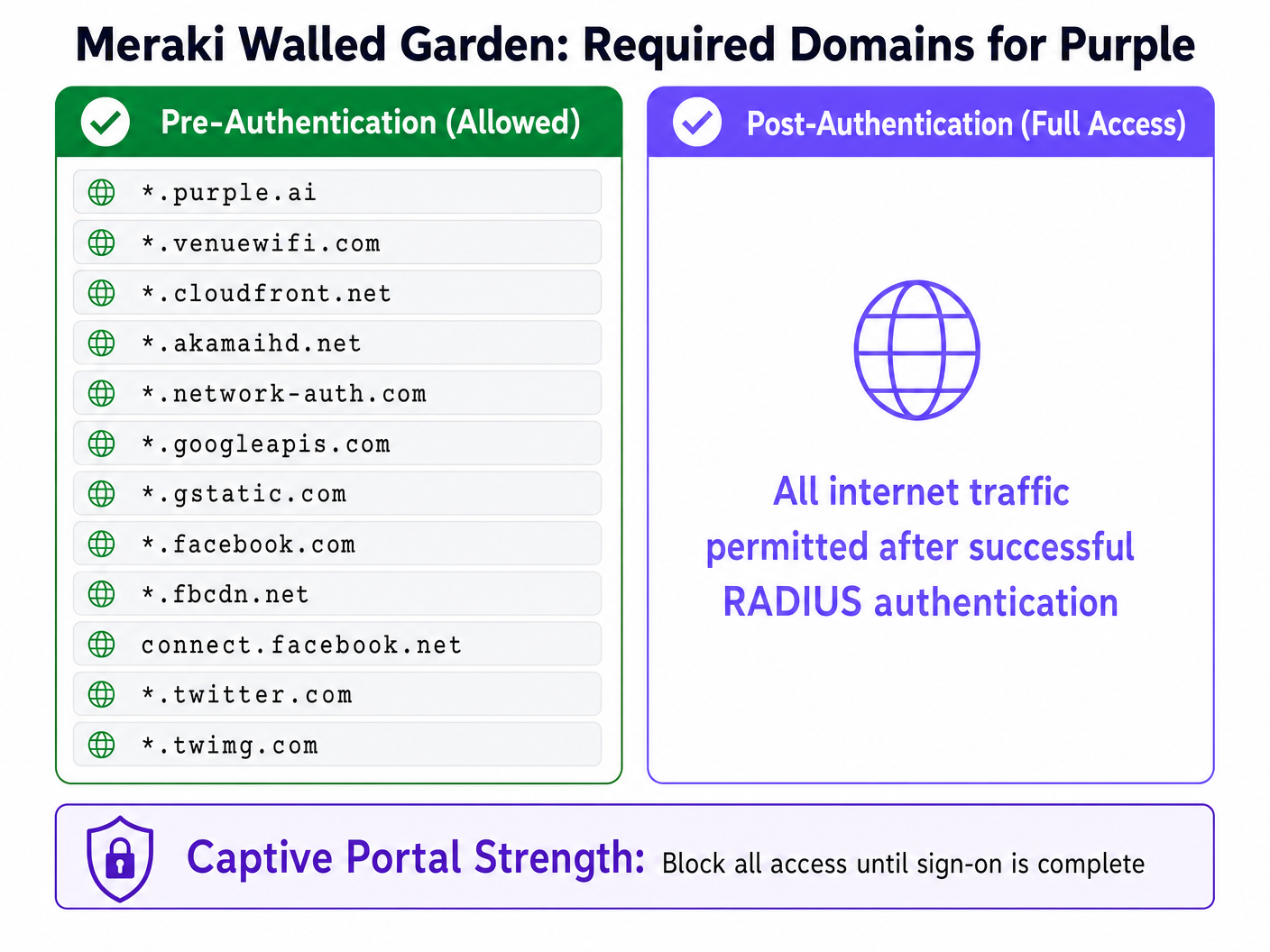
Wie Meraki Wildcards und CDN-Traffic verarbeitet
Cisco Meraki MR Access Points unterstützen Wildcard-Domains im Walled Garden mithilfe des Asterisk-Präfixes (z. B. *.purple.ai) [1]. Es ist jedoch wichtig, die zugrunde liegende Funktionsweise zu verstehen:
- DNS-basiertes Whitelisting: Der Meraki AP fängt die DNS-Anfragen des Clients ab. Wenn der Client eine Domain anfordert, die mit einem Eintrag im Walled Garden übereinstimmt, löst der AP die Domain in ihre aktuelle IP-Adresse auf und erlaubt dem Client vorübergehend, mit dieser IP zu kommunizieren [3].
- Dynamische CDN-IPs: CDNs wie Amazon CloudFront (
*.cloudfront.net) und Akamai (*.akamaihd.net) lösen in hochdynamische, geografisch verteilte IP-Adressen auf, die sich häufig ändern. Das DNS-basierte Whitelisting von Meraki bewältigt dies nahtlos, indem es die Domains in Echtzeit auflöst. Verwenden Sie niemals statische IP-Adressen für CDN-Ressourcen in Ihrem Walled Garden, da dies zu sporadischen Ladefehlern von Portal-Assets führt.
Best Practices
Um eine hohe Verfügbarkeit, Sicherheit und ein optimales Benutzererlebnis zu gewährleisten, sollten Sie diese branchenüblichen Best Practices für die Bereitstellung befolgen:
1. Netzwerksegmentierung und VLAN-Isolierung
Leiten Sie den Gästeverkehr niemals direkt per Bridge in Ihr Unternehmens-LAN weiter. Konfigurieren Sie Ihre Meraki MR APs so, dass sie den Gästeverkehr mit einem dedizierten Gäste-VLAN (z. B. VLAN 30) taggen [4]. Stellen Sie sicher, dass dieses VLAN auf einer DMZ oder einer separaten VRF-Instanz (Virtual Routing and Forwarding) auf Ihrer Upstream-Firewall endet. Dies minimiert die Risiken einer lateralen Bewegung und stellt die Einhaltung von Sicherheitsstandards wie PCI DSS und GDPR sicher [2] [4].
2. Failover und Sitzungsresilienz konfigurieren
Netzwerkverbindungen können ausfallen. Um zu verhindern, dass Gäste während eines Ausfalls des Authentifizierungsservers vom Internet ausgesperrt werden, konfigurieren Sie die RADIUS Failover Policy im Meraki-Dashboard:
- Failover Policy: Stellen Sie dies auf Deny access ein, um maximale Sicherheit zu gewährleisten, oder auf Allow access, wenn die Aufrechterhaltung der Konnektivität für Gäste während eines Ausfalls Vorrang vor der Datenerfassung hat.
- Secondary Servers: Konfigurieren Sie immer sowohl primäre als auch sekundäre RADIUS-Server, um die Last zu verteilen und ein automatisches Failover bereitzustellen [1].
3. Sitzungs- und Inaktivitäts-Timeouts implementieren
Verwalten Sie Ihr Funkspektrum und Ihre DHCP-Pool-Leases, indem Sie entsprechende Timeout-Parameter konfigurieren [1]:
- Session Timeout: Stellen Sie dies auf 1440 minutes (24 hours) für das Gastgewerbe ein, damit Gäste während ihres gesamten Aufenthalts ohne ständige erneute Authentifizierung verbunden bleiben können [1]. Reduzieren Sie dies für den Einzelhandel oder den öffentlichen Nahverkehr auf 120 minutes (2 hours), um eine erneute Interaktion zu fördern und DHCP-Leases freizugeben.
- Idle Timeout: Stellen Sie dies auf 15 minutes ein. Wenn ein Client-Gerät in den Ruhezustand wechselt oder den Standort verlässt, beendet der AP die Sitzung und gibt Netzwerkressourcen wieder frei [1].
Fehlerbehebung & Risikominderung
Bei der Bereitstellung externer Captive Portals auf Cisco Meraki treten bei Technikern häufig drei Hauptfehlerbilder auf. Verwenden Sie diese Diagnosematrix, um Probleme schnell zu isolieren und zu beheben:
| Symptom | Ursache | Diagnoseschritt | Behebung |
|---|---|---|---|
| Splash Page lädt nicht; Browser zeigt „Connection Timed Out“ an. | Die Upstream-Firewall blockiert ausgehenden DNS- oder HTTP/HTTPS-Traffic zum CDN von Purple [1]. | Versuchen Sie, login.venuewifi.com von einem kabelgebundenen Gerät im selben VLAN aufzulösen. |
Stellen Sie sicher, dass das Gäste-VLAN ausgehenden Zugriff auf öffentliches DNS (UDP 53) und HTTP/HTTPS (TCP 80/443) hat. |
| Splash Page lädt, aber die Benutzeranmeldedaten können nicht authentifiziert werden. | Die Upstream-Firewall blockiert RADIUS-Traffic, der aus der Meraki Cloud stammt [1]. | Verwenden Sie das Dienstprogramm RADIUS Test im Meraki-Dashboard unter Access Control [1]. | Fügen Sie die ausgehenden IP-Bereiche des Meraki-Dashboards (zu finden unter Help > Firewall info) zur ausgehenden Zulassungsliste Ihrer Firewall für die UDP-Ports 1812 und 1813 hinzu [1]. |
| Social Login (z. B. Google OAuth) schlägt mit einem Weiterleitungsfehler fehl. | Fehlende erforderliche OAuth-Helper-Domäns im Meraki Walled Garden [1]. | Überprüfen Sie die Browserkonsole auf dem Client-Gerät auf blockierte Ladevorgänge von Ressourcen. | Fügen Sie die erforderlichen OAuth-Domains (z. B. *.googleapis.com, *.gstatic.com) zur Walled Garden-Liste hinzu [1]. |
ROI & geschäftliche Auswirkungen
Die Integration von Cisco Meraki mit Purple verwandelt das Gäste-WiFi von einem Kostenfaktor in ein strategisches Geschäftsgut. Durch die Nutzung von Hardware der Enterprise-Klasse in Kombination mit fortschrittlichen Analysen erzielen Unternehmen messbare Erträge in mehreren Dimensionen:
- Datenmonetarisierung & Marketing-Reichweite: Durch die Erfassung verifizierter E-Mail-Adressen und Social-Media-Profile bauen Standorte eine saubere, datenschutzkonforme Datenbank mit First-Party-Kundendaten auf [2]. Diese fließen direkt in CRM- (Customer Relationship Management) und Marketing-Automatisierungssysteme ein und ermöglichen hochgradig zielgerichtete, hyperlokale Marketingkampagnen.
- Operative Effizienz: Das automatisierte Onboarding über Purple entlastet das Personal an der Rezeption und im IT-Support. In der Hotellerie und Gastronomie führt dies zu weniger Gästebeschwerden bezüglich der WiFi-Konnektivität und zu einem geringeren operativen Aufwand.
- Fortschrittliche Besucheranalysen: Durch die Kombination der Standort-APIs von Meraki mit der Analyse-Engine von Purple erhalten Standortbetreiber tiefe Einblicke in das Besucherverhalten, einschließlich Besucherzahlen, Verweilzeiten, Rückkehrraten und Spitzenzeiten [2]. Diese Daten bilden die Grundlage für fundierte Entscheidungen in Bezug auf Personalplanung, Ladenlayouts und Immobilienbewertung.
Referenzen
- [1] Cisco Meraki: Konfigurieren der RADIUS-Authentifizierung mit einer Sign-On-Splash-Page
- [2] Purple.ai: Der ultimative Leitfaden für unsere WiFi-Analyse- und Gäste-WiFi-Verwaltungsplattform
- [3] Cisco Meraki: Walled Garden – Übersicht und Konfiguration
- [4] Cisco Wireless APs: Leitfaden 2026 für Produkte & Bereitstellung
- [5] Die 10 besten NAC-Lösungen (Network Access Control) für 2026
- [6] WiFi in Schulen: Der Administrator- & IT-Leitfaden für 2026
- [7] So implementieren Sie die 802.1X-Authentifizierung mit Cloud RADIUS
Schlüsseldefinitionen
Captive Portal
A web page that is displayed to newly connected users of a Wi-Fi network before they are granted broader access to network resources.
Used by venues to enforce terms of service, collect user data, and authenticate guests via RADIUS before allowing internet access.
RADIUS (Remote Authentication Dial-In User Service)
A networking protocol that provides centralized Authentication, Authorization, and Accounting (AAA) management for users who connect and use a network service.
Meraki APs query Purple's Cloud RADIUS servers to verify guest credentials and authorize network access.
Walled Garden
A restricted set of IP addresses or domain names that unauthenticated guest clients are permitted to access before completing the captive portal sign-on process.
Crucial for allowing clients to reach the hosted splash page, download CSS/JS assets from CDNs, and communicate with social login OAuth endpoints.
Session-Timeout
An RFC 2865 RADIUS attribute that specifies the maximum number of seconds a user session can remain active before requiring re-authentication.
Returned by Purple RADIUS in the Access-Accept packet to control how long a guest remains logged in (e.g., 24 hours for hotel guests).
Idle-Timeout
A RADIUS attribute that defines the maximum period of inactivity (no data transferred) allowed before the user's session is terminated.
Used to disconnect stale devices and reclaim IP addresses in high-density environments like stadiums or retail stores.
PAP (Password Authentication Protocol)
A simple, unencrypted authentication protocol used by RADIUS to validate user credentials.
Required by Cisco Meraki for external splash page RADIUS authentication. Security is maintained by encrypting the client-to-portal transit via HTTPS and encrypting the RADIUS packet password field using the shared secret.
Passpoint (Hotspot 2.0)
An industry standard developed by the Wi-Fi Alliance that enables cellular-like automatic roaming and secure connection to Wi-Fi networks.
Supported by Meraki MR access points and Purple to enable seamless, certificate-based guest onboarding without captive portals.
CMX (Cisco Meraki Location APIs)
An API framework that allows Meraki access points to export real-time location and presence data (probe requests) to third-party analytics platforms.
Integrated with Purple to provide detailed footfall, dwell time, and return rate analytics for physical venues.
Ausgearbeitete Beispiele
A luxury 350-room hotel running Cisco Meraki MR46 access points needs to deploy a secure guest WiFi network. They want to capture guest emails, restrict bandwidth to 5 Mbps per guest, and ensure that guests only need to log in once every 7 days. How should the network architect configure the Meraki Dashboard and RADIUS settings?
- SSID Setup: Configure an open SSID named 'Hotel_Guest' with the splash page set to 'Sign-on with' and 'my RADIUS server'.\n2. RADIUS Configuration: Enter Purple's primary (
116.203.120.121) and secondary (195.201.123.149) RADIUS IPs. Set the authentication port to1812and the accounting port to1813. Configure the shared secret.\n3. Timeout Parameters: In the RADIUS server profile or Purple dashboard, set the Session-Timeout attribute to604800seconds (7 days) and Idle-Timeout to1800seconds (30 minutes) to reclaim inactive DHCP leases.\n4. Traffic Shaping: In the Meraki Dashboard under Wireless > Configure > Firewall & traffic shaping, select the SSID, enable traffic shaping, and set a per-client limit to 5 Mbps downstream and 2 Mbps upstream.\n5. Walled Garden: Enable the walled garden and add*.purple.ai,*.venuewifi.com, and necessary CDN wildcards like*.cloudfront.netto allow the splash page to render pre-authentication.
A national retail chain with 45 stores wants to deploy guest WiFi across all locations using Meraki MR33 APs. They need to ensure consistent configuration, block corporate network access, and collect footfall analytics. How should this be implemented at scale?
- Configuration Templates: Create a single Network Configuration Template in the Meraki Dashboard. Configure the guest SSID with Purple's RADIUS settings, walled garden domains, and the custom splash URL:
https://login.venuewifi.com/ip/v2/meraki. Bind all 45 store networks to this template.\n2. VLAN Segmentation: On each store's local switch and firewall, configure a dedicated Guest VLAN (e.g., VLAN 50). In the Meraki SSID settings, set Client IP Assignment to 'External DHCP server' and specify VLAN 50. Ensure the firewall blocks all routing from VLAN 50 to corporate subnets.\n3. Location Analytics: Enable Meraki Scanning API (CMX) in the Meraki Dashboard under Network-wide > Configure > General. Enter the Purple Post URL and secret validator. This allows Meraki APs to stream real-time probe request data to Purple's analytics engine for footfall and dwell time reporting.
Übungsfragen
Q1. A network engineer deploys a new Meraki guest SSID with a Purple captive portal. Unauthenticated clients are successfully redirected to the login page, but when they attempt to use 'Log in with Google', the page spins and eventually fails with a DNS or timeout error. Other login methods (like email form) work perfectly. What is the most likely cause of this issue, and how should it be resolved?
Hinweis: Consider what external domains the client's browser must reach to complete the Google OAuth handshake before the RADIUS authentication is completed.
Musterlösung anzeigen
The most likely cause is that the Google OAuth helper domains are missing from the Meraki SSID's Walled Garden configuration. While the core Purple domains and CDN domains are allowed (which is why the splash page loads), the Google authentication servers are being blocked by the AP's pre-authentication firewall rules. To resolve this, navigate to Wireless > Configure > Access control, select the guest SSID, and append the following Google OAuth domains to the Walled Garden list: accounts.google.com, *.googleapis.com, *.gstatic.com, and *.googleusercontent.com. Once saved, the AP will permit the client to complete the Google authentication handshake and redirect back to Purple to complete the RADIUS login.
Q2. During a post-deployment audit of a high-density stadium WiFi network, the IT team notices that the DHCP pool for the guest VLAN (a /21 subnet with 2048 IPs) is completely exhausted within the first 2 hours of an event, even though active concurrent connections never exceed 800. RADIUS accounting is enabled. How can the network architect adjust the Meraki and RADIUS settings to mitigate this issue?
Hinweis: Analyze the relationship between client session timeouts, idle timeouts, and DHCP lease times in high-density transient environments.
Musterlösung anzeigen
The DHCP pool exhaustion is caused by transient clients (users walking past or entering the stadium briefly) connecting, obtaining an IP address, and then leaving the venue. Because the default Meraki Session-Timeout or DHCP lease time is too long, those IP addresses remain reserved even though the physical devices are no longer present. To resolve this, the architect should implement three coordinated changes: 1) Reduce DHCP Lease Time: On the DHCP server (or Meraki security appliance handling DHCP), reduce the lease time to 10 or 15 minutes. 2) Configure Idle Timeout: Ensure RADIUS accounting is enabled on port 1813 and configure an Idle-Timeout of 10 minutes (600 seconds) in the RADIUS Access-Accept profile. This tells the Meraki AP to terminate the session of any client inactive for 10 minutes. 3) Shorten Session Timeout: Reduce the global Session-Timeout for the stadium profile to 120 minutes (7200 seconds) to force periodic re-evaluation of active devices.
Q3. An MSP is configuring a Meraki guest SSID with a Purple captive portal. They have entered the correct Purple RADIUS server IPs and ports (1812/1813) in the Meraki Dashboard, but when testing with the built-in RADIUS 'Test' tool, all access points fail to reach the server. The MSP verifies that the RADIUS shared secret is correct and that the Purple cloud is online. What routing or firewall configuration did the MSP likely overlook?
Hinweis: Recall where RADIUS authentication requests are sourced from in a Cisco Meraki cloud-managed architecture.
Musterlösung anzeigen
The MSP likely configured their local network firewalls to allow outbound RADIUS traffic from the local AP subnets, but forgot that in a Meraki splash page deployment, RADIUS Access-Requests are sourced directly from the Cisco Meraki Dashboard Cloud Infrastructure, not from the local APs. To resolve this, the MSP must obtain the outbound IP ranges of the Meraki Dashboard (found in the Meraki Dashboard under Help > Firewall info) and configure their upstream corporate firewall to allow inbound and outbound UDP traffic on ports 1812 (Authentication) and 1813 (Accounting) between those Meraki Dashboard IP ranges and Purple's Cloud RADIUS servers. Additionally, they must ensure that the Meraki Dashboard IPs are added as valid RADIUS clients in the Purple portal configuration.
Weiterlesen in dieser Reihe
CommScope Ruckus Integration mit Purple WiFi: Einrichtungs- und Konfigurationshandbuch
Dieses technische Referenzhandbuch bietet einen maßgeblichen Konfigurationsleitfaden für die Integration von CommScope Ruckus-Architekturen mit Purple WiFi. Es beschreibt Schritt-für-Schritt-Bereitstellungen für Guest WiFi Captive Portals, sicheres Mitarbeiter-WiFi über 802.1X und mandantenfähige Netzwerkisolierung mithilfe von Ruckus Dynamic PSK.
Cisco WLC and Catalyst Integration with Purple WiFi: Step-by-Step Guest Access Guide
Diese Anleitung beschreibt die schrittweise Integration von Cisco WLC und Catalyst 9800 Wireless mit Purple. Sie umfasst die Weiterleitung zum Guest WiFi Captive Portal über Central Web Authentication, sicheres Mitarbeiter-WiFi mittels 802.1X EAP-TLS sowie Multi-Tenant-Segmentierung über Cisco Identity Pre-Shared Keys (iPSK) mit dynamischer VLAN-Zuweisung. Sie richtet sich an Netzwerkarchitekten in Unternehmen und IT-Sicherheitsverantwortliche, die Cisco-Infrastrukturen im Gastgewerbe, im Einzelhandel und in großen öffentlichen Veranstaltungsorten bereitstellen.
OpenWrt Custom Firmware Integration with Purple WiFi
Dieses Handbuch bietet das vollständige Integrations-Playbook für die Bereitstellung von OpenWrt Custom Firmware mit Purple WiFi. Es deckt die Konfiguration des CoovaChilli Captive Portal, die Verwaltung des iptables Walled Garden, sicheres Mitarbeiter-WiFi über 802.1X mit hostapd sowie die mandantenfähige PPSK-Segmentierung mit dynamischer VLAN-Zuweisung ab. Damit erhalten IT-Teams die genauen Konfigurationsschritte, die für den Aufbau eines identitätsbasierten Netzwerks auf jeder OpenWrt-fähigen Hardware erforderlich sind.