
WatchGuard Firebox Integration with Purple WiFi: Setup and Configuration Guide
Dieser Leitfaden ist ein schrittweises Integrations-Playbook für IT-Manager und Netzwerkarchitekten, die WatchGuard Firebox und Access Points mit Purple bereitstellen. Er behandelt die externe Captive Portal-Weiterleitung für Guest WiFi, die sichere 802.1X-Authentifizierung für Staff WiFi und die mandantenfähige Segmentierung mithilfe von WatchGuard Private Pre-Shared Keys (PPSK) mit dynamischer VLAN-Steuerung – für eine einzige, einheitliche Architektur über alle Zugriffsebenen hinweg.
Diesen Leitfaden anhören
Podcast-Transkript ansehen
Executive Summary
Die Bereitstellung einer sicheren, skalierbaren Wireless-Infrastruktur an komplexen Standorten erfordert eine präzise Integration zwischen Ihrem Security-Gateway und Ihrem Identity-Provider. Dieser Leitfaden beschreibt die Integration von WatchGuard Firebox und WatchGuard Access Points mit Purple und deckt drei verschiedene Zugriffsebenen ab: Guest WiFi Captive Portal-Weiterleitung, sicheres Staff WiFi mittels IEEE 802.1X und mandantenfähige WiFi-Segmentierung über WatchGuard Private Pre-Shared Keys (PPSK).
Durch die Kombination der einheitlichen Sicherheitsplattform von WatchGuard mit dem Cloud-Overlay von Purple automatisieren Sie die identitätsbasierte Zugriffskontrolle, setzen granulare Sicherheitsrichtlinien durch und erfassen First-Party-Daten in großem Umfang. Purple ist an über 80.000 Live-Standorten im Einsatz und verarbeitete im Jahr 2024 440 Millionen Logins (interne Daten von Purple). Die Integration ist herstellerunabhängig konzipiert – WatchGuard steht neben Cisco Meraki, HPE Aruba, Ruckus, Juniper Mist, Ubiquiti UniFi, Cambium, Extreme und Fortinet auf der Liste der von Purple unterstützten Hardware. Für einen umfassenderen Überblick über Sicherheitsstandards für WiFi in Unternehmen lesen Sie unseren Leitfaden Enterprise WiFi Security: A Complete Guide for 2026 .
Technische Architektur
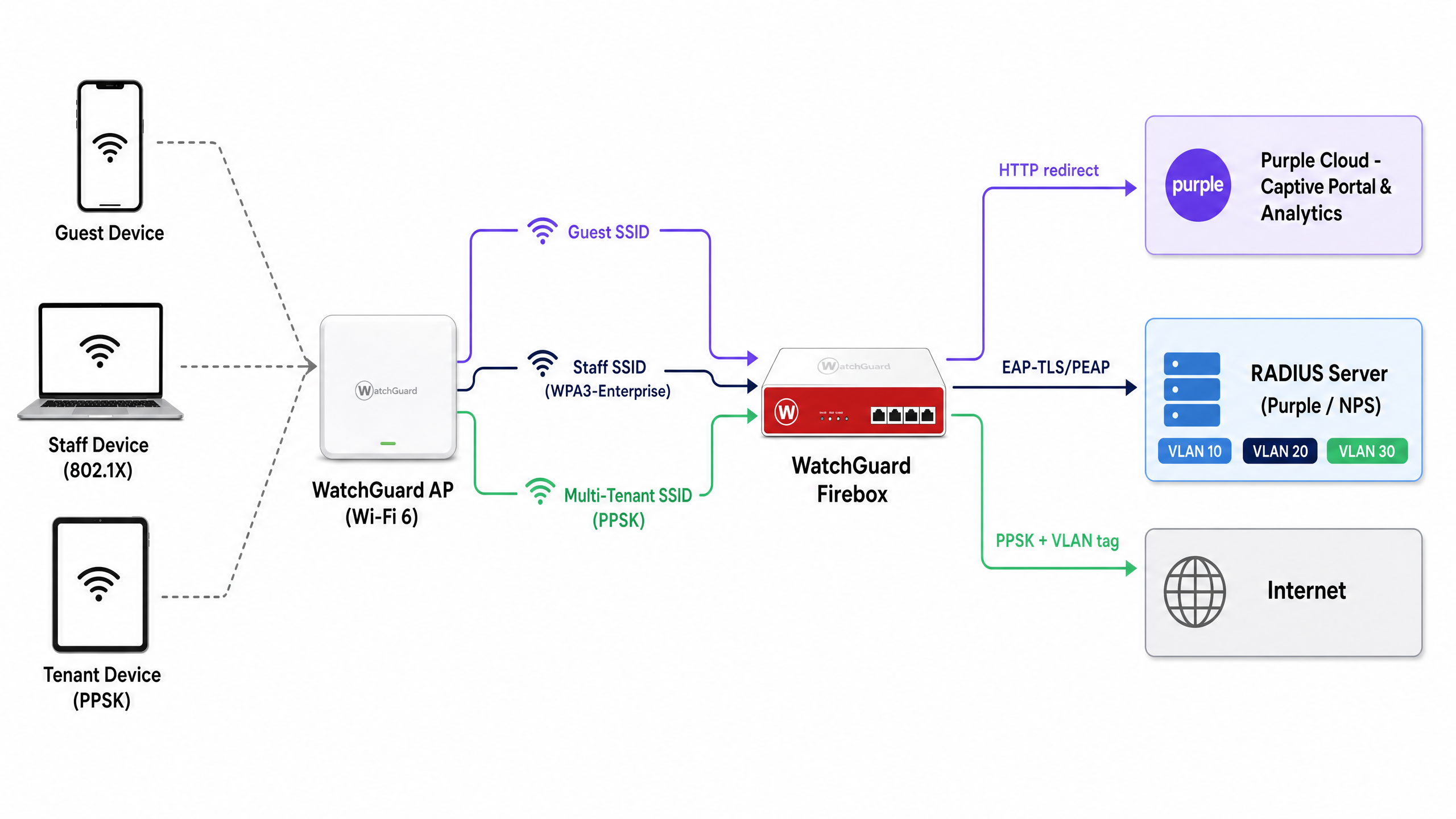
Die Integration verbindet WatchGuard-Hardware mit den Cloud-Diensten von Purple über zwei Standardmechanismen: RADIUS (Remote Authentication Dial-In User Service) für Authentifizierung und Accounting sowie HTTP-Weiterleitung für die Bereitstellung des Captive Portals. Die Architektur unterstützt drei Zugriffsebenen auf einer einzigen physischen Infrastruktur.
| Zugriffsebene | SSID-Typ | Authentifizierungsmethode | Purple-Rolle |
|---|---|---|---|
| Guest WiFi | Offen | Externes Captive Portal + RADIUS-Accounting | Splashpage, Datenerfassung, Analytics |
| Staff WiFi | WPA3-Enterprise | 802.1X (EAP-TLS oder PEAP) | RADIUS-Server, Identity-Provider-Proxy |
| Multi-Tenant WiFi | WPA2/WPA3 Personal + PPSK | PPSK validiert über RADIUS | Schlüsselverwaltung, dynamische VLAN-Zuweisung |
Alle drei Ebenen können gleichzeitig auf derselben WatchGuard Access Point-Flotte betrieben werden. Die Wi-Fi 6-Modelle von WatchGuard – AP130, AP230W, AP330, AP332CR, AP430CR und AP432 – unterstützen PPSK ab Firmware-Version v2.6.
Konfiguration der Captive Portal-Weiterleitung für Guest WiFi
Die Captive Portal-Integration von WatchGuard leitet nicht authentifizierte HTTP-Anfragen an die von Purple gehostete Splashpage weiter. Dies ist der primäre Mechanismus zur Erfassung von First-Party-Daten und zur Durchsetzung von Nutzungsbedingungen.
Schritt 1: RADIUS-Server-Konfiguration
Definieren Sie in der WatchGuard Cloud oder im Firebox Policy Manager Purple als RADIUS-Authentifizierungs- und Accounting-Server.
- Primärer RADIUS-Server: Stellen Sie dies auf die Purple RADIUS-IP-Adresse für Ihre Region ein (verfügbar im Purple-Portal unter Einstellungen > Hardware-Integration).
- Authentifizierungs-Port: 1812
- Accounting-Port: 1813
- Shared Secret: Geben Sie das eindeutige Secret ein, das im Purple-Portal bereitgestellt wird.
- NAS-ID: Stellen Sie dies auf die MAC-Adresse der Firebox oder des APs unter Verwendung des Formatbezeichners
%mein. Dies identifiziert den Standort für Purple und leitet die Analytics an das richtige Konto weiter. - Accounting-Intervall: Auf 10 Minuten festlegen, um sicherzustellen, dass Sitzungsdaten in regelmäßigen Abständen an das Analytics-Dashboard von Purple übertragen werden.
Schritt 2: SSID- und Captive Portal-Einstellungen
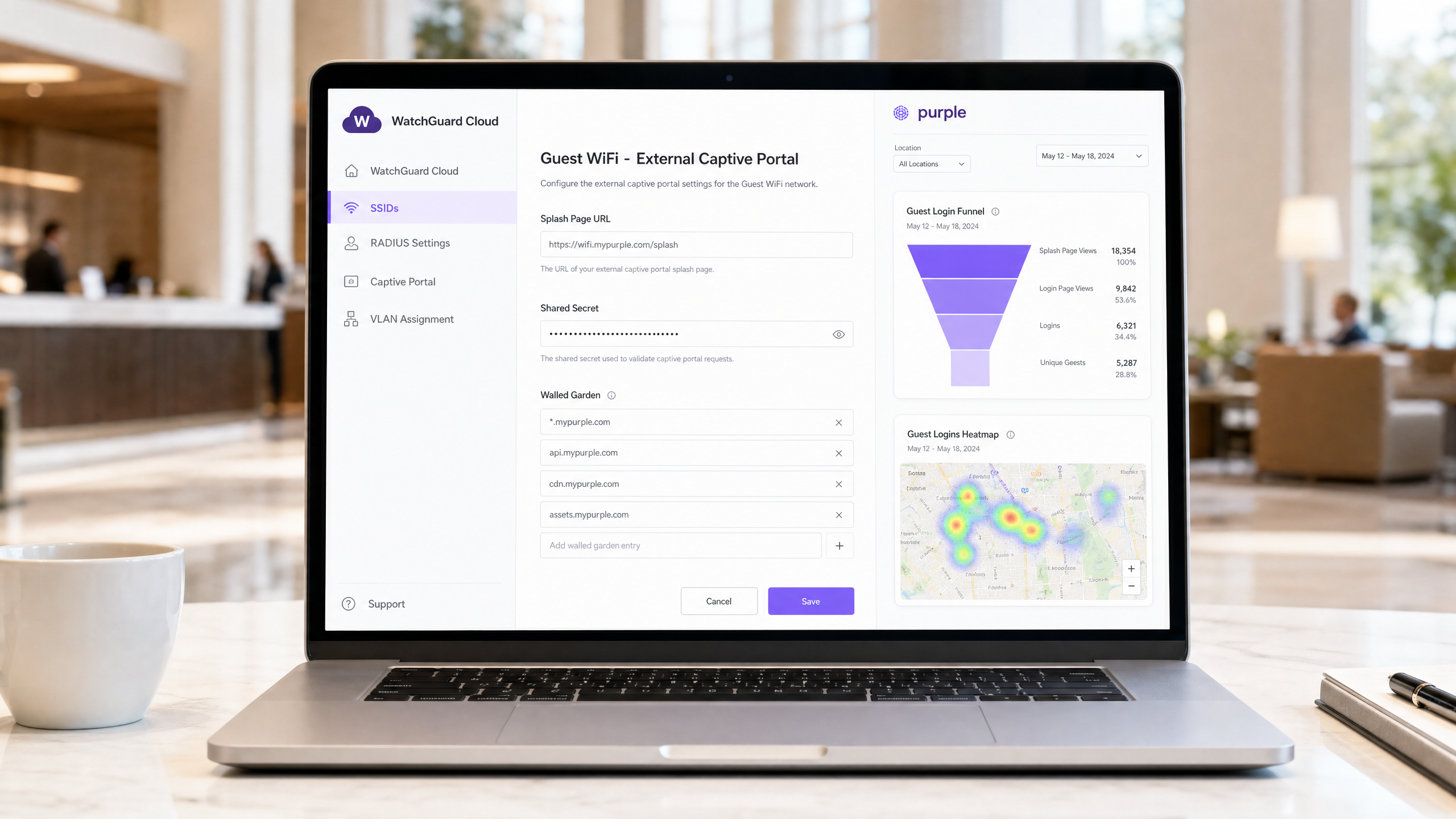
Navigieren Sie in der WatchGuard Cloud zu Konfigurieren > Geräte > [Ihr AP] > Gerätekonfiguration > SSIDs. Erstellen oder bearbeiten Sie die Guest SSID.
- Sicherheit: Offen (kein Passwort vor der Authentifizierung).
- Captive Portal-Typ: Wählen Sie Von Drittanbietern gehostetes Captive Portal mit RADIUS-Authentifizierung.
- Splashpage-URL: Geben Sie die URL der Purple-Splashpage ein (z. B.
https://wifi.mypurple.com/splash). Rufen Sie diese unter Purple > Analysieren > Portale ab. - Shared Secret: Geben Sie das Shared Secret des Portals von derselben Seite „Purple > Analysieren > Portale“ ein. Dieses Secret generiert den HMAC-SHA1-Digest, den WatchGuard verwendet, um die erfolgreiche Authentifizierungsantwort von Purple zu validieren.
Schritt 3: Walled-Garden-Konfiguration
Der Walled Garden definiert, auf welche Domänen ein Gerät zugreifen kann, bevor die Authentifizierung abgeschlossen ist. Ohne dies kann das Gerät die Purple-Splashpage nicht laden. Fügen Sie die folgenden Einträge zu Websites, auf die Benutzer vor dem Login zugreifen können hinzu:
*.mypurple.comapi.mypurple.comcdn.mypurple.comassets.mypurple.com
Wenn Sie Social- oder Verbund-Logins über Microsoft Entra ID, Okta, oder Google Workspace aktivieren, fügen Sie die entsprechenden Domänen der Identity-Provider hinzu (z. B. login.microsoftonline.com, accounts.google.com). Rechtliche und Compliance-Hintergründe zu gemeinsam genutzten WiFi-Infrastrukturen finden Sie in unserem Leitfaden Rechtliche und Compliance-Anforderungen für gemeinsam genutzte WiFi-Infrastrukturen .
So funktioniert der HMAC-Authentifizierungsablauf
Das Verständnis dieses Ablaufs hilft Ihnen, Fehler schnell zu diagnostizieren.
- Das Gastgerät verbindet sich mit der offenen SSID und stellt eine HTTP-Anfrage.
- Der WatchGuard AP fängt die Anfrage ab und leitet den Browser an die URL der Purple-Splashpage weiter, wobei ein
challenge-Parameter (eine zufällige Hex-Zeichenfolge) und die MAC-Adresse des Geräts angehängt werden. - Purple zeigt die Splashpage an. Der Gast füllt das Anmeldeformular aus.
- Purple generiert einen HMAC-SHA1-Digest unter Verwendung des Shared Secrets des Portals und des Challenge-Werts.
- Purple leitet den Browser zurück zur Login-URL des WatchGuard APs und hängt die Challenge und den Digest an.
- Der WatchGuard AP validiert den Digest mit demselben Shared Secret. Wenn er übereinstimmt, gewährt der AP Internetzugang und sendet ein RADIUS-Accounting-Start-Paket an Purple.
Sicheres Staff WiFi mit 802.1X
Für Staff WiFi ersetzen Sie das Captive Portal durch IEEE 802.1X – den Unternehmensstandard für die portbasierte Netzwerkzugriffskontrolle. Jedes Teammitglied authentifiziert sich mit eindeutigen Anmeldedaten oder einem Zertifikat, wodurchEliminierung des Risikos gemeinsam genutzter Passwörter.
Konfigurieren Sie in der WatchGuard Cloud die Staff SSID mit WPA3 Enterprise-Sicherheit und verweisen Sie die Authentication Domain auf den RADIUS-Server von Purple. Purple fungiert als RADIUS-Server und kann Authentifizierungsanfragen über SAML oder LDAP an Microsoft Entra ID, Okta oder Google Workspace weiterleiten.
Stellen Sie für die zertifikatsbasierte Authentifizierung (EAP-TLS) Client-Zertifikate über Ihr MDM auf verwalteten Geräten bereit. Bei der anmeldedatenbasierten Authentifizierung (PEAP-MSCHAPv2) authentifizieren sich Benutzer mit ihren Verzeichnis-Anmeldedaten. Purple validiert die Anfrage gegenüber dem konfigurierten Identitätsanbieter und gibt ein RADIUS Access-Accept oder Access-Reject an den WatchGuard AP zurück.
Eine detaillierte Anleitung zur 802.1X-Konfiguration für verschiedene Gerätetypen finden Sie in unserem Leitfaden 802.1X-Authentifizierung: Sicherung des Netzwerkzugriffs auf modernen Geräten .
Wichtiger Hinweis zur MAC-Randomisierung: Moderne iOS- und Android-Geräte randomisieren standardmäßig ihre MAC-Adressen. Weisen Sie Ihre Mitarbeiter für das 802.1X Staff WiFi an, die MAC-Randomisierung für die Staff SSID zu deaktivieren. Randomisierte MACs führen zu inkonsistenten Authentifizierungsprotokollen und verhindern die Durchsetzung von MAC-basierten Richtlinien.
Multi-Tenant WiFi mit WatchGuard PPSK
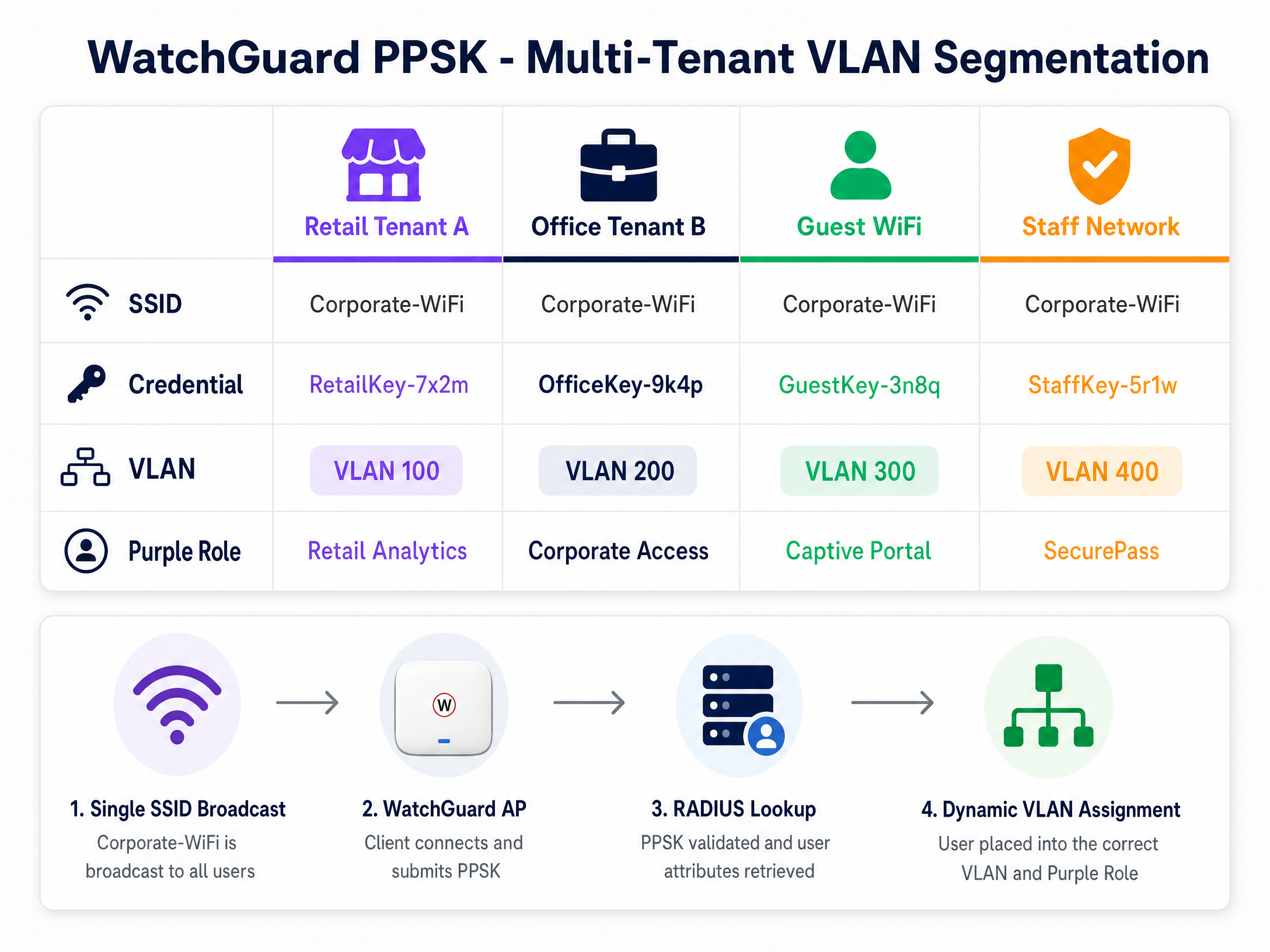
Das Ausstrahlen einer separaten SSID pro Mieter in einem Einkaufszentrum, Coworking-Space oder einer Build-to-Rent-Entwicklung (BTR) verursacht Co-Kanal-Interferenzen und überlastet die HF-Umgebung. WatchGuard PPSK (Private Pre-Shared Key) – eingeführt in der AP-Firmware v2.6 – löst dieses Problem, indem jedem Benutzer oder Mieter auf einer einzigen SSID ein eindeutiges Passwort zugewiesen wird.
Schritt 1: PPSK auf der SSID aktivieren
Bearbeiten Sie in der WatchGuard Cloud die Ziel-SSID (z. B. Venue-WiFi).
- Sicherheit: WPA2 Personal oder WPA3 Personal.
- Authentifizierung: Aktivieren Sie Private Pre-Shared Key (PPSK).
- RADIUS-Server: Verweisen Sie auf den RADIUS-Server von Purple. Purple verwaltet den PPSK-Anmeldedatenspeicher und gibt bei der Authentifizierung VLAN-Attribute zurück.
Schritt 2: Dynamische VLAN-Zuweisung konfigurieren
Um den Datenverkehr der Mieter zu isolieren, weist der WatchGuard AP basierend auf dem verwendeten PPSK ein bestimmtes VLAN zu.
- VLAN-Einstellung: Wählen Sie Dynamic VLAN assigned by RADIUS.
- Fallback für nicht zugewiesene Clients: Wählen Sie ein isoliertes Quarantäne-VLAN (z. B. VLAN 999), um sicherzustellen, dass Geräte, bei denen die RADIUS-Validierung fehlschlägt, nicht auf das Unternehmensnetzwerk zugreifen können.
Anforderungen für dynamische VLANs auf WatchGuard Access Points:
- AP-Firmware v2.2 oder höher.
- NAT muss auf der SSID deaktiviert sein.
- Dynamische VLANs und Captive Portal können nicht gleichzeitig auf derselben SSID ausgeführt werden.
- Der mit dem AP verbundene Switch-Port muss als Trunk-Port konfiguriert sein, der alle relevanten VLANs überträgt.
Schritt 3: RADIUS-Attribute für VLAN-Steuerung
Wenn sich ein Benutzer über ein PPSK verbindet, sendet der WatchGuard AP eine RADIUS-Access-Request an Purple. Purple validiert den Schlüssel und gibt ein Access-Accept-Paket zurück, das drei IETF-RADIUS-Attribute enthält:
| RADIUS-Attribut | Attributnummer | Wert |
|---|---|---|
| Tunnel-Type | 64 | 13 (VLAN) |
| Tunnel-Medium-Type | 65 | 6 (802) |
| Tunnel-Private-Group-ID | 81 | VLAN-ID (z. B. "100") |
Der WatchGuard AP liest das Attribut 81 und weist den Client dem entsprechenden VLAN zu. In Purple ordnen Sie jeden PPSK-Anmeldedatensatz einer bestimmten VLAN-ID und Rolle zu. Dies ist der Mechanismus hinter identitätsbasierten Netzwerken (Identity-Based Networks) – die Anmeldedaten bestimmen das Netzwerksegment, nicht die SSID.
Best Practices für die Implementierung
Diese Empfehlungen gelten für Bereitstellungen im Gastgewerbe , Einzelhandel , Gesundheitswesen und Transportwesen .
Sitzungs-Timeouts: Konfigurieren Sie Sitzungs-Timeouts sowohl in Purple als auch in WatchGuard, um eine erneute Authentifizierung in regelmäßigen Abständen zu erzwingen. Dies sorgt für präzise Analysen und verhindert, dass inaktive Sitzungen Bandbreite verbrauchen. Stellen Sie das RADIUS Interim-Update (Acct-Interim-Interval) auf 600 Sekunden (10 Minuten) ein.
Firmware-Management: Stellen Sie sicher, dass auf den WatchGuard Access Points die Firmware v2.6 oder höher ausgeführt wird, um PPSK zu unterstützen. Nutzen Sie die WatchGuard Cloud, um Firmware-Upgrades außerhalb der Spitzenzeiten zu planen, um Abdeckungslücken zu vermeiden.
PCI-DSS-Konformität: Isolieren Sie in Einzelhandelsumgebungen, in denen Kartenzahlungen verarbeitet werden, POS-Geräte mithilfe von PPSK in einem dedizierten VLAN (z. B. VLAN 200). Stellen Sie sicher, dass das Guest WiFi-VLAN keine Route zum POS-VLAN hat. Dies unterstützt die Anforderungen zur PCI-DSS-Netzwerksegmentierung.
GDPR und Datenerfassung: Das Captive Portal von Purple verwendet Opt-ins auf Basis einer bewussten Entscheidung, um sicherzustellen, dass die Datenerfassung den GDPR-Anforderungen entspricht. Purple ist nach ISO 27001, GDPR, CCPA und Cyber Essentials zertifiziert. Stellen Sie sicher, dass Ihre Splash-Page einen klaren Datenschutzhinweis und einen Link zu den Nutzungsbedingungen enthält, bevor die Datenerfassung beginnt.
Fehlerbehebung und Risikominderung
Captive Portal lädt nicht: Der Walled Garden ist die erste Anlaufstelle für die Überprüfung. Wenn das Gerät vor der Authentifizierung keine DNS-Auflösung durchführen oder die Server von Purple nicht erreichen kann, zeigt der Browser anstelle der Splash-Page einen Timeout-Fehler an. Überprüfen Sie, ob alle Purple-Domains in der Walled-Garden-Liste enthalten sind und ob die WatchGuard-DNS-Einstellungen die Auflösung vor der Authentifizierung zulassen.
HMAC-Digest-Validierungsfehler: Wenn die WatchGuard-Protokolle Authentifizierungsfehler mit HMAC-Fehlern aufweisen, stimmt das Captive Portal Shared Secret zwischen WatchGuard und Purple nicht überein. Es muss in beiden Systemen identisch sein. Generieren Sie das Secret in Purple neu und geben Sie es erneut in der WatchGuard Cloud ein.
VLAN-Steuerung schlägt fehl: Wenn ein PPSK-Benutzer eine IP aus dem falschen VLAN erhält, überprüfen Sie die RADIUS-Protokolle im Purple-Portal. Stellen Sie sicher, dass Purple alle drei IETF-RADIUS-Attribute zurückgibt. Vergewissern Sie sich, dass der Wert für Tunnel-Private-Group-ID als String formatiert ist und mit einer auf dem Switch-Trunk-Port konfigurierten VLAN-ID übereinstimmt.
Konflikt zwischen PPSK und Captive Portal: WatchGuard unterstützt keine dynamischen VLANs und Captive Portal auf derselben SSID. Wenn Sie beides benötigen, verwenden Sie zwei SSIDs: eine für das Guest Captive Portal und einee für den PPSK-Multi-Tenant-Zugriff.
802.1X-Authentifizierungsfehler: Verwenden Sie das in der WatchGuard-AP-Firmware v2.5 und höher verfügbare Paket-Erfassungstool, um den Datenverkehr zwischen dem AP und dem RADIUS-Server zu erfassen. Suchen Sie nach RADIUS-Access-Reject-Paketen und dem Ursachencode im Reply-Message-Attribut.
ROI und geschäftliche Auswirkungen
Die Integration von WatchGuard und Purple konsolidiert Sicherheit und Analysen in einer einzigen Architektur. Ein Hotel mit 200 Zimmern, das diese Integration nutzt, macht separate Gateways für Gäste und Mitarbeiter überflüssig und reduziert die Hardwareausgaben im Vergleich zu einer Multi-Gateway-Bereitstellung um ca. 30 % (interne Daten von Purple). Das Guest WiFi Captive Portal erfasst First-Party-Daten – E-Mail-Adressen, demografische Informationen und die Besuchshäufigkeit –, die über den Engage-Tarif von Purple direkte Marketingeinnahmen generieren.
Für Multi-Tenant-Standorte eliminiert PPSK den betrieblichen Aufwand für die Verwaltung mehrerer SSIDs. Ein Einkaufszentrum, das 15 Ladeneinheiten über eine einzige SSID verwaltet, reduziert die AP-Funkfrequenznutzung und vereinfacht Netzwerk-Audits. WiFi Analytics von Purple liefert Standortbetreibern Daten zu Verweildauer, Besucherzahlen und wiederholten Besuchen – Kennzahlen, die die Infrastrukturinvestition gegenüber den Finanzteams rechtfertigen.
Purple gewährleistet eine Betriebszeit von 99,999 % (interne Daten von Purple) und stellt sicher, dass das Guest WiFi Captive Portal auch in Spitzenzeiten an stark frequentierten Standorten wie Stadien und Konferenzzentren verfügbar bleibt.
Schlüsseldefinitionen
PPSK (Private Pre-Shared Key)
A security feature that assigns a unique password to each user or device on a WPA2/WPA3 Personal SSID. Introduced in WatchGuard AP firmware v2.6.
Used in multi-tenant environments - retail centres, coworking spaces, BTR developments - to segment users without requiring 802.1X supplicant configuration on client devices.
Dynamic VLAN steering
The process of assigning a network device to a specific Virtual LAN based on RADIUS attributes (Tunnel-Type, Tunnel-Medium-Type, Tunnel-Private-Group-ID) returned during authentication.
The mechanism that isolates tenant, staff, and guest traffic on the same physical access point. Requires AP firmware v2.2 or higher on WatchGuard hardware.
Walled Garden
A list of IP addresses or domains that an unauthenticated user is permitted to access before completing captive portal authentication.
Required to allow guest devices to load the Purple splash page and complete federated logins (Microsoft Entra ID, Google Workspace) before full internet access is granted.
HMAC digest
A cryptographic hash (HMAC-SHA1) used to verify the integrity and authenticity of the authentication success message from the captive portal.
WatchGuard validates the HMAC digest using the Captive Portal Shared Secret. A mismatch between the secret in WatchGuard and Purple causes authentication failures.
RADIUS accounting
The component of the RADIUS protocol that tracks network usage, including session start, session duration, and data transfer volume.
Purple relies on RADIUS Accounting packets from the WatchGuard Firebox to populate the analytics dashboard and enforce session time limits. Operates on port 1813.
Captive portal
A web page that a device is redirected to before being granted access to a public network. WatchGuard intercepts HTTP requests and redirects to the configured external portal URL.
The primary mechanism for capturing first-party data and enforcing terms of service on Guest WiFi networks. Purple hosts the splash page and manages the data.
802.1X
An IEEE standard for port-based network access control. Requires each device to authenticate with unique credentials or a certificate before network access is granted.
The enterprise standard for securing Staff WiFi. Eliminates the shared-password risk of WPA2 Personal. Requires a RADIUS server (Purple) and a supplicant on the client device.
EAP-TLS (Extensible Authentication Protocol - Transport Layer Security)
A highly secure 802.1X authentication method requiring both a client certificate and a server certificate for mutual authentication.
Used in high-security environments where devices are managed by an MDM. Ensures only corporate-owned devices with valid certificates can connect to the Staff WiFi SSID.
NAS ID (Network Access Server Identifier)
A string sent in RADIUS packets that identifies the network device (AP or Firebox) making the authentication request.
Purple uses the NAS ID to identify which venue a RADIUS request originates from. Typically set to the AP MAC address using the %m format specifier in WatchGuard.
Identity-Based Networking
A network architecture where access policies, VLAN assignments, and security controls are determined by the user's identity rather than their physical port or SSID.
The combination of WatchGuard PPSK, Purple RADIUS, and dynamic VLAN steering delivers Identity-Based Networking - the credential determines the network segment automatically.
Ausgearbeitete Beispiele
A 200-room Premier Inn property needs to provide Guest WiFi for guests, secure Staff WiFi for front-of-house and back-office teams, and a separate network for IoT devices (smart TVs, door locks). They have WatchGuard AP330 access points managed via WatchGuard Cloud and a Firebox T85 gateway. How should they architect the three networks?
Deploy three SSIDs on the WatchGuard AP330 fleet. SSID 1: 'Premier-Guest' - open SSID with external captive portal redirection to Purple. Configure the Firebox T85 as the RADIUS client pointing to Purple's servers (port 1812/1813). Add Purple's Walled Garden domains. Guests authenticate via the Purple splash page using email, social login, or a room code. SSID 2: 'Premier-Staff' - WPA3-Enterprise SSID with 802.1X authentication. Point the authentication domain to Purple's RADIUS server, which proxies credentials to the property's Microsoft Entra ID tenant. Staff authenticate with their corporate credentials. SSID 3: 'Premier-IoT' - WPA2 Personal SSID with a static PSK, placed on a dedicated VLAN (e.g., VLAN 50) with firewall rules blocking access to the staff and guest VLANs. The Firebox T85 enforces inter-VLAN routing policies. All three SSIDs broadcast on the same AP hardware, reducing infrastructure cost.
A retail centre managing 12 shop units wants to provide each tenant with isolated WiFi access using a single SSID. The centre also needs to ensure that a compromised tenant credential does not expose other tenants' traffic. They are running WatchGuard AP230W access points on firmware v2.6.
Configure one SSID: 'Centre-Retail' with WPA2 Personal and PPSK enabled. In Purple, create 12 unique PPSK credentials, one per tenant. Map each credential to a dedicated VLAN (e.g., VLAN 101 for Tenant 1, VLAN 102 for Tenant 2, and so on). In WatchGuard Cloud, set the SSID VLAN to 'Dynamic VLAN assigned by RADIUS' with a fallback to a quarantine VLAN (VLAN 999). Configure the switch ports connected to the AP230W as trunk ports carrying VLANs 101-112 and 999. When a tenant device connects using their PPSK, the AP queries Purple RADIUS, receives the Tunnel-Private-Group-ID attribute, and places the device on the correct VLAN. A compromised credential for Tenant 3 only exposes VLAN 103 - all other tenants remain isolated.
Übungsfragen
Q1. A hotel IT manager reports that guests connect to the WiFi but the Purple splash page never appears. The browser shows a connection timeout error. The WatchGuard Cloud configuration shows the correct Purple splash page URL and shared secret. What is the most likely cause and how do you resolve it?
Hinweis: Consider what must happen before the device is authenticated. What domains does the device need to reach to load the splash page?
Musterlösung anzeigen
The Walled Garden is missing or incomplete. The WatchGuard Firebox is blocking the device's initial HTTP request to Purple's servers before authentication completes. Add the required Purple domains to the 'Websites that users can access before login' list: *.mypurple.com, api.mypurple.com, and cdn.mypurple.com. If guests are using social logins, also add the relevant identity provider domains (e.g., login.microsoftonline.com for Entra ID).
Q2. You are configuring PPSK-based VLAN steering for a coworking space with 8 members. RADIUS authentication succeeds (the WatchGuard logs show Access-Accept), but every member device receives an IP address from VLAN 1 (the default management VLAN) instead of their assigned tenant VLAN. How do you diagnose and resolve this?
Hinweis: Authentication succeeded, so the credential is valid. The issue is in the VLAN assignment step. What does WatchGuard need from the RADIUS server to assign a VLAN?
Musterlösung anzeigen
The RADIUS Access-Accept packet from Purple is missing or incorrectly formatting the VLAN attributes. Capture the RADIUS traffic on the AP using the WatchGuard packet capture tool and inspect the Access-Accept packet. Verify that Purple is returning all three IETF attributes: Tunnel-Type (attribute 64, value 13), Tunnel-Medium-Type (attribute 65, value 6), and Tunnel-Private-Group-ID (attribute 81, set to the VLAN ID as a string, e.g. '101'). Also confirm that the switch port connected to the AP is configured as a trunk port carrying the relevant VLANs, and that the SSID VLAN setting in WatchGuard Cloud is set to 'Dynamic VLAN assigned by RADIUS' rather than a static VLAN ID.
Q3. A venue operator wants to run a Guest WiFi captive portal (Purple splash page) and a multi-tenant PPSK network for 6 retail units on the same WatchGuard AP330 access point. They plan to configure both features on a single SSID to simplify the RF environment. Is this possible? If not, what is the correct architecture?
Hinweis: Review the WatchGuard Dynamic VLAN requirements. Are there any feature conflicts?
Musterlösung anzeigen
This is not possible on a single SSID. WatchGuard does not support Dynamic VLANs (required for PPSK) and Captive Portal on the same SSID simultaneously. The correct architecture uses two SSIDs: SSID 1 ('Venue-Guest') configured as an open SSID with external captive portal redirection to Purple for public guests. SSID 2 ('Venue-Retail') configured with WPA2 Personal, PPSK enabled, and Dynamic VLAN assignment for the 6 retail tenants. Both SSIDs broadcast from the same AP330 hardware, so the RF impact is limited to one additional SSID beacon. The switch port connected to the AP must be a trunk port carrying all relevant VLANs for both SSIDs.
Weiterlesen in dieser Reihe
CommScope Ruckus Integration mit Purple WiFi: Einrichtungs- und Konfigurationshandbuch
Dieses technische Referenzhandbuch bietet einen maßgeblichen Konfigurationsleitfaden für die Integration von CommScope Ruckus-Architekturen mit Purple WiFi. Es beschreibt Schritt-für-Schritt-Bereitstellungen für Guest WiFi Captive Portals, sicheres Mitarbeiter-WiFi über 802.1X und mandantenfähige Netzwerkisolierung mithilfe von Ruckus Dynamic PSK.
Cisco WLC and Catalyst Integration with Purple WiFi: Step-by-Step Guest Access Guide
Diese Anleitung beschreibt die schrittweise Integration von Cisco WLC und Catalyst 9800 Wireless mit Purple. Sie umfasst die Weiterleitung zum Guest WiFi Captive Portal über Central Web Authentication, sicheres Mitarbeiter-WiFi mittels 802.1X EAP-TLS sowie Multi-Tenant-Segmentierung über Cisco Identity Pre-Shared Keys (iPSK) mit dynamischer VLAN-Zuweisung. Sie richtet sich an Netzwerkarchitekten in Unternehmen und IT-Sicherheitsverantwortliche, die Cisco-Infrastrukturen im Gastgewerbe, im Einzelhandel und in großen öffentlichen Veranstaltungsorten bereitstellen.
OpenWrt Custom Firmware Integration with Purple WiFi
Dieses Handbuch bietet das vollständige Integrations-Playbook für die Bereitstellung von OpenWrt Custom Firmware mit Purple WiFi. Es deckt die Konfiguration des CoovaChilli Captive Portal, die Verwaltung des iptables Walled Garden, sicheres Mitarbeiter-WiFi über 802.1X mit hostapd sowie die mandantenfähige PPSK-Segmentierung mit dynamischer VLAN-Zuweisung ab. Damit erhalten IT-Teams die genauen Konfigurationsschritte, die für den Aufbau eines identitätsbasierten Netzwerks auf jeder OpenWrt-fähigen Hardware erforderlich sind.