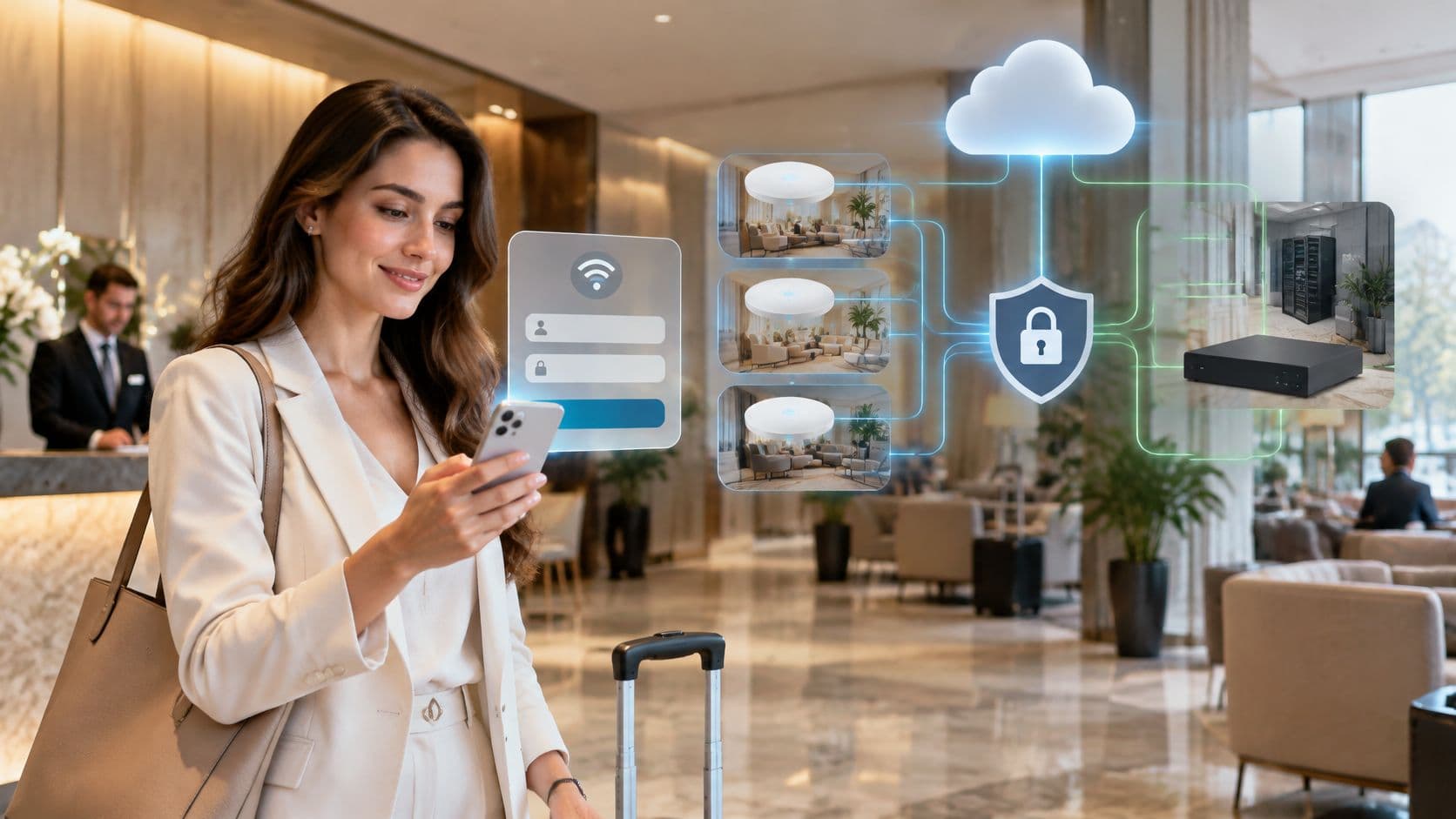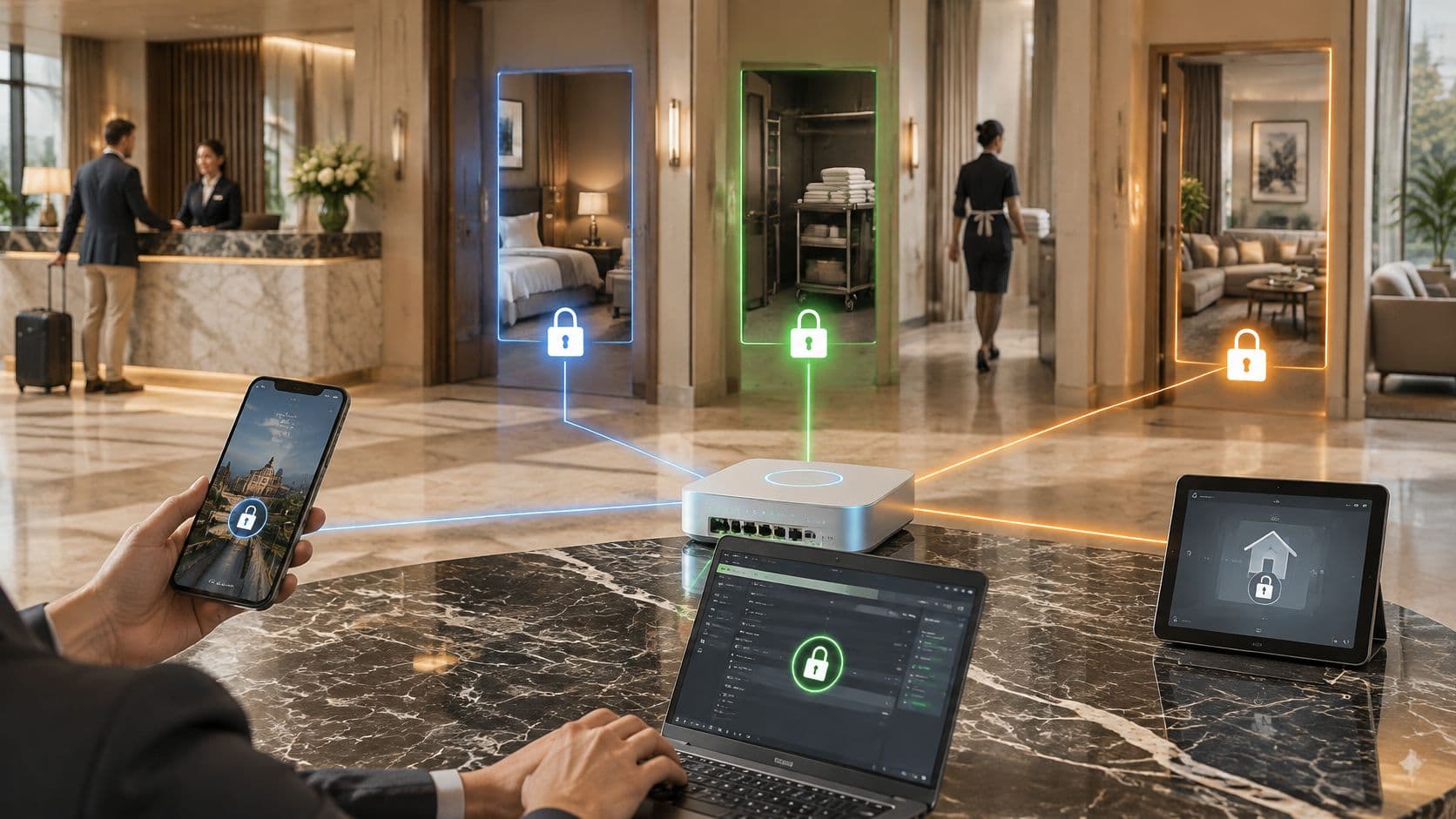
You're sitting in a hotel lobby, a hospital waiting room, or at a relative's kitchen table, your phone says Connected, and nothing loads. That gap is where most WiFi frustration lives. Joining a network and getting online are two different outcomes, and you can succeed at the first while failing at the second.
If you're asking how do I get on WiFi right now, start by working out which type of network you're facing. The fix for a wrong home password is useless on a café network that's waiting for you to complete a login page, and neither helps on a work system that wants a certificate. Match the situation first, then follow the right steps.
Which Connection Method Your Network Uses
Start with the network type, because it decides what you need before you touch a setting. The same name can mean different methods at different sites, so match the name on the router label or venue signage to a row below, then follow that method.
| Network type | What you need | How you join | Typical snag |
|---|---|---|---|
| Home router (WPA2 or WPA3 password) | Network name and password from the router label | Select the name and enter the password | Mistyped password or a 2.4 GHz and 5 GHz name pair |
| Café or hotel guest network (captive portal) | Open network name from the signage | Join, then complete the login page in the browser | Login page never appears |
| Work network (WPA2 or WPA3-Enterprise) | Username and password, or a certificate, from IT | Choose the network, enter credentials, check the server certificate | Certificate warning or wrong username format |
| Passpoint or OpenRoaming | A device profile installed in advance | Joins automatically once the profile is present | No profile installed, so the device will not join |
| Hospital or venue guest network | Name from ward or entrance signage | Accept terms, enter an email or access code | Session ends after 12 or 24 hours and needs re-registration |
Home WiFi usually starts with fixed broadband and a router that turns that line into a local wireless network. Ofcom reported that, by July 2024, full-fibre broadband was available to 69% of UK households, 20.7 million out of approximately 30.1 million homes, up from 57% in September 2023. Availability isn't adoption, though. Among homes where full fibre was available, 35%, or 7.5 million households, had signed up by July 2024.
If your row says shared password, use the step-by-step join below. If it says login page or profile, skip the password hunt and go to the matching method.
How to Join a Home or Work Network
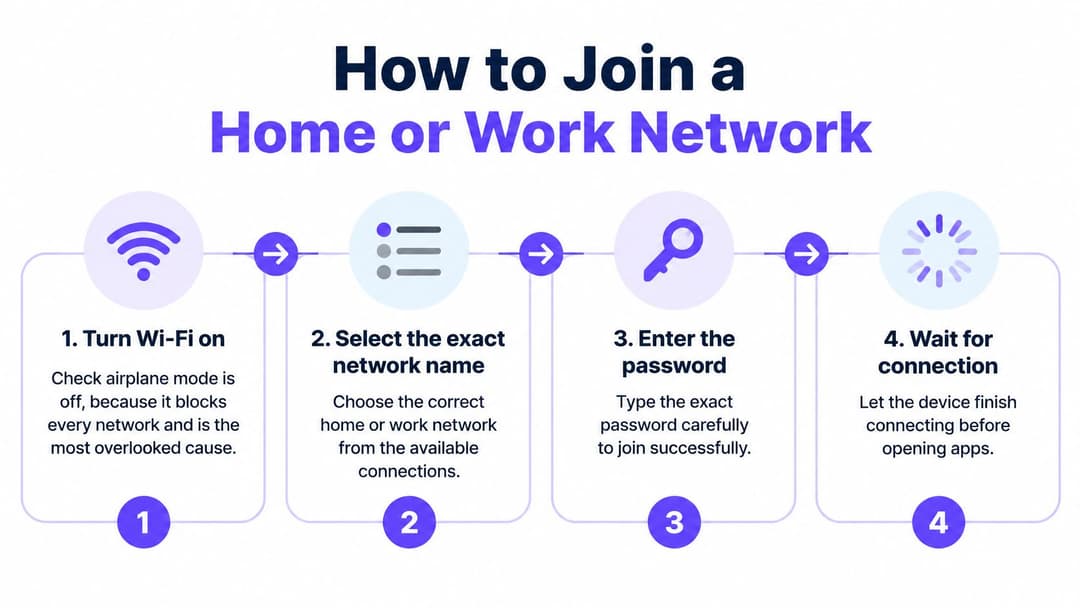
Most home failures are mundane: airplane mode left on, one wrong character, or an old saved password. Work through these four steps in order and check the result after each one.
The Four Steps in Order
- Turn WiFi on and check airplane mode is off: Airplane mode blocks every network at once, and it's the most overlooked cause because the WiFi list stays empty.
- Select the exact network name: Compare it letter by letter with the router label or venue sign. A near-identical name can be a rogue hotspot set up to catch careless taps.
- Enter the WPA2 or WPA3 password slowly: Watch capitals, zeros versus the letter O, and symbols. Use the show password option if your device offers it, because most rejections are typing errors, not faults.
- Confirm you're online, not just connected: Open a page and check it loads. A WiFi icon only proves your device associated with the router. It doesn't prove the router gave it an address or a working route out.
The NCSC connecting securely guidance recommends WPA2 or stronger encryption and replacing default router passwords with a strong, memorable password, and modern ISP-supplied routers generally encrypt WiFi traffic by default. Follow that at home even if the default setup works.
Two Common Slips
- An old saved password: If the router password changed, your phone keeps offering the old one. Forget the network, then join again and type the current password fresh.
- A split 2.4 GHz and 5 GHz pair: Some routers broadcast two similar names. Pick one and use its password consistently. The 2.4 GHz option usually reaches further through walls, while 5 GHz is faster nearby.
Success looks like this: a connected icon, an address shown in your network settings, and a page loading over HTTPS. If any step fails, don't keep retyping blindly. Match your symptom in the troubleshooting table later and fix that specific cause.
Practical rule: Connected means your device reached the router. Online means a real page loads. Test for the second one.
How to Get Past a Captive Portal
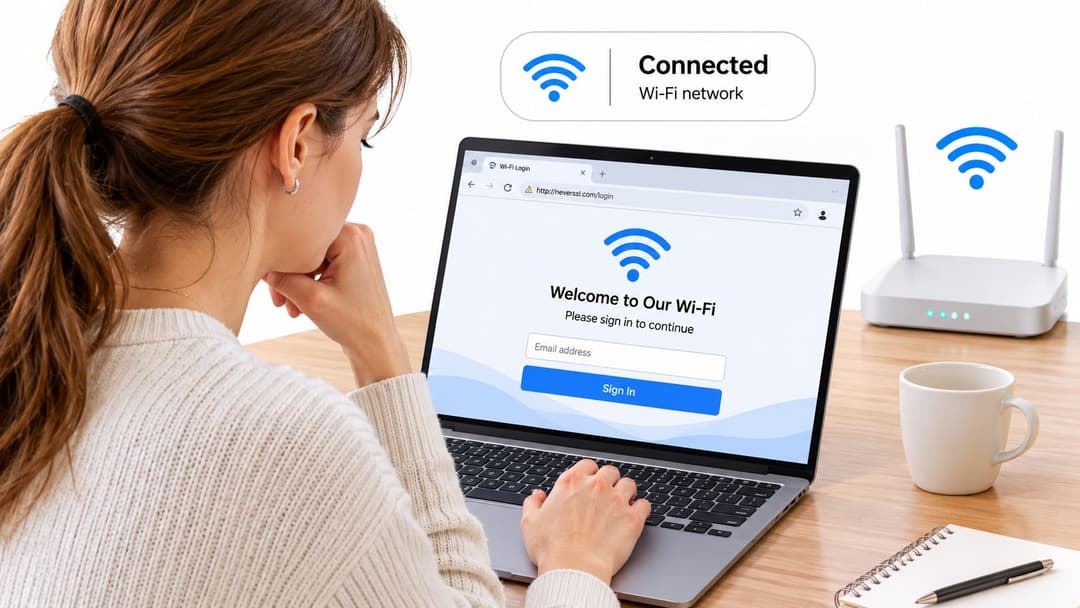
You've joined the café network, it says connected, and nothing opens. That's usually not a fault. A captive portal is holding your traffic until you complete a browser page, and only then does it let you out to the internet.
Steps That Trigger the Login Page
- Join the open network named on the signage: Don't pick a stronger lookalike name that nobody on staff recognises.
- Turn mobile data off temporarily: Phones sometimes route traffic over the mobile signal instead, so the portal never sees your request and never appears.
- Open a plain web address that doesn't use HTTPS: The redirect needs an ordinary request to intercept. A secure app trying to connect in the background won't trigger it. You can read more about how this redirect works in a captive portal guide.
- Complete whatever the venue asks for: Accept the terms, enter an email address or access code, or register with details, then keep that page open until a normal website loads.
UK venues don't all do this the same way. North Cheshire and Mersey NHS patient WiFi information reflects a wider pattern where NHS England requires public NHS WiFi to use a consistent landing page, while individual trusts report different activation methods, accepting terms only, entering an email address, or registering with personal details. Session length also varies: one NHS trust requires re-registration after 24 hours, while another provides 12-hour sessions.
When Nothing Opens
Toggle WiFi off and on, temporarily disable a VPN or private DNS, then forget the network and rejoin it. Those tools can block the redirect the portal depends on. If it still won't appear, ask staff whether registration or an access code is required. In a hospital especially, ask early. Staff help matters when you're supporting someone unwell and don't need a technical puzzle on top.
Enterprise and Passpoint Connections Explained
Work WiFi looks different because it identifies you, not just your device. Instead of one shared passphrase that everyone in the building knows, WPA2 or WPA3-Enterprise asks for your own username and password, or proves identity with a certificate installed on the device.
Say you start a new job and IT tells you to join the staff network. You select it, enter your work username in the exact format IT gave you, perhaps an email address rather than a short login, then enter your password. Your device may then show a server certificate. Check that the name on it matches your organisation before you accept it. That check is how your device confirms it's talking to your employer's real system, as explained in this WPA-Enterprise glossary entry.
Never accept an unknown certificate on a public network. On your employer's network it's a checkpoint. Anywhere else, it's a warning sign of an impostor.
Certificate-based access removes the typing. IT installs a managed profile on your laptop or phone, and the device presents its certificate automatically each time. You don't know a password to share or leak, and IT can revoke that one device without changing access for everyone else.
Passpoint and OpenRoaming work differently again. A profile installed in advance lets your device discover a participating network and join automatically, with no splash page and no password prompt. The trade-off is preparation: without that profile, you can often see the network listed but you can't join it, and no amount of tapping will help.
Questions to Ask IT Before You Arrive
- Which authentication type applies: Personal credentials, a certificate, or both?
- Must the device be company-managed: Some networks refuse personal devices outright.
- Does anything need installing first: A certificate or profile usually has to be in place before you're on site, not after you've failed to connect in reception.
Asking those three questions before a first day, a site visit, or a conference saves the most common enterprise failure: not having the right credential on the device.
Staying Safe on Public WiFi
A public WiFi connection can be useful when you do not have internet access at home. Some adults rely on libraries, cafés, hospitals or other public venues to get online. The practical question is what you plan to do: being connected does not automatically mean every task is safe or that you are online.
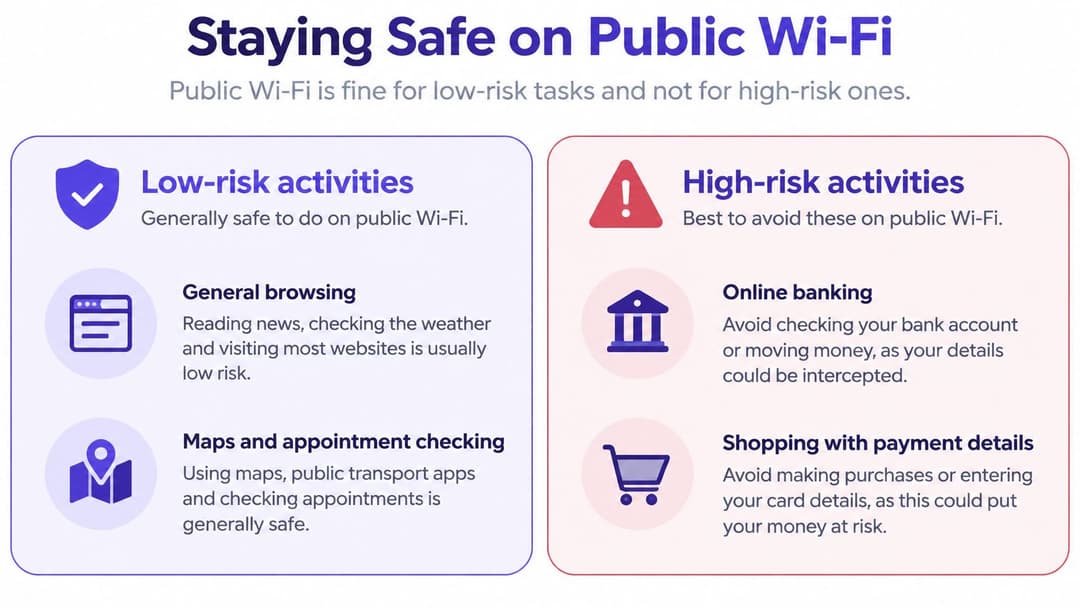
Use public WiFi for general browsing, maps, appointment information and messaging. For banking, medical records or work credentials, use mobile data or wait until you are on a network you trust. If a page loads but a service will not work, the WiFi may have connected without giving you working internet access.
What Actually Protects You
- Use HTTPS: Check that the address starts with HTTPS. It encrypts the connection between your device and that website, but it does not make a fake site trustworthy.
- Choose mobile data or a trusted VPN for sensitive tasks: A guide to enterprise WiFi security explains how organisations protect network access.
- Keep software updated and use multifactor authentication: Updates address known security weaknesses, while multifactor authentication adds a check beyond your password.
- Forget public networks afterwards: This reduces the chance your device will reconnect automatically when you pass the same venue again.
Watch for an evil twin, a hotspot using a name similar to a legitimate venue network. If two networks have the same name, or an open network unexpectedly asks for a password, disconnect and ask staff which network to use. Guest sessions may also expire, so a device can remain connected to WiFi while losing internet access.
Fixing Connections That Keep Failing
Start from what your screen shows, not from a generic checklist. Each symptom below points to a different stage of the connection breaking, so the fixes aren't interchangeable.
| Symptom | Likely cause | Fix |
|---|---|---|
| Connected but no internet | IP address or DNS not assigned | Forget the network, rejoin, then restart the router |
| Login page never appears | Captive portal not triggered | Turn WiFi off and on, open a plain web address without HTTPS |
| Password rejected | Typo, capital letters or an old saved password | Retype carefully, delete the saved network and re-enter it |
| Certificate warning on a work network | Device does not trust the organisation | Check the certificate name, then ask IT to install the profile |
| Disconnects after a set time | Guest session expired | Re-register or request an access code from staff |
| Network visible but will not join | Device too old for WPA2 or WPA3 | Check device support or use a supported network |
| Familiar name asks for a password on a public site | Possible evil twin | Disconnect, forget the network and confirm the name with staff |
Work in that order, quick fixes first. Toggling WiFi, forgetting and rejoining, and restarting a home router each take about a minute and clear stale settings your device is clinging to. I would start with those before changing anything deeper, because they solve the majority of repeat failures without side effects.
Deeper causes need other people. A certificate your device doesn't trust has to be installed or renewed by IT, and you can't fix that from the WiFi settings screen. An expired guest session needs the venue's registration flow again, not a password reset. An older device that can't handle the network's security standard won't join however many times you retry.
Test a second device on the same network. If it fails too, your device isn't the problem, and further fiddling with it wastes your time.
Stop troubleshooting and contact the venue or provider when every device on the same router fails, when the router's broadband light shows an outage, or when the network name itself looks suspicious. Those aren't your settings to fix.
Confirm You Are Really Online
Your next step depends on where you're connecting. At home, compare the network name with the router label one last time. If a password keeps failing after you've re-entered it carefully with the characters visible, reset it on the router itself rather than guessing at variants.
In a café or hotel, complete the portal fully and note the session length, often 12 or 24 hours, so a sudden logout tomorrow doesn't surprise you. Plan to re-register when it ends instead of diagnosing a fault that isn't there.
At work, confirm the authentication type with IT before you arrive on site, and ask whether a certificate or profile must be installed first. That single question prevents the most frustrating failure, standing in reception with a device that was never going to be allowed on.
If you run guest or staff access yourself, the decision is different. Our Guest WiFi connection methods are Captive Portal, Passpoint and The Purple app, while Staff WiFi connection methods are Passpoint, xPSK, Certificate WiFi and WiFi via MDM. The Connect guest WiFi plan is free, so compare those methods against your estate and IT policy before committing to one across every site.
Finish with the short test. If a page you need loads over HTTPS on a device you trust, you're online. Stop there and get on with your day.
If you run a venue where guests keep asking how to get on WiFi, we can replace shared passwords and clunky login pages with secure, simple access through captive portal, Passpoint, or the Purple app, including a free Connect plan to get started. Visit Purple to see how guest and staff WiFi could work across your sites without adding work for your team.