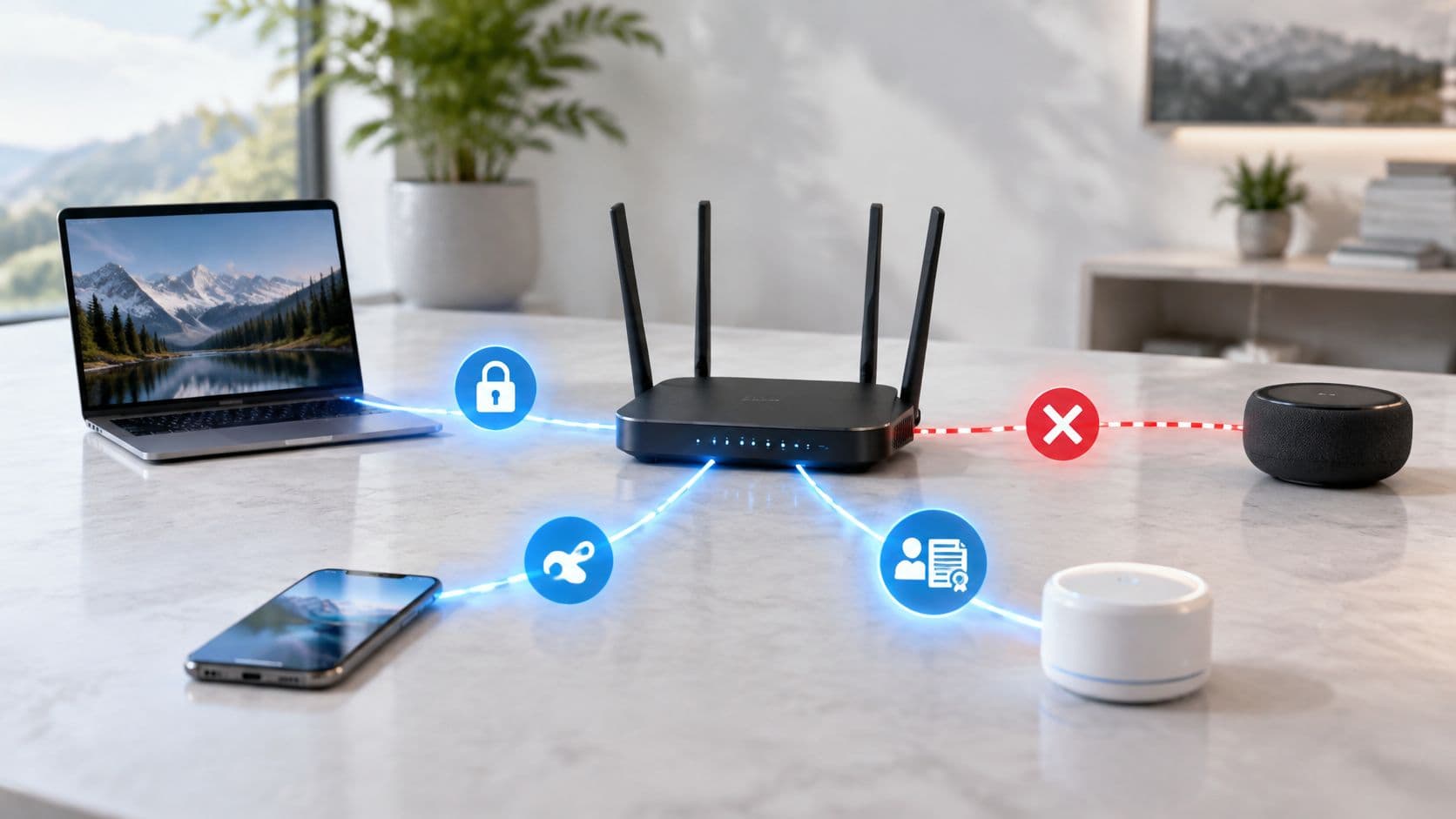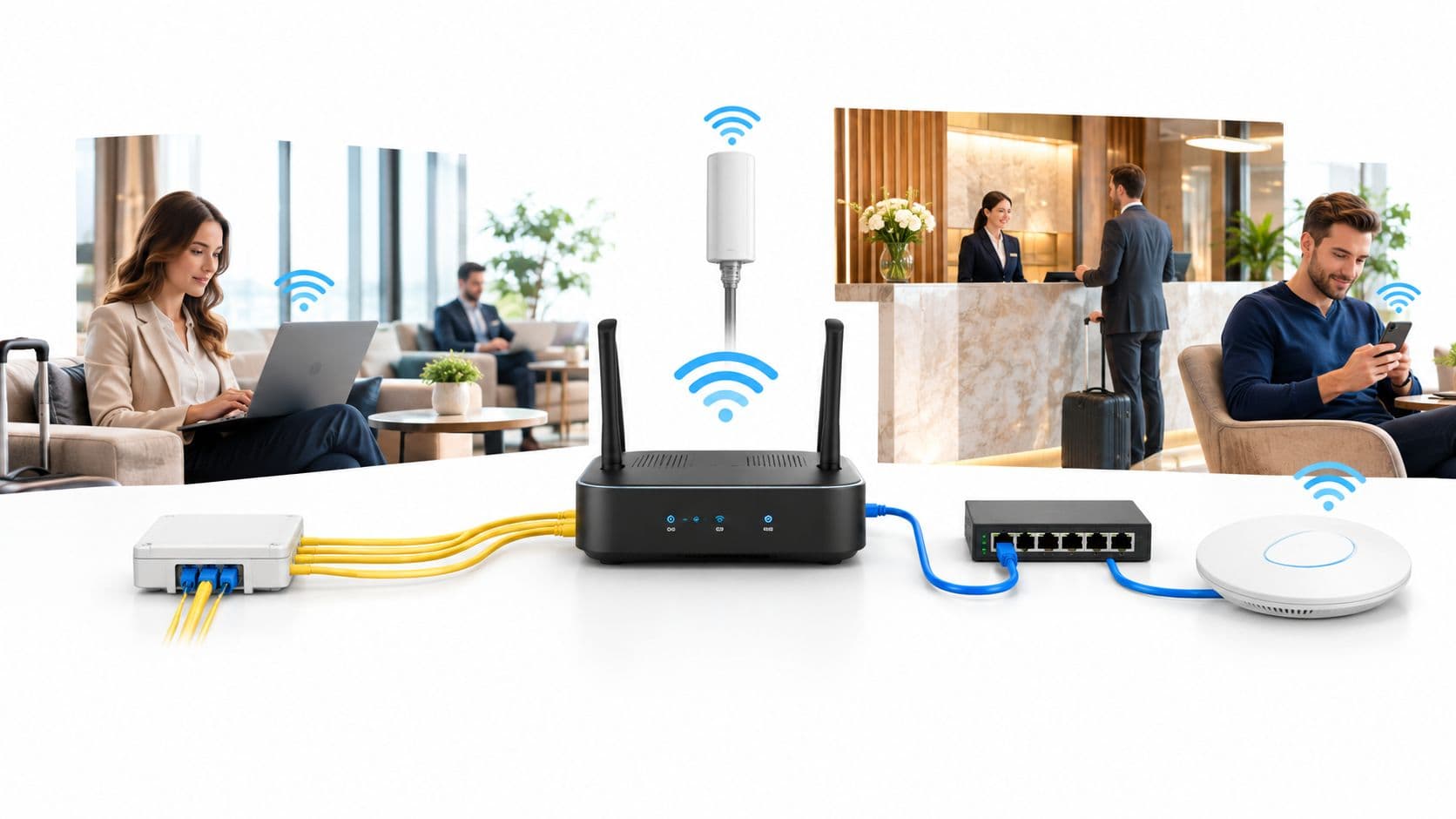
WiFi authentication failure diagnostic & root cause analyser
Diagnose 802.1X, captive portal, RADIUS, and pre-shared key authentication failures across hospitality, retail, corporate, and healthcare wireless networks.
Scale: 200 - 2,500 guests/day
Standards: RFC 8952, HTTP 302, DNS Hijacking
Device joins SSID but browser warning appears or operating system captive assistant stalls.
DNS hijacking blocked by Private DNS / DoH and missing walled garden paths
Modern mobile operating systems (Android Private DNS / DoT, browser DNS-over-HTTPS) bypass the plaintext DNS spoofing used by legacy captive gateways, and randomised private MAC addresses can break MAC-keyed portal sessions. If the Apple Captive Network Assistant (captive.apple.com) or Google connectivity check are answered normally before login (for example because the host is allowlisted), the device thinks it is online and the portal splash prompt is never launched.
- Make sure the Apple (captive.apple.com), Google (connectivitycheck.gstatic.com) and Microsoft (msftconnecttest.com) probe requests are intercepted and redirected to the portal, not allowlisted in the walled garden.
- Implement the RFC 8908 Captive Portal API, advertised through DHCP option 114 (RFC 8910), so the OS learns the portal URL without DNS interception.
- Verify that HTTPS port 443 redirect certificates match the gateway domain to prevent severe browser SSL warning interstitials.
- Bypass DNS-over-HTTPS (DoH) drops by ensuring UDP port 53 traffic to the local resolver is allowed before authentication.
Speak with a Purple wireless network engineer
Eliminate guest captive portal drop-offs, fix enterprise 802.1X RADIUS failures, and deploy automated Passpoint onboarding across Cisco Meraki, HPE Aruba, Ruckus, Juniper Mist, Ubiquiti UniFi, Cambium, Extreme or Fortinet networks.
You're at a hotel front desk with a guest whose cell phone shows “WiFi authentication problem”. The password is correct, the signal is strong, and three other guests are already online. Re-entering the password changes nothing. Ten minutes later, the same guest still can't connect, while the help desk queue grows.
That pattern usually points to an identity or infrastructure mismatch, not a typing mistake. The device may be presenting an old profile, rejecting an untrusted server certificate, using the wrong EAP method, or reaching a captive portal that can't complete its redirect. Treating every failure as a password issue hides the fault and creates repeat tickets.
Why Your WiFi Authentication Problem Keeps Happening
A user can enter the correct password, stand beside the access point, and still receive “WiFi authentication problem.” The message identifies neither the failed exchange nor the system responsible. It may reflect an outdated client profile, an untrusted certificate, an unavailable RADIUS service, or a captive portal that cannot complete its redirect.
WiFi connection has distinct stages. The device discovers the SSID and associates with the access point, then authenticates through a pre-shared key, a browser-based captive portal, or an enterprise exchange such as 802.1X. Only after successful authentication does it receive network configuration and reach online services.
The authentication method determines the likely fault. A shared-password network, commonly using PSK, asks every device to prove knowledge of one secret. A captive portal may grant initial network access before redirecting the user to a browser login. WPA2-Enterprise or WPA3-Enterprise passes the identity exchange through the access point or wireless controller to RADIUS. The cell phone can show the same generic error for failures in any of these paths.
Practical rule: Stop resetting passwords when the evidence points to a profile, certificate, RADIUS, or portal failure.
Shared credentials also weaken identity control. A 2025 US survey reported that 55% of adults never change the default WiFi password on their home router, while 15% use no security at all and only 22% change the password more than once every two years. It also found that 77% of millennials share their WiFi password with friends and family. These figures are reported in ExpressVPN's US WiFi habits survey coverage.
The operational result is poor attribution and difficult revocation. A hotel employee can give a guest an outdated password. A tenant can retain access after moving out. A retail device can continue submitting a stale PSK after the network changes. The visible symptom remains an authentication error, but the underlying fault is weak identity management.
Enterprise profiles fail differently. US university guidance commonly specifies WPA2-Enterprise with PEAP/MSCHAPv2, a valid server certificate, and the full institutional username format. Correct EAP settings and certificate trust matter as much as the credentials. The University of Sussex eduroam guidance provides a practical reference for checking those profile details.
Connected surveillance equipment adds another dependency. If you are assessing network-connected cameras for a home or small site, best wireless security cameras can help compare devices that rely on consistently available, properly secured WiFi.
Use this model during diagnosis: authentication proves identity, authorization decides access, and connectivity follows only when both succeed. Identify the failed stage before changing credentials.
Quick Triage to Isolate the Real Cause
Use this sequence during a helpdesk call or on-site. It's designed to separate a client profile problem from an SSID, RADIUS, or identity-provider fault before anyone changes an account unnecessarily.

Start with the network and the symptom
Confirm the SSID. Check the exact network name, including similar guest, staff, and resident networks. A device can associate with a lookalike SSID and fail before it ever reaches the expected authentication service.
Classify the failure. An instant rejection often suggests a security-mode mismatch, unavailable RADIUS service, or policy denial. Repeated credential prompts commonly indicate an incorrect username format, an EAP mismatch, or a certificate trust failure. A browser that repeatedly returns to the login page points toward captive portal state, cookies, walled-garden reachability, or a backend authorization problem.
Test a second device. If another managed device authenticates on the same SSID, focus on the original client. If multiple devices fail in the same place, investigate the access point, controller, RADIUS path, captive portal, or identity provider.
Recreate the client state
Forget and re-add the network. Delete the saved SSID profile rather than merely toggling WiFi. Reconnect with the correct security type, full username suffix, and approved EAP settings. US university guidance recommends this profile recreation approach because saved settings often preserve the original fault.
Check the identity details. Confirm the complete institutional or organizational username, not just the short account name. For example, a network may expect a suffix such as
username@michigan.eduorusername@state.edu. Also check that the account is active and that the device remains enrolled if the organization uses device management.
Decide who owns the fault
A single failing device with a recent operating-system update is usually a client configuration issue. Several clients failing after a controller, certificate, or RADIUS change point to infrastructure. Successful authentication followed by “connected, no internet” belongs to DHCP, DNS, VLAN, or upstream routing checks, not the authentication workflow.
Temporarily disable a VPN, proxy, or privacy feature only as a diagnostic comparison, particularly where it alters the TLS path or captive portal detection. Don't leave security controls disabled as a permanent workaround. If the profile still fails, collect the exact time, SSID, device identity, username format, access point, and error event for the network team.
Fixing Common Authentication Failures Step by Step
The right correction depends on the authentication method. A PSK reset may solve a home router issue, but it won't repair an 802.1X profile with an untrusted RADIUS certificate. Work through the relevant path instead of applying every possible fix.

Rebuild an 802.1X profile
For eduroam-style or corporate WiFi, remove the old profile and recreate it using the organization's approved installer or configuration tool. Confirm the SSID, WPA2-Enterprise or WPA3-Enterprise mode, EAP method, inner authentication, anonymous identity setting, and complete username format.
PEAP/MSCHAPv2 deployments require the client to trust the correct authentication server certificate. The certificate name, issuing chain, validity period, and trusted root must match the organization's documented settings. Never solve a certificate warning by disabling server validation. That can expose credentials to an unauthorized authentication endpoint and defeats the assurance the profile is meant to provide.
US sector guidance on wireless security distinguishes between 802.1X access and web-based redirect. It also highlights the role of certificate-validated EAP settings and CAT installers. The practical implication is clear: a profile that connects only after certificate validation is disabled isn't fixed.
Check the RADIUS path
If several users fail simultaneously, inspect the controller and RADIUS configuration. Confirm that the configured RADIUS server is reachable, the shared secret matches on both sides, the authentication and accounting services use the expected ports, and the relevant network access policy still applies to the SSID.
Then check the policy chain. A RADIUS server may authenticate the credentials but return an unsuitable VLAN, role, or authorization attribute. Directory synchronization can also leave a valid-looking account unavailable to the policy engine. Compare a failed request with a known successful request, looking for differences in username format, calling station, device group, certificate issuer, and returned access attributes.
Avoid changing multiple values at once. If you alter the shared secret, EAP method, and policy together, you'll lose the ability to identify the actual cause. Make one controlled change, reproduce the failure, and record the result.
Repair certificates and cached identity
For certificate-backed access, inspect both the client certificate and the RADIUS server certificate. Check validity, trust chain, subject or SAN matching, intended usage, and the device clock. A certificate can be present and still fail because the client doesn't trust its issuer or the system time falls outside the certificate's validity window.
Re-enroll the device through the approved MDM or onboarding service when the certificate is missing, revoked, or expired. Clear cached credentials only after confirming that the account itself is healthy. On staff networks, an identity-provider change or SSO revocation may be the intended reason for denial, so reissuing a certificate shouldn't be used to bypass access control.
Resolve captive portal loops
Captive portals depend on more than the login form. The client must receive an address from the initial VLAN, resolve the portal name, reach the redirect destination, and pass the final authorization response back to the controller. Check DHCP and DNS first, then verify the portal certificate, redirect URL, walled garden, and backend authentication service.
Apple and Android devices may not display the login page automatically. Test with a normal browser and an unauthenticated HTTP page where the venue's platform permits that diagnostic method. Review controller client traces for redirect, DNS, portal-post, and authorization events rather than assuming the user entered the wrong details.
For a deeper operator-focused reference, use this captive portal guide. It's particularly relevant when a guest network appears connected but the browser repeatedly returns to the login screen.
When the Login Method Itself Is the Problem
Some networks can't deliver reliable authentication because the access design creates too many weak points. A single PSK is easy to explain, but every recipient can share it, and revoking one person normally means changing it for everyone. That produces stale devices, uncontrolled handoffs, and little confidence about who used the network.
Captive portals improve individual guest identification, but they introduce a browser dependency. The client must detect the portal, reach the redirect service, handle certificates and cookies correctly, and complete the exchange before the venue grants normal access. Users can encounter loops when DNS, walled garden rules, portal certificates, or controller state don't agree.
US public WiFi behavior illustrates why this remains a trust issue. A 2012 YouGov survey found that 56% of people did not or rarely check whether a public WiFi network was encrypted before use. Later US survey reporting found 74% were concerned about securing their WiFi network, while 59% did not trust neighbors with access to their home broadband network. These findings are summarized in Progressive Robot's coverage of captive portal attacks and hotel WiFi.
Compare the deployment choices
| Authentication Method | Security Level | User Experience | Best For |
|---|---|---|---|
| Shared PSK | Basic shared control, difficult individual revocation | Simple initially, but users retain and share the key | Small, low-risk networks |
| Captive portal | Depends on transport security, portal design, and backend controls | Familiar to guests, but vulnerable to redirect and login friction | Temporary guest access and venues needing browser-based identity |
| 802.1X with PEAP | Per-user identity, with security dependent on correct certificate validation | Requires a correctly provisioned profile | Staff, students, and managed enterprise access |
| EAP-TLS or certificate-backed access | Strong device or user identity without routine password entry | Seamless after provisioning | Managed staff and high-assurance environments |
| Passpoint and OpenRoaming | Identity-based, automated network selection and authentication | Auto-connect across participating networks | Roaming users, transport, campuses, and multi-venue estates |
Passpoint and OpenRoaming reduce the number of manual login steps, but they aren't plug-and-play on every estate. Jisc's OpenRoaming checklist identifies requirements including Passpoint support, WPA3-Enterprise, protected management frames, and RadSec. It also specifies that 192-bit WPA3 security is incompatible with OpenRoaming, a compatibility detail that can produce failures even when a client and SSID appear otherwise suitable.
The broader lesson is to test capability before blaming users. Older access points, controllers, identity services, or RADIUS transports may not support the required combination. Purple's WPA-Enterprise resource is one option for teams assessing identity-based enterprise access across mixed network estates, but the same design principles apply to other vendor-neutral architectures.
Recent US market reporting projects the captive portal market from $70.7 million in 2026 to $163 million by 2031, as reported by Help Net Security's coverage of WiFi roaming security. That growth doesn't make a captive portal the right answer for every venue. It does show why operators should evaluate the authentication method as part of the service design, not treat it as a small configuration detail.

Verify the Fix and Prevent Future Failures
A successful reconnect proves only that one device completed one authentication exchange. It doesn't prove that roaming, sleep recovery, certificate renewal, directory revocation, or the next access point will behave correctly. Verification needs evidence from the client and the infrastructure.
Confirm the authentication exchange
Start with the RADIUS logs. Find the request using the username, device identifier, calling station, or event time, then confirm whether the server returned Access-Accept or Access-Reject. For a rejection, record the reason rather than paraphrasing it. “Bad password”, “unknown client”, “untrusted certificate”, “no matching policy”, and “server unavailable” lead to different owners and different fixes.
On Windows, inspect the WLAN AutoConfig operational events in Event Viewer and look for EAP success or failure details. On Linux, run the relevant wpa_supplicant process in debug mode during a controlled test and follow the EAP exchange. On macOS and mobile platforms, use the device's wireless diagnostics or the management platform's connection logs. The objective is the same, identify the exact point at which the exchange stops.
A green WiFi icon is not an audit record. Keep the controller and RADIUS evidence that proves the client authenticated and received the intended policy.
Test beyond the first connection
Run a small repeatability check:
- Reconnect after forgetting: Remove the profile, provision it again, and verify that the expected certificate and EAP settings return automatically.
- Roam between access points: Walk through the coverage area and confirm the device maintains or quickly restores access when it changes radio coverage.
- Recover from sleep: Lock the device, allow it to sleep, then verify that it reconnects without prompting for credentials.
- Test more than one identity: Use a staff account, a managed device, and a guest flow where those services coexist. A successful employee login doesn't validate the guest portal.
For captive portals, confirm that DHCP, DNS, redirect, portal submission, and post-login authorization all complete. Review the controller's client trace if the portal loops. A browser login that succeeds once but fails after a return visit usually indicates session, cookie, device identity, or portal state issues rather than radio coverage.
Build prevention into operations
Certificate expiration deserves a monitoring owner and an alert path. Track server and client certificate validity, renewal jobs, trust-chain changes, and failed enrollments before users report an outage. Directory changes also need to flow promptly into access decisions so a disabled or removed account doesn't retain network access.
Use automated provisioning wherever possible. A standard profile prevents users from selecting an unsafe EAP setting or typing an incomplete identity. Keep the number of SSIDs under control, because unnecessary broadcast networks complicate client selection and increase operational overhead. Separate staff, guest, resident, and device access through policy and segmentation rather than adding another shared password for every exception.
Finally, trend authentication failures by location, device type, EAP method, access point, and RADIUS reason. A cluster after a certificate renewal is different from a cluster on one controller. That information turns recurring tickets into an actionable change record.
Your Next Steps to Passwordless Reliable WiFi
A recurring WiFi authentication problem usually points to an identity or infrastructure mismatch, not a mistyped password. Stop resetting credentials when the evidence points to an incorrect profile, an untrusted certificate, an unsuitable EAP method, or a client that cannot complete the intended onboarding flow.
Use three operating habits:
- Validate the server certificate. Each enterprise profile should verify that the client is connecting to the authorized authentication service before credentials are sent.
- Use identity-based access. Assign distinct user or device identities where accountability, revocation, and policy control matter.
- Verify with logs. Check the RADIUS result, client EAP events, applied policy, and connectivity after authentication.
As noted earlier, shared credentials weaken identity control. They make revocation difficult, blur accountability, and encourage unmanaged access. A successful login does not prove that the access model is safe or maintainable.
For venues and enterprise estates, decide which use cases still justify browser-based access and which require automatic identity-based onboarding. A passwordless design may use Passpoint, OpenRoaming, EAP-TLS, iPSK, or certificate-backed provisioning. The correct choice depends on client support, network hardware, policy, and the assurance level required. Include legacy devices, protected management frames, RADIUS transport, certificate lifecycle, and privacy requirements in the design.
Purple provides passwordless WiFi options for guest, staff, and multi-family authentication, with integrations for Entra ID, Google Workspace, and Okta, plus support for Meraki, Aruba, Ruckus, Mist, and UniFi environments. Its passwordless WiFi approach can be evaluated during a wider move away from shared passwords and manually configured guest access.
Start with one SSID and one failure pattern. Export controller and RADIUS logs, record the active EAP and certificate settings, list devices that must remain compatible, and define tests for provisioning, roaming, sleep recovery, and revocation. This gives the team a controlled route from repeated authentication tickets to an access model users can join without guessing which password the network expects.
Purple offers passwordless guest, staff, and multi-family WiFi authentication designed to replace shared credentials and fragile captive portal flows with identity-based access. Visit Purple to assess Passpoint, OpenRoaming, certificate-backed authentication, cloud RADIUS, and integrations for venue or enterprise networks.