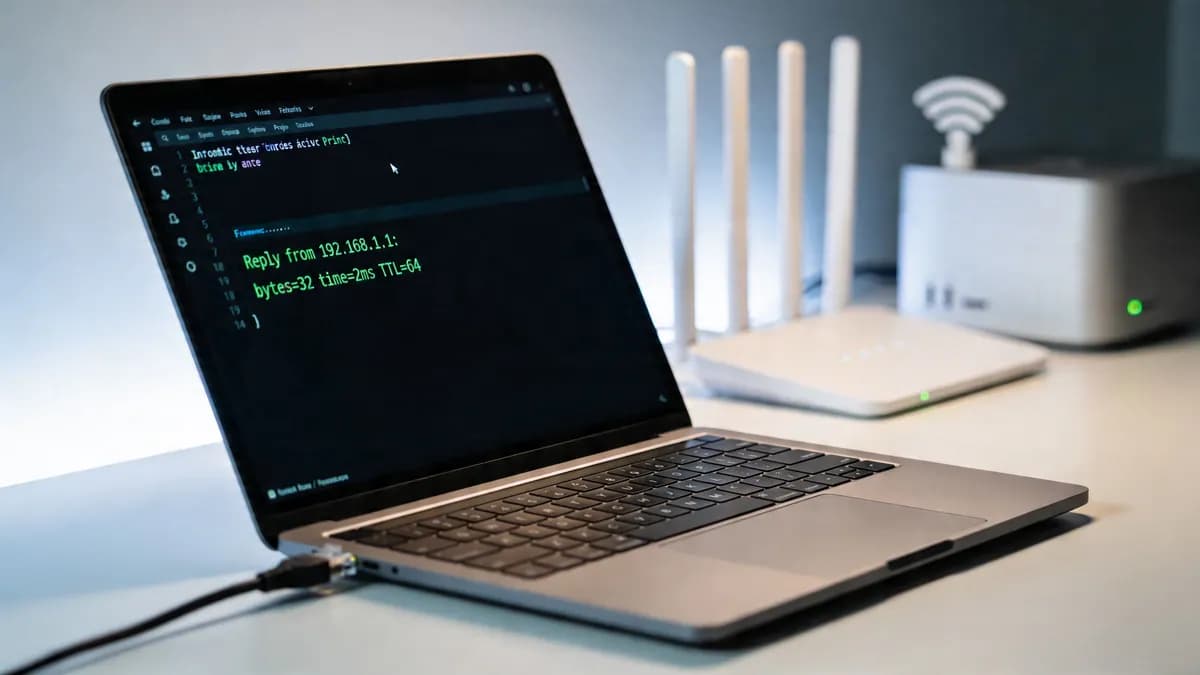
Un invité peut naviguer sur un site mais pas sur un autre. Le personnel affirme que le WiFi est « lent » près de la réception. Un terminal PMS d'hôtel se déconnecte du réseau toutes les quelques minutes, alors que le tableau de bord du contrôleur semble globalement correct. Dans ce genre de situation, on ne commence pas par la théorie. On ouvre un terminal et on lance un ping.
C'est pourquoi l'utilisation de check ping cmd reste essentielle. C'est rapide, local et d'une honnêteté brutale. Cela ne vous dira pas tout, mais cela vous dira où arrêter de deviner.
La plupart des guides de base s'arrêtent à "tapez ping google.com". C'est utile, mais cela passe à côté des complexités plus profondes du WiFi d'entreprise moderne. Dans l'hôtellerie, le commerce de détail, la santé et les sites multi-locataires, les problèmes de connectivité se situent souvent au niveau de l'authentification, de l'itinérance, de l'accessibilité du contrôleur, d'une non-correspondance MTU ou des workflows d'identité. Un ping réussi vers un hôte public ne prouve pas que le parcours invité est sain. Un ping échoué ne prouve pas non plus toujours que le réseau est en panne.
Utilisé correctement, ping est moins une commande unique qu'une habitude de diagnostic. Vous testez d'abord à proximité de l'appareil. Puis vous vous éloignez. Vous comparez les cibles. Vous variez la taille des paquets. Vous surveillez la perte et la gigue au fil du temps. Et lorsque ping ne suffit plus, vous passez à tracert, pathping, aux journaux et à la capture de paquets avec une hypothèse claire plutôt que de chercher au hasard.
Pourquoi Ping reste votre premier outil d'intervention pour les problèmes de réseau
Un utilisateur invité signale que le WiFi est en panne, mais la défaillance sous-jacente peut provenir du DNS, de la redirection vers le Captive Portal, de l'accessibilité en amont ou du chemin d'authentification derrière l'SSID. Ping reste la première commande à exécuter car elle sépare rapidement ces possibilités et vous donne une limite de panne avant d'ouvrir les tableaux de bord, les journaux de contrôleur ou les captures de paquets.
Commencez par la vérité la plus proche
Un bon dépannage commence au plus près de l'appareil.
Quelques requêtes d'écho vers la pile locale, la passerelle par défaut et une cible amont connue peuvent vous indiquer si vous faites face à un problème client, un problème RF ou de sous-réseau local, ou à quelque chose de plus éloigné sur le chemin. Dans un environnement géré par Purple, cela est important car le problème signalé est souvent "le WiFi est lent" alors même que la liaison radio est bonne et que le retard réel se situe au niveau de l'enregistrement, de l'application des politiques ou de la sortie Internet.
Le Ping impose également une certaine rigueur. Si la passerelle est stable et que la cible publique ne l'est pas, passer les vingt premières minutes dans les paramètres de l'access point est généralement une perte de temps. Si la passerelle elle-même ignore des réponses ou affiche une latence irrégulière, il n'y a aucune raison de commencer par des hypothèses côté cloud.
Pourquoi les guides de base sont insuffisants
De nombreux guides pour débutants traitent le ping comme un test binaire de type oui ou non. Les réseaux réels sont bien plus complexes.
Le WiFi d'entreprise, en particulier l'accès des invités et du personnel basé sur l'identité, ajoute des dépendances que les anciens guides de dépannage mentionnent à peine. Un appareil peut s'associer au SSID, obtenir une adresse IP, et tout de même offrir une mauvaise expérience utilisateur parce que la gestion du Captive Portal est lente, qu'une transaction RADIUS est retardée ou qu'une décision de politique bloque la première connexion utilisable. Comme indiqué précédemment, certains conseils publics sur la vérification du ping avec CMD soulignent que les simples tests d'hôte ne détectent pas ces retards de début de session dans les workflows d'accès modernes.
C'est pourquoi je ne considère pas un ping réussi vers un site public comme la preuve que le service est sain. Cela prouve seulement qu'ICMP a fonctionné entre deux points à ce moment-là. Dans un déploiement Purple, le parcours utilisateur peut encore être interrompu au-dessus de cette couche.
Règle pratique :
pingvalide l'accessibilité et les délais pour un chemin spécifique. Il ne valide pas la logique du Captive Portal, la santé de l'application ou les flux d'identité de bout en bout.
Le ping développe un meilleur jugement réseau
Les ingénieurs expérimentés continuent d'utiliser ping pour une autre raison. Cela renforce l'habitude de tester une limite à la fois.
Commencez localement. Testez la passerelle. Testez une cible interne contrôlée si vous en avez une. Testez ensuite une destination externe. Comparez la latence, la perte et la cohérence au lieu de vous contenter d'une seule réponse pour valider le test. Dans les environnements WiFi encombrés, cette approche permet souvent de déterminer si le problème suit le client, le VLAN, la liaison montante du site ou une dépendance de service en dehors du réseau sans fil.
Si vous développez ces réflexes, de solides bases en routage et commutation restent essentielles. Des ressources comme ce CCNA Practice Exam aident à renforcer la logique de dépannage qui se cache derrière ce qui ressemble à une commande simple.
La commande ping ne résout pas tous les problèmes. Elle vous donne une première lecture claire, et dans les opérations réseau, c'est généralement ce qui permet de gagner le plus de temps.
Maîtriser la commande Ping dans CMD et PowerShell
La syntaxe de base est simple :
- Test d'hôte de base :
ping nom-de-domaine - Test d'IP de base :
ping ip-cible
Dans l'Invite de commandes et dans PowerShell, ping fonctionne de manière familière sur Windows. L'intérêt réside dans le choix des bons indicateurs pour le problème que vous tentez d'isoler.
Les indicateurs qui comptent vraiment
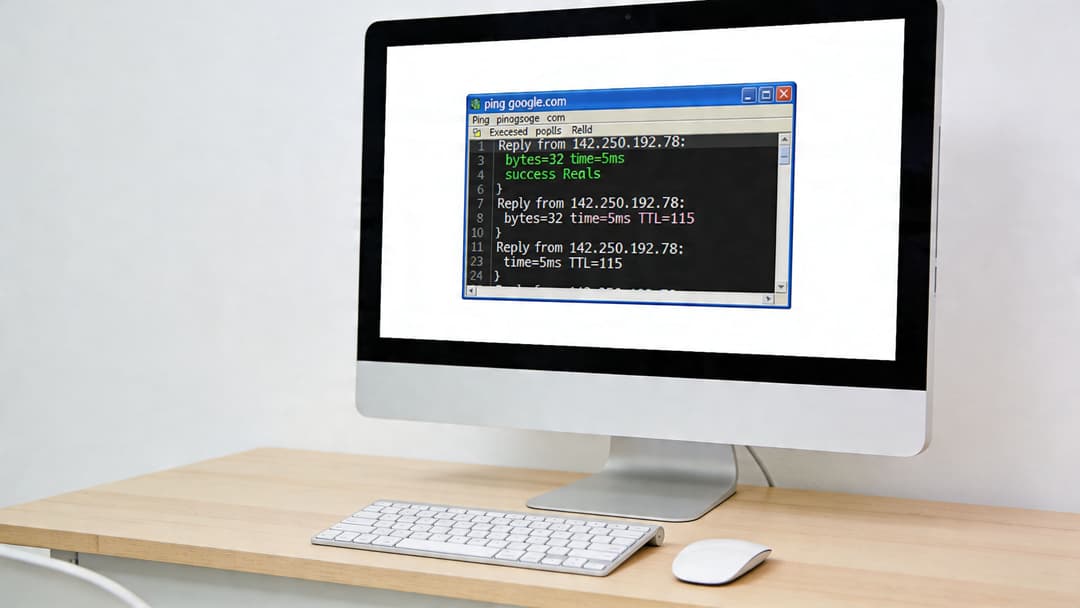
Voici les options que j'utilise le plus souvent lors de l'exécution d'un flux de travail check ping cmd approprié sous Windows.
| Option | Ce qu'elle fait | Quand l'utiliser |
|---|---|---|
-t |
S'exécute en continu jusqu'à l'arrêt | Déconnexions intermittentes, problèmes de roaming, WAN instable |
-n |
Envoie un nombre défini de requêtes d'écho | Test rapide et reproductible pour les notes de ticket |
-l |
Définit la taille du paquet | Test de MTU et de fragmentation |
-w |
Définit le délai d'attente en millisecondes | Vérifications de sites distants ou à forte latence |
Exemples utiles dans CMD
Quelques modèles pratiques :
- Test d'accessibilité rapide :
ping target-host - Surveillance continue :
ping -t target-host - Série d'échantillons courts :
ping -n target-count target-host - Test de paquets plus volumineux :
ping -l target-size target-host - Attente plus longue avant expiration :
ping -w target-timeout target-host
Utilisez Ctrl+C pour arrêter un ping continu et afficher les statistiques de synthèse.
Les mêmes habitudes dans PowerShell
Dans Windows PowerShell, vous pouvez toujours exécuter directement la commande ping standard. Pour de nombreux administrateurs, cela suffit. L'avantage de PowerShell réside dans ce que vous pouvez construire autour.
Vous pouvez intégrer ping dans des scripts, dater les sorties, boucler sur des listes de cibles ou enregistrer les échecs lors d'un test d'itinérance. C'est très utile lorsqu'un problème ne se manifeste pas à la demande.
Un exemple simple consiste à exécuter un ping continu dans une fenêtre pendant que vous vous déplacez dans un site avec un appareil de test. Un autre consiste à envoyer un ping à nombre fixe de paquets avant et après une modification de configuration afin de disposer d'un enregistrement avant - après clair.
Comment choisir le bon indicateur
N'utilisez pas toutes les options à chaque fois. Adaptez le test au symptôme constaté.
- L'utilisateur indique que le problème est constant : commencez par un ping normal, puis un nombre fixe de requêtes avec
-n. - L'utilisateur indique que le problème survient "de temps en temps" : utilisez
-t. - La connexion au portail ou l'enregistrement de l'appareil semble instable : testez la taille des paquets avec
-l. - Site distant ou liaison à faible débit : augmentez le délai d'attente avec
-w.
Ne confondez pas commodité et preuve. Une réussite sur quatre paquets vous indique seulement que ces quatre paquets sont passés.
Là où la taille des paquets devient importante
De nombreux administrateurs n'utilisent jamais -l, et c'est une erreur. Les petits pings standards peuvent sembler corrects alors que le trafic réel plus important rencontre des difficultés. Dans le WiFi d'entreprise, cela indique souvent un problème de MTU, une fragmentation ou des transitions laborieuses à travers les tunnels et les couches de sécurité.
La solution pratique consiste à comparer un ping normal avec un test à charge utile plus élevée. Si les petits paquets passent correctement et que les plus grands se comportent mal, vous avez appris une information importante sans encore avoir touché à un analyseur de paquets.
C'est là que ping cesse d'être une simple commande de contrôle pour devenir un véritable outil de précision.
Comment interpréter les statistiques de ping comme un professionnel
Une réponse ping propre peut tout à fait coexister avec une mauvaise expérience utilisateur. Cela se produit constamment dans le WiFi d'entreprise. Un appareil atteint la passerelle, mais la connexion au Captive Portal stagne, l'attribution des politiques prend du retard ou le roaming perturbe une session pendant quelques secondes. Bien interpréter le résultat d'un ping implique de le traiter comme un simple signal au sein d'une chaîne plus vaste.
Commencez par la synthèse, puis analysez le schéma
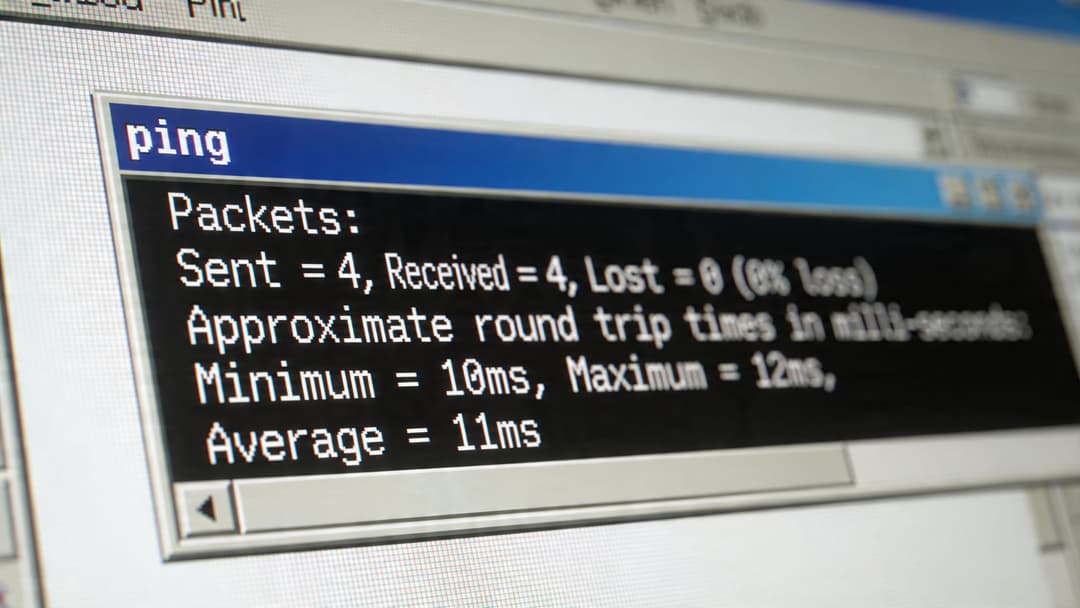
Le résumé en bas de page importe plus que n'importe quelle réponse individuelle. Concentrez-vous sur la perte de paquets, le temps de trajet aller-retour et l'écart entre les temps de réponse minimum et maximum.
Si je teste un site géré par Purple, je n'évalue pas chaque cible de la même manière. Un ping client-passerelle doit généralement être stable et présenter une faible latence. Un ping vers un point de terminaison SaaS public prendra naturellement plus de temps. Ce qui compte, c'est de savoir si le résultat correspond à la partie du chemin que vous testez.
Un seul paragraphe de résultats peut répondre à trois questions utiles. Le chemin perd-il des paquets ? Le délai est-il constamment élevé ? Le délai varie-t-il d'une réponse à l'autre ?
Évaluez le résultat en fonction de la cible
Une passerelle, un résolveur DNS, un serveur RADIUS, un contrôleur et un site web public vous apportent chacun une information différente.
L'infrastructure locale devrait être stable. Les réponses doivent être régulières. Si ce n'est pas le cas, commencez par analyser l'environnement proche du client : qualité RF, comportement des pilotes clients, charge du point d'accès (AP), attribution des VLAN, liaisons montantes des commutateurs ou règles du pare-feu local. Ne rejetez pas immédiatement la faute sur Microsoft 365, Google ou un fournisseur de Captive Portal lorsque le premier saut est déjà instable.
Les cibles distantes requièrent plus de nuance. Une latence plus élevée est normale sur les liaisons WAN, les points de sortie internet et les couches de sécurité cloud. Une forte variation est plus préoccupante qu'une simple moyenne élevée, en particulier dans le WiFi basé sur l'identité où les utilisateurs ressentent des ralentissements lors de l'enregistrement, des vérifications de certificats, de la recherche de politiques et des redirections post-authentification.
Comme indiqué précédemment dans l'aperçu de Kentik sur le ping pour le dépannage et la surveillance du réseau, la perte de paquets et les temps d'aller-retour incohérents sont les premiers signaux qui méritent attention.
La variation explique souvent le problème signalé
Les utilisateurs signalent rarement une "latence élevée". Ils signalent des connexions qui tournent en boucle, des appels hachés, des pages d'accueil bloquées et des applications qui ne fonctionnent qu'au deuxième essai.
Il s'agit souvent d'un problème de variation.
Les moyennes masquent la réalité. Si les réponses arrivent à 8 ms, 9 ms, 11 ms, puis 180 ms, la moyenne peut toujours sembler acceptable à première vue. L'utilisateur ressentira tout de même le pic. En WiFi, cela peut indiquer des retransmissions, une congestion de l'airtime, un comportement d'économie d'énergie sur le client, une interruption du roaming ou une file d'attente en amont.
| Modèle | Signification probable | Étape suivante |
|---|---|---|
| Moyenne basse, plage serrée | Chemin sain | Tester la dépendance suivante dans la chaîne |
| Moyenne basse, plage large | Instabilité intermittente, file d'attente ou problèmes RF | Lancer un test plus long et comparer les cibles locales et distantes |
| Perte de paquets présente | Congestion, problème RF, filtrage ou perte en amont | Tester d'abord la passerelle, puis un hôte internet connu |
| Bon local, mauvais distant | Problème de WAN, de FAI, de chemin cloud ou de service externe | Valider avec des outils basés sur le routage et des vérifications de service |
Le TTL aide, mais seulement un peu
Le TTL est utile en tant qu'indice. Il peut suggérer que vous interrogez un hôte différent de celui attendu, que vous empruntez un itinéraire différent ou que vous comparez des systèmes ayant des configurations par défaut différentes.
Ce n'est pas une preuve suffisante en soi.
Trop d'administrateurs passent du temps à expliquer les différences de TTL tout en ignorant le résultat qui compte le plus : une latence locale stable sans perte, ou une latence locale instable avec des pics évidents. Le TTL soutient le diagnostic. Il ne le porte pas.
En WiFi, un ping sain ne garantit pas la conformité de l'ensemble du chemin de service
Cela est crucial dans les réseaux d'accès invités et d'entreprise modernes. Dans les environnements Purple, un utilisateur peut disposer d'une excellente connectivité ICMP tout en échouant au renouvellement DHCP, à la résolution DNS, à la redirection vers le Captive Portal ou à l'application des politiques d'identité. C'est pourquoi un ping réussi vers la passerelle ne résout qu'une partie du problème.
Si l'ICMP local semble sain mais que la session paraît toujours dégradée, examinez les services connexes. Le guide de Purple concernant les fondamentaux DHCP et DNS pour les administrateurs réseau WiFi constitue une excellente référence, car de nombreux problèmes s'apparentant à des soucis de radiofréquence proviennent en réalité de l'attribution d'adresses ou de la résolution de noms.
La question professionnelle est simple : qu'est-ce que ce résultat a permis d'exclure, et que vous oblige-t-il à tester ensuite ?
Enrichir votre boîte à outils avec Tracert et Pathping
Un utilisateur se connecte au WiFi, réussit l'association, accède à internet de manière intermittente et affirme que le problème ne se produit que dans une partie du bâtiment. Le Ping confirme le symptôme. Les commandes Tracert et pathping aident à le localiser.
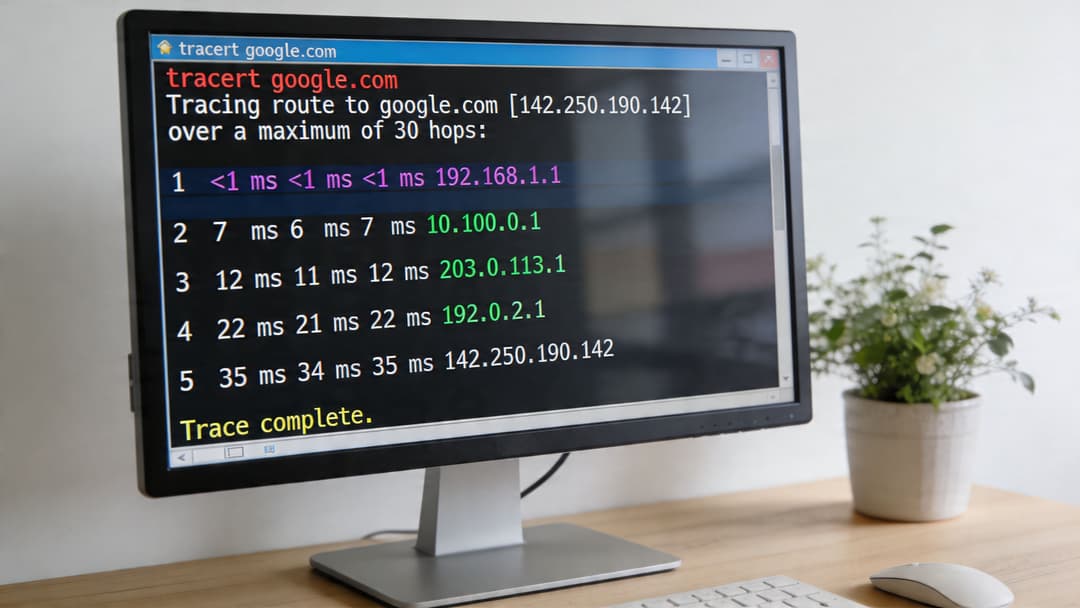
En pratique, j'utilise ces outils dès que je sais que la simple accessibilité n'explique pas tout. Ils répondent à des questions différentes. Tracert montre l'itinéraire qu'un paquet semble emprunter. Pathping consacre plus de temps à mesurer la perte et le retard sur cet itinéraire. Dans un environnement géré par Purple, cette distinction est importante car une anomalie peut se situer au niveau du réseau local (LAN) du site, du chemin WAN ou d'une dépendance cloud liée à l'authentification, à la politique d'accès ou à l'accès invité.
Ce que vous apporte tracert
Tracert est le moyen le plus rapide de localiser l'endroit où les conditions changent.
Si un client peut pinguer la passerelle locale proprement mais qu'une plateforme SaaS est lente, lancez un tracé vers le point de terminaison du service ou une cible publique stable. Observez l'endroit où la latence augmente pour la première fois et si la route diffère d'un site à l'autre. Cela vous donne un élément exploitable. Un problème apparaissant au deuxième saut vous réoriente vers la périphérie locale, le pare-feu ou le transfert du FAI. Un problème apparaissant beaucoup plus tard déplace généralement la discussion vers le chemin du fournisseur ou le réseau de destination.
Le compromis réside entre la précision et la vitesse. Tracert est un instantané, et certains routeurs limitent le débit ou ignorent les réponses ICMP. Un saut intermédiaire lent ou manquant ne prouve pas que le transfert y est défectueux. Ce qui importe, c'est le profil sur les sauts suivants.
Pourquoi pathping mérite sa place
La commande Pathping est plus lente, mais elle est plus adaptée aux plaintes d'instabilité. Elle effectue d'abord un routage, puis échantillonne chaque saut au fil du temps pour estimer la perte de paquets tout au long du chemin.
Cela le rend utile lorsque les utilisateurs signalent que le WiFi fonctionne "plutôt bien" mais que les appels vocaux saccadent, qu'une étape de portail expire ou que les applications cloud se figent pendant quelques secondes avant de se rétablir. Une seule exécution de ping peut manquer ce type de comportement. Pathping a plus de chances de montrer si la perte s'accumule du côté client, à la périphérie WAN ou plus en amont.
Cela permet également d'éviter une mauvaise escalade. J'ai vu des équipes accuser le FAI parce qu'un service externe semblait instable, pour finalement découvrir que la perte commençait avant même que le trafic ne quitte le site.
Quand utiliser chaque outil
Utilisez l'outil adapté à la question posée.
- Utilisez
pingpour confirmer l'accessibilité et obtenir une base de référence pour la latence et la perte de paquets. - Utilisez
tracertpour identifier l'endroit où la route change ou le retard commence. - Utilisez
pathpingpour mesurer si la perte est persistante et situer approximativement sa source.
Pour un contexte plus large sur ce qu'est une "bonne" performance au-delà d'une simple commande, le guide de Purple sur la mesure des performances du réseau WiFi est une référence utile.
Un modèle d'escalade pratique
Une séquence simple fonctionne parfaitement :
- Commencez par un
pingvers une passerelle locale et une cible en amont. - Exécutez
tracertsi les résultats locaux sont propres mais que l'expérience à distance est médiocre. - Exécutez
pathpingsi la route semble normale alors que les utilisateurs signalent toujours des interruptions intermittentes. - Testez la taille des paquets séparément si vous soupçonnez un problème de MTU ou de fragmentation.
Tracertetpathpingne résoudront pas cette question à eux seuls.
La mise en garde principale est la même dans tout réseau d'entreprise. Par définition, la visibilité ICMP est incomplète. Certains sauts resteront silencieux, d'autres répondront lentement, et certains chemins cloud sembleront plus étranges qu'ils ne le sont réellement. Considérez ces outils comme des indicateurs et non comme des verdicts. Dans les parcs WiFi complexes, en particulier ceux dotés de couches d'identité, de politiques et de parcours invités, ils aident à restreindre le domaine de panne pour que le test suivant soit plus ciblé que le précédent.
Diagnostiquer des problèmes WiFi complexes avec Ping
Un utilisateur traverse le hall, son téléphone affiche un signal WiFi maximal, mais la session se coupe au milieu d'une connexion invité ou d'un accès sécurisé. C'est précisément le type de panne que ping aide à isoler rapidement. Dans un environnement géré par Purple, la question est rarement de savoir simplement "si cet appareil peut accéder à Internet". La véritable question est "quelle dépendance du parcours utilisateur échoue, et à quel moment ?"
Itinérance et déconnexions intermittentes
Pour les réclamations liées à l'itinérance, je commence par un ping continu vers une cible locale et stable. Un ping -t vers la passerelle par défaut est généralement le premier test le plus propre car il maintient le résultat concentré sur la continuité du WLAN plutôt que sur les perturbations du chemin internet.
Exécutez le test pendant que l'utilisateur se déplace dans la zone problématique. Surveillez les expirations de délai, les pics de latence ou une brève pause suivie d'une récupération. Une courte interruption pendant un itinérance peut être acceptable sur certaines combinaisons de terminaux et d'AP. Des déconnexions répétées au même seuil de porte, cage d'escalier ou limite de couverture indiquent généralement un problème de conception RF, un comportement de client collant ou un problème de synchronisation de transfert d'AP.
Le choix de la cible est déterminant. Une passerelle permet de tester si le client reste connecté au réseau local. Un hôte distant intègre les variations du WAN, la politique DNS et la congestion en amont, ce qui peut masquer le problème d'origine.
Vérifications du Captive Portal et du parcours invité
Le WiFi invité ajoute une étape supplémentaire. Un appareil peut s'associer au SSID tout en échouant dans le parcours utilisateur réel.
Utilisez ping pour distinguer le transport de la politique. Si le client peut joindre la passerelle mais pas une adresse IP externe, le problème peut se situer au niveau des règles de pare-feu, du routage en amont ou de la politique de walled-garden. Si les deux répondent mais que l'invité ne parvient toujours pas à finaliser son accès, concentrez-vous sur la logique du portail, l'interception DNS, l'état de la session ou la gestion du délai d'attente au sein du flux d'enregistrement.
C'est également là qu'une bonne discipline est importante. Le ping ne valide pas le portail en soi. Il vous indique seulement si le chemin sous-jacent fonctionne correctement.
Passpoint, OpenRoaming et accès basé sur l'identité
Le WiFi basé sur l'identité modifie le modèle de dépannage. Avec Passpoint ou OpenRoaming, les utilisateurs peuvent échouer avant même qu'une invite de navigateur n'apparaisse, donc un simple test « internet opérationnel » n'est pas suffisant en soi.
Faites un ping sur l'infrastructure dont dépend la session. Cela signifie souvent le contrôleur local ou la passerelle, puis le chemin d'authentification si ICMP est autorisé. Un test avec des paquets plus volumineux tel que ping -l 1472 peut aider à exposer des problèmes de MTU ou de fragmentation entre le segment client et un contrôleur ou un service en amont, en particulier lorsque les pings de taille standard semblent propres mais que l'intégration ou la réauthentification se bloque toujours.
Le protocole RADIUS mérite une attention particulière. Si les utilisateurs signalent des connexions lentes, des demandes d'identifiants répétées ou un enregistrement sécurisé instable, testez l'accessibilité et la stabilité vers le segment de réseau d'authentification dans la mesure du possible. Une latence élevée ou des pertes intermittentes sur ce chemin peuvent altérer l'expérience de connexion bien avant que quiconque ne consulte un tableau de bord.
Mesurez le chemin réellement emprunté par l'utilisateur
Dans le WiFi d'entreprise, ping fonctionne de manière optimale lorsque les cibles correspondent au flux de la session.
- Passerelle locale pour la continuité du WLAN
- Contrôleur ou bordure de service locale pour la santé de l'infrastructure
- Dépendance d'authentification pour l'accès basé sur l'identité
- Hôte externe pour l'accessibilité générale en amont
Cette séquence est utile sur le plan opérationnel car elle correspond à la manière dont les utilisateurs se connectent dans les espaces dotés d'un accès invité, d'une application des politiques et d'un trafic segmenté. Les équipes qui ont également besoin d'un contexte de service et RF plus large devraient associer les vérifications en ligne de commande à un guide de mesure des performances du réseau WiFi.
Une dernière mise en garde. L'ICMP est un outil de dépannage, pas une preuve que l'ensemble du service est sain. Un ping réussi ne confirme pas le rendu du portail, l'attribution des politiques, la confiance des certificats ou l'accessibilité de l'application. Il vous offre un moyen rapide de réduire le domaine de défaillance, ce qui est exactement ce dont vous avez besoin dans les environnements WiFi et de sécurité réseau complexes où plusieurs systèmes peuvent échouer de différentes manières en même temps.
Simplifiez les diagnostics ping et traceroute avec NetForge
Bien que l'invite de commande standard ou la commande ping du terminal fournisse des temps d'aller-retour de base, le dépannage de réseaux complexes nécessite une visibilité continue sur l'ensemble de votre chemin. L'exécution manuelle de chaînes de ping et de traceroute peut masquer des pertes de paquets temporaires et des pics de latence intermittents.
NetForge by Purple est un multi-outil réseau gratuit et hors ligne pour Windows et macOS qui transforme le test ping standard en une analyse visuelle continue du chemin. Au lieu d'invites de commande à cible unique, NetForge affiche des graphiques de latence en temps réel, un suivi de la perte de paquets saut par saut, la découverte de commutateurs de couche 2 et un calculateur de sous-réseau intégré dans une seule application de bureau. Il ne nécessite aucun compte utilisateur, aucun abonnement et conserve toute la télémétrie de diagnostic localement sur votre machine.
Téléchargez gratuitement le multi-outil réseau NetForge pour Windows et macOS.
Un flux de travail de dépannage pratique pour les administrateurs Purple
Le meilleur flux de travail est celui que votre équipe peut répéter sous pression. Le mien est simple. Commencer par l'appareil, puis progresser vers l'extérieur selon une séquence fixe. Ne brûlez pas les étapes simplement parce qu'un tableau de bord semble convaincant.
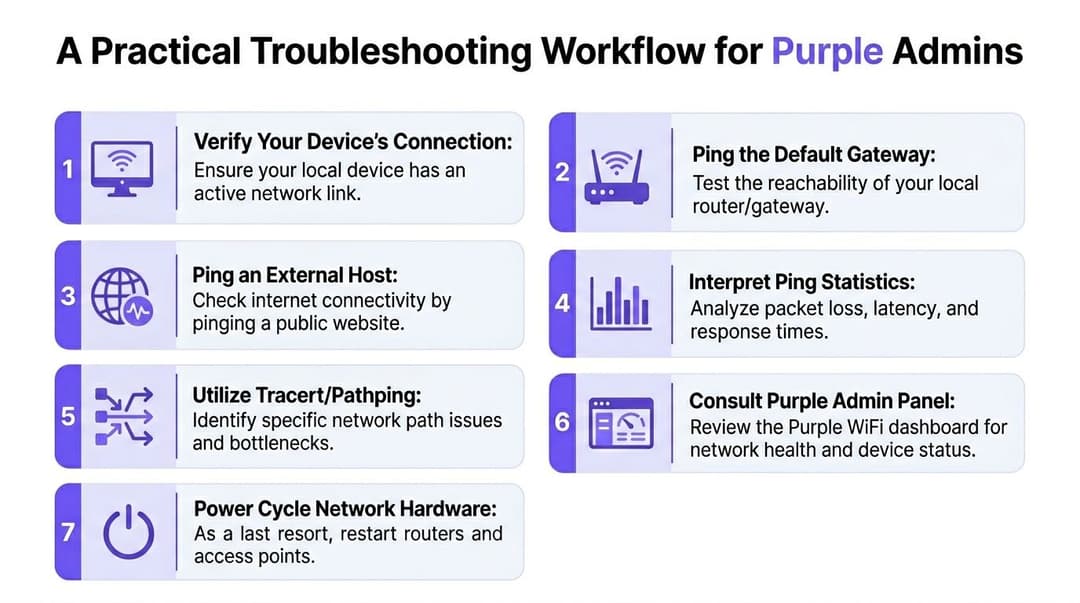
La méthode de l'extérieur vers l'intérieur
Vérifiez d'abord l'équipement terminal Confirmez que l'appareil est connecté et présente l'état réseau attendu. Ne présumez pas que l'icône WiFi signifie une session exploitable.
Pinguez l'adresse de bouclage
Cela vérifie la pile TCP/IP locale. Si cela échoue, vous n'avez pas un mystère réseau. Vous avez un problème d'hôte.Pinguez la passerelle par défaut
Cela sépare rapidement les problèmes de client local et de WLAN des problèmes en amont.Pinguez la dépendance suivante qui importe
Il peut s'agir d'un contrôleur, d'une cible d'authentification ou d'un autre service interne. Adaptez la cible au symptôme.Pinguez un hôte externe
Cela confirme si le problème dépasse les limites du site.Passez à
tracertoupathpingsi nécessaire
Utilisez-les uniquement après avoir identifié le segment qui mérite d'être examiné.Consultez les tableaux de bord et les systèmes de politiques en dernier, avec une théorie en tête
Vos journaux ont désormais plus de sens car vos tests en ligne de commande ont déjà réduit le champ des possibles.
Ce qui fonctionne et ce qui ne fonctionne pas
Ce qui fonctionne, c'est la cohérence. Chaque ingénieur de l'équipe doit suivre le même ordre, enregistrer les mêmes résultats et comparer le comportement local par rapport au comportement en amont avant de modifier quoi que ce soit.
Ce qui ne fonctionne pas, c'est de passer directement aux réinitialisations, d'accuser le pare-feu ou d'ouvrir des tickets de support auprès des fournisseurs sans une analyse logique de l'historique. Cela fait perdre du temps et détruit souvent les preuves dont vous aviez besoin.
Une grande partie de cette discipline rejoint les concepts plus larges de la sécurité réseau. L'identité, la segmentation, le filtrage et les politiques peuvent tous influencer l'autorisation, la priorisation ou la représentativité de l'ICMP. Un dépannage efficace en tient compte sans pour autant s'y perdre.
Considérez chaque ping échoué comme un point de données unique au sein d'une séquence contrôlée, et non comme un verdict définitif sur l'ensemble du réseau.
Si vous êtes confronté à des anomalies côté terminal après des modifications du système d'exploitation, ce guide pour résoudre les problèmes de connectivité internet Windows 11 après une mise à niveau est une référence pratique. Un nombre surprenant d'« incidents réseau » commence par une pile client qui a changé à l'insu de l'utilisateur.
Le but n'est pas d'idolâtrer la commande ping. Le but est de l'utiliser de manière à obtenir rapidement de la clarté. Cela reste l'une des habitudes les plus précieuses qu'un administrateur réseau puisse acquérir.
Si vous gérez un réseau WiFi pour invités, pour le personnel ou multi-locataires et que vous souhaitez moins de frictions lors de l'authentification, une meilleure visibilité sur l'accès basé sur l'identité et un modèle opérationnel plus propre que les mots de passe partagés et les portails captifs fragiles, découvrez Purple.