
Integração do Alta Labs com o Purple WiFi: Configuração e Ajustes do Captive Portal
Este guia de referência técnica aborda a integração de ponta a ponta dos pontos de acesso Alta Labs AP6 e AP6 Pro com o captive portal hospedado na nuvem do Purple. Ele detalha a configuração de redirecionamento externo, autenticação RADIUS, requisitos de walled garden e segmentação multi-tenant usando as Chaves Pré-Compartilhadas Privadas AltaPass. Operadores de locais e equipes de TI sairão com um manual de implantação replicável para ambientes de hospitalidade, varejo e escritórios inteligentes.
Ouça este guia
Ver transcrição do podcast
Resumo executivo
Os pontos de acesso Alta Labs AP6 e AP6 Pro se integram ao captive portal na nuvem do Purple usando autenticação RADIUS padrão e redirecionamento HTTP. O AP intercepta o tráfego de visitantes não autenticados, redireciona-o para a sua splash page do Purple e concede o acesso assim que o servidor RADIUS do Purple retorna um Access-Accept. Para ambientes multi-tenant, a tecnologia AltaPass da Alta Labs atribui cada dispositivo conectado a uma VLAN e política de largura de banda exclusivas com base na senha utilizada — sem a necessidade de SSIDs adicionais. Este guia fornece as etapas exatas de configuração, listas de domínios de walled garden e parâmetros RADIUS para implantar a integração do zero. O Purple opera em mais de 80.000 locais ativos e processou 440 milhões de logins em 2024 (dados internos do Purple). O hardware da Alta Labs é uma excelente opção para MSPs e instaladores de escritórios inteligentes que precisam de segmentação de nível corporativo a um preço competitivo.
Arquitetura técnica
A integração ocorre em três camadas: a plataforma de gerenciamento na nuvem da Alta Labs, o hardware AP6 ou AP6 Pro na borda e a infraestrutura de nuvem do Purple, que lida com autenticação e análise de dados.
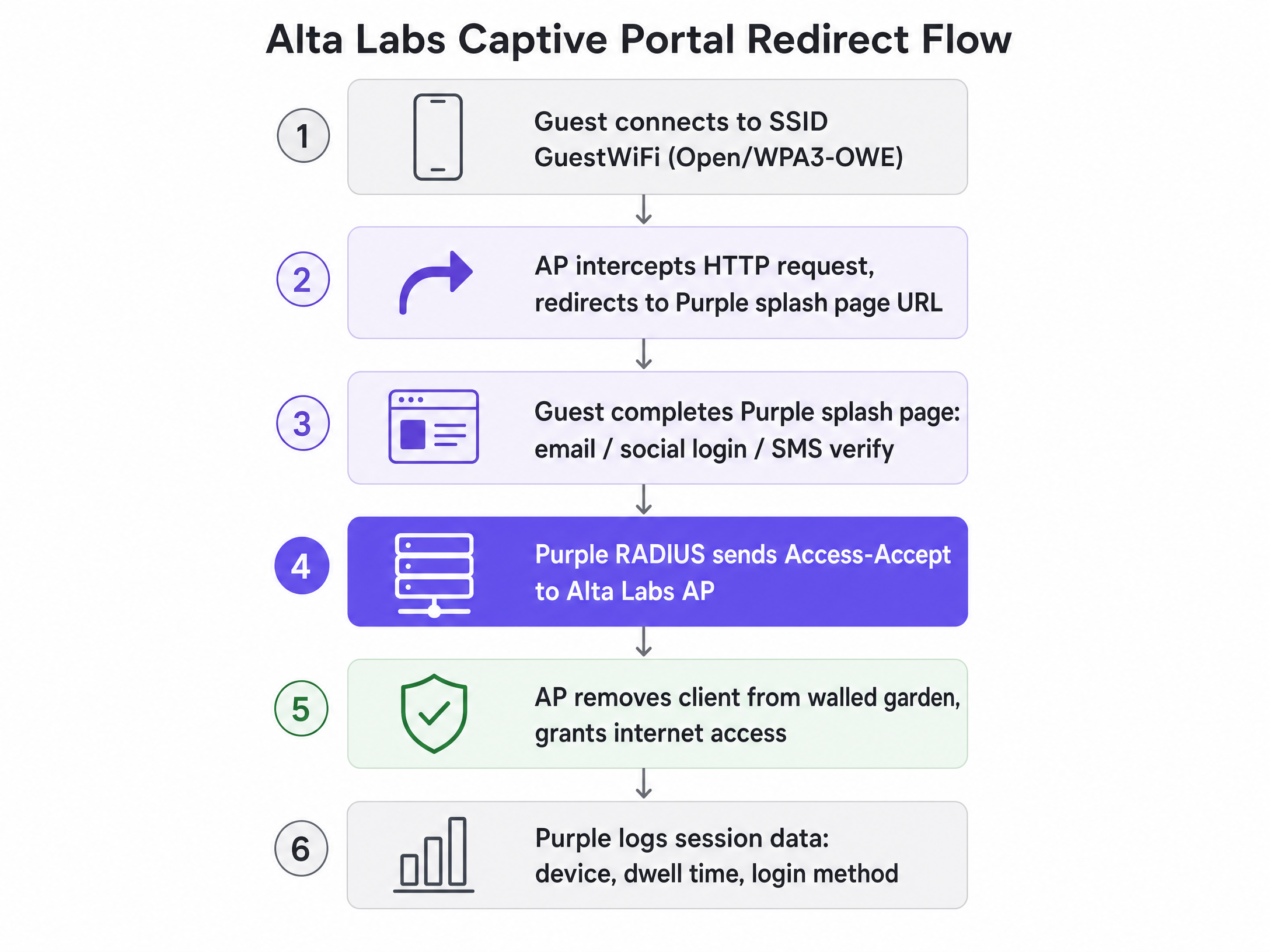
Quando um visitante se conecta ao SSID aberto ou WPA3-OWE, o AP coloca o dispositivo em um estado restrito de pré-autenticação. Todo o tráfego HTTP de saída é interceptado e redirecionado para a URL da splash page do Purple. O dispositivo só pode acessar os domínios explicitamente listados no walled garden até que a autenticação seja concluída. Assim que o visitante envia suas credenciais na splash page do Purple, o servidor RADIUS do Purple envia um Access-Accept para o AP, que remove a restrição e concede acesso total à internet. O Purple registra os dados da sessão — tipo de dispositivo, tempo de permanência, método de login — e os disponibiliza no painel do WiFi Analytics .
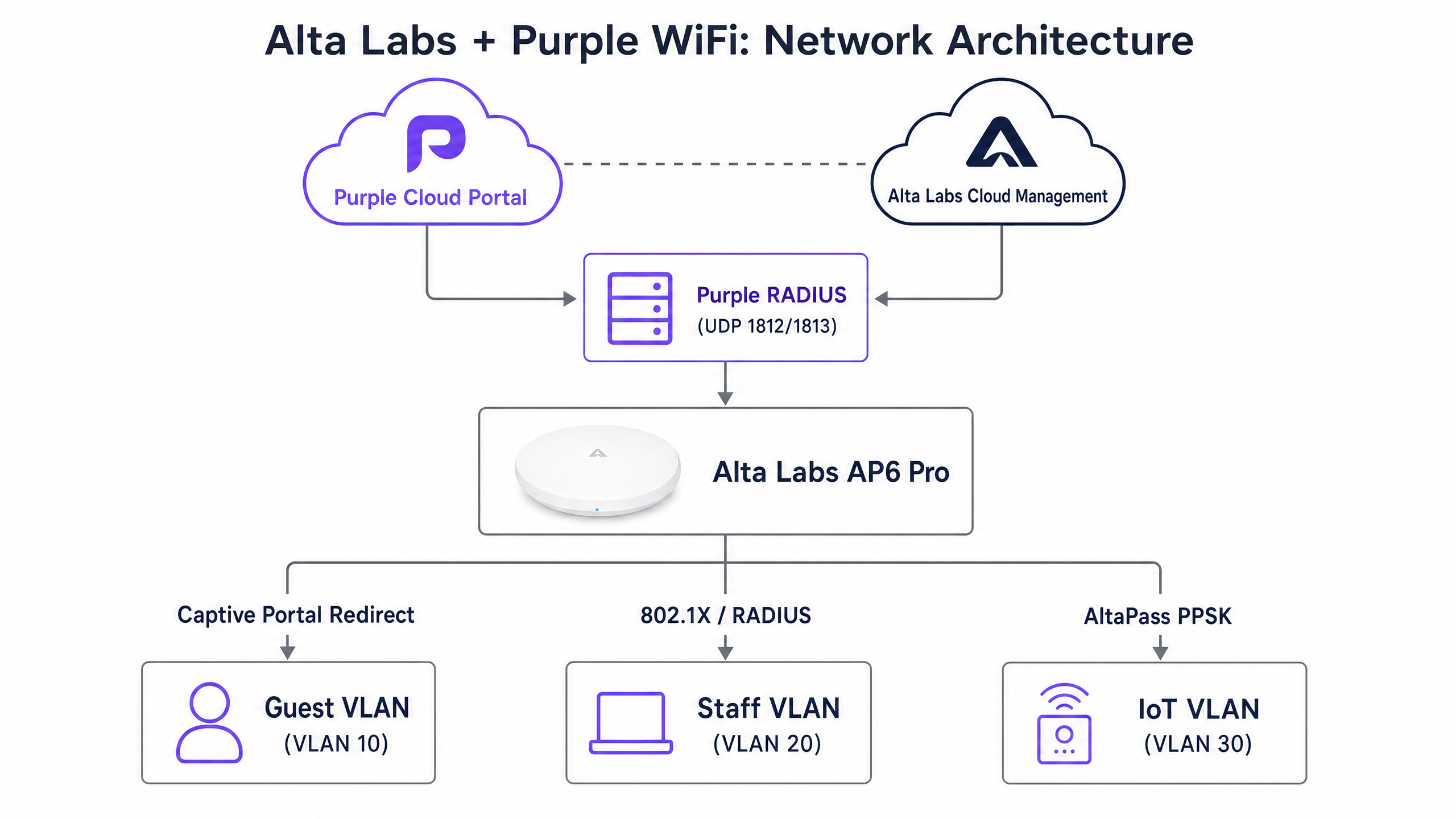
Para redes corporativas e administrativas, o mesmo hardware de AP lida com a autenticação WPA2/WPA3-Enterprise (IEEE 802.1X). O AP atua como o cliente RADIUS, encaminhando as solicitações de autenticação para a infraestrutura SecurePass do Purple, que por sua vez valida as credenciais no Microsoft Entra ID, Okta ou Google Workspace. A resposta RADIUS Access-Accept carrega o atributo Tunnel-Private-Group-Id, que o AP usa para alocar o dispositivo na VLAN correta de forma dinâmica.
Guia de implementação
Passo 1: Adicionar o local e o hardware no Purple
Antes de mexer no controlador da Alta Labs, registre a implantação no Purple.
- Faça login no portal de gerenciamento do Purple e navegue até Management > Locations.
- Selecione Venues and Groups > Add venue e conclua o assistente de criação de local.
- No seu local, selecione Hardware > Add hardware > Add new hardware.
- Defina o tipo de hardware como WiFi AP e selecione o tipo de AP correspondente.
- Insira o endereço MAC de cada unidade Alta Labs AP6 ou AP6 Pro.
- Clique em View Manual Online para obter os endereços IP do servidor RADIUS, as portas e o segredo compartilhado para este local. Anote esses valores — você precisará deles no Passo 3.
Passo 2: Configurar o SSID de visitantes no Alta Labs
Faça login na plataforma de Gerenciamento na Nuvem da Alta Labs em manage.alta.inc.
- Navegue até Settings > WiFi e selecione o SSID destinado ao acesso de visitantes.
- Em Advanced Settings, defina o tipo de rede como Guest. Isso força o isolamento de clientes automaticamente.
- Role até a seção Hotspot e selecione External.
- No campo Redirect URL, cole a URL da splash page do Purple fornecida nas configurações de hardware do seu local (por exemplo,
https://region1.purpleportal.net/access/). - Insira o Authorisation Secret (segredo compartilhado do RADIUS) das configurações do seu local no Purple.
- Clique em Save.
Passo 3: Configurar a autenticação RADIUS
Com o redirecionamento externo configurado, ajuste as definições de RADIUS para que o AP possa se comunicar com a infraestrutura de autenticação do Purple.
| Parâmetro | Valor |
|---|---|
| IP do servidor de autenticação primário | Fornecido pelas configurações de local do Purple |
| Porta de autenticação | UDP 1812 |
| IP do servidor de bilhetagem primário | Fornecido pelas configurações de local do Purple |
| Porta de bilhetagem | UDP 1813 |
| Segredo compartilhado | Fornecido pelas configurações de local do Purple |
Para implantações de alta disponibilidade, configure o servidor RADIUS secundário usando o endereço IP de backup fornecido pelo Purple.
Passo 4: Definir o walled garden
O walled garden permite o acesso a domínios específicos antes que a autenticação seja concluída. A ausência de entradas impedirá o fluxo do captive portal ou o carregamento de logins sociais. Insira os seguintes domínios no campo Additional Authorised Hosts / IPs na configuração de Hotspot da Alta Labs.
Infraestrutura do Purple (obrigatório)
| Domínio | Finalidade |
|---|---|
region1.purpleportal.net |
Hospedagem da splash page |
venuewifi.com |
Infraestrutura de redirecionamento do Purple |
cloudfront.net |
CDN para recursos do portal |
Sondas de captive portal do SO (obrigatório)
| Domínio | SO |
|---|---|
captive.apple.com |
iOS / macOS |
connectivitycheck.gstatic.com |
Android |
msftconnecttest.com |
Windows |
Login social (adicione por provedor ativado)
| Provedor | Domínios |
|---|---|
accounts.google.com, oauth2.googleapis.com, apis.google.com, gstatic.com |
|
facebook.com, graph.facebook.com, connect.facebook.net, *.fbcdn.net |
|
| Apple | appleid.apple.com, idmsa.apple.com, *.apple.com |
AltaPass PPSK e segmentação multi-tenant
O AltaPass é a implementação com patente pendente da Alta Labs para Chaves Pré-Compartilhadas Privadas (PPSK). Ele permite que um único SSID carregue várias senhas exclusivas, com cada senha mapeada para uma VLAN, limite de largura de banda, cronograma e regra de desvio de hotspot distintos. Isso elimina a necessidade de transmitir SSIDs separados para cada inquilino, grupo de funcionários ou categoria de dispositivo.
Configurando o AltaPass no painel do Alta Labs
- Selecione seu SSID e navegue até a seção de gerenciamento de senhas.
- Clique no botão roxo de tipo de rede à esquerda de cada entrada de senha.
- Atribua um ID de VLAN à senha. Os clientes que se conectarem com essa senha serão colocados na sub-rede VLAN especificada.
- Defina os limites de largura de banda (upload e download) por senha, conforme necessário.
- Ative ou desative o desvio de hotspot por senha. Dispositivos IoT e terminais de PDV normalmente ignoram o Captive Portal.
- Aplique restrições de cronograma, se necessário (por exemplo, restringir o acesso à internet para determinados dispositivos fora do horário comercial).
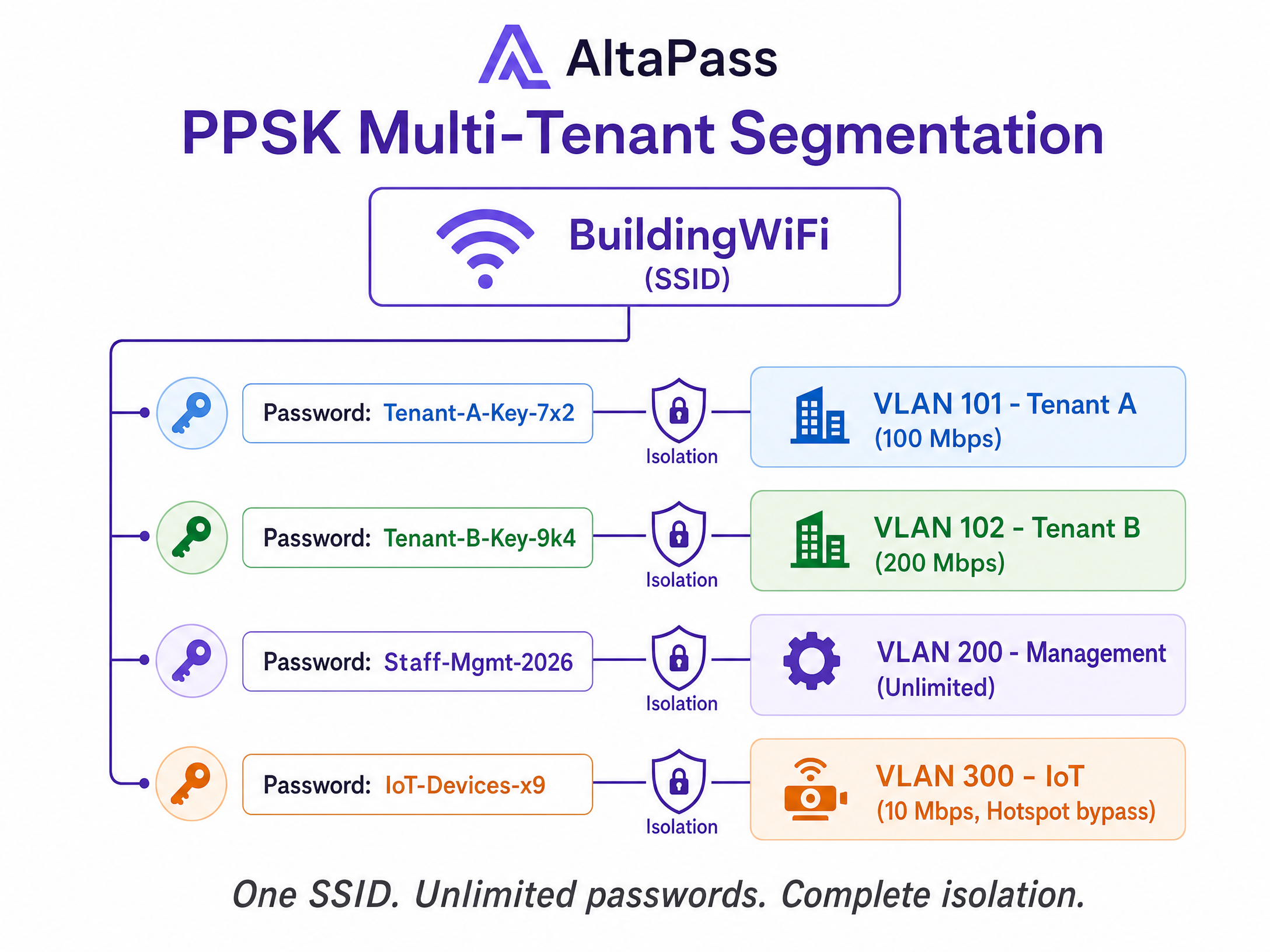
Para um edifício residencial de 72 unidades, isso significa um SSID e mais de 72 senhas exclusivas - uma por unidade, uma para a administração e uma para o sistema de automação predial. Cada senha é mapeada para uma VLAN e sub-rede isoladas. Os moradores do plano padrão recebem 100 Mbps. Os moradores premium recebem 300 Mbps. A equipe de administração do edifício não tem restrições. Os dispositivos IoT são isolados em uma VLAN dedicada com inspeção profunda de pacotes (DPI) ativada. Este é o modelo de implantação que reduz a contagem de SSIDs de 72 para um.
Atribuição dinâmica de VLAN via RADIUS
Para redes de funcionários 802.1X, a atribuição de VLAN funciona por meio de atributos RADIUS em vez de PPSK. A resposta RADIUS Access-Accept deve incluir:
| Atributo | Valor |
|---|---|
Tunnel-Type |
13 (VLAN) |
Tunnel-Medium-Type |
6 (IEEE-802) |
Tunnel-Private-Group-Id |
ID da VLAN de destino (por exemplo, "20") |
Importante: defina a VLAN padrão no SSID como VLAN 1 (or deixe-a sem tag) ao usar VLANs atribuídas por RADIUS. Se a VLAN padrão for definida para um valor específico, o AP poderá substituir a atribuição do RADIUS pelo padrão configurado. Este é um comportamento conhecido no firmware atual da Alta Labs.
Melhores práticas
As seguintes recomendações se aplicam a qualquer implantação da Alta Labs com a Purple, independentemente do tipo de local.
Use a resolução DNS dinâmica para entradas de walled garden. Provedores de OAuth e CDNs rotacionam endereços IP com frequência. Uma lista de permissões de IP estático se degradará com o tempo. Configure o controlador da Alta Labs para resolver domínios de walled garden dinamicamente e defina um TTL de DNS não inferior a 30 segundos para evitar uma carga excessiva de consultas.
Defina o escopo do walled garden com precisão. Adicione à lista de permissões apenas os domínios necessários para o fluxo de autenticação. O excesso de permissões — especialmente a adição de entradas curinga para grandes domínios — cria um vetor de desvio que compromete o propósito do Captive Portal.
Teste com dispositivos não autenticados antes do lançamento. Use um dispositivo que nunca tenha se conectado à rede. Dispositivos autenticados anteriormente podem ter autorizações MAC ou entradas DNS em cache que mascaram falhas no walled garden. Teste cada método de login que você pretende oferecer.
Revise os domínios do walled garden trimestralmente. Apple, Google e Meta atualizam suas estruturas de domínio OAuth periodicamente. Inclua uma revisão trimestral em seu calendário operacional para identificar desvios antes que eles afetem os usuários.
Segmente os dispositivos IoT desde o início. Use o AltaPass para atribuir dispositivos IoT a uma VLAN dedicada com o desvio de hotspot ativado. Misturar o tráfego de IoT com o tráfego de convidados ou funcionários cria riscos desnecessários e complica a resposta a incidentes.
Para uma visão mais ampla da arquitetura de segurança de WiFi corporativo, consulte nosso guia sobre Segurança de WiFi Corporativo: Um Guia Completo para 2026 .
Solução de problemas e mitigação de riscos
A splash page não aparece no iOS. A causa mais comum é a ausência da entrada captive.apple.com no walled garden. O iOS usa esse domínio para detectar captive portals. Se a verificação for bloqueada, o Assistente de Rede Cativo nunca é iniciado e o usuário vê um erro genérico de conectividade.
O login social retorna uma tela em branco ou erro de CORS. Verifique o walled garden para identificar subdomínios de CDN ou API ausentes. O *.fbcdn.net do Facebook e o gstatic.com do Google são as entradas omitidas com mais frequência. Use as ferramentas de desenvolvedor do navegador em uma sessão não autenticada para identificar quais solicitações de domínio estão falhando.
A atribuição de VLAN falha com o AltaPass. Verifique se a porta do switch upstream que se conecta ao AP está configurada como uma porta trunk e permite as VLANs marcadas (tagged). Uma porta de switch em modo de acesso descartará silenciosamente os quadros marcados, deixando o cliente sem um endereço IP.
O tempo limite de autenticação RADIUS expirou. Confirme se as portas UDP 1812 e 1813 estão abertas para saída no firewall de borda. Verifique se o segredo compartilhado na configuração do Alta Labs corresponde exatamente ao valor nas configurações de local da Purple - uma diferença de um único caractere fará com que todas as solicitações de autenticação falhem.
A atribuição dinâmica de VLAN coloca os usuários na VLAN errada. Defina a VLAN padrão no SSID 802.1X como VLAN 1. Se a VLAN padrão for definida para um valor específico, o AP poderá substituir a VLAN atribuída pelo RADIUS. Este é um comportamento no nível do firmware confirmado no fórum da comunidade Alta Labs.
ROI e impacto nos negócios
A implantação do hardware da Alta Labs com o Purple WiFi de Convidados oferece retornos mensuráveis em três dimensões: eficiência operacional, captura de dados e postura de segurança.
No lado operacional, a consolidação de múltiplos SSIDs em uma única rede gerenciada pelo AltaPass reduz os custos de gerenciamento e melhora o desempenho sem fio. Menos SSIDs significam menos sobrecarga de quadros de beacon, o que se traduz diretamente em maior taxa de transferência para todos os dispositivos conectados.
No lado dos dados, o Captive Portal da Purple captura dados primários (first-party) verificados a cada login. Os locais que usam os planos Capture e Engage da Purple relatam um aumento de 40% nas adesões (opt-ins) à base de dados de marketing em comparação com o WiFi de convidados não gerenciado (dados internos da Purple). Esses dados falimenta diretamente o WiFi Analytics , proporcionando às equipes de marketing visibilidade sobre os padrões de fluxo de visitantes, tempo de permanência e taxas de visitas recorrentes.
No aspecto de segurança, a atribuição dinâmica de VLAN isola o tráfego de visitantes, funcionários e IoT na borda. Combinada com a infraestrutura certificada ISO 27001 da Purple e o tratamento de dados em conformidade com o GDPR, esta arquitetura atende aos requisitos de segmentação de rede PCI DSS para locais que processam pagamentos com cartão.
Especificamente para implantações em hospitalidade , a combinação de splash pages personalizadas, integrações de programas de fidelidade e controles de largura de banda por dispositivo cria uma experiência diferenciada para o visitante sem adicionar complexidade para a equipe de operações de rede.
Para ambientes de varejo , a capacidade de segmentar terminais de PDV do WiFi de visitantes na mesma infraestrutura física — usando regras de bypass AltaPass — elimina a necessidade de cabeamento ou hardware separados, reduzindo tanto as despesas de capital quanto as operacionais.
Guias relacionados: Integração do Arista Cognitive Wi-Fi com o Purple WiFi | Configuração de Walled Garden para WiFi de Visitantes
Definições principais
Captive portal
A web page that intercepts unauthenticated network traffic and requires the user to interact - log in, accept terms, or pay - before granting internet access. Purple hosts the splash page in the cloud; the Alta Labs AP handles the redirect.
The primary mechanism for guest data capture in hospitality, retail, and public-sector WiFi deployments.
Walled garden
A defined list of domains and IP addresses that a client device can access before completing captive portal authentication. Everything outside the list is blocked until the user logs in.
Critical for allowing social login APIs, OS detection probes, and portal CDN assets to function before authentication completes.
PPSK (Private Pre-Shared Key)
A security method where multiple unique passwords can be used on a single SSID, with each password assigning the connecting device to a specific VLAN, bandwidth policy, and access schedule.
Alta Labs implements this as AltaPass. Used in MDUs, smart offices, and stadiums to provide isolated access without SSID proliferation.
RADIUS
Remote Authentication Dial-In User Service. A networking protocol that provides centralised authentication, authorisation, and accounting (AAA) management. Purple acts as the RADIUS server; the Alta Labs AP acts as the RADIUS client.
The mechanism that tells the AP a guest has successfully authenticated and should be granted internet access.
Identity-Based Networking
A network architecture where access rights, VLANs, and bandwidth limits are applied based on the authenticated identity of the user or device, rather than the physical port or SSID they connect to.
Purple's term for the combination of RADIUS, PPSK, and VLAN assignment that enables consistent policies across a distributed estate.
Dynamic VLAN assignment
The process of placing a client device onto a specific Virtual Local Area Network based on authentication credentials returned by a RADIUS server, rather than a static SSID-to-VLAN mapping.
Essential for isolating staff, guest, and IoT traffic on shared wireless infrastructure. Requires correct RADIUS attributes: Tunnel-Type, Tunnel-Medium-Type, and Tunnel-Private-Group-Id.
Captive Network Assistant (CNA)
The built-in OS mechanism on iOS, Android, and Windows that detects a captive portal by probing a known URL. If the probe is redirected, the OS launches a pseudo-browser for the user to log in.
If the CNA probe domains are blocked in the walled garden, the user never sees the splash page. This is the most common captive portal failure mode.
WPA3-OWE
Wi-Fi Protected Access 3 - Opportunistic Wireless Encryption. A standard that encrypts data in transit on open networks without requiring a password, protecting guest privacy while still allowing captive portal redirection.
The recommended security mode for guest SSIDs in 2026. Provides encryption without the friction of a pre-shared key.
AltaPass
Alta Labs' patent-pending implementation of multi-password SSID technology. Allows a single SSID to carry unlimited unique passwords, each with its own VLAN, bandwidth limit, schedule, and hotspot bypass setting.
The primary tool for multi-tenant segmentation on Alta Labs hardware. Replaces the need for multiple SSIDs in residential, hospitality, and smart office deployments.
Exemplos práticos
A 200-room hotel needs to provide tiered WiFi access: a free basic tier (10 Mbps) for standard guests, a premium paid tier (50 Mbps) for loyalty members, and a secure network for housekeeping staff. They want to avoid broadcasting multiple SSIDs to maintain RF performance across 40 Alta Labs AP6 Pro units.
Deploy a single SSID named 'Hotel Guest WiFi' with AltaPass enabled. Create three password profiles in the Alta Labs dashboard: (1) a standard guest password assigned to VLAN 10 with a 10 Mbps download limit and external hotspot redirect to the Purple splash page; (2) a loyalty member password assigned to VLAN 20 with a 50 Mbps limit - Purple can distribute this password post-authentication via its marketing automation; (3) a housekeeping staff password assigned to VLAN 30 with no bandwidth limit, hotspot bypass enabled, and client isolation disabled so staff devices can communicate with back-of-house systems. Configure the switch uplinks as trunks allowing VLANs 10, 20, and 30. The guest and loyalty VLANs route to the internet via NAT. The staff VLAN routes to the property management system subnet.
A retail chain is deploying Purple Guest WiFi across 50 stores using Alta Labs hardware. During testing, the splash page loads correctly on Android devices, but Apple iOS devices show a generic 'No Internet Connection' error and do not display the login screen. The walled garden includes the Purple portal domain and Google OAuth entries.
Add captive.apple.com to the walled garden in the Alta Labs Hotspot configuration. iOS uses this domain as its Captive Network Assistant probe. When the device connects to a new network, iOS sends an HTTP request to captive.apple.com. If it receives the expected response, it assumes the network is open. If it receives a redirect, it launches the pseudo-browser. If the domain is blocked entirely, iOS cannot detect the captive portal and displays a connectivity error. Once the domain is whitelisted, iOS devices will detect the redirect and launch the login screen automatically.
Questões práticas
Q1. You are deploying Alta Labs AP6 Pro access points in a conference centre. The client requires a captive portal for attendees, but also needs point-of-sale terminals to connect securely to the same access points without seeing the splash page. Both device types should use the same SSID to simplify signage. How do you configure this?
Dica: AltaPass allows per-password hotspot bypass settings on the same SSID.
Ver resposta modelo
Enable AltaPass on the single SSID. Create one password for POS terminals that assigns them to a secure VLAN (e.g., VLAN 50) with hotspot bypass enabled - these devices connect directly to the network without seeing the captive portal. Create a separate password (or use an open connection) for attendees that triggers the external redirect to the Purple splash page on VLAN 10. Both device types connect to the same SSID but receive different network policies based on their password.
Q2. After configuring the Purple captive portal on an Alta Labs network, Android devices successfully display the splash page, but Apple iOS devices show a generic 'No Internet Connection' error and do not open the login screen. The walled garden includes the Purple portal domain and Google OAuth entries. What is the most likely cause and fix?
Dica: iOS uses a specific domain to detect captive portals. If it cannot reach that domain, it assumes the network has no internet access.
Ver resposta modelo
The walled garden is missing captive.apple.com. iOS sends an HTTP probe to this domain when connecting to a new network. If the probe is blocked, iOS cannot detect the captive portal and displays a connectivity error instead of launching the Captive Network Assistant. Add captive.apple.com to the walled garden in the Alta Labs Hotspot configuration. Also add connectivitycheck.gstatic.com for Android and msftconnecttest.com for Windows to ensure cross-platform compatibility.
Q3. A stadium IT director has configured RADIUS-assigned VLANs on an Alta Labs 802.1X staff network. The RADIUS server is sending the correct Tunnel-Private-Group-Id attribute (VLAN 20), but all staff devices are landing on VLAN 5, which is the default VLAN configured on the SSID. What is causing this and how do you resolve it?
Dica: There is a known behaviour in Alta Labs firmware related to the interaction between the SSID default VLAN and RADIUS-assigned VLANs.
Ver resposta modelo
The Alta Labs AP is overriding the RADIUS-assigned VLAN with the SSID default VLAN value. This is a known firmware behaviour: when the default VLAN on the SSID is set to a specific value (VLAN 5 in this case), the AP uses that value instead of the RADIUS-returned VLAN. The fix is to set the default VLAN on the 802.1X SSID to VLAN 1 (or leave it untagged). With the default set to VLAN 1, the AP correctly defers to the RADIUS-assigned VLAN for each authenticated user.
Continue a ler esta série
Integração do Alcatel-Lucent Enterprise (ALE) OmniAccess com o Purple WiFi
Este guia detalha a integração técnica entre os pontos de acesso Alcatel-Lucent Enterprise (ALE) OmniAccess Stellar e o Purple WiFi. Ele aborda o redirecionamento de captive portal, autenticação RADIUS, configuração de Walled Garden, WiFi seguro para funcionários (Staff WiFi) via 802.1X e segmentação de WiFi multi-inquilino (Multi-Tenant WiFi) usando Chaves Privadas Pré-Compartilhadas (PPSK) com direcionamento dinâmico de VLAN — oferecendo aos gerentes de TI e arquitetos de rede uma referência completa e prática para implantar Redes Baseadas em Identidade em hardware ALE.
Aruba ClearPass e Purple WiFi: Guia de Integração e Implantação
Este guia fornece uma referência técnica completa para integrar o HPE Aruba ClearPass Policy Manager com a plataforma Purple WiFi, cobrindo a arquitetura de proxy RADIUS, configuração de Captive Portal e mapeamento dinâmico de função VLAN. Ele é projetado para gerentes de TI e arquitetos de rede em ambientes com forte presença Aruba que precisam manter o ClearPass para NAC enquanto implantam o Purple para autenticação de convidados e análises. A implementação desta integração preenche uma lacuna crítica de fornecedor, permitindo segurança e conformidade de nível empresarial juntamente com as capacidades líderes de mercado de inteligência de visitantes do Purple.
Aruba Central and Purple WiFi: Integração Gerenciada na Nuvem
Um guia de referência técnica abrangente para integrar o Aruba Central com a plataforma de inteligência de guest WiFi hospedada na nuvem da Purple. Este guia aborda arquitetura, configuração passo a passo de Captive Portals externos e RADIUS, e estratégias de implementação multi-site para equipes de TI corporativas.