
How to Set Up Azure Entra ID (Azure AD) for WiFi Authentication
This authoritative guide details the architecture, implementation steps, and business impact of integrating Azure Entra ID with 802.1X for enterprise WiFi authentication. It provides network architects and IT managers with practical deployment strategies, replacing legacy PSKs with zero-trust, certificate-based network access.
Video overview
Listen to this guide
View podcast transcript
Part of our core series: Enterprise WiFi Security Guide →
Executive Summary
For CTOs and network architects managing complex environments - from large hospitality venues to dynamic retail spaces - securing the corporate network is no longer simply a matter of strong passwords. Traditional pre-shared keys (PSKs) and basic credential validation are fundamentally incompatible with modern zero-trust architecture.
This guide details the transition to 802.1X certificate-based WiFi authentication integrated directly with Azure Entra ID (formerly Azure AD). By moving to EAP-TLS (Extensible Authentication Protocol with Transport Layer Security), enterprises can eliminate the risks associated with credential theft, automate device enrolment via Mobile Device Management (MDM), and ensure that only compliant, managed devices can access sensitive corporate VLANs. We explore the technical architecture, the deployment steps, and how this enterprise security posture operates in parallel with guest network strategies managed by platforms such as Purple.
Technical Deep Dive
The Shift from Credentials to Digital Certificates
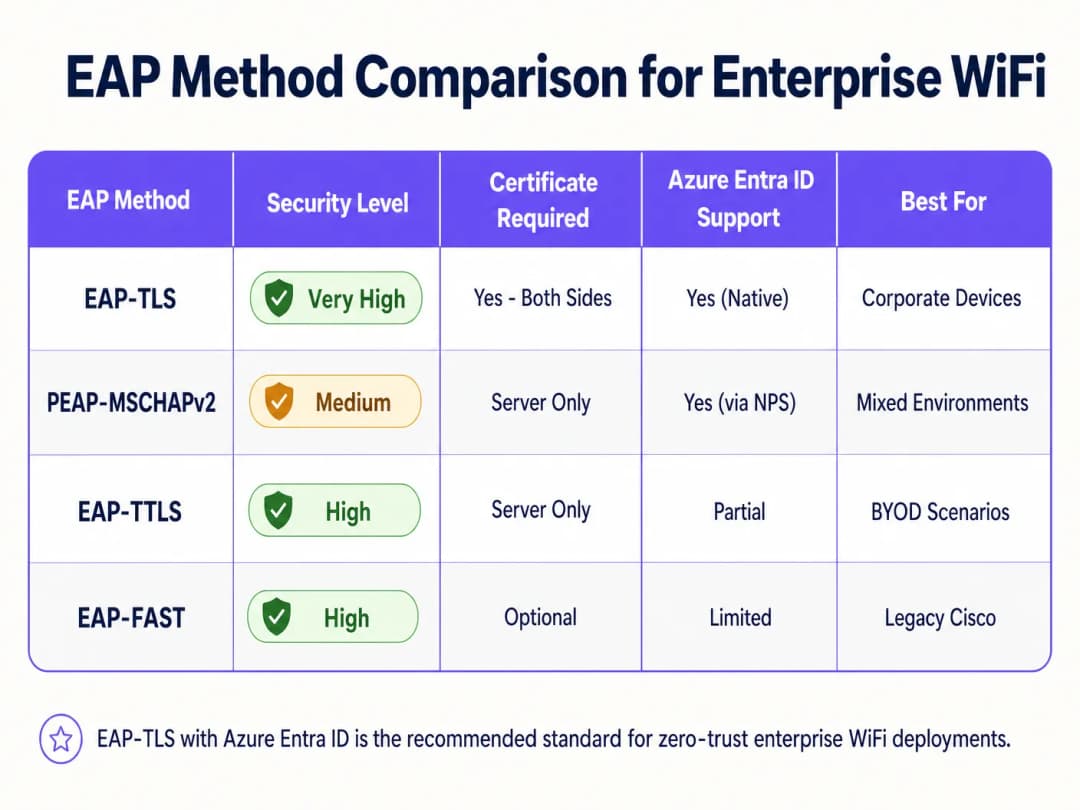
Historically, enterprise WiFi relied on PEAP-MSCHAPv2, which requires users to enter their domain credentials. However, because of its susceptibility to adversary-in-the-middle (AiTM) attacks, Microsoft is actively deprecating credential-based authentication. The current industry standard is EAP-TLS, which uses mutual certificate validation.
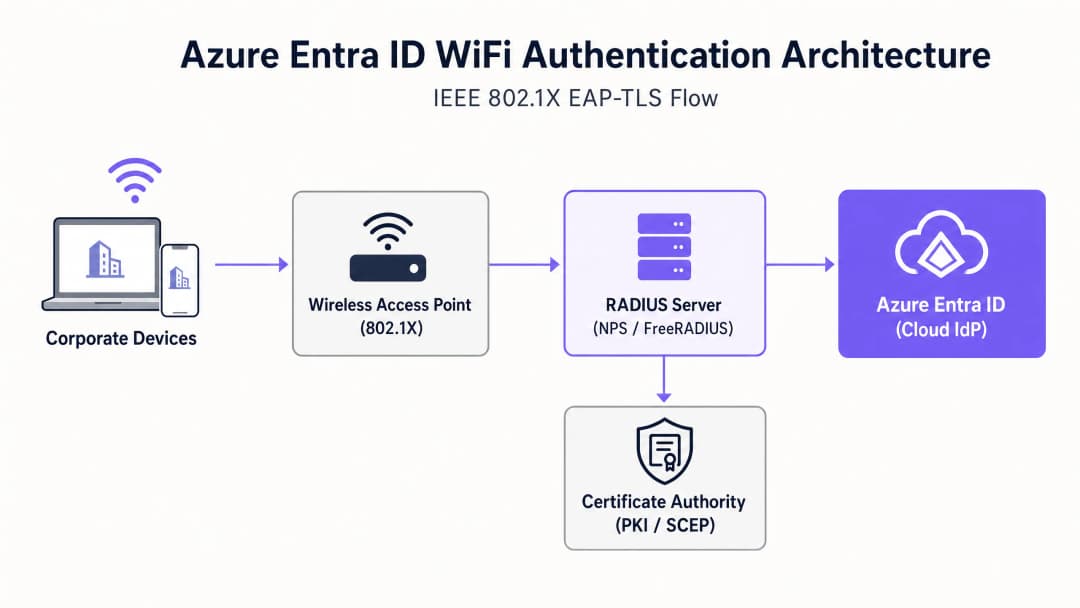
In an EAP-TLS deployment, both the RADIUS server and the client device present digital certificates. If a device lacks a valid certificate issued by your trusted Certificate Authority (CA), the RADIUS server rejects the connection before the device even obtains an IP address.
The Architectural Bridge: RADIUS and Entra ID
Azure Entra ID is a cloud identity provider (IdP) that uses modern protocols such as SAML and OIDC; it does not natively speak the RADIUS protocol used by wireless access points (WAPs). To bridge this gap, network architects must deploy a RADIUS server capable of communicating with Entra ID. This is typically achieved through:
- Cloud RADIUS solutions: Purpose-built platforms (such as SecureW2, SCEPman or Portnox) that integrate directly with Entra ID and Intune via APIs.
- On-premises Network Policy Server (NPS): Using the Azure MFA extension, although this is increasingly regarded as a legacy approach compared with cloud-native RADIUS.
Got questions about your specific setup?
Our team works with venue operators, IT managers, and network engineers across 80,000 venues. Book a 20-minute call and we will show you how others like you solved it.
Implementation Guide
Deploying Azure Entra ID for WiFi authentication requires coordination across identity, device management and network infrastructure teams.
Step 1: Establish the Public Key Infrastructure (PKI)
You must establish a CA to issue client and server certificates. In cloud-first environments, this is typically a cloud PKI integrated with Microsoft Intune via the Simple Certificate Enrolment Protocol (SCEP).
Step 2: Configure the RADIUS Server
Deploy your RADIUS infrastructure and bind it to your Entra ID tenant. The RADIUS server needs its own server certificate - trusted by your client devices - to prove its identity during the EAP handshake.
Step 3: Deploy MDM Profiles via Intune
Do not rely on users to configure their WiFi settings manually. Use Intune to push a complete WiFi profile containing:
- The trusted root CA certificate.
- The SCEP profile used to request the client certificate.
- The WiFi configuration itself, explicitly defining the SSID and the exact server names of the RADIUS infrastructure to prevent Evil Twin attacks.
Step 4: Configure the Wireless LAN Controller (WLC)
Configure your access points or WLC to use WPA2/WPA3-Enterprise (802.1X). Point authentication and accounting traffic to your new RADIUS server IP addresses, and set the shared RADIUS secret.
"When configuring 802.1X, ensure the RADIUS timeout values on the WLC are sufficient for the latency of cloud certificate validation, typically increasing from 2 seconds to 5 seconds." [1]
Best Practices
- Isolate corporate and guest traffic: Corporate devices should use 802.1X bound to Entra ID. Guest devices should use an open SSID with a captive portal. For robust guest access and analytics, leverage a Guest WiFi solution. This ensures complete isolation of untrusted traffic.
- Implement MAC Authentication Bypass (MAB) with caution: IoT devices and legacy hardware - such as older scanners in transport hubs - often cannot support 802.1X. Place these devices on a separate SSID using MAB or a dedicated PSK, and restrict their network access with strict ACLs.
- Prioritise certificate revocation: Ensure your Certificate Revocation List (CRL) or Online Certificate Status Protocol (OCSP) endpoints are highly available. If the RADIUS server cannot verify revocation status, authentication will fail.
Troubleshooting and Risk Mitigation
When deployments fail, it is rarely the cloud IdP at fault. Common failure modes include:
- Clock skew: EAP-TLS is extremely time-sensitive. Ensure all infrastructure components - particularly WLCs and RADIUS servers - are synchronised via NTP.
- Intune sync latency: When enrolling new devices, there can be a delay between the SCEP certificate being issued and the device attempting to connect. Plan for this lag during onboarding.
- RADIUS server name mismatch: If the server name defined in the Intune WiFi profile does not exactly match the Common Name (CN) or Subject Alternative Name (SAN) on the RADIUS server certificate, clients will silently disconnect to protect against malicious APs.
For a deeper analysis of securing your infrastructure, see our guide on how to protect your network with robust DNS and security.
ROI and Business Impact
Moving to Azure Entra ID WiFi authentication delivers significant benefits:
- Reduced helpdesk spend: Eliminating password-based authentication dramatically reduces support tickets related to password lockouts and WiFi credential renewals.
- Accelerated compliance: EAP-TLS provides the cryptographic proof of identity required by frameworks such as PCI DSS and ISO 27001, which is essential in healthcare and retail environments.
- Automated offboarding: When an employee leaves, disabling their account in Entra ID instantly revokes their network access across all locations, reducing insider threat.
By securing the corporate core network, IT teams can focus on revenue-generating initiatives, such as using WiFi Analytics to understand visitor behaviour and drive engagement.
References
[1] Microsoft Learn. (2023). Secure WiFi access with Intune and EAP-TLS.
Key Definitions
802.1X
An IEEE standard for port-based network access control, requiring devices to authenticate before gaining access to the LAN or WLAN.
This is the underlying protocol that makes enterprise WiFi secure, moving beyond simple shared passwords.
EAP-TLS
Extensible Authentication Protocol with Transport Layer Security. An authentication method requiring digital certificates on both the client and the server.
Considered the most secure method for WiFi authentication, preventing credential theft and AiTM attacks.
RADIUS
Remote Authentication Dial-In User Service. A networking protocol that provides centralised Authentication, Authorisation, and Accounting (AAA).
The protocol your Access Points use to ask the authentication server, 'Should I let this device on the network?'
SCEP
Simple Certificate Enrollment Protocol. A protocol used to securely issue certificates to network devices.
Used by MDM platforms like Intune to silently request and install client certificates onto corporate laptops and phones.
MAC Authentication Bypass (MAB)
A method of granting network access based on the device's MAC address rather than a username or certificate.
Used as a fallback for legacy devices (like old printers or IoT sensors) that lack the software to perform an 802.1X handshake.
Evil Twin Attack
A rogue access point masquerading as a legitimate corporate SSID to intercept traffic or steal credentials.
EAP-TLS mitigates this because the client device is configured to only trust the specific certificate of the legitimate corporate RADIUS server.
Supplicant
The software client on the endpoint device (e.g., the Windows WiFi manager) that handles the 802.1X authentication process.
IT teams must configure the supplicant via MDM to ensure it behaves securely and doesn't prompt users to accept untrusted server certificates.
Conditional Access
Azure Entra ID policies that evaluate signals (user, location, device compliance) to make access decisions.
Modern Cloud RADIUS solutions can check Conditional Access during the WiFi handshake, denying network access if Intune flags the device as non-compliant.
Worked Examples
A 500-site retail chain needs to secure back-of-house iPads used for inventory management. Currently, they use a single shared PSK across all stores. How should they migrate to Azure Entra ID authentication?
- Enrol all iPads into Microsoft Intune.
- Deploy a Cloud RADIUS solution integrated with the corporate Entra ID tenant.
- Configure Intune to deploy a SCEP certificate to each iPad.
- Push a WiFi profile via Intune that configures the iPads to connect to the 'Corporate-BOH' SSID using EAP-TLS, validating the Cloud RADIUS server's certificate.
- Update the Meraki/Aruba access points in all 500 stores to point to the Cloud RADIUS IP addresses for the 'Corporate-BOH' SSID.
- Phased rollout: Enable the new SSID, verify iPad connectivity via Intune reporting, then decommission the legacy PSK SSID.
A university campus is migrating from on-prem Active Directory to Azure Entra ID. They have thousands of BYOD (Bring Your Own Device) student laptops that currently connect using PEAP-MSCHAPv2 (username and password). How do they handle BYOD in a cloud-first Entra ID environment?
- Deploy an onboarding portal (e.g., SecureW2 JoinNow or similar BYOD onboarding tool).
- Students connect to an open 'Onboarding' SSID, which redirects them to the portal.
- The portal prompts the student to authenticate against Azure Entra ID (using their university email and MFA).
- Upon successful authentication, the portal generates a unique client certificate and automatically configures the student's device for EAP-TLS.
- The device automatically connects to the secure 'Edu-Secure' SSID using the new certificate.
Practice Questions
Q1. Your organisation is migrating to Azure Entra ID and Intune. You currently use PEAP-MSCHAPv2 for WiFi. The security team mandates that WiFi authentication must be resistant to credential theft. Which EAP method should you deploy?
Hint: Which method relies entirely on certificates rather than passwords?
View model answer
You should deploy EAP-TLS. EAP-TLS uses mutual certificate authentication, meaning the client device must present a valid certificate issued by your PKI. Because it does not use passwords, it is highly resistant to credential theft and adversary-in-the-middle attacks.
Q2. After deploying EAP-TLS via Intune, users report they cannot connect to the WiFi. Looking at the RADIUS logs, you see 'Certificate Revocation Check Failed'. What is the most likely cause?
Hint: What infrastructure must the RADIUS server communicate with to verify a certificate hasn't been compromised?
View model answer
The RADIUS server is unable to reach the Certificate Revocation List (CRL) or OCSP endpoint of your Certificate Authority. Ensure that the firewalls allow the RADIUS server outbound access to the HTTP URLs specified in the client certificates.
Q3. A hospital needs to connect 50 legacy heart-rate monitors to the network. These devices only support WPA2-Personal (Pre-Shared Key) and cannot be enrolled in Intune. How should you secure them while maintaining your Entra ID 802.1X deployment for corporate laptops?
Hint: Do not mix authentication types on the same SSID.
View model answer
Create a dedicated, separate SSID specifically for the medical IoT devices. Use a strong, unique Pre-Shared Key (or Identity PSK/iPSK if supported by your network vendor) or MAC Authentication Bypass (MAB). Crucially, place this SSID on a highly restricted VLAN with strict Access Control Lists (ACLs) that only allow the monitors to communicate with their specific medical server, blocking all other lateral network access.
Continue reading in this series
iOS and macOS 802.1X troubleshooting: a deployment checklist for Intune, Jamf and Entra ID
Use this checklist to diagnose why iPhones, iPads and Macs fail 802.1X on Intune or Jamf Pro. Each failure maps to one of four causes: server trust, identity certificate, macOS mode or Entra ID group scoping. You will confirm the cause from eapolclient and RADIUS logs, apply the fix and stage future certificate rotations.
Intune WiFi profile server trust: certificate server names and root CA checklist for Entra ID
You will be able to configure the server validation half of an Intune WiFi profile so EAP-TLS and PEAP connect on Windows, Apple and Android. You will match certificate server names to the RADIUS certificate, deploy the correct root CA, align Entra ID group assignments, and stage certificate renewals before they silently break connections.
Android 802.1X and EAP-TLS troubleshooting: a deployment checklist for Intune and Entra ID
You will be able to pinpoint why managed Android phones fail EAP-TLS on your staff SSID and fix it in Intune. Match each symptom to the four usual causes - missing CA or domain, client certificate in the wrong profile, a mismatched RADIUS server names value, or an undelivered trusted root. Then apply a rollout checklist that stops repeat outages.
Got questions about your specific setup?
Our team works with venue operators, IT managers, and network engineers across 80,000 venues. Book a 20-minute call and we will show you how others like you solved it.