You're sitting close to the router. The signal bars are full. Your video call still freezes, your download still crawls, and a guest in the next room says the WiFi has gone again. That mismatch is the classic sign of interference in WiFi, and it confuses people because they're looking at the wrong measure. Bars tell you how loudly your device hears an access point. They don't tell you how long your device has to wait for its turn to talk. Interference steals that waiting free time, called airtime, so a strong signal can still deliver a slow connection.
Interference Types at a Glance
Slow WiFi with full bars usually means shared airtime is being lost, not that your signal is weak. Start by matching your symptoms to one row here, then use the rest of this guide to confirm it before you change anything.
| Interference type | Typical sign | How to confirm | First fix |
|---|---|---|---|
| Co-channel WiFi | Slow in busy hours, many APs on one channel | Scan shows several strong neighbors on the same channel | Reassign channels, reduce transmit power |
| Adjacent-channel overlap | Dropouts and uneven speeds on 2.4 GHz | Neighbors on channels 2 to 5 or wide 40 MHz channels | Move to channels 1, 6 or 11 and use 20 MHz width |
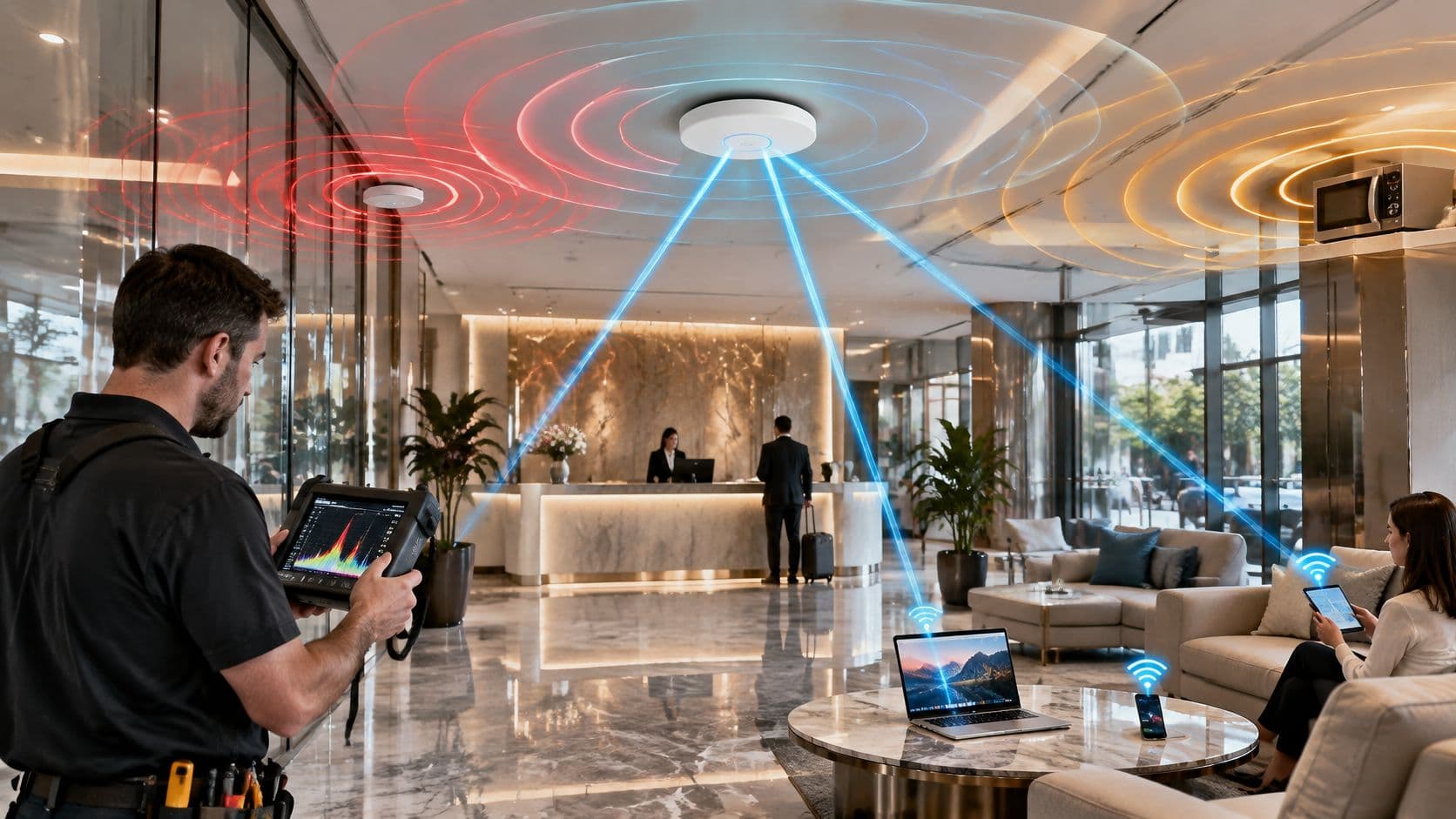
| Non-WiFi emitters | Drops only while a microwave, phone or security camera runs | Spectrum analyzer shows broadband noise at 2.4 GHz | Move clients to 5 GHz and relocate or replace the device |
| Reflections and multipath | Full signal bars but poor throughput and dead spots | High retry rate despite strong signal | Reposition access points away from metal and glass |
Reading the four rows in plain English
Co-channel WiFi means your access point and neighboring networks sit on the same channel and politely queue for each other. You'll feel it in evenings and busy hours, when everyone's queue gets longer. Adjacent-channel overlap is messier. Networks on nearby channels, such as channels 2 to 5 on 2.4 GHz, partly talk over each other rather than queuing cleanly, so speeds wobble and connections drop.
Non-WiFi emitters don't follow WiFi rules at all. Microwave ovens, Bluetooth devices, analog video senders, cordless phones and wireless CCTV can raise noise only while they're running, so you get sudden drops that start and stop with the device. Reflections and multipath come from the building itself. Metal, concrete and glass bounce your signal so several copies arrive out of step, giving you good readings but poor throughput and odd dead spots a few meters apart.
Start here: Write down which row matches your timing, place and symptoms. That single choice tells you whether your first test should be a channel scan, a retry check or a spectrum check.
Don't buy a stronger router yet. In three of these four cases, more power makes the queue louder, not shorter.
Why Strong Signal Still Means Slow WiFi
Think of a parking lot with one exit lane. Every car has a working engine, and every driver can see the exit clearly. Cars still crawl, because only one can use the lane at a time and each driver waits for the car in front to clear. WiFi works the same way. A device listens before transmitting, and if it hears another station on its channel, it defers. Signal strength tells you how clearly you can see the exit. Airtime tells you whether the lane is free, and airtime is what sets your capacity.
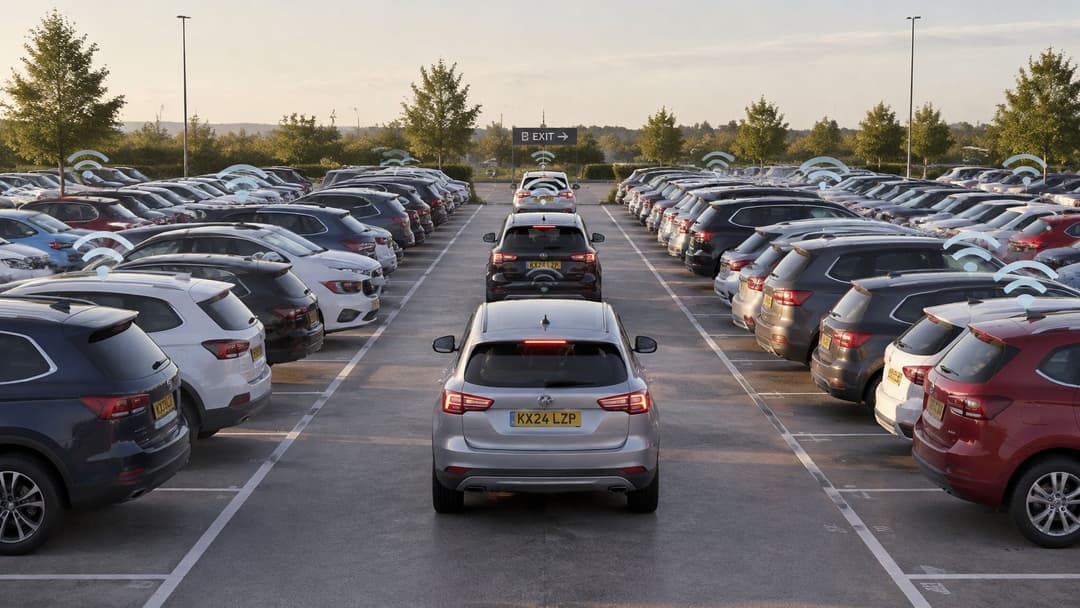
That waiting explains the confusing case. Your laptop hears its access point at full strength, so it uses a fast rate when it finally transmits. If it spends most of each second waiting for neighboring networks, tablets in the next room and your own other access points, its average speed stays low. Retries add a second tax. A frame that collides or isn't acknowledged has to be sent again, using airtime twice for one useful result.
Where this actually happens in the US
The pattern depends heavily on place. In evidence for its 2014 Public Sector Spectrum Review, Ofcom's UK measurements found performance degradation was mainly caused by neighboring WiFi networks operating on overlapping channels, rather than by Bluetooth or analog video senders. Interference was detected at only 0.1% of domestic routers, with a negligible effect on client devices, but at 1.4% of indoor public access points and 6.8% of outdoor access points, approximately 270 hotspot locations. Treat those 2014 figures as a benchmark of the pattern, not as current national statistics.
| Deployment | Access points affected | Client devices affected |
|---|---|---|
| Domestic routers | 0.1% | Negligible effect reported |
| Indoor public access points | 1.4% | 0.1% |
| Outdoor access points | 6.8% (about 270 hotspots) | 1.4% |
| Outdoor range across studied sites | 4.2% to 6.8% (about 170 to 270 hotspots) | 1.4% |
Homes rarely sit in the worst part of that table. Dense public, retail, hospitality and transportation sites do, because many independently run access points compete for the same spectrum in one space. Run a quick self-test where you're sitting. Count how many networks and access points your scanner shows on your channel, and how strong they are. That count predicts your problem far better than your bar count does.
Co-Channel and Adjacent-Channel Overlap Explained
Say an office has five access points, and a well-meaning installer leaves all five on channel 6. Each room shows excellent signal. During a busy morning, though, a laptop in room one waits not only for colleagues in room one, but for every device that any of the other four access points can hear. That's co-channel contention. The five cells behave much like one big, crowded cell. Spread the same five access points across channels 1, 6 and 11, with distance between the two that share a channel, and each group waits for far fewer strangers.
Adjacent-channel overlap is different, and often worse. On 2.4 GHz at 20 MHz width, only channels 1, 6 and 11 are fully non-overlapping. A network on channel 3 overlaps both channel 1 and channel 6, so stations don't queue as cleanly as they do when they share a channel exactly. They partly collide instead. Bonding channels to 40 MHz on 2.4 GHz widens that footprint further, which is why a wider setting can make a crowded floor slower even though it looks faster on a specification sheet.
Why nobody can simply reserve a quiet channel
US WiFi runs in license-exempt spectrum, so your deployment doesn't get exclusive protection from a neighbor's network. The UK government Spectrum Sandbox report on the Bath field measurements describes Ofcom controlling permitted transmission power rather than assigning exclusive channels, with UK limits commonly ranging from 200 mW for indoor coverage to 1 W for outdoor coverage. In that Bath trial, observed 5 GHz WiFi signals rarely exceeded approximately -105 dBm, while office background noise was around -127 dBm, so the team selected -105 dBm as a practical interference threshold. Radios that selected frequencies with lower background noise, including around 5.20, 5.22 and 5.24 GHz, reported no adverse impact on the office or test networks.
That -105 dBm figure comes from a single Bath trial. Use it as a working reference to flag contenders, not as a regulatory limit.
Here's how to apply it to your own scan. List each neighboring network with its channel and received level, and treat any signal near or above that level on your channel as a real contender worth planning around. Then judge the result by channel utilization and retry rate, because a contender that rarely transmits matters less than a quieter neighbor that's busy all day. In multi-tenant buildings you often can't move the neighbor, but dynamic channel selection lets your radios move away from the noise they can measure.
Microwaves, Bluetooth and Reflections
Some interference never sends a WiFi frame, so it won't appear in your list of neighboring networks. A microwave oven leaks energy around 2.4 GHz while it runs. Put a staff kitchen next to a hotel bar and you can get a neat, repeatable fault. The POS systems and guest devices drop every time someone heats lunch, then recover when the oven stops. At home, the same effect shows up as a video call that breaks up while dinner cooks and clears the moment the timer pings.
Other everyday devices add smaller, less predictable noise. Bluetooth headsets and keyboards hop across the 2.4 GHz band while they're in use. Analog video senders, cordless phones, baby monitors and wireless CCTV can raise the noise floor for as long as they're transmitting. Say a ward corridor carries wireless patient monitors and a nurse call system alongside the access points. Drops that appear only during shift changes, when staff, headsets and equipment all converge, point you toward the devices in that corridor rather than toward your channel plan.
When the building is the problem
Reflections don't need another transmitter. Metal ceiling tiles, elevator shafts, concrete stairwells and glazed atria bounce your own signal, so several copies arrive at a device slightly out of step. The device reports strong bars because plenty of energy arrives. It struggles to decode that energy cleanly, so throughput falls and retries climb. You'll often find the clue in geography. One desk works, the desk beside the glass partition doesn't, and moving a laptop a short distance changes everything.
Use one separating test before you guess. Run the suspect appliance for ten minutes while you watch retry rate and noise from a fixed spot, then repeat with it switched off and change nothing else. A fault that tracks the appliance points to an emitter, and your fix is distance, relocation, replacement or moving clients to 5 GHz. A strong signal with high retries and no emitter in sight points to reflections, and changing channels won't help you. Move the access point away from metal and glass, change its height or orientation, then retest from the same desk.
How to Diagnose Interference on a Live Network
Diagnose in a fixed order, and measure the same places each time. Changing channels first destroys the evidence you need to know whether the change helped.
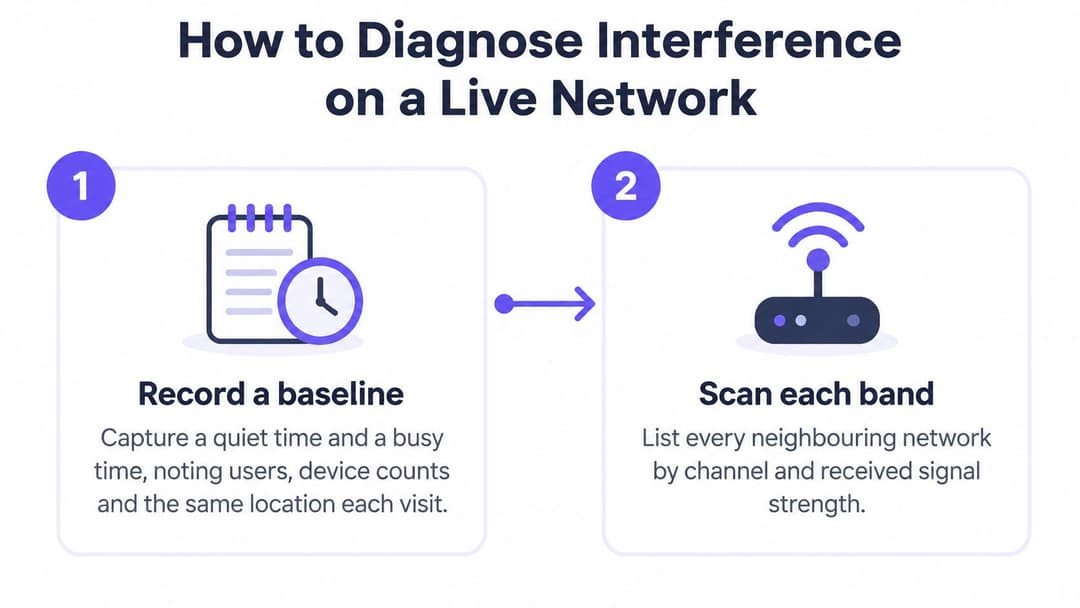
- Record a baseline. At a quiet time and a busy time, note the location, user count and device count, then capture throughput, retry percentage and channel utilization. You're building a before picture you can trust.
- Scan each band. Use a built-in WiFi scanner or cell phone analyzer app to list every neighboring network by channel, width and received level. Do this where users complain, not just beside the access point.
- Check utilization and retries on each access point. Your controller dashboard shows both. High utilization with modest user numbers tells you strangers are consuming airtime, while high retries point to collisions, noise or reflections.
- Measure the noise floor. Compare it with the practical -105 dBm reference from the Bath work, and note which neighbors sit near or above it on your channel. A rising floor at busy times is meaningful even when users still show full bars.
- Hunt non-WiFi emitters. Run a spectrum analyzer at 2.4 GHz and 5 GHz, because a normal WiFi scanner can't show you a microwave or video sender. Confirm a suspect with the same on and off test, watching retries rather than bars.
- Compare 2.4 GHz and 5 GHz occupancy at each location. This tells you whether steering clients will buy quieter airtime at your site.
- Log every change and repeat the same steps. One change, one retest, same locations. If you alter channel, width and power together, you'll never know which one helped or hurt.
What the band comparison should show
US measurements explain why step six matters. The Edinburgh research repository record of Ofcom's airborne measurements over Northampton reports aggregate 5 GHz WiFi emissions approximately 13 dB lower than 2.4 GHz, with the 5 GHz signal close to the measurement noise floor while 2.4 GHz emissions were well above it. Those measurements also identified 19 distinct 20 MHz channels across portions of the 5 GHz range. A 2.4 GHz heavy site will usually show that gap clearly in your own per channel occupancy.
Treat that gap as a reason to test steering, not as an instruction to switch the old band off. 5 GHz penetrates walls less well, so check for coverage holes against your minimum signal policy before you disable 2.4 GHz anywhere. Keep your baseline, scans and retry logs together over time, in the way a practical WiFi analytics guide frames ongoing network measurement, so you can correlate a bad afternoon with occupancy rather than memory.
A clean spectrum snapshot doesn't prove a healthy network. Airtime exhaustion and retries can dominate even when measured noise is low.
Fixes That Cut Contention in Busy Sites
Work from the least disruptive change to the most, and retest after each one. That order protects you from solving a channel problem by creating a coverage problem.
| Fix | Use when | Watch-out |
|---|---|---|
| Automatic channel selection | Three or more access points on fixed channels | Confirm it re-runs after building or layout changes |
| Reduce transmit power | Cells overlap far beyond the room they serve | Coverage holes at cell edges; keep a minimum signal policy |
| Steer capable clients to 5 GHz | Dual-band devices in dense hotels and offices | 5 GHz penetrates walls less, so access-point spacing may need changes |
| Narrow channel width to 20 MHz | Heavy co-channel contention on busy floors | Lower peak throughput per client |
| Disable 2.4 GHz radios | Large open-plan areas with more than three access points | Devices that only support 2.4 GHz lose coverage |
Start with automatic channel selection. It's the lowest-risk change, and it corrects the common failure where every access point still sits on the channel it shipped with. The Federal Communications Commission guidance recommends using enterprise radio-resource management for automatic channel selection and reducing transmit power where necessary, rather than relying on fixed manual channels. That guidance specifically advises considering disabling 2.4 GHz radios in large open-plan areas with more than three access points, because 5 GHz provides substantially more channels for non-contending coverage.
Why lowering power can raise speed
It feels backward, so check the mechanism. Excessive transmit power enlarges each cell's contention domain. Your access point doesn't just reach the room it serves, it forces devices two rooms away to hear it, defer to it and share airtime with it. Overlapping channels then push stations through WiFi's carrier-sense and collision-avoidance process more often, increasing airtime consumption and cutting effective throughput while signal strength still looks high. Lower cell power shrinks that waiting crowd. Judge the change by channel utilization and retry rate, not RSSI, and keep a minimum signal policy so clients at the cell edge still have a usable connection.
Steering and width come next. Steer dual-band cell phones, laptops and tablets to 5 GHz where your survey shows real coverage, and keep older or distant devices on 2.4 GHz where they need its reach. Narrowing to 20 MHz lowers each client's peak rate, but it gives you more separate channels to reuse, which is the better trade on a busy floor. These are the same levers covered in a structured WiFi RF engineering guide, applied here in risk order rather than all at once.
Disabling 2.4 GHz is last because it's the only fix that can disconnect a whole class of devices. Printers, older handhelds and some building sensors may have no 5 GHz radio at all, so inventory them first and consider disabling the band on selected access points rather than everywhere. Hotels, offices, retail venues and multi-tenant buildings benefit most from this sequence because independently managed neighboring networks create the density. At home, use the same order at small scale. Run an automatic scan, pick the least crowded of channels 1, 6 and 11, keep 20 MHz width, and move the router away from metal and glass before you buy anything. Your closing sequence stays identical everywhere: channel selection, transmit power, 5 GHz steering, narrower channel width, then disabling 2.4 GHz, with a test after each step.
Plan Interference Out of Dense Venues and Multi-Tenant Buildings
A hotel, hospital, shopping mall or multi-tenant building breaks home router assumptions in one specific way. You don't control most of the transmitters in your airspace. Each tenant, concession and neighboring business installs its own network, picks its own channels and sets its own power. Adding access points or widening channels in that environment can make contention worse, because you've added more stations to the same shared queue and given each one a wider footprint. More hardware only helps when the new cells are smaller, quieter and on separate channels.
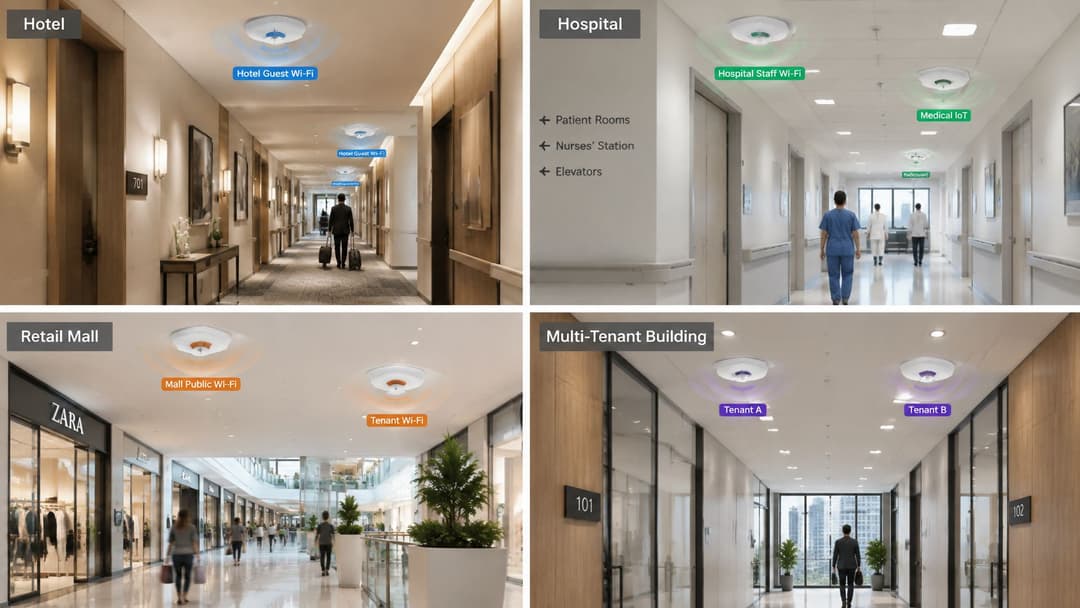
Start with an inventory, not a purchase order. Count neighboring networks per floor from your scan logs, note their channels and levels, then sort each neighbor into one of two groups. Some you can coordinate with, such as your own tenants, an anchor retailer or building management. Others you must tolerate, such as a business across the street. Coordination is where the gains are, so agree a channel plan and per cell power limits with the first group before you spend anything.
Coordination in multi-tenant buildings
In residential buildings, put the agreement in writing with building management and other tenants where you can. Agree which channels each floor uses, cap transmit power so one network doesn't spill through two apartments, and revisit the plan when a new tenant fits out a unit. Isolation at the network layer matters alongside the radio plan. Our Multi-Tenant WiFi keeps each resident's network isolated from other guests, so a resident's devices stay private even while everyone's radios share the same airspace. That separation is the practical core of any sound multi-tenant WiFi guide, and it works across the hardware venues already run, since supported WiFi vendors include Cisco Meraki, HPE Aruba, Ruckus, Juniper Mist, Ubiquiti UniFi, Cambium, Extreme and Fortinet.
One forward-looking point deserves a single sentence. Ofcom's 6 GHz sharing announcement proposes sharing the 6425–7125 MHz band between WiFi and mobile services, with a 160 MHz WiFi-priority segment and a 540 MHz mobile-priority segment, and higher-power or outdoor WiFi would require Automated Frequency Coordination. That's a proposal to plan around, not a current rule to configure against today. It does reinforce the direction of travel, toward automated coordination and away from static channel plans set once and forgotten.
Do three things this week. First, name one person as owner of interference investigations, so a complaint doesn't bounce between facilities, IT and a contractor. Second, log channel, bandwidth, transmit power, client density, retry rate and noise floor for every access point, on a schedule rather than only during faults. Third, review the first month of logs against occupancy and complaint records before buying hardware. You'll often find the fault follows Saturday footfall, a shift change or one tenant's busy hour, and that points you to a channel or power change that costs nothing.
Interference work is mostly measurement and coordination, and it gets easier when guest, staff and resident access runs on one platform you can observe. Purple provides passwordless WiFi access, analytics and isolated private networks for multi-family buildings on the access points you already own, so you can fix contention in the air while keeping each user's traffic separate. Visit Purple to see how it would run across your venues.