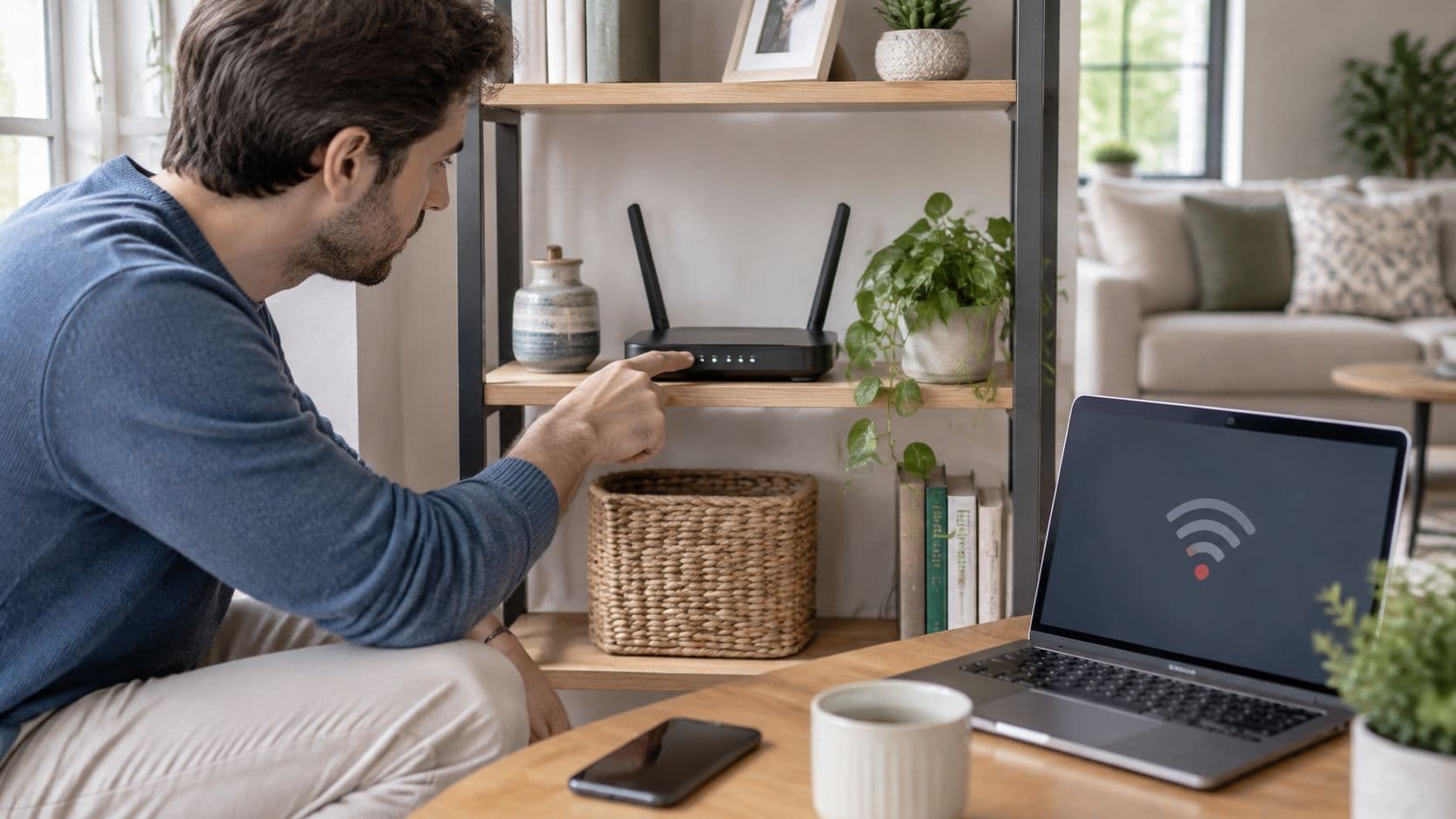
WiFi is the wireless link between your devices and a router, while the internet itself arrives over a separate broadband line from your provider. Ofcom reported that full fiber was available to 69% of UK homes in July 2024, but a fast broadband line still doesn't guarantee a fast connection in every room. (Ofcom's 2024 Connected Nations report)
You may be looking at a stalled video call, a slow page in the back bedroom or a guest asking for the WiFi password. The useful first question isn't only how fast your broadband is. It's whether the problem starts with the connection coming into the building or the wireless signal carrying it around inside.
How WiFi carries your internet connection
Think of the broadband line as the main water supply to a building. WiFi is like a set of faucets: it lets each room draw from that supply without a separate cable running to every phone or laptop.
The connection travels through these steps:
- The provider's line reaches the building. It may use fiber, cable or copper, or a fixed wireless connection.
- A modem or gateway translates the signal. It turns the incoming service into data the local network can use. A gateway often combines the modem and router in one box.
- The router shares the connection. It sends data between your local devices and the provider, and broadcasts WiFi radio signals, usually on the 2.4 GHz or 5 GHz bands.
- Your device joins the network. It checks the network name and password, then receives a local address so the router can direct traffic to it.
- Requests travel out and replies come back. When you open a website, your device sends a request through the router and broadband line. The reply returns along the same route.
The FCC reported that 82% of people in the US used broadband at home in 2019, a sign of how ordinary home connectivity had become. WiFi is the wireless layer that lets devices use a fixed connection without being physically plugged into the router. (Ofcom's broadband and landline standards guidance)
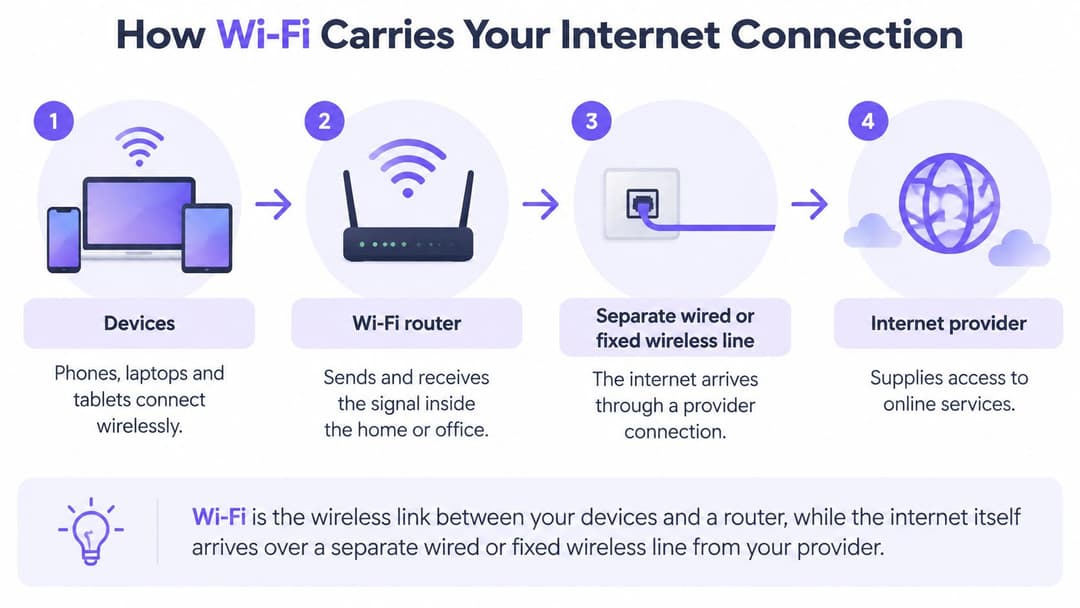
A fast broadband line doesn't guarantee a fast device connection. WiFi is a shared radio link, so connected devices take turns using the available airtime, and distance or walls can weaken the signal. Testing with a cable and then over WiFi helps reveal whether the issue starts at the line or inside the building.
Home, guest and staff WiFi setups compared
A home router, guest network, staff network and multi-tenant network solve different access problems. This comparison shows who each setup serves, how people sign in, who looks after it and where it commonly appears.
| Setup | Who connects | How they sign in | Who manages it | Typical place |
|---|---|---|---|---|
| Home router | Family and visitors | Shared WPA2 or WPA3 password | Householder | House or apartment |
| Guest network | Customers and visitors | Captive portal, email or social login | Venue or property team | Café, hotel lobby, clinic waiting room |
| Staff network | Employees and managed devices | Individual credentials via 802.1X or certificate | IT department | Office, ward, stockroom |
| Multi-tenant network | Each resident and their devices | Private passphrase per resident | Property manager | Apartments and student housing |
The criteria matter because a sign-in method affects both convenience and control. A shared home password is easy for a household, but it's harder to know who still has access after it's been passed to visitors. A guest portal gives a venue a separate way to welcome customers, while individual staff credentials let an organization remove access for one employee without changing everyone's sign-in.
One building can run more than one network at once, often using the same physical WiFi equipment. A hotel, for example, can give guests an internet connection while keeping check-in tablets on a staff network. Don't use one password for guest and staff access: a visitor's device shouldn't be able to reach systems used by employees.
For more detail on visitor sign-in choices, see this practical guide to guest WiFi for venues.
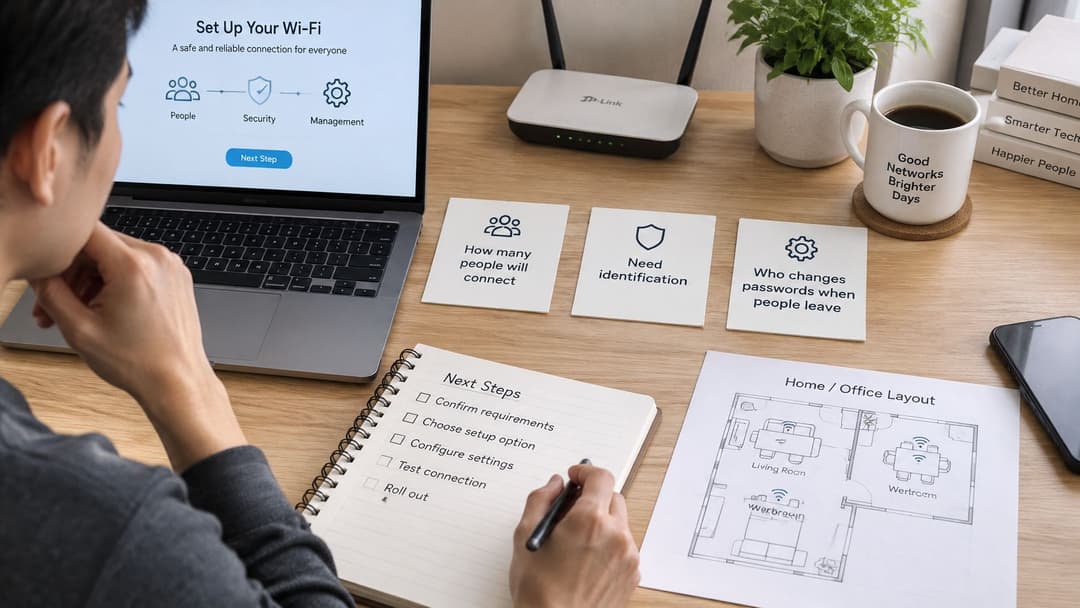
Before choosing a setup, ask three questions: How many people will connect? Do users need to be identified individually? Who will change access when someone leaves? Your answers help establish whether a shared household password is enough or whether each user needs separate credentials.
Why WiFi slows even on fast broadband
A venue can pay for a fast broadband line and still hear guests complain about video calls freezing. The line is the connection from the building to the internet. WiFi is the local radio link that carries each device to the router or access point. When the line tests fast and the WiFi feels slow, the bottleneck is usually inside the building.
| Band | Typical indoor range | Speed potential | Best for | Main drawback |
|---|---|---|---|---|
| 2.4 GHz | Longest, passes through walls best | Lowest | Smart plugs, sensors, distant rooms | Crowded and prone to interference |
| 5 GHz | Medium, weaker through walls | Higher | Streaming, video calls, same-room use | Shorter reach than 2.4 GHz |
| 6 GHz (WiFi 6E and 7) | Shortest | Highest, with wide channels | Dense, clean spectrum and newer devices | Limited device support and short range |
The band is only part of the picture. Channel width describes how much radio spectrum a WiFi connection uses. A wider channel is a wider road: it can carry more traffic when the lanes are clear, but neighboring networks and nearby devices also compete for that same road space. A theoretical rate printed on a router box assumes clean spectrum and favorable conditions. It is a ceiling, not a promise that every device will get the same performance at the same time.
More devices mean more competition for airtime
WiFi is a shared medium, so every device takes turns transmitting. Airtime is the share of those turns a device gets. WiFi 5 and WiFi 6 use different methods to share that airtime. WiFi 6 is designed for denser environments and generally handles more simultaneous devices per access point, but its capacity is still shared among the people and devices using it. Theoretical aggregate rates and typical device counts describe controlled conditions, not a guaranteed speed for each person.
For venues and busy homes, planning only by broadband speed or the number of access points misses the question of how many devices are trying to use the same airtime. A WiFi survey or monitoring tool can help identify crowded channels and weak signal areas; this guide to WiFi radio-frequency engineering explains the design considerations.
Three practical band rules
- Use 5 GHz for video calls and streaming when the device is reasonably close to the router.
- Use 2.4 GHz for smart plugs, sensors and devices in more distant rooms.
- Try another channel in the router settings if neighboring networks are crowding the same frequency, then test again.
If one device is slow while others work well, start with that device, its distance from the access point and its band. If every device slows at the same time, look at airtime and channel congestion. If a wired speed test is slow, the broadband line is the place to start, and that call belongs with your provider.
An advertised speed is a ceiling, not the experience a user will get in a particular room at a particular time.
Keeping guest and staff traffic apart
Guest and staff traffic should travel on separate networks, so a visitor's device can't reach staff systems.
- Create a separate guest network. Give it its own sign-in, such as a captive portal or a password that you update regularly. Reusing the staff password makes it harder to remove visitors' access without disrupting the team.
- Turn on client isolation. This setting stops devices on the guest network from seeing or connecting directly to one another, reducing the risk that one visitor can probe another's device.
- Give staff individual credentials. Use WPA2-Enterprise, which checks each person's sign-in through a central authentication system, or certificate-based sign-in, which identifies an approved device. Shared staff passwords are easy to pass on and difficult to revoke for just one person.
- Use WPA3 where devices support it. WPA3 is a newer WiFi security standard; keep WPA2 available as a fallback if older hardware can't connect using WPA3.
- Change the router's admin password and update its firmware. The admin password controls the equipment settings, while firmware is the software that runs the router. Leaving factory credentials in place or postponing updates can expose settings to unauthorized access or known security flaws.
- Rotate shared passwords when access changes. Change a shared password if a staff member leaves or it's been shared outside the team. With individual accounts, remove the former employee's account instead of resetting access for everyone.
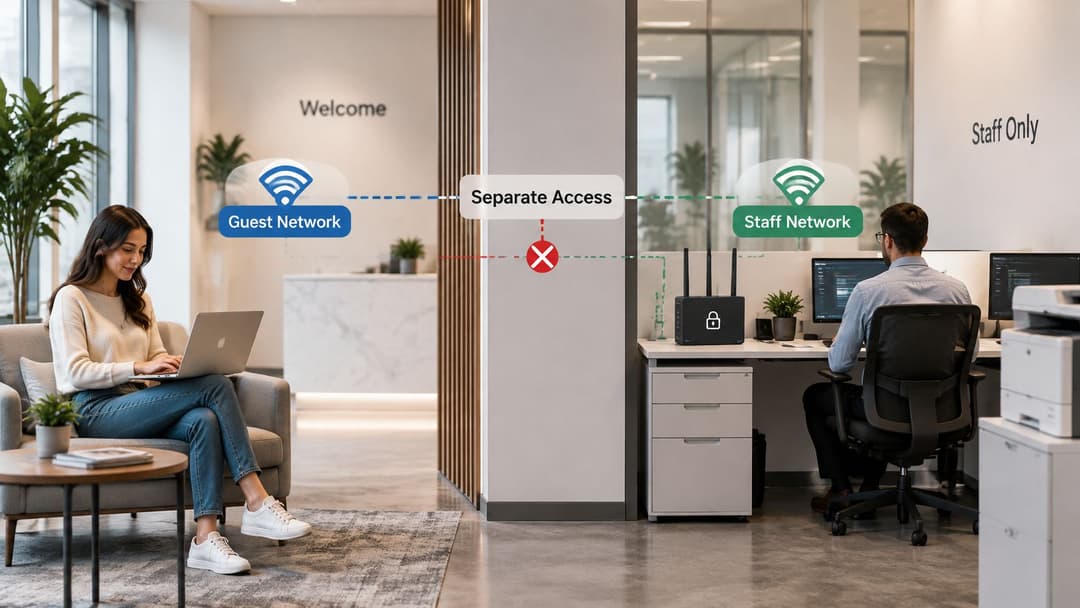
An open public network doesn't encrypt the WiFi link itself. Visitors should avoid entering sensitive details unless the site uses HTTPS, which encrypts the connection between a browser and a website, and they trust the network. Separate networks reduce exposure, but they don't make careless browsing risk-free.
Four real setups and what each one teaches
A small cafe offers free WiFi to customers. One table starts a large cloud backup, and every other connection slows to a crawl. A simple sign-in page plus a session time limit gives each visitor a fair turn and stops one device from holding the shared connection open all afternoon. Lesson: cap session length and active devices so shared capacity stays shared.
A hotel runs guest WiFi in rooms and uses front desk tablets for check-in. If those tablets sit on the same network as guests, a guest device can see or interfere with operational traffic. Put the tablets on a staff network with its own sign-in rules, even when both networks use the same wireless equipment. Lesson: separate work devices from visitor devices by network and credentials, not by device type.
A private clinic has patients in the waiting room and clinicians moving between exam rooms. Both groups may use WiFi, but patient access should not lead to clinical systems. Give patients a visitor sign-in and staff a sign-in tied to each person's account, so the two groups share the airwaves without sharing permissions. Lesson: match the access method to the person's role, and keep the permissions behind it separate.
A student house has one building and many residents. Each resident wants a private connection for laptops, cell phones, consoles and TVs. A shared passphrase makes every key everyone's key. A private network per resident, or a per-resident passphrase, lets you remove one person's access without disrupting the rest. Lesson: when people have separate privacy needs, assign access per person or per household.
All four setups point to the same split. The broadband line brings capacity into the building. WiFi decides how that capacity is shared among rooms, devices and people. The FCC Broadband Data Collection tracks fiber and gigabit availability across the US, and it also shows that availability runs ahead of adoption. A fast line at the door still needs the wireless layer configured for the people using it.
Use the symptom to choose the next check. If a page stalls in one room but works beside the router, the line may be fine and the WiFi may be the bottleneck. If every device is slow everywhere, the line or router is the first place to look. For connectivity away from a fixed home or workplace line, staying connected while traveling covers a separate set of mobile options.
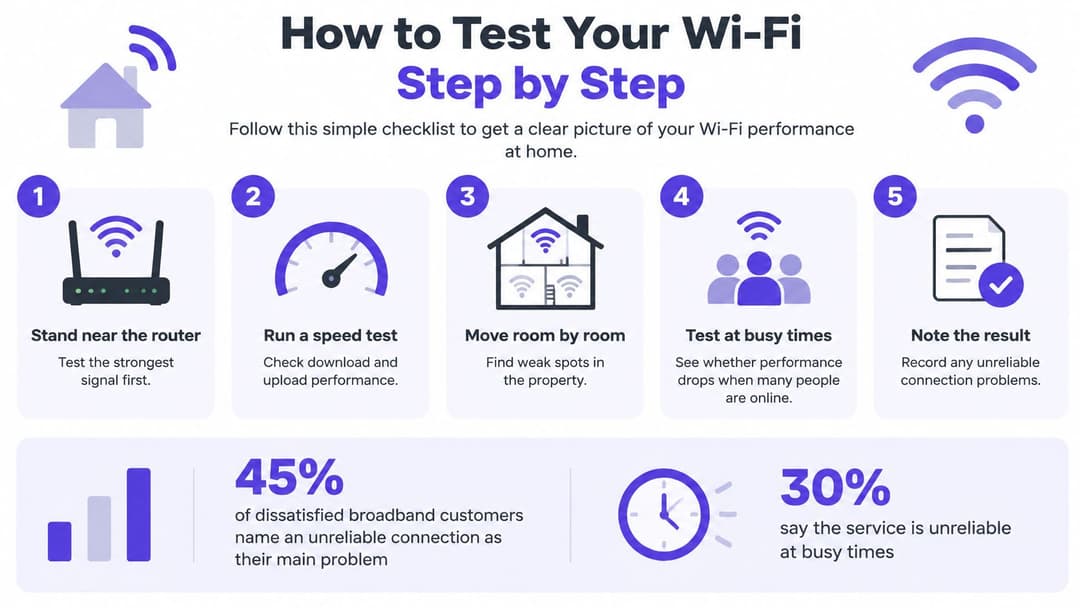
How to test your WiFi step by step
Ofcom reports that 45% of dissatisfied broadband customers identify an unreliable connection as their main problem, while 30% say the delivered speed is below what was advertised. A single headline speed won't tell you whether a fault is on the broadband line or between the router and a particular device. (Ofcom's 2025 customer-service report)
- Test the line with a wired device. Connect a laptop to the router with an Ethernet cable and run a speed test. This measures the connection without WiFi in the way. Don't use a cell phone in another room for this first check.
- Test WiFi beside the router. Run the same test on the same device while close to the router. A clear drop here points to the wireless connection or router settings. Keep the device and test site the same so you're comparing apples to apples.
- Repeat the test where the problem happens. Test in the room where pages stall or calls break up. If the result is worse only there, walls, distance or local interference may be weakening the signal. Testing only beside the router can hide a room-specific coverage problem.
- Check ping and packet loss. Ping measures how long a small message takes to travel to a test server and back; packet loss means some data doesn't arrive. For video calls, a stable response matters as well as download speed. Run the test more than once.
- Test at the evening peak. Repeat the checks at the time you usually notice trouble. Neighboring networks and household devices may be more active then, so a one-off test at a quiet time can be misleading.
- Compare the results. Use the table to decide what to try next. Keep a note of the time, location, test method and readings before changing settings or contacting your provider.
| Test result | Likely cause | Next step |
|---|---|---|
| Wired test is slow | Broadband line is at fault | Contact the provider with the readings |
| Wired fast, WiFi slow in every room | Router settings or channel congestion | Change the channel and retest at peak |
| Wired fast, WiFi slow in one room only | Coverage gap or interference at that spot | Move the router or add an access point |
| Wired slow only at evening peak | Line contention at busy hours | Contact the provider with peak readings |
You can use an internet speed test to collect readings for comparison. If the wired test is slow, contact your provider with the evidence. If it's fast but WiFi is slow in one room, start with placement or coverage; if WiFi is slow everywhere, check the router settings and channel.
Plan for Connection Outages
A premises can have broadband available and still be vulnerable to outages or a service that isn't dependable enough for its needs. Ofcom's spring 2026 update says full-fiber coverage reached 82% of UK homes and gigabit-capable coverage reached 89%, yet 39,000 premises still couldn't obtain decent broadband through fixed-line or fixed-wireless networks. (Ofcom's spring 2026 Connected Nations update)
For a home, an outage might mean lost calls and streaming. For a business, it could interrupt credit card payments, door access, or clinical equipment. Decide what must stay connected before choosing a backup or testing one.
- List essential devices. Identify what must remain online, such as point-of-sale terminals, access controls or clinical equipment.
- Choose a backup connection. A cellular 4G or 5G router can provide another path during an outage. Satellite may suit a hard-to-serve location, but it brings different constraints, including latency, weather exposure and installation requirements.
- Check automatic recovery. Confirm that devices reconnect when the main line returns, without someone having to restart the router manually.
- Test failover safely. During a quiet period, disconnect the primary line, check whether the backup takes over and record how long the switch takes.
- Keep users informed. Use a portal message or status page to tell guests or tenants about an outage without sharing network credentials.
- Monitor each connection. Track performance on the primary and backup links so a failing service is noticed before users report it.
Treat WiFi as a continuity service with measurable failover requirements, not just an amenity.
Choose the setup and take your next step
A household, a venue, and a residential building need different WiFi arrangements. A household may need one private network; visitors need a simple guest connection; staff need access that can be managed individually; and residents need private networks separated from one another.
Purple brings Guest WiFi, Staff WiFi, and Multi-Tenant WiFi together on one cloud platform. For example, Multi-Tenant WiFi gives each resident a private network across their devices, while keeping it isolated from other guests.
Use these questions to choose a setup:
- Who will connect? Separate visitors, employees, residents and household members.
- How should each group sign in? Decide whether shared access is suitable or whether users need individual identification.
- Do some groups need separate networks? Keep guest, staff and resident traffic apart where their access needs differ.
- Can the existing equipment support the setup? Check that the WiFi access points work with the service you choose.
- Which layer needs attention? If a wired connection is also slow, the issue may be the broadband service. If wired service works but WiFi is weak in one area, focus on wireless coverage.
The FCC's broadband reporting shows that tens of thousands of locations still lack reliable high-speed broadband through fixed-line or fixed-wireless networks. That figure concerns broadband availability, not WiFi coverage inside a building.
Choose the setup that fits the people and devices that need access. Venues and property teams can explore Purple's WiFi options.