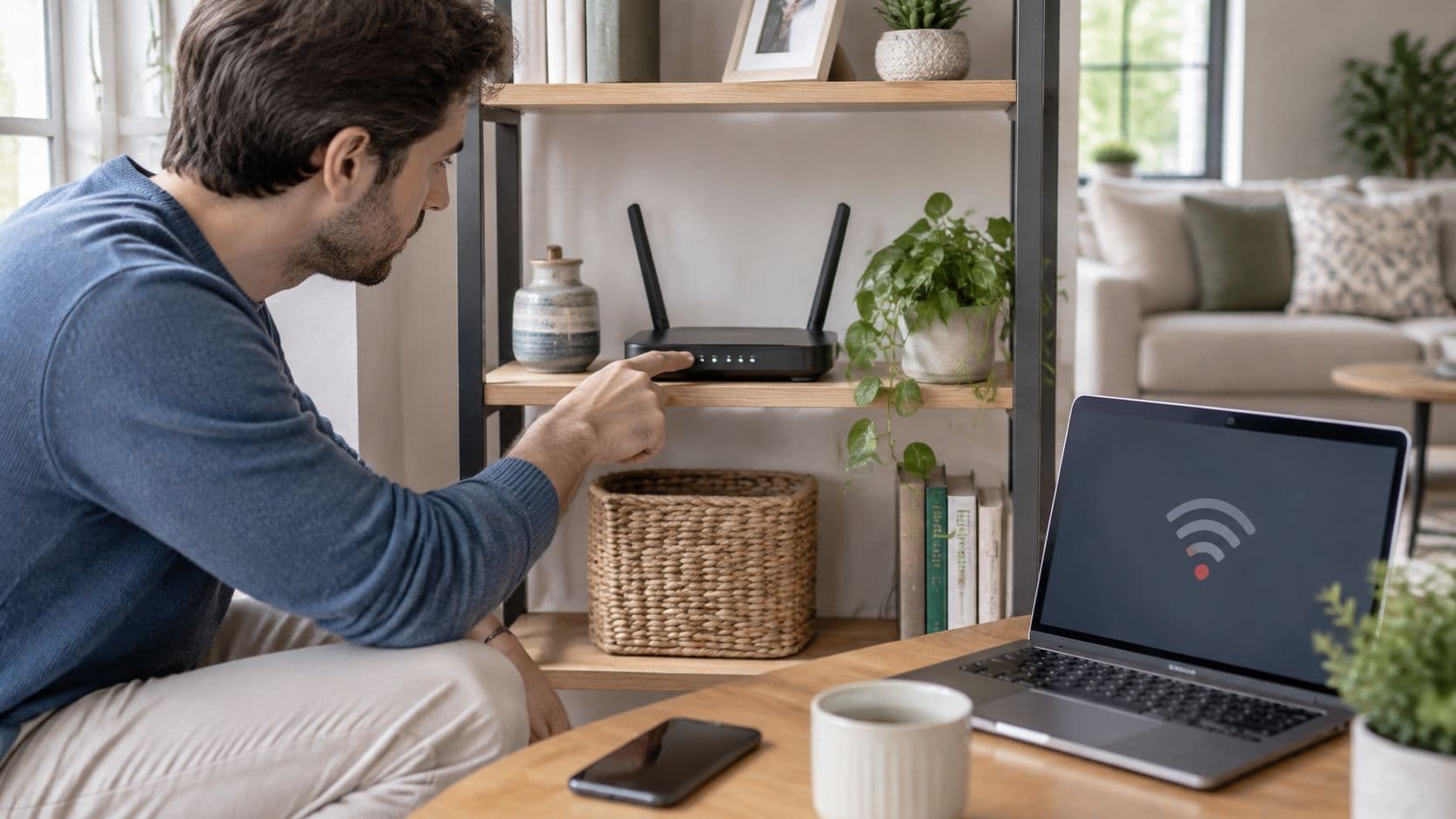
You're on the couch with a laptop that shows full bars, and the page still won't load. Your cell phone, on the same network, opens the same site right away. That split tells you more than another restart ever will. My WiFi faults are usually one device, a tired router, or a line that has already dropped. The cheapest check is the one that rules out the most likely cause first, so you don't spend an afternoon on the wrong box.
Quick Fixes and a Step-by-Step Connection Check
Ask one question before you touch the router: is one device failing, or is every device failing? One device means the fault is on that gadget. Every device means the router or the broadband line. Random changes waste the afternoon. A short table gets you to the first useful fix.
Common WiFi symptoms, causes and first fixes
| Symptom | Likely cause | First fix |
|---|---|---|
| Connected but no internet | Internet line or provider outage | Check the provider status page, then restart the router |
| Slow on one device only | Old device, weak signal or a device fault | Forget the network on that device and rejoin it |
| Slow on every device in the evening | Congestion on a shared channel or busy line | Move the router to 5 GHz or change the WiFi channel |
| Drops every few hours | Overheating router, loose cable or old firmware | Check cables, improve airflow and update firmware |
| Network name not visible | Router off, wireless disabled or band not broadcast | Check the router lights and enable wireless in its app |
| Password rejected | Old or mistyped password after a change | Read the password from the router label or reset it |
Rule of thumb: if every phone, laptop and television fails together, start with the router and the line. If only one device fails, forget the network on that device and join it again. Don't pull the router's plug until the pattern says the problem is shared.
The numbered check
- Restart the failing device. A stuck network stack on a laptop or cell phone clears more often than people expect. Power it fully off, wait ten seconds, then switch it on.
- Test a second device. If the cell phone works and the laptop doesn't, stop blaming the internet connection. The fault is on the laptop.
- Restart the router only when the problem is shared. Switch the power off for at least 30 seconds, then watch the lights. A solid internet light means the line is up. A flashing or red light points at the provider, not at your placement.
- Plug a laptop in with an Ethernet cable. If the wired connection works and WiFi doesn't, the fault is wireless. If the cable also fails, the line or the router is the problem.
- Run a speed test on the wired connection and note the result with the time. A result close to your plan proves the internet connection is fine. An evening-only slowdown points at congestion. A free internet speed test is enough for this comparison.
- Check the provider status page or app for a local outage before you change any wireless setting.
- Write the results down with the time. "Wired 280 Mbps at 7:10 PM, WiFi drops in the kitchen" beats a vague memory when you call later.
Practical rule: if the first fix in the table fails, follow this numbered check. Don't hop between channel changes, new passwords and extra restarts.
Router Placement and Choosing the Right Band
A router on the floor, inside a cabinet, or behind the television loses range before any setting is wrong. Raise it to about shelf height, keep it fairly central, and clear it of metal, mirrors and the microwave. Those three things soak up or reflect the signal. I would move the box before I bought anything.
WiFi bands compared for home use
| Band | Range | Speed | Interference | Best for |
|---|---|---|---|---|
| 2.4 GHz | Longest, passes through walls | Slowest | High from neighbors, microwaves and Bluetooth | Smart plugs, sensors and distant rooms |
| 5 GHz | Shorter, weaker through walls | Faster | Lower than 2.4 GHz | Streaming and video calls in nearby rooms |
| 6 GHz (WiFi 6E or 7 routers) | Shortest | Fastest | Lowest, few devices use it | Newer devices close to the router |
Use 5 GHz for video calls and streaming in rooms near the router. Keep 2.4 GHz for smart plugs and rooms at the far end of the house. 6 GHz is the fastest option, but only for newer cell phones and laptops sitting close to a WiFi 6E or WiFi 7 router. An older tablet won't see that band at all.
Many home routers, including models from Comcast, Spectrum, TP-Link and Google Nest, put both bands under one network name and steer devices themselves. Split the names only when a device keeps refusing to join, or when you want a laptop locked to 5 GHz. Don't pick an unusual channel by hand unless the router app shows heavy overlap with neighbors. A WiFi channel planner shows that overlap without guesswork.
Placement stops being enough in a large house, through thick stone or concrete, or when rooms sit on different floors. That's the point for a mesh system, or for an access point fed by an Ethernet cable. A single plug-in extender often adds a weaker, slower hop and makes roaming worse.
Stand in the room where it fails and run a speed test on each band. The band that holds up there is the one to use in that room.
Finding and Changing Your WiFi Password
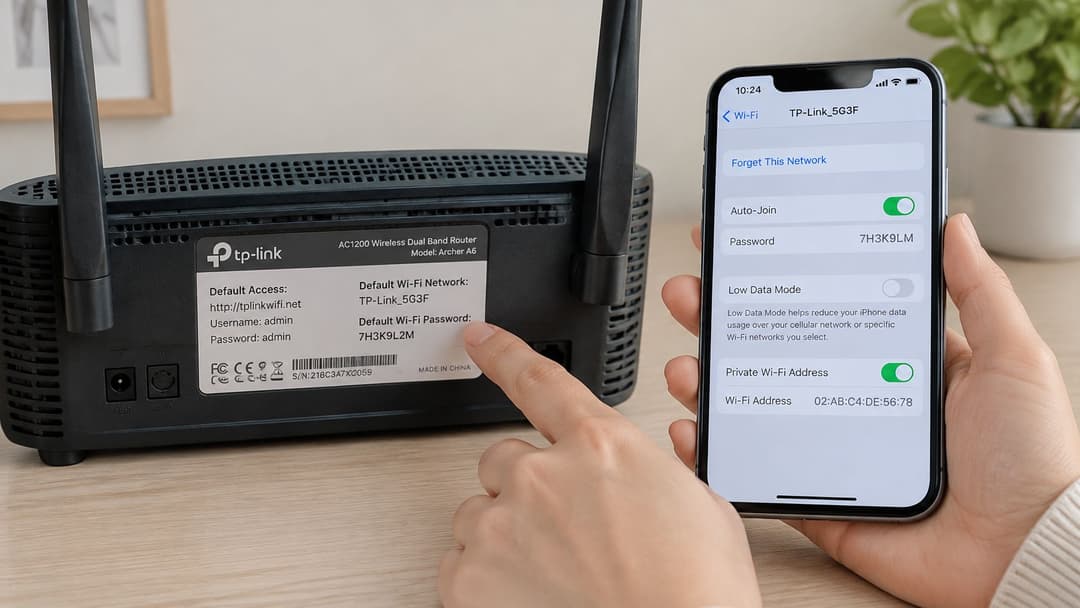
The sticker on the router is the first place to look. It carries the default network name and the default password. If you've never changed them, that sticker is the password your devices should use. If you have changed it, the device that still connects holds the current one.
Where to find a saved WiFi password
| Device | Where to look |
|---|---|
| Router | Label on the router, or the admin page under wireless settings |
| Windows PC | Network and Sharing Center, WiFi properties, Security tab, Show characters |
| Mac | Keychain Access, search for the network name, Show password, enter the admin login |
| iPhone or iPad | Settings, WiFi, tap the info icon next to the network, Password |
| Android phone | Settings, Network and internet, Internet, tap the gear next to the network, Share to view the QR code and password |
On Android the Share screen shows a QR code, and on many cell phones the password itself. On a Mac you'll need the computer's administrator login before Keychain Access reveals it.
Change it without locking yourself out
Reach the admin page before you change anything. Type the router address printed on the label into a browser on a device that's already on the network, then sign in with the admin login. That login is not the WiFi password. If the label gives no address, open the router's own app instead.
- Open the WiFi settings in the app or admin page.
- Enter a new passphrase of at least 16 characters. A short phrase you can say aloud beats a random string you'll mistype.
- Save. Every device will drop off. That's expected.
- Reconnect the laptop and cell phones first, then printers and smart plugs, which usually need the password typed again.
Store the new passphrase in a password manager, and write it on the router label or a card kept with the router. The next person who needs it shouldn't have to factory-reset the network. Never hand out the admin login. A guest who has that can change the password, open remote access, or wipe your settings.
Basic Security Settings to Check Today
These seven checks take about 15 minutes. Do the firmware update when nobody needs the connection, because the router will restart.
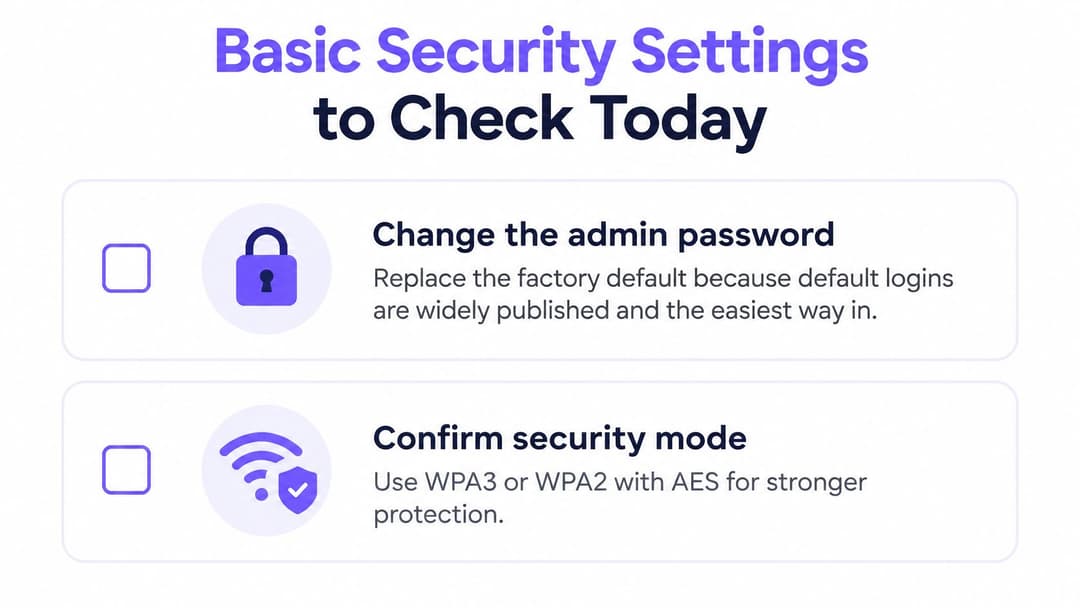
Change the admin password from the factory default. Default logins are published for almost every router brand, and they're the easiest way in. You'll find it under Administration or System in the app.
Confirm the security mode is WPA3, or WPA2 with AES. US government wireless guidance requires WPA2 or a successor, AES-CCMP protection, and switching off WEP and TKIP, which are obsolete and easy to break, as set out in the wireless network security standard. The setting sits under Wireless or Security. If an old printer only speaks WEP, replace the printer rather than weakening the whole house.
Update the firmware from the app or admin page. Stability fixes and security patches arrive this way, not through a restart. Let the update finish. Pulling the power mid-update can brick the router.
Turn off WPS, the push-button or PIN join method. It has known weaknesses, and you don't need it once devices have the passphrase. Look under Wireless or Advanced.
Review the connected devices list. Remove anything you don't recognize. If a name is unfamiliar, change the WiFi passphrase afterwards so that device can't rejoin. The list is usually on the app's home screen.
Disable remote management unless you genuinely manage the router from outside the house. Leaving it on exposes the admin page to the internet. It's under Administration or Remote Access.
Use a passphrase of 16 or more characters that you don't reuse on email or banking. Length matters more than swapping letters for symbols.
A firmware update that you abandon halfway is worse than an old one. Start it, then leave the router alone until the lights settle.
Setting Up Guest WiFi Without Exposing Your Devices
The main network holds your laptops, cell phones, printers and smart home kit. A guest network gives visitors the internet and keeps them off those devices.
In the router app, create a separate network name, give it a different password, and switch on the guest or isolation option. Set a device limit if the router offers one. Client isolation is the setting that matters. A guest name without it can still let a visitor's phone reach your printer, NAS or cameras. US cyber security guidance recommends isolating public WiFi and smart devices on separate networks, which the end user devices security guidance treats as a basic control, not an extra.
Share access with the QR code from the guest settings rather than reading the password across a room. After a party or a long stay, change that guest password. Your own devices stay online because they use the main passphrase.
You don't need a guest network for a single visitor who only wants a few minutes. A temporary password you change afterwards is simpler, and you avoid a second name that neighbors can see all week.
Some internet service providers already offer a managed guest network inside their own app. Check that before you build a second network by hand, or you'll end up with two guest names and no idea which one is isolated. Venues that need something more controlled than a home guest SSID can follow a guest WiFi guide rather than stretching a domestic router.
A guest network that isn't isolated is just a second password on the same network.
Decide Whether to Call Your Internet Service Provider
Call the provider when the internet light stays red or flashing after a proper restart, when a wired speed test sits far below your plan on more than one occasion, or when the outage check shows a fault in your area. Wait if the trouble is one device or one room. Those almost always clear with the earlier fixes, and a call won't move a laptop that has forgotten the network.
Give the home fixes a fair run. If drops continue for about 48 hours after a firmware update and a sensible move of the router, it's time to call. A worn jack or a faulty line is outside anything the router can repair, and the provider can often run a line test without a visit.
Have this ready before you dial:
- Timed speed results, wired and wireless, with the clock time.
- Router light status after the 30-second power-off.
- Which device and which room fail, and which ones don't.
- The steps already tried, in one line each.
Write the outcome of each step in a single line. The next call, or the next evening when it drops again, then starts from facts rather than a guess about which cable you wiggled.
If you're running WiFi for guests, staff or residents rather than a single household, Purple is a WiFi platform with Guest WiFi, Staff WiFi and Multi-Tenant WiFi, including a free Connect plan for visitor access. Staff sign-in can use the access points you already own, with WPA2/3-Enterprise and directory sign-in, without building your own certificate system. See how that fits your venue at Purple.