
Captive portal login troubleshooting and fixes
Troubleshoot captive portal login failures step by step. Fix CNA popup suppression, HSTS certificate errors, NeverSSL probes, and RADIUS timeout issues.
Video overview
Listen to this guide
View podcast transcript
Part of our core series: Captive Portal Guide →
Executive Summary
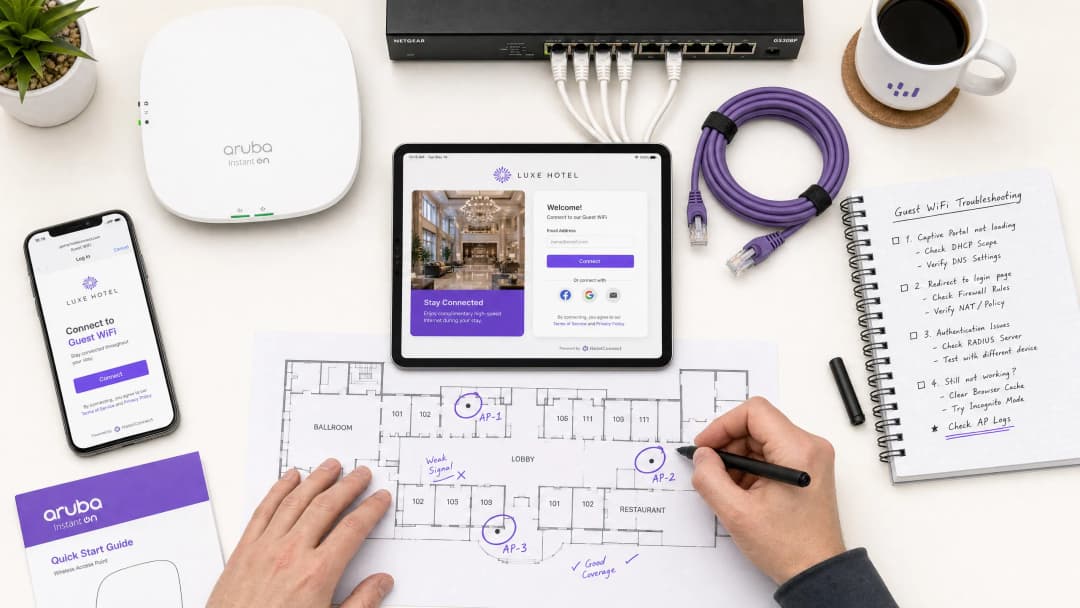
For modern enterprise venues, guest wireless networks represent a critical touchpoint for customer engagement, operational intelligence, and brand positioning. However, the business value of these networks depends on the reliability of the initial connection experience. When a guest connects to a network and the captive portal login page fails to appear, the venue immediately suffers from increased front-of-house friction, a surge in support tickets, and lost opportunities for data capture.
At the core of these failures is a fundamental tension between secure web standards and the network-level interception techniques historically used by captive portals. Modern web browsers and operating systems are designed to detect and block unauthorized traffic redirection to protect users from security risks. By understanding the exact HTTP and DNS redirection sequences, the impact of HTTP Strict Transport Security (HSTS), and client-side settings that disrupt these mechanisms, IT organizations can implement robust configurations that ensure seamless onboarding.
This guide details how Purple's cloud-managed Guest WiFi platform addresses these challenges to deliver high-availability redirection across all consumer operating systems, minimizing venue support overhead and maximizing the return on wireless infrastructure investments. Whether deploying in hospitality, retail, healthcare, or transportation environments, the principles and checklists in this guide apply universally.
-
Technical Deep-Dive
To effectively troubleshoot captive portal failures, network administrators must understand the exact sequence of events that occurs when a client device connects to an open or pre-shared key (PSK) guest wireless network. Modern operating systems - including Apple iOS/macOS, Google Android, Microsoft Windows, and Linux distributions - do not wait for a user to open a browser to test for internet connectivity. Instead, they execute an automated active probing mechanism immediately upon completing association and DHCP phases.
Captive portal detection sequence
The connection and verification process follows a structured sequence:
| Step | Action | Technical Description | Expected Success Indicator |
|---|---|---|---|
| 1 | Association | Client associates with the Guest SSID at Layer 2. | Successful 802.11 association frame exchange. |
| 2 | IP Provisioning | DHCP server assigns an IP address, subnet mask, gateway, and local DNS server. | DHCP ACK packet received by client. |
| 3 | Active Probing | OS background service sends an unencrypted HTTP GET request to a vendor canary URL. | HTTP 200 OK (Apple/Windows) or HTTP 204 No Content (Google). |
| 5 | Portal Rendering | Captive Portal Assistant (CPA) engine opens and renders the splash page. | Successful rendering of login interface. |
+--------+             +------------+             +------------+             +-------------------+
| Client |             | AP/Gateway |             | DNS Server |             | Captive Portal IP |
+--------+             +------------+             +------------+             +-------------------+
    |                        |                          |                              |
    |--- 1. DHCP Request --->|                          |                              |
    |<-- 2. DHCP Ack --------|                          |                              |
    |    (IP & DNS Assigned) |                          |                              |
    |--- 3. DNS Query ------>|------------------------->|                              |
    |    (canary URL)        |                          |                              |
    |<-- 4. DNS Response ----|<-------------------------|                              |
    |    (Resolved IP)       |                          |                              |
    |--- 5. HTTP GET ------->|                          |                              |
    |    (canary URL)        |                          |                              |
    |<-- 6. HTTP 302 --------|                          |                              |
    |    (Redirect to Portal)|                          |                              |
    |--- 7. DNS Query ------>|------------------------->|                              |
    |    (Portal FQDN)       |                          |                              |
    |<-- 8. DNS Response ----|<-------------------------|                              |
    |    (Portal IP)         |                          |                              |
    |--- 9. HTTP/S GET ------>-------------------------------------------------------->|
    |    (Render Splash Page)|                          |                              |
    |<-- 10. Render Page <-------------------------------------------------------------||
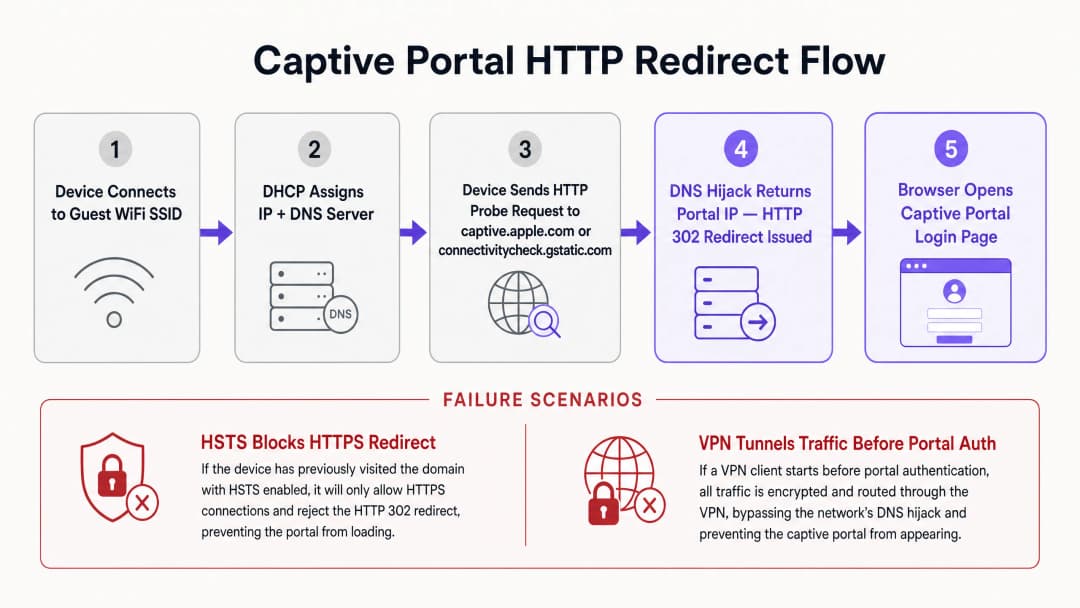
Each operating system utilizes a distinct set of canary URLs and expected responses to determine network status. Apple (iOS/macOS) probes http://captive.apple.com/hotspot-detect.html expecting an HTML document containing only the word Success in title and body. Google (Android/ChromeOS) probes http://connectivitycheck.gstatic.com/generate_204 expecting an HTTP status code 204 No Content with an empty body. Microsoft (Windows 10/11) probes http://www.msftconnecttest.com/connecttest.txt expecting a plain text response of Microsoft Connect Test.
If the device receives the expected response, it concludes that the network has direct internet access. If the response is modified - such as receiving an HTTP 302 redirect - the operating system's Captive Portal Assistant (CPA) launches a dedicated, sandboxed browser window to display the redirect target: the Captive portal splash login page.
HSTS and HTTPS redirection conflicts
The historical method of captive portal redirection relies on DNS hijacking or HTTP interception. When an unauthenticated user attempts to browse to any website, the gateway intercepts TCP port 80 (HTTP) or port 443 (HTTPS) traffic and responds on behalf of the destination server, injecting an HTTP 302 redirect. While this worked in an era of unencrypted HTTP web browsing, it introduces severe security and operational challenges in modern HTTPS-dominated environments.
The primary obstacle is HTTP Strict Transport Security (HSTS), specified in RFC 6797. HSTS forces web browsers to interact with websites using only secure HTTPS connections. When a browser attempts to connect to an HSTS-enabled domain - such as Google, Facebook, or banking portals - it strictly forbids any unencrypted communication and enforces SSL/TLS certificate validation.
If a captive portal gateway attempts to intercept an HTTPS request to an HSTS domain, it must present its own SSL certificate or a spoofed certificate to the client. Because the gateway certificate does not match the requested domain name, the client browser detects a certificate error and displays a non-bypassable security warning (NET::ERR_CERT_COMMON_NAME_INVALID). The browser blocks the redirect entirely, preventing the captive portal page from loading.
To mitigate this, modern enterprise wireless networks utilize two mechanisms. First, exempting OS probes ensures that unencrypted HTTP probes sent by operating systems are never subjected to HTTPS interception; the gateway must allow the unencrypted HTTP probe to be redirected using a standard HTTP 302 response to the secure fully-qualified domain name (FQDN) of the portal. Second, RFC 8910 (Captive Portal API) defines a mechanism where DHCP Option 114 or IPv6 Router Advertisements inform client devices of the exact URL of the captive portal API endpoint. Instead of relying on brute-force DNS hijacking or HTTP redirection, compatible client devices query this API directly to obtain the portal URL, bypassing HSTS conflicts.
-
Direct Diagnostic Matrix for Network Admins
| Observed Symptom | Primary Root Cause | Instant Resolution Action |
|---|---|---|
| Portal page fails to launch | HTTPS/HSTS interception block | Direct browser to http://neverssl.com to trigger unencrypted HTTP probe |
| Repeated login requests every 15m | Private MAC address randomization | Toggle off Private WiFi Address in client device network settings |
| No IP address assigned | DHCP scope pool exhaustion | Reduce DHCP lease time to 15-30 minutes on wireless gateway |
| Social login popup fails or hangs | Incomplete walled garden ACL | Add required OAuth domains (*.googleapis.com, *.gstatic.com) to allowlist |
| VPN connected but no internet | Encrypted tunnel blocking local redirect | Temporarily pause VPN until captive portal authentication finishes |
-
Got questions about your specific setup?
Our team works with venue operators, IT managers, and network engineers across 80,000 venues. Book a 20-minute call and we will show you how others like you solved it.
Implementation Guide
Deploying a reliable captive portal requires coordination between physical wireless infrastructure (Access Points, Controllers, Gateways) and the cloud-based portal platform. This section provides a vendor-neutral implementation guide to ensure redirection compatibility across enterprise networks, referencing configurations in Cisco, Aruba, and Ruckus controllers. For related access control architecture, see our guide on How to Implement 802.1X Authentication with Cloud RADIUS.
Step 1: Walled garden (ACL) configuration
A Walled Garden or Access Control List (ACL) defines specific external domains, IP addresses, or subnets that an unauthenticated guest device is permitted to access before logging in. If the walled garden is configured incorrectly, the client device will be unable to resolve or load portal assets, resulting in a blank screen or timeout.
To ensure seamless operation with Purple's platform, the walled garden must include Portal FQDNs (*.purple.ai or regional variants), Identity Providers (IdPs) for social login OAuth endpoints, and Content Delivery Networks (CDNs) hosting CSS, JavaScript, fonts, or images.
Many modern controllers support wildcard domain names in walled garden configurations. The controller dynamically snoops DNS queries from unauthenticated clients; when a client queries a domain matching the wildcard, the controller temporarily adds the returned IP address to the pre-authentication allowlist.
Step 2: DHCP and DNS optimization
Because captive portal detection relies on the initial network handshake, DHCP and DNS configurations must be optimized for high-density environments. In high-footfall venues like retail malls, transit hubs, or stadiums, IP address exhaustion is a common cause of portal failure. If DHCP lease time is set too long (e.g. 24 hours), the IP pool will quickly deplete. For guest networks, DHCP lease time should be configured between 15 to 30 minutes (900 to 1800 seconds).
Guest clients must be assigned a reliable DNS server capable of resolving both public domains and the local portal FQDN (e.g. Cloudflare 1.1.1.1 or Google 8.8.8.8). Critically, the wireless gateway must allow unauthenticated clients to perform DNS resolution. If a firewall rule blocks port 53 (UDP/TCP) traffic for pre-authenticated users, the OS cannot resolve canary URLs, and the captive portal assistant will never launch.
Step 3: SSL/TLS certificate management
When a guest device is redirected to the captive portal, the browser establishes a secure HTTPS connection to the portal FQDN. To prevent certificate warning screens, the captive portal must be secured with a valid, publicly-trusted SSL/TLS certificate. Self-signed certificates will be blocked by mobile operating systems, preventing the portal assistant from rendering the page.
Best Practices
To maintain a high-performing guest wireless network that minimizes support tickets and maximizes user satisfaction, network operators should adhere to standard industry best practices.
1. Optimize walled garden rules for social logins
When utilizing social login options to capture user profiles, the walled garden must be meticulously maintained. Social media platforms update authentication subdomains and CDN IP ranges regularly. If a required domain is missing, the social login popup will fail to load or hang indefinitely.
| Provider | Essential Walled Garden Domains |
|---|---|
accounts.google.com, ssl.gstatic.com, fonts.gstatic.com, lh3.googleusercontent.com |
|
facebook.com, *.facebook.com, *.fbcdn.net, m.facebook.com |
|
| Apple | appleid.apple.com, appleid.cdn-apple.com, gsa.apple.com |
2. Transition to profile-based authentication and OpenRoaming
While captive portals are excellent for initial data capture and terms of service acceptance, repeating the login process on every visit introduces user friction. Modern enterprise networks are transitioning to profile-based authentication and Passpoint (Hotspot 2.0) technologies like OpenRoaming.
Under the Purple Connect license, Purple acts as a free identity provider for OpenRoaming services. Passpoint allows a guest to install a secure profile on their device during their first visit. Upon subsequent visits to any participating venue worldwide, the device automatically authenticates at Layer 2 using WPA3-Enterprise, bypassing the captive portal entirely.
3. Ensure compliance with regulatory frameworks
Guest WiFi deployments must comply with global data privacy and security standards. For GDPR / CCPA Compliance, the captive portal must present clear terms of service and privacy policies. Consent for marketing communications must be actively opted-in (not pre-checked). For PCI DSS Compliance, if guest network infrastructure co-exists with Point of Sale (POS) systems, strict logical segmentation must be enforced. Implement WPA3-Transition Mode to allow older devices to connect using WPA2-Personal while newer devices benefit from WPA3 security.
-
Troubleshooting & Risk Mitigation
When guest wireless issues are reported, venue operations and front-of-house staff require a clear diagnostic sequence.
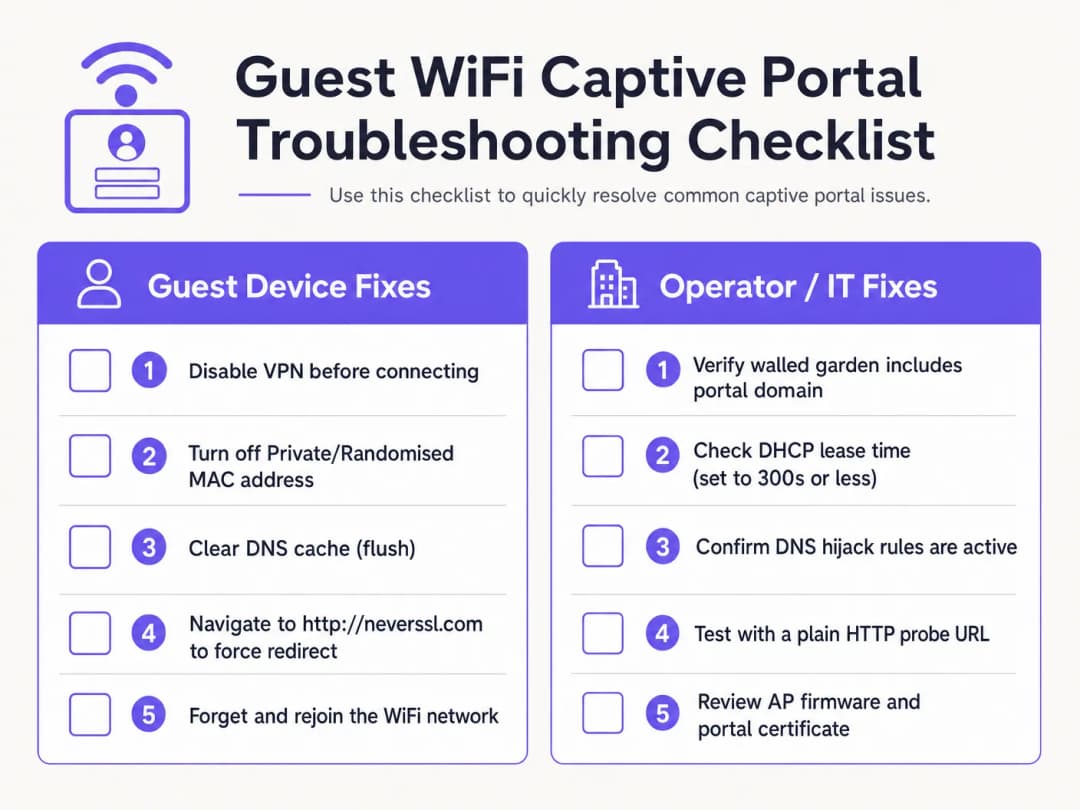
Client-side diagnostic checklist
- Disable Active VPNs. VPNs encrypt and route traffic immediately upon connection, bypassing gateway DNS hijacking and HTTP redirection. Guests must temporarily pause their VPN to complete portal login.
- Turn Off Private MAC Addresses. iOS 14+ and Android 10+ enable Private WiFi Address by default. This causes devices to present dynamic MAC addresses, breaking MAC session persistence. Instruct guests to disable Private Address for the venue SSID.
- Bypass Secure DNS (DoH/DoT). If a guest uses custom DNS-over-HTTPS (DoH) in browser settings, the browser will refuse local DNS hijacking responses. Guests must temporarily pause secure DNS to allow local redirects.
- Force an Unencrypted HTTP Connection (NeverSSL). If the captive portal assistant fails to launch automatically, instruct the guest to open a browser window and navigate to
http://neverssl.com. Because this site never uses SSL/TLS, the gateway can intercept the HTTP request and inject an HTTP 302 redirect to the login screen. - Forget and Rejoin Network. Forgetting the network and reconnecting forces a clean DHCP handshake and restarts captive portal detection.
Operator-side infrastructure troubleshooting
- Monitor DHCP Pool Utilization: Inspect the DHCP scope on the local gateway. If pool utilization is high, reduce lease time to 15-30 minutes.
- Verify DNS Redirection Rules: Perform a packet capture (PCAP) on the gateway interface to confirm unauthenticated clients receive DNS responses on port 53.
- Audit Walled Garden Latency: Ensure DNS resolution for walled garden domains is caching correctly on the controller.
- Check Certificate Expiration: Verify the SSL/TLS certificate installed on the wireless controller is valid and signed by a trusted CA.
Eliminate guest WiFi support tickets with Purple
Stop spending IT hours debugging broken captive portal redirects. Purple's cloud-managed guest WiFi platform integrates natively with Cisco Meraki, HPE Aruba, Ruckus, and Ubiquiti to deliver seamless, CCPA/CPRA-compliant onboarding and automated Passpoint access.
Business Impact & Support ROI
Investing in a cloud-managed captive portal platform yields financial and operational returns for enterprise venues.
Reduction in support overhead and guest friction
For hospitality and retail venues, front-of-house staff frequently spend time troubleshooting guest WiFi connectivity. A high captive portal failure rate leads to negative reviews, support ticket backlogs, and staff distraction. By implementing Purple's cross-platform redirection mechanism, venues experience a 50% to 70% reduction in WiFi-related support complaints.
Maximizing data capture and marketing ROI
A captive portal is the gateway for capturing first-party customer data, including email addresses, phone numbers, and social profiles. With a functional portal, venues achieve opt-in rates over 60% for marketing communications. Integrating authentication with WiFi Analytics provides deep insights into visitor behavior, dwell times, and return rates.
Unlocking retail media monetization
For shopping malls, stadiums, and exhibition centers, the splash page and post-login redirect screens represent digital real estate. Operators can display targeted, location-aware ads or sell sponsorship packages to brands, turning IT infrastructure into a revenue asset.
References
[1] Wikipedia Contributors. "Captive Portal." Wikipedia, The Free Encyclopedia. https://en.wikipedia.org/wiki/Captive_portal
[2] IETF RFC 6797. "HTTP Strict Transport Security (HSTS)." Internet Engineering Task Force. https://datatracker.ietf.org/doc/html/rfc6797
[3] IETF RFC 8910. "Captive-Portal Identification in DHCP and Router Advertisements." Internet Engineering Task Force. https://datatracker.ietf.org/doc/html/rfc8910
[4] Wireless Broadband Alliance. "OpenRoaming." WBA. https://wballiance.com/openroaming/
[5] NeverSSL. "NeverSSL: Helping you get online." NeverSSL. http://neverssl.com/
Key Definitions
Captive portal
A web landing page displayed to newly associated guest WiFi users before broader internet access is granted, used for authentication, terms of service acceptance, and marketing data capture.
Acts as the primary access gate on public wireless networks in venues, hotels, and retail centers.
DNS hijacking
A traffic interception technique where a wireless gateway returns the captive portal server IP address for all unauthenticated DNS requests.
Used to redirect HTTP probes, but increasingly bypassed by DNS-over-HTTPS (DoH) and DNS-over-TLS (DoT) protocols.
HTTP Strict Transport Security (HSTS)
A web security policy (RFC 6797) forcing browsers to communicate strictly over HTTPS and reject invalid SSL certificates.
Causes captive portal redirection failures when gateways attempt to intercept HTTPS requests to HSTS-enabled domains.
Walled garden
A pre-authentication access control list (ACL) permitting unauthenticated guest devices to reach specified external domains and IP addresses.
Essential for hosting portal assets, identity provider OAuth endpoints, and operating system connectivity probe URLs.
MAC address randomization
A privacy feature on mobile devices (iOS 14+, Android 10+) that presents a dynamic hardware MAC address to wireless networks.
Disrupts MAC-based session persistence, forcing guests to re-authenticate when the randomized identifier changes.
RFC 8910 (Captive Portal API)
An IETF standard using DHCP Option 114 or IPv6 Router Advertisements to communicate captive portal API endpoints directly to client devices.
Replaces legacy DNS hijacking, resolving HSTS certificate conflicts on modern client operating systems.
Worked Examples
A 350-room downtown hotel using Cisco Catalyst 9800 controllers receives 20 daily guest complaints that the WiFi login splash page fails to load. The issue primarily affects guests using iOS 17 and Android 13 devices. How should the network architect systematically resolve this?
Execute a four-part remediation plan: 1. Check DHCP Scope: Inspect the DHCP pool on the local gateway. If IP utilization exceeds 85%, reduce lease time from 24 hours to 30 minutes (1800 seconds) to rapidly reclaim leases. 2. Verify DNS Interception: Ensure pre-authentication ACLs permit UDP/TCP port 53 traffic to public DNS resolvers. 3. Audit Walled Garden ACLs: Enable DNS snooping on the controller for captive.apple.com, connectivitycheck.gstatic.com, and *.purple.ai. 4. Configure RFC 8910: Deploy DHCP Option 114 on the DHCP server pointing to the portal URL, allowing iOS 16+ and Android 12+ devices to query the portal API directly without DNS hijacking.
A retail venue using Aruba Central reports that guest email login works, but 'Login with Google' social authentication hangs intermittently for 30% of visitors. How should network administrators diagnose the root cause?
- Reproduce with Browser DevTools: Connect a test device, open browser Network tab (F12), and click Login with Google to identify blocked domains returning ERR_CONNECTION_REFUSED. 2. Update Walled Garden: Ensure Aruba Central whitelist includes all Google OAuth endpoints: accounts.google.com, ssl.gstatic.com, fonts.gstatic.com, and oauth2.googleapis.com. 3. Enable Dynamic Whitelisting: Configure DNS-based wildcard matching (*.googleapis.com, *.gstatic.com) to automatically permit Google's changing CDN IP ranges.
Practice Questions
Q1. Why does navigating to an HTTPS domain like google.com fail to trigger a captive portal login screen?
Hint: Consider HSTS policies and SSL/TLS certificate validation.
View model answer
Major HTTPS domains enforce HTTP Strict Transport Security (HSTS). When a gateway attempts to intercept an HTTPS connection, the client browser detects a certificate mismatch and blocks the request to prevent man-in-the-middle attacks. To trigger the portal manually, guests must navigate to an unencrypted HTTP site such as http://neverssl.com or let the operating system's built-in probe execute.
Q2. How does private MAC address randomization affect guest session persistence on enterprise WiFi networks?
Hint: Think about how wireless gateways track authenticated endpoints.
View model answer
Wireless gateways track authenticated sessions by device MAC address. When a mobile OS rotates its private MAC address, the gateway treats the endpoint as a new unauthenticated client and forces re-authentication. Disabling Private Address for the venue SSID or deploying Passpoint/OpenRoaming profiles maintains uninterrupted session persistence.
Q3. What is the recommended DHCP lease time for high-density public guest WiFi venues like stadiums or shopping malls?
Hint: Balance IP address reclamation against DHCP traffic volume.
View model answer
Guest WiFi networks in transient, high-density venues should configure DHCP lease times between 15 and 30 minutes (900 to 1800 seconds). This prevents IP pool exhaustion caused by short-stay visitors while keeping DHCP renewal traffic within manageable limits.
Frequently asked questions
Why does the captive portal redirect fail to open automatically on mobile devices?
Mobile operating systems (iOS, Android, Windows) rely on unauthenticated HTTP probes to vendor endpoints (such as captive.apple.com or connectivitycheck.gstatic.com/generate_204). If the network gateway does not intercept port 80 traffic with a clean HTTP 302 redirect, or if DNS queries for those probe domains are dropped before authentication, the Captive Network Assistant (CNA) will not launch.
Why does the 'captive portal login keeps stopping' error occur on Android devices?
The 'captive portal login keeps stopping' error on Android occurs when the system WebView crashes during redirection or when the gateway drops the generate_204 HTTP probe midway through authentication. Clearing the cache of the Android System WebView or Chrome app, disabling randomized MAC addresses for the venue SSID, and navigating manually to an unencrypted HTTP probe address resolves the crash loop.
How do unencrypted HTTP sites like neverssl.com force a captive portal login screen to load?
Because modern browsers enforce HTTP Strict Transport Security (HSTS) on encrypted domains like google.com, wireless gateways cannot intercept HTTPS traffic without triggering browser certificate warnings. Navigating to an unencrypted HTTP destination such as http://neverssl.com or http://1.1.1.1 sends a plaintext request that the gateway can safely intercept with an HTTP 302 redirect to the login splash page.
Why do Android devices show 'Sign into network' errors or fail the generate_204 probe?
Android devices query clients3.google.com/generate_204 and connectivitycheck.gstatic.com. If the wireless controller or walled garden blocks access to Google IP addresses without intercepting the HTTP request with a 302 redirect, Android detects a connection error or assumes an isolated intranet, suppressing the portal prompt. Whitelisting the required probe domains or ensuring transparent HTTP redirection resolves this.
How do you prevent HTTPS certificate warnings when intercepting captive portal traffic?
When a guest browser navigates to an HTTPS domain prior to login, intercepting the TLS handshake triggers severe browser security warnings (such as NET::ERR_CERT_COMMON_NAME_INVALID) due to HSTS and certificate mismatch. Enterprise networks prevent this by leaving HTTPS traffic undisturbed and relying exclusively on plaintext HTTP probe interception to trigger the operating system's native captive portal browser.
What causes RADIUS authentication timeouts during captive portal guest login?
RADIUS timeouts occur when the wireless access point or controller fails to receive a RADIUS Access-Accept packet from the authentication server within the timeout window (typically 5 seconds). Common causes include outbound UDP ports 1812 and 1813 being filtered by perimeter firewalls, mismatched RADIUS shared secrets, or asymmetric routing between the access point and the cloud RADIUS service.
How does RFC 8910 (Captive Portal API) resolve modern captive portal connection issues?
RFC 8910 standardizes captive portal discovery via DHCP Option 114 and IPv6 Router Advertisements. Rather than intercepting DNS queries or HTTP packets, the network directly advertises the captive portal API endpoint URL to connecting client devices. Modern operating systems query this API directly, eliminating HSTS certificate collisions, DNS hijacking latency, and CNA browser rendering bugs.
How does MAC address randomisation affect captive portal reconnection?
iOS 14+ and Android 10+ rotate private MAC addresses periodically or when re-associating with SSIDs. If a guest network tracks sessions solely by physical MAC address, returning visitors are forced to authenticate repeatedly. Enterprise platforms like Purple solve this by tying session authorisation to user identity tokens and Passpoint (Hotspot 2.0) profiles rather than transient hardware MACs.
How does Purple resolve captive portal redirect failures across multi-vendor networks?
Purple operates as a hardware-agnostic cloud overlay across Cisco Meraki, HPE Aruba, Ruckus, Juniper Mist, Fortinet, and UniFi hardware. By automating walled garden configurations, managing trusted SSL redirect domains, and providing high-availability cloud RADIUS clusters with sub-second failover, Purple eliminates captive portal redirect drops and delivers reliable guest onboarding.
Continue reading in this series
Ubiquiti UniFi guest portal not redirecting: causes and fixes
This guide isolates a UniFi guest portal redirect failure by following the guest state, redirect, pre-authorization route and controller authorization in sequence. It gives venue IT teams a sourced method to address guest-network versus Hotspot confusion, external portal hand-offs, current UniFi OS account requirements and DNS isolation testing.
Cisco Meraki splash page not working: a troubleshooting flowchart
This practical day-two guide isolates where a Cisco Meraki splash flow has failed: client authorization, HTTP redirect initiation, walled-garden reachability or RADIUS sign-on. It gives venue IT teams a controlled evidence path, so they can restore Guest WiFi without making broad changes to a live estate.
Enterprise Guest WiFi Setup Guide: VLAN Segmentation, Security, and Captive Portals
This technical guide shows IT teams how to set up Guest WiFi as a controlled internet-access service, using VLAN segmentation, firewall policy, and a captive portal. It also explains how Purple's registration forms and onboarding controls support a proportionate visitor experience without weakening the boundary around staff, payment, and operational systems.
Got questions about your specific setup?
Our team works with venue operators, IT managers, and network engineers across 80,000 venues. Book a 20-minute call and we will show you how others like you solved it.