
Comment utiliser Microsoft Intune pour déployer des certificats WiFi sur les appareils
Une référence technique complète pour les responsables informatiques sur le déploiement de certificats WiFi 802.1X via Microsoft Intune. Couvre l'architecture SCEP vs PKCS, les étapes de mise en œuvre, la cartographie de la conformité et des scénarios de déploiement réels pour les environnements d'entreprise.
Video overview
Écouter ce guide
Voir la transcription du podcast
Fait partie de notre série principale : Guide de sécurité WiFi pour les entreprises →
Synthèse
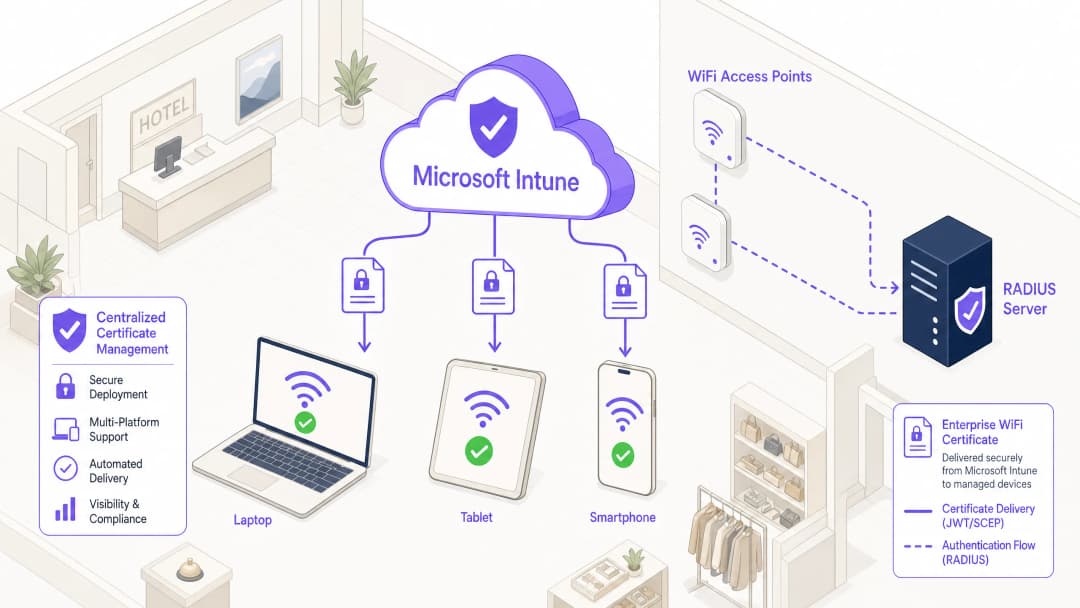
Pour les responsables informatiques d'entreprise qui gèrent des environnements à grande échelle dans les secteurs de l'hospitalité (Hospitality), de la vente au détail (Retail) ou des espaces publics, l'accès sans fil sécurisé est une exigence opérationnelle fondamentale. S'appuyer sur des PSK (clés pré-partagées) ou sur une authentification par nom d'utilisateur/mot de passe (PEAP-MSCHAPv2) expose le réseau au vol d'identifiants, au phishing et aux écarts de conformité. La norme de l'industrie pour une sécurité WiFi d'entreprise robuste est le 802.1X avec EAP-TLS (Extensible Authentication Protocol with Transport Layer Security), qui impose une authentification mutuelle basée sur des certificats entre l'appareil et le réseau.
Cependant, le principal obstacle à l'adoption de l'EAP-TLS a historiquement été la charge opérationnelle liée à la gestion du cycle de vie des certificats. Microsoft Intune résout ce problème en automatisant la distribution, le renouvellement et la révocation des certificats numériques vers les appareils gérés à grande échelle.
Cette référence technique détaille l'architecture, les méthodologies de déploiement (SCEP vs PKCS) et les étapes de mise en œuvre requises pour déployer des certificats WiFi via Microsoft Intune. Elle fournit des conseils pratiques pour les architectes réseau et les ingénieurs système chargés de sécuriser les communications d'entreprise tout en maintenant une séparation stricte avec les réseaux visiteurs, tels que ceux gérés par une plateforme de WiFi invité (Guest WiFi).
``` CPR="none">
Analyse technique approfondie : Architecture et Protocoles
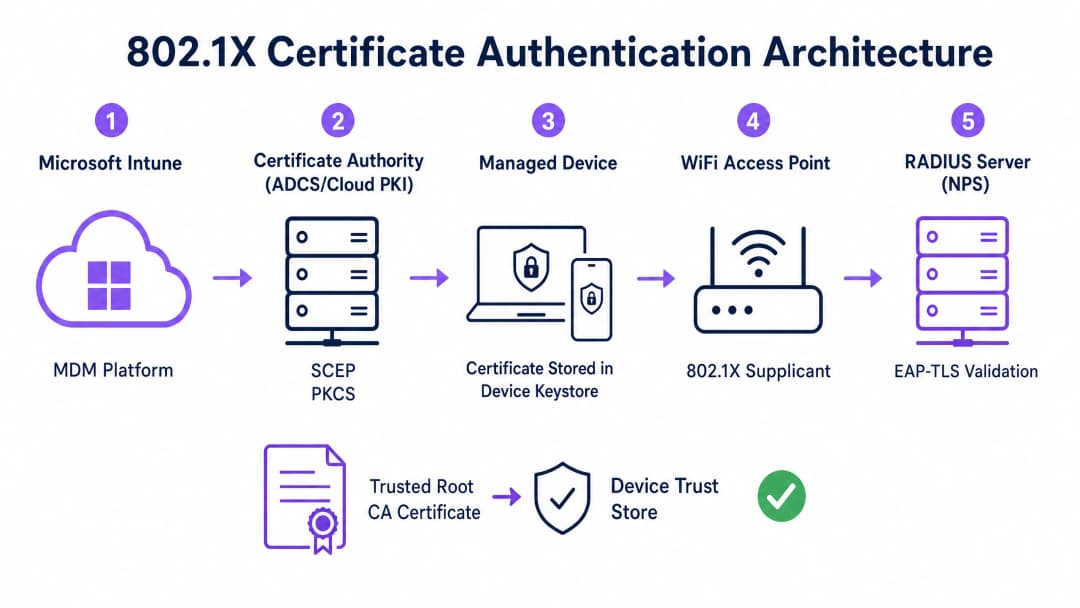
Pour mettre en œuvre efficacement l'authentification par certificat, les équipes informatiques doivent comprendre l'interaction entre la plateforme de gestion des terminaux mobiles (MDM), l'infrastructure à clés publiques (PKI) et la couche de contrôle d'accès au réseau.
Le cadre d'authentification 802.1X
La norme IEEE 802.1X définit le contrôle d'accès réseau basé sur les ports. Dans un contexte sans fil, elle empêche un appareil de transmettre du trafic (autre que les trames d'authentification EAP) tant que son identité n'est pas vérifiée. L'architecture se compose de trois éléments :
- Supplicant : L'appareil client (ordinateur portable, smartphone, tablette) qui demande l'accès au réseau.
- Authentificateur : Le point d'accès WiFi ou le contrôleur LAN sans fil qui bloque le trafic jusqu'à ce que l'authentification réussisse.
- Serveur d'authentification : Le serveur RADIUS (Remote Authentication Dial-In User Service), tel que Microsoft Network Policy Server (NPS) ou Cisco ISE, qui valide les identifiants et autorise l'accès.
EAP-TLS et authentification mutuelle
EAP-TLS est la méthode EAP la plus sécurisée car elle nécessite une authentification mutuelle. Le serveur RADIUS présente son certificat au supplicant pour prouver qu'il s'agit du réseau d'entreprise légitime (évitant ainsi les attaques de type "evil-twin"), et le supplicant présente son certificat client au serveur RADIUS pour prouver qu'il s'agit d'un appareil ou d'un utilisateur autorisé.
Mécanismes de déploiement de certificats Intune : SCEP vs PKCS
Microsoft Intune prend en charge deux protocoles principaux pour déployer des certificats clients sur les appareils. Le choix du mécanisme approprié est une décision architecturale cruciale.
Simple Certificate Enrollment Protocol (SCEP)
Avec SCEP, la clé privée est générée directement sur l'appareil client. L'appareil crée une demande de signature de certificat (CSR) et la soumet via Intune au serveur Network Device Enrollment Service (NDES), qui fait office de proxy vers l'infrastructure Active Directory Certificate Services (ADCS). L'autorité de certification (CA) délivre le certificat, qui est ensuite renvoyé à l'appareil.
La clé privée ne quittant jamais l'appareil, SCEP est considéré comme hautement sécurisé et constitue l'approche recommandée pour les déploiements BYOD (Bring Your Own Device) et les architectures zero-trust.
Public Key Cryptography Standards (PKCS)
Avec PKCS, le connecteur de certificat Intune demande le certificat à la CA pour le compte de l'appareil. La CA génère à la fois le certificat public et la clé privée, que le connecteur transmet ensuite de manière sécurisée à l'appareil via Intune.
Bien que PKCS simplifie les exigences d'infrastructure (aucun serveur NDES n'est requis), la clé privée est transmise sur le réseau. Ce modèle est généralement acceptable pour les flottes d'appareils appartenant à l'entreprise et entièrement gérées, où la plateforme MDM est déjà un composant de grande confiance.

Vous avez des questions sur votre configuration spécifique ?
Notre équipe collabore avec des exploitants de sites, des responsables informatiques et des ingénieurs réseau au sein de 80 000 sites. Réservez un appel de 20 minutes et nous vous montrerons comment d'autres professionnels comme vous ont résolu ce problème.
Guide d'implémentation : Déploiement étape par étape
Le déploiement de certificats WiFi via Intune nécessite un séquençage précis. Le déploiement de profils dans le mauvais ordre est la cause la plus fréquente d'échec d'implémentation.
Étape 1 : Préparer l'infrastructure à clés publiques (PKI)
Qu'il s'agisse d'utiliser ADCS sur site ou une solution Cloud native comme Microsoft Cloud PKI, l'autorité de certification doit être configurée avec les modèles appropriés.
- Utilisation de la clé : Le modèle doit inclure l'OID
Client Authentication(1.3.6.1.5.5.7.3.2). - Taille de la clé : Configurez une taille de clé minimale de 2048 bits (RSA) pour vous aligner sur les normes cryptographiques modernes.
- Nom de l'objet : Pour les certificats utilisateur, le nom alternatif de l'objet (SAN) doit être configuré pour utiliser le nom principal de l'utilisateur (UPN). Pour les certificats d'appareil, utilisez l'identifiant d'appareil Azure AD.
Étape 2 : Déployer le certificat racine de confiance
Avant qu'un appareil puisse s'authentifier, il doit faire confiance à l'autorité de certification qui a émis le certificat du serveur RADIUS.
- Exportez le certificat de l'autorité de certification racine (et tous les certificats d'autorité de certification intermédiaires) au format
.cer. - Dans le centre d'administration Intune, accédez à Appareils > Profils de configuration > Créer un profil.
- Sélectionnez la plateforme et choisissez le type de profil Certificat approuvé.
- Téléversez le fichier
.ceret attribuez le profil aux groupes d'appareils ou d'utilisateurs cibles.
Remarque : Ce profil doit s'appliquer avec succès aux appareils avant de passer aux étapes suivantes.
Étape 3 : Déployer le profil de certificat client
Créez un profil de certificat SCEP ou PKCS pour distribuer le certificat d'identité au demandeur.
- Accédez à Appareils > Profils de configuration > Créer un profil.
- Sélectionnez la plateforme et choisissez soit Certificat SCEP, soit Certificat PKCS.
- Configurez le format du nom de l'objet et le SAN en fonction de vos exigences d'identité (Utilisateur vs. Appareil).
- Spécifiez le fournisseur de stockage de clés (KSP) - généralement le module de plateforme sécurisée (TPM) pour une sécurité matérielle.
- Attribuez le profil aux mêmes groupes que ceux ciblés à l'étape 2.
Étape 4 : Configurer le profil WiFi
Le composant final lie les certificats aux paramètres du réseau sans fil.
- Accédez à Appareils > Profils de configuration > Créer un profil.
- Sélectionnez la plateforme et choisissez le type de profil WiFi.
- Définissez le type de WiFi sur Entreprise et saisissez le SSID exact.
- Définissez le type d'EAP sur EAP-TLS.
- Sous Confiance du serveur, spécifiez le nom exact du certificat du serveur RADIUS et sélectionnez le profil de certificat racine de confiance déployé à l'étape 2.
- Sous Authentification client, sélectionnez le profil de certificat SCEP ou PKCS déployé à l'étape 3.
- Attribuez le profil aux groupes cibles.
Bonnes pratiques et recommandations stratégiques
Certificats d'appareil vs. Certificats d'utilisateur
Les architectes réseau doivent décider s'ils doivent délivrer des certificats à l'appareil (authentification machine) ou à l'utilisateur (authentification utilisateur).
- Certificats d'appareil : Permettent à la machine de se connecter au réseau WiFi avant qu'un utilisateur ne se connecte. Ceci est essentiel pour le provisionnement initial de l'appareil, le traitement des stratégies de groupe et les réinitialisations de mot de passe sur l'écran de connexion. Recommandé pour les appareils appartenant à l'entreprise.
- Certificats d'utilisateur : Associent l'accès réseau à l'identité de l'individu. Cela permet un audit granulaire et un contrôle d'accès basé sur les rôles. Recommandé pour les scénarios BYOD.
Segmentation du réseau et accès invité
Un principe de sécurité fondamental est la séparation logique stricte du réseau d'entreprise 802.1X des réseaux d'accès visiteurs ou publics. L'infrastructure gérée par Intune doit être dédiée exclusivement aux appareils d'entreprise et au personnel authentifié.
Pour l'accès des visiteurs, les organisations doivent déployer un SSID Guest WiFi dédié, adossé à un Captive Portal. Cela garantit que les appareils non gérés sont isolés, tout en permettant à l'entreprise de collecter des analyses sur les visiteurs via une plateforme de WiFi Analytics. Pour en savoir plus sur la sécurisation de l'infrastructure DNS sur les deux segments, consultez notre guide sur la façon de Protéger votre réseau avec un DNS solide et la sécurité.
Répondre à l'exigence de mappage de certificat NPS
Pour les organisations utilisant Microsoft Network Policy Server (NPS) avec des appareils joints à Azure AD, une modification de configuration essentielle a été introduite par Microsoft. NPS requiert désormais un mappage de certificat fort.
Lors de l'utilisation de certificats d'appareil, l'objet ordinateur dans l'Active Directory local doit avoir son attribut altSecurityIdentities renseigné avec les détails du certificat (généralement le X509IssuerSerialNumber). Les équipes informatiques doivent mettre en œuvre un script planifié ou un flux de travail basé sur les événements pour mettre à jour cet attribut lorsqu'Intune émet un nouveau certificat, sinon l'authentification échouera.
Dépannage et atténuation des risques
Lorsqu'un déploiement 802.1X échoue, le problème réside presque toujours dans la chaîne de certificats ou dans le séquençage du profil Intune.
Modes de défaillance courants
- Échec silencieux du profil WiFi : Si le profil WiFi Intune est appliqué à un appareil avant que le certificat client n'ait été provisionné avec succès, le profil WiFi échouera souvent à s'installer ou échouera silencieusement. Vérifiez toujours la présence du certificat dans le magasin personnel de l'appareil (
certmgr.mscsur Windows) avant de dépanner la configuration WiFi. - Erreurs de validation de la confiance du serveur : Si l'appareil rejette le serveur RADIUS, vérifiez que le nom de serveur spécifié dans le profil WiFi Intune correspond exactement au nom de sujet ou au SAN sur le certificat du serveur RADIUS. De plus, assurez-vous que l'ensemble de la chaîne de certificats (racine et intermédiaire) est présente dans le magasin d'autorités de certification racines de confiance de l'appareil.3. Indisponibilité de la liste de révocation de certificats (CRL) : si le serveur RADIUS ne peut pas atteindre le point de distribution CRL de l'AC pour vérifier le statut du certificat client, l'authentification sera refusée. Assurez-vous que l'URL de la CRL est hautement disponible et accessible depuis le serveur RADIUS.
ROI et impact commercial
La transition vers une authentification WiFi basée sur les certificats via Intune offre des rendements opérationnels et de sécurité significatifs.
- Atténuation des risques : élimine le risque de vol d'identifiants, d'attaques de type "pass-the-hash" et d'accès non autorisé au réseau via des clés PSK partagées.
- Efficacité opérationnelle : réduit les tickets d'assistance informatique liés aux expirations de mots de passe et aux problèmes de connectivité WiFi. La gestion automatisée du cycle de vie signifie que les certificats sont renouvelés de manière transparente sans intervention de l'utilisateur.
- Facilitation de la conformité : répond à des exigences réglementaires strictes. Pour les environnements de vente au détail, elle répond directement aux exigences PCI-DSS concernant le chiffrement et l'authentification sans fil robustes. Pour le secteur public et la santé, elle s'aligne sur les principes d'accès réseau Zero Trust (ZTNA).
En s'appuyant sur Microsoft Intune pour le déploiement de certificats, les équipes informatiques peuvent offrir une expérience sans fil fluide et hautement sécurisée qui fonctionne discrètement en arrière-plan, permettant à l'entreprise de se concentrer sur ses activités principales.
Définitions clés
802.1X
Une norme IEEE pour le contrôle d'accès réseau basé sur les ports qui empêche les appareils non autorisés d'accéder à un réseau local ou WiFi tant qu'ils ne se sont pas authentifiés avec succès.
Le protocole de sécurité fondamental qui remplace les mots de passe WiFi partagés par une authentification de niveau entreprise dans les environnements professionnels.
EAP-TLS
Extensible Authentication Protocol with Transport Layer Security. Un cadre d'authentification qui exige que le client et le serveur prouvent tous deux leur identité à l'aide de certificats numériques.
Le protocole spécifique configuré dans le profil WiFi Intune pour imposer une authentification mutuelle par certificat, éliminant ainsi le risque de vol d'identifiants.
SCEP
Simple Certificate Enrollment Protocol. Un mécanisme par lequel l'appareil client génère sa propre clé privée et demande un certificat à l'autorité de certification (CA) via un serveur intermédiaire.
La méthode de déploiement privilégiée pour les environnements BYOD car la clé privée n'est jamais transmise sur le réseau.
PKCS
Public Key Cryptography Standards. Dans le cadre d'Intune, une méthode de déploiement où l'autorité de certification génère la clé privée et le connecteur Intune la transmet de manière sécurisée à l'appareil.
Une architecture de déploiement plus simple, souvent utilisée pour les parcs d'appareils appartenant à l'entreprise, car elle élimine le besoin d'un serveur NDES.
NDES
Network Device Enrolment Service. Un rôle de serveur Microsoft qui fait office de proxy, permettant aux appareils n'ayant pas d'identifiants de domaine d'obtenir des certificats auprès d'une autorité de certification Active Directory.
Un composant d'infrastructure obligatoire lors du déploiement de certificats via SCEP dans un environnement ADCS local.
RADIUS
Remote Authentication Dial-In User Service. Un protocole réseau qui fournit une gestion centralisée de l'authentification, de l'autorisation et de la comptabilité (AAA).
Le serveur (comme Microsoft NPS ou Cisco ISE) qui reçoit la demande d'authentification de la part du point d'accès WiFi et valide le certificat de l'appareil.
Supplicant
Le client logiciel sur l'appareil de l'utilisateur final (ordinateur portable, smartphone) qui lance le processus d'authentification 802.1X.
Le profil WiFi Intune configure le demandeur natif du système d'exploitation (par exemple, Windows WLAN AutoConfig) pour utiliser les certificats et méthodes EAP appropriés.
Certificate Revocation List (CRL)
Une liste signée numériquement publiée par l'autorité de certification, contenant les numéros de série des certificats qui ont été révoqués et auxquels on ne doit plus faire confiance.
Essentiel pour la conformité en matière de sécurité ; le serveur RADIUS doit vérifier la CRL pour s'assurer qu'un appareil qui se connecte n'a pas été signalé comme perdu ou volé.
Exemples concrets
Une chaîne de vente au détail de 400 magasins déploie des tablettes appartenant à l'entreprise pour la gestion des stocks. Les appareils sont entièrement gérés via Intune et joints à Azure AD. Ils ont besoin d'un accès réseau immédiat dès le démarrage pour synchroniser les bases de données d'inventaire, avant qu'un utilisateur spécifique ne se connecte. L'infrastructure réseau utilise Cisco ISE comme serveur RADIUS. Quelle est la stratégie optimale de déploiement des certificats ?
L'équipe informatique doit mettre en œuvre des certificats d'appareil PKCS.
- Configurez un modèle de certificat d'appareil sur l'autorité de certification (CA).
- Déployez le certificat de la CA racine sur les tablettes via Intune.
- Créez un profil de certificat PKCS dans Intune, en définissant le format du nom de l'objet sur l'ID d'appareil Azure AD ({{AAD_Device_ID}}).
- Créez un profil WiFi d'entreprise spécifiant EAP-TLS, en référençant le nom du certificat du serveur ISE et le profil PKCS déployé.
- Attribuez tous les profils au groupe d'appareils contenant les tablettes.
Un grand hôpital universitaire autorise le personnel médical à utiliser ses smartphones personnels (BYOD) pour accéder aux applications de planification clinique. Les appareils sont inscrits dans Intune via un profil professionnel. La politique de sécurité exige qu'aucun identifiant d'entreprise ne soit stocké sur les appareils personnels et que l'accès au réseau soit immédiatement révoqué si un appareil est compromis. Comment concevoir l'authentification WiFi ?
L'hôpital doit mettre en œuvre des certificats d'utilisateur SCEP combinés aux politiques de conformité Intune.
- Déployez un serveur NDES pour relayer les requêtes vers l'autorité de certification (CA).
- Créez un profil de certificat d'utilisateur SCEP dans Intune, avec le SAN configuré sur le nom principal de l'utilisateur ({{UserPrincipalName}}).
- Créez une politique de conformité Intune exigeant une version minimale du système d'exploitation, un verrouillage d'écran actif et l'absence de jailbreak ou d'accès root.
- Configurez la CA pour publier une liste de révocation de certificats (CRL) hautement disponible.
- Configurez le serveur RADIUS pour appliquer strictement la vérification de la CRL à chaque tentative d'authentification.
Questions d'entraînement
Q1. Votre organisation migre de PEAP-MSCHAPv2 (identifiant/mot de passe) vers EAP-TLS pour le réseau WiFi d'entreprise. Pendant la phase pilote, plusieurs ordinateurs portables Windows 11 reçoivent correctement les profils de configuration Intune mais ne parviennent pas à se connecter au réseau. L'examen des journaux d'événements Windows affiche l'Event ID 20271, indiquant que le certificat du serveur RADIUS a été rejeté. Quelle est la cause la plus probable ?
Conseil : Pensez à la chaîne de confiance requise pour l'authentification mutuelle.
Voir la réponse type
Les appareils ne disposent pas du certificat de l'autorité de certification racine (Trusted Root CA) qui a émis le certificat du serveur RADIUS. Avec EAP-TLS, l'appareil doit valider l'identité du serveur RADIUS. L'équipe informatique doit s'assurer que le profil de "certificat de confiance" contenant l'autorité de certification racine (et les éventuelles autorités de certification intermédiaires) est déployé sur les appareils via Intune et correctement installé avant que le profil WiFi ne tente de s'y connecter.
Q2. Un site du secteur public déploie le protocole 802.1X pour les appareils du personnel à l'aide d'Intune et de certificats PKCS. Ils exploitent également un réseau visiteurs distinct géré par une plateforme de WiFi invité. Un auditeur note que si un ordinateur portable du personnel est volé, le certificat reste valide pendant 12 mois. Comment l'architecte réseau doit-il gérer ce risque ?
Conseil : Comment le serveur d'authentification sait-il qu'un certificat n'est plus valide avant sa date d'expiration ?
Voir la réponse type
L'architecte doit mettre en place un processus robuste de révocation de certificats. Tout d'abord, il faut s'assurer que l'autorité de certification publie une liste de révocation de certificats (CRL) sur un point de distribution hautement disponible. Ensuite, configurer le serveur RADIUS (par exemple, NPS) pour imposer la vérification de la CRL lors de chaque tentative d'authentification. Enfin, établir une procédure opérationnelle dans Intune pour révoquer explicitement le certificat de tout appareil marqué comme perdu ou volé, ce qui met à jour la CRL et bloque l'accès au réseau.
Q3. Vous concevez le déploiement Intune pour un parc de bornes interactives partagées dans un environnement de vente au détail. Ces appareils redémarrent quotidiennement et doivent se connecter immédiatement au réseau de l'entreprise pour télécharger des mises à jour avant toute interaction avec l'utilisateur. Devez-vous déployer des certificats utilisateur ou des certificats appareil, et quel format de Subject Alternative Name (SAN) doit être utilisé ?
Conseil : Pensez à l'état de l'appareil immédiatement après un redémarrage.
Voir la réponse type
Vous devez déployer des certificats d'appareil. Comme les bornes ont besoin d'un accès réseau avant qu'un utilisateur ne se connecte, un certificat d'utilisateur ne serait pas disponible au démarrage. Le Subject Alternative Name (SAN) dans le profil de certificat Intune doit être configuré pour utiliser l'ID d'appareil Azure AD ({{AAD_Device_ID}}) ou le nom de domaine complet de l'appareil, ce qui permet au serveur RADIUS d'authentifier l'équipement matériel spécifique.
Continuer la lecture de cette série
Guide de l'administrateur réseau pour la configuration de l'authentification RADIUS pour le WiFi invité
Une référence technique complète pour les administrateurs réseau sur le déploiement de l'authentification RADIUS pour le WiFi invité. Couvre l'architecture, les étapes de configuration indépendantes du constructeur, les meilleures pratiques de sécurité et le dépannage des échecs de déploiement courants.
Mise en œuvre de SCEP pour un accès WiFi 802.1X et BYOD sécurisé dans l'enseignement supérieur
Ce guide technique explique en détail comment les équipes informatiques de l'enseignement supérieur peuvent automatiser l'inscription aux certificats 802.1X pour des milliers d'appareils BYOD à l'aide de SCEP. Il présente l'architecture, les avantages en matière de sécurité et les étapes de déploiement concrètes pour remplacer l'intégration manuelle par un modèle d'accès réseau sécurisé et sans contact.
Configuration de l'authentification RADIUS pour les réseaux WiFi invités et collaborateurs
Ce guide de référence technique présente l'architecture, la configuration et le déploiement de l'authentification RADIUS pour les réseaux WiFi d'entreprise destinés aux invités et aux collaborateurs. Il fournit aux architectes réseau et aux responsables informatiques les protocoles exacts, les normes de sécurité et les méthodologies de dépannage requis pour concevoir des systèmes de contrôle d'accès sans fil sécurisés et évolutifs.
Vous avez des questions sur votre configuration spécifique ?
Notre équipe collabore avec des exploitants de sites, des responsables informatiques et des ingénieurs réseau au sein de 80 000 sites. Réservez un appel de 20 minutes et nous vous montrerons comment d'autres professionnels comme vous ont résolu ce problème.