Cisco Meraki access point architecture & guest WiFi planner
Size your Meraki MR hardware density, calculate VLAN and uplink bandwidth requirements, and generate validated configuration parameters for Purple captive portal integration.
Corporate headquarters, school classrooms, healthcare wards, and high-traffic retail.
Adjusts concurrent device airtime contention and guest-to-staff client ratios.
1,129
Concurrent active devices with low airtime jitter.
1,800
Hard association threshold across 12 APs.
903 / 226
80% guest, 20% enterprise clients.
264 W
Requires PoE+ (802.3at) switches.
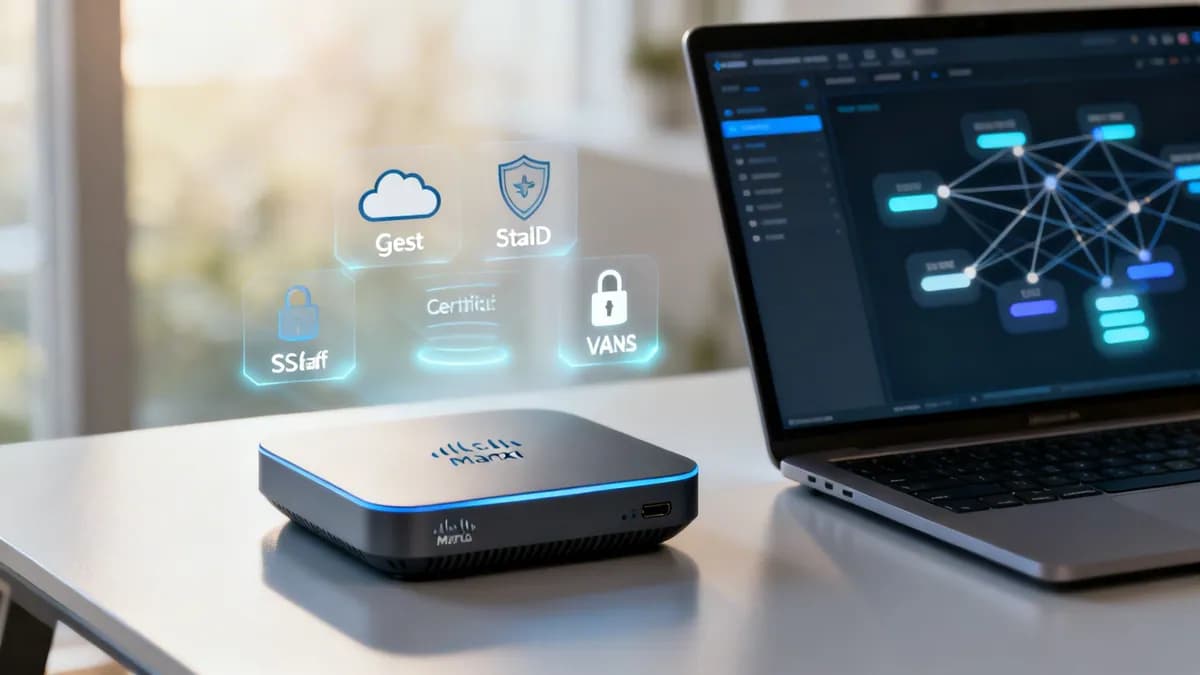
Recommended network segmentation architecture
VLAN 10: Management
AP management untagged or dedicated native VLAN. Only permit communication with Meraki Cloud and local NTP/DNS servers.
VLAN 20: Corporate Staff
WPA2/WPA3-Enterprise 802.1X with Purple Cloud RADIUS. Bound to Microsoft Entra ID or Okta for credential-less certificate access.
VLAN 30: Guest WiFi (Purple)
Layer 2 client isolation enabled. NAT or bridge mode with external click-through splash pointing to Purple portal endpoints.
Connect your Meraki access points to Purple
Transform your Meraki MR network into an intelligent guest engagement platform. Deploy custom splash pages, capture GDPR-compliant data, and view real-time footfall analytics in minutes.
Deploying Cisco Meraki wireless access points (APs) provides network administrators with cloud-managed hardware that scales across multi-location venues. However, hardware deployment is only half the battle. To deliver secure, high-performing WiFi, organizations must combine Meraki access points with proper network architecture, 802.1X RADIUS authentication, and intelligent guest management tools.
Key prerequisites for Cisco Meraki access point deployment
Before creating SSIDs or altering radio settings in the Meraki dashboard, establish your network prerequisites. Rushing physical installation without verifying licenses, firmware, and network topology leads to authentication failures and connectivity bottlenecks down the line.
Checking licensing and firmware compatibility
Every Meraki access point requires an active enterprise license to communicate with the Meraki Cloud Dashboard. Without valid licensing, APs drop configuration updates and cease broadcasting wireless signals. Access points like the Meraki MR44, MR56, or MR78 must run updated firmware to support modern protocols such as WPA3, 802.11ax (WiFi 6), and Passpoint (Hotspot 2.0).
Firmware updates patch security vulnerabilities and expand channel support. For US deployments, updated firmware provides access to UNII-3 channels, opening additional 5 GHz spectrum in congested venue environments.
Planning network topology and firewall rules
Network isolation is vital when running guest and staff networks on shared hardware. Use VLAN tagging on your switch infrastructure to segregate guest traffic from corporate databases and point of sale (POS) systems. This prevents unauthenticated guest devices from accessing internal IP addresses.
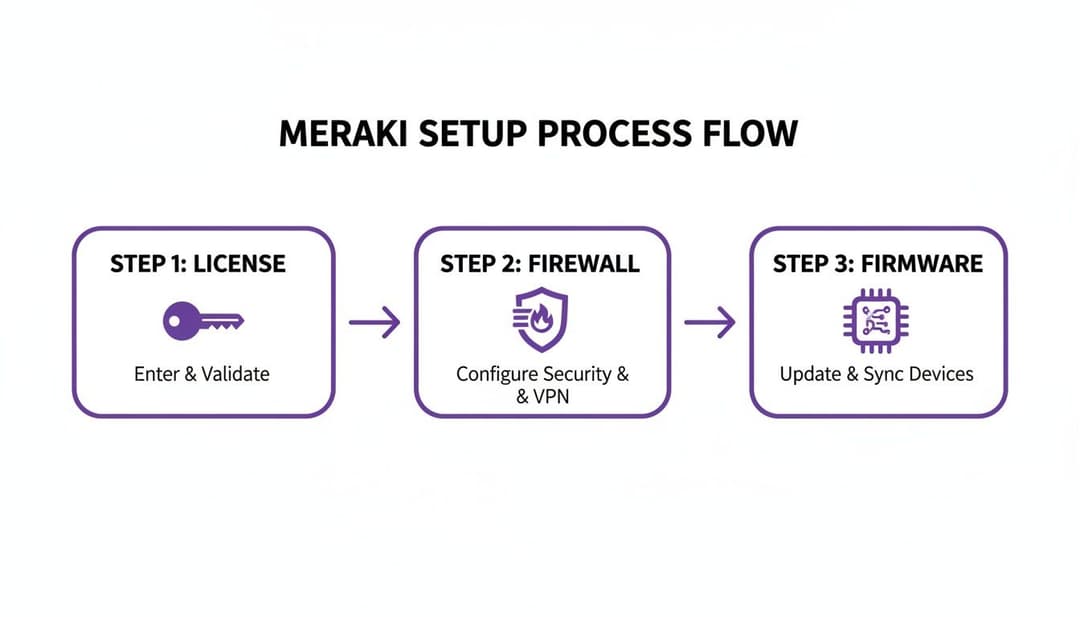
Next, configure your upstream firewall to permit RADIUS authentication and cloud management traffic. For Purple integration, ensure your firewall permits outbound UDP traffic on ports 1812 (Authentication) and 1813 (Accounting) to Purple RADIUS server endpoints, as well as HTTPS communication for API synchronization.
Configuring Meraki SSIDs for secure guest and staff access

A well-structured Meraki deployment uses separate SSIDs tailored to specific user personas. Instead of sharing a single pre-shared key (PSK) across all users, create distinct SSIDs for corporate staff, visitors, and IoT endpoints.
Creating a passwordless enterprise staff network
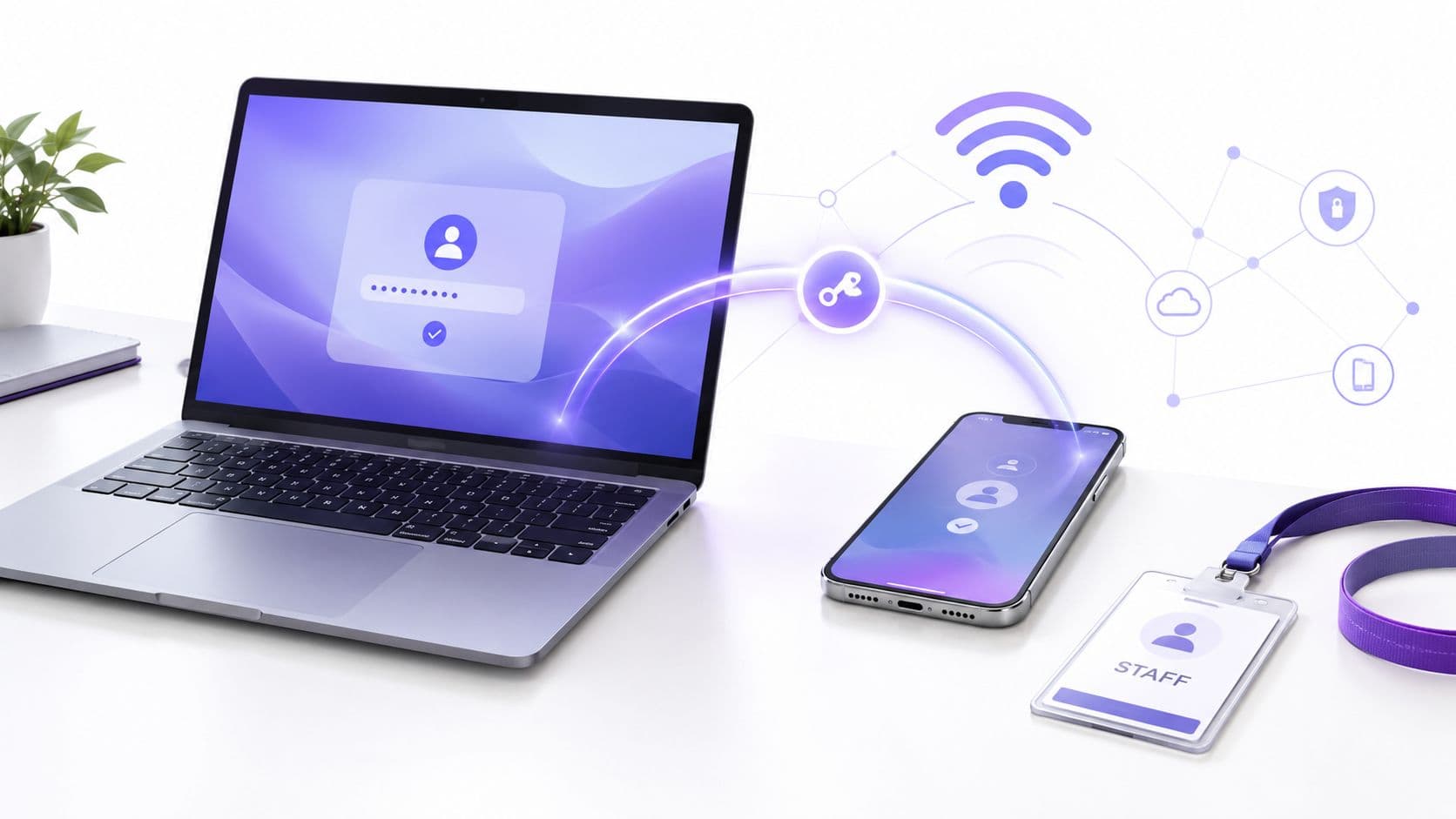
Managing static WiFi passphrases for employees introduces security risks when staff depart. Configure your staff network with WPA2/WPA3-Enterprise and 802.1X RADIUS authentication. Integrate Meraki with identity providers like Microsoft Entra ID or Okta via Purple Cloud RADIUS.
- In the Meraki Dashboard, navigate to Wireless > Configure > SSIDs and select an available SSID slot.
- Set the SSID Name (for example,
Corporate_Staff_Secure). - Under Association Requirement, select
WPA2-EnterpriseorWPA3-Enterprisewith RADIUS server authentication. - Enter the primary and secondary RADIUS server IP addresses and shared secret provided in your Purple portal.
- Set Splash Page to
Noneso staff connect automatically using digital certificates or single sign-on (SSO) credentials.
With 802.1X certificate authentication, employee network access revokes automatically when an account is disabled in your central identity directory, eliminating shared password vulnerabilities.
Building an engaging guest WiFi network
For visitors, customers, and temporary contractors, use an open SSID paired with a custom captive portal splash page. This delivers immediate internet access while gathering consent-based first-party analytics for marketing and venue optimization.
of optimization. optimization.optimization. optimization. optimizedoptimization. optimization. optimization. optimization. optimization. optimization. optimizing. optimization. optimization. optimization. optimization. optimization. optimization. optimiz optimization. optimization. optimization. optimization. optimization. optimization. optimization. optimization. optimization. optimization. optimization. optimization. optimization. optimiz optimiz optimization.- SSID Name: Clear and recognizable (for example,
Venue_Guest_WiFi). - Security: Select
Open (no encryption)to remove connection barriers. - Splash Page: Select
Click-throughorSign-on with...and point the Walled Garden to Purple cloud authentication servers.
When visitors connect, Meraki redirects their browser to the Purple splash page, where users authenticate via social logins, web forms, or SMS verification. Learn more in our comprehensive captive portal guide.
Meraki SSID configuration comparison
| Configuration setting | Guest SSID with Purple | Staff enterprise SSID | Passpoint / OpenRoaming SSID |
|---|---|---|---|
| Security protocol | Open (Captive Portal) | WPA2/WPA3-Enterprise | WPA2/WPA3-Enterprise (802.11u) |
| Authentication engine | Purple Splash Page (Social/Form) | 802.1X RADIUS (Entra ID, Okta) | Passpoint Certificate Handshake |
| User experience | Web login & consent capture | Automatic SSO authentication | Zero-click background connection |
| Primary objective | Guest engagement & data capture | Zero-trust staff network security | Global roaming & instant access |
Activating next-gen connectivity with Passpoint and OpenRoaming

While captive portals engage new visitors, Passpoint (Hotspot 2.0) and WBA OpenRoaming take guest connectivity to the next level. Passpoint enables mobile devices to discover, authenticate, and connect to Meraki WiFi automatically using encrypted SIM profiles or digital certificates without presenting a web splash page.
By enabling 802.11u Hotspot 2.0 settings in the Meraki Dashboard and linking your network to Purple OpenRoaming profiles, returning guests and cellular roaming users gain instant, secure WiFi access across participating venues worldwide. Review our enterprise WiFi security guide for detailed architecture recommendations.
Frequently asked questions about Meraki access point setup
Clear answers to common technical queries regarding Cisco Meraki wireless access point configuration and Purple integration.
How do I connect Purple captive portal to Cisco Meraki access points?
You connect Purple to Cisco Meraki APs by adding Purple RADIUS server IP addresses and secret keys under Wireless > Access Control in the Meraki Dashboard, then specifying the custom Purple splash page URL under Walled Garden settings.
Does Cisco Meraki support 802.1X RADIUS authentication for staff WiFi?
Yes. Cisco Meraki MR access points fully support 802.1X RADIUS authentication using WPA2-Enterprise and WPA3-Enterprise. This allows organizations to authenticate staff devices using digital certificates or single sign-on (SSO) integration with Microsoft Entra ID or Okta.
What is the difference between Meraki click-through and RADIUS splash pages?
A click-through splash page redirects users to a web form or terms agreement hosted on a web server before granting internet access. A RADIUS splash page requires the wireless access point to validate user credentials directly against a RADIUS server (such as Purple Cloud RADIUS) before authorizing network traffic.
Can I deploy Passpoint OpenRoaming on existing Meraki MR hardware?
Yes. Passpoint (Hotspot 2.0) is supported on all modern Cisco Meraki MR access points running current firmware. Enabling 802.11u settings in the Meraki Dashboard allows devices to connect automatically using encrypted Passpoint profiles without requiring splash page interaction.
Ready to upgrade your Cisco Meraki WiFi network?
Transform your Meraki wireless deployment into an identity-aware, revenue-generating WiFi network with Cloud RADIUS, Passpoint auto-connect, and intelligent guest analytics.