Guía de integración de Fortinet FortiAP y Purple WiFi
Una referencia técnica definitiva para integrar la infraestructura Fortinet FortiAP y FortiGate con Purple WiFi. Esta guía cubre la configuración de portal cautivo externo, la coexistencia de autenticación RADIUS con FortiAuthenticator y el diseño de políticas de seguridad para implementaciones empresariales en entornos de hostelería, comercio minorista y sector público.
🎧 Escuchar esta guía
Ver transcripción

Resumen Ejecutivo
Para los equipos de TI empresariales que utilizan infraestructura Fortinet, integrar portales cautivos externos para el acceso de invitados manteniendo posturas de seguridad estrictas es un requisito común. La integración entre los puntos de acceso Fortinet FortiAP, los dispositivos FortiGate Unified Threat Management (UTM) y la plataforma Purple WiFi permite a las organizaciones desvincular la autenticación de invitados de la seguridad de red central. Esta guía proporciona a arquitectos técnicos y gerentes de TI el plan definitivo para implementar Purple como un portal cautivo externo dentro de un entorno Fortinet. Al delegar la gestión de identidades de invitados al RADIUS en la nube de Purple, los equipos de red pueden aprovechar las sólidas políticas de seguridad de Capa 7 de Fortinet para la inspección del tráfico, al mismo tiempo que capturan datos demográficos de primera mano para generar valor comercial. Ya sea implementando en una red minorista distribuida o en un estadio de alta densidad, esta arquitectura garantiza el cumplimiento de PCI DSS y GDPR al tiempo que ofrece una experiencia de Guest WiFi fluida.
Análisis Técnico Detallado
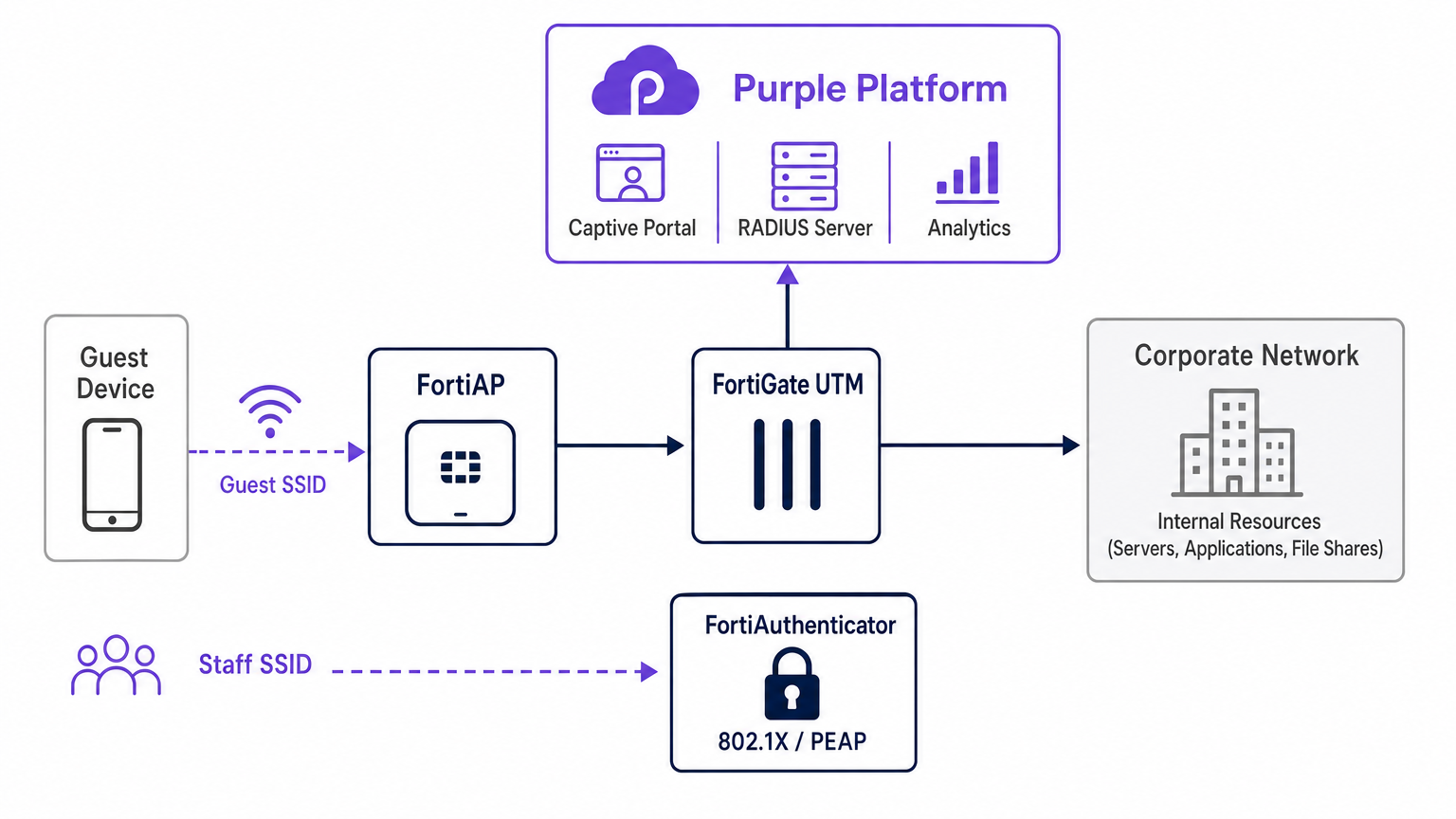
La integración arquitectónica entre Fortinet y Purple se basa en protocolos RADIUS estándar y mecanismos de redirección HTTP. Cuando un dispositivo invitado se asocia con el SSID abierto designado transmitido por un FortiAP, el FortiGate intercepta la solicitud HTTP/HTTPS inicial. En lugar de servir un portal cautivo local, el FortiGate se configura para redirigir al cliente a la página de bienvenida alojada en la nube de Purple.
Durante esta fase de preautenticación, el FortiGate aplica un 'walled garden' (jardín vallado), una lista estricta de direcciones IP y dominios que permite al dispositivo cliente cargar los activos del portal cautivo, realizar inicios de sesión sociales y acceder a servicios esenciales (como DNS) sin conceder acceso completo a Internet. Una vez que el usuario se autentica en el portal de Purple, la plataforma de Purple se comunica con el FortiGate a través de mensajes RADIUS Access-Accept. El FortiGate luego transiciona el estado de la sesión del cliente de no autenticado a autenticado, aplicando las políticas de firewall post-autenticación adecuadas.
Coexistencia de RADIUS: Purple y FortiAuthenticator
Un desafío arquitectónico frecuente en entornos Fortinet es gestionar el acceso de invitados junto con la autenticación del personal cuando ya se ha implementado un FortiAuthenticator (FAC) para la identidad corporativa. El enfoque recomendado es la segregación absoluta de SSID. Los dispositivos del personal se conectan a un SSID seguro utilizando IEEE 802.1X —típicamente PEAP o EAP-TLS— autenticados directamente contra el FortiAuthenticator. Por el contrario, los dispositivos invitados se conectan a un SSID abierto configurado para la redirección a un portal cautivo externo, autenticándose contra la infraestructura RADIUS en la nube de Purple.
Esta separación garantiza que los datos de identidad de los invitados —cruciales para WiFi Analytics — se gestionen completamente dentro de la plataforma Purple, mientras que las credenciales corporativas de Active Directory permanecen procesadas de forma segura por el FortiAuthenticator local. El FortiGate gestiona el enrutamiento y la aplicación de políticas para ambos flujos de tráfico de forma independiente, asegurando que no haya cruce entre la VLAN de invitados y la VLAN corporativa. Esta arquitectura también satisface los requisitos de PCI DSS para la segmentación de red, ya que el tráfico de invitados está física y lógicamente aislado de cualquier infraestructura de procesamiento de pagos.
Guía de Implementación
La implementación de la integración de FortiAP Purple requiere una configuración coordinada tanto en el portal de Purple como en la infraestructura de Fortinet. Los siguientes pasos describen la ruta crítica para una implementación exitosa utilizando la gestión de AP de FortiCloud.
Paso 1: Configuración de Red y RADIUS
Comience definiendo la red dentro del Panel de FortiCloud. Navegue a Configurar > Mi Servidor RADIUS y defina tanto el servidor de autenticación (Puerto 1812) como el servidor de contabilidad (Puerto 1813) utilizando las credenciales proporcionadas en el portal de Purple. Ambos servidores deben configurarse; la contabilidad no es opcional. Purple se basa en los datos de contabilidad RADIUS para rellenar el panel de WiFi Analytics con métricas de duración de sesión, consumo de ancho de banda y frecuencia de visitantes. Establezca el intervalo intermedio de contabilidad en 120 segundos para una visibilidad en tiempo real.
Paso 2: Definición de SSID y Portal Cautivo
Cree un nuevo SSID dedicado al acceso de invitados. Establezca el método de autenticación en Abierto y habilite la función de Captive Portal, seleccionando la opción de portal externo o personalizado. Debe introducir la URL de Acceso y la URL de Redirección únicas proporcionadas por la pantalla de configuración del portal de Purple.
La configuración del 'Walled Garden' (jardín vallado) es el paso más delicado de toda la implementación. Debe introducir la lista completa de dominios requeridos de Purple para asegurar que los proveedores de inicio de sesión social (Facebook, Google, X) y los activos esenciales del portal se carguen correctamente antes de la autenticación. Si no se configura el 'walled garden' (jardín vallado) con precisión, se producirá un flujo de autenticación roto, ya que el dispositivo cliente no podrá alcanzar los recursos externos necesarios. Asegúrese también de que el tráfico DNS (puerto UDP 53) esté explícitamente permitido en la política de preautenticación.
Paso 3: Asignación de IP — Modo NAT vs Modo Puente
Al definir el SSID, debe elegir entre el modo NAT y el modo Puente para la asignación de IP.
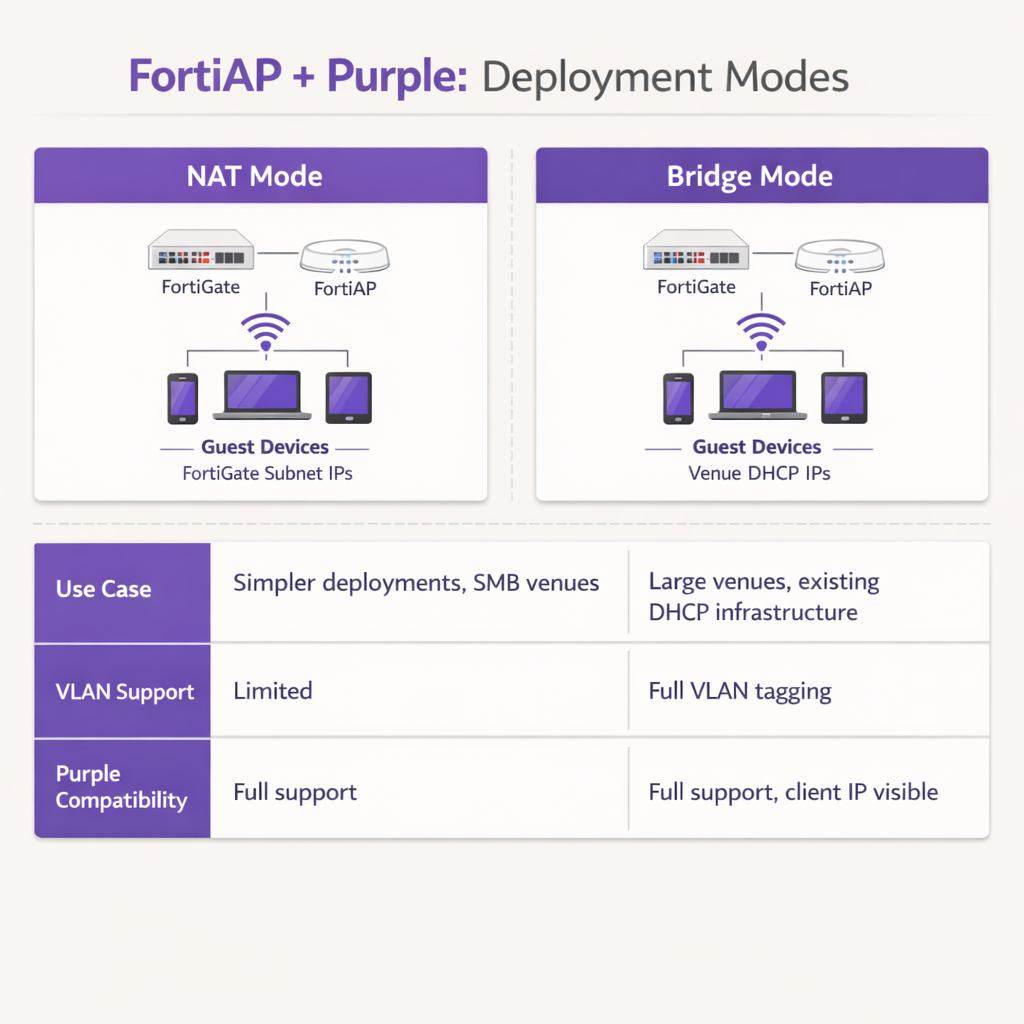
En el modo NAT, el FortiGate proporciona direcciones DHCP a los dispositivos invitados desde una subred interna dedicada, traduciendo esas direcciones a medida que el tráfico sale del firewall. Esto es adecuado para implementaciones más sencillas o para Retail entornos de sucursal donde el FortiGate gestiona toda la subred de invitados.
En modo Bridge, el FortiAP conecta el tráfico de invitados directamente a una VLAN específica, permitiendo que un servidor DHCP externo asigne direcciones IP. El modo Bridge es muy recomendable para entornos de alta densidad, como propiedades de Hostelería o centros de Transporte , ya que proporciona una mayor flexibilidad para la gestión de direcciones IP, evita cuellos de botella de DHCP en el FortiGate y permite que la plataforma Purple vea la dirección IP real del cliente para un análisis y resolución de problemas más detallados.
Paso 4: Política de Firewall Post-Autenticación
Una vez completada la autenticación, el FortiGate debe aplicar una política de firewall post-autenticación dedicada a la VLAN de invitados. Esta política debe hacer referencia a los perfiles de FortiGuard Web Filtering y Application Control para aplicar restricciones de contenido y bloquear el tráfico peer-to-peer. Aplique un perfil de Traffic Shaper para imponer límites de ancho de banda, evitando que un solo invitado sature el enlace ascendente del lugar. Asegúrese de que la política bloquee explícitamente todos los destinos de espacio IP privado RFC 1918 para evitar que los invitados sondeen los recursos de la red interna.
Mejores Prácticas
Al diseñar esta integración, siga las siguientes recomendaciones estándar de la industria para garantizar la estabilidad, seguridad y cumplimiento.
La segregación de VLAN es obligatoria: Nunca implemente WiFi de invitados en la misma VLAN que los activos corporativos o los sistemas de punto de venta. Se debe aplicar un etiquetado de VLAN estricto a nivel de puerto de switch para mantener el cumplimiento de PCI DSS. El FortiGate debe aplicar políticas de firewall agresivas a la VLAN de invitados, bloqueando todos los destinos de espacio IP privado RFC 1918 para evitar el movimiento lateral.
Optimizar los temporizadores de sesión: Configure el tiempo de concesión de DHCP y los intervalos intermedios de contabilidad RADIUS de manera adecuada. Un tiempo de concesión de DHCP de 3600 segundos combinado con un intervalo intermedio de contabilidad de 120 segundos proporciona un equilibrio óptimo entre la conservación de direcciones IP y la generación de informes de análisis precisos en tiempo real dentro del panel de Purple.
Aprovechar las características UTM de Fortinet Post-Autenticación: La principal ventaja de esta integración es la capacidad de aplicar las características de seguridad avanzadas de Fortinet al tráfico de invitados después de la autenticación. Configure la política de firewall post-autenticación para utilizar FortiGuard Web Filtering y Application Control. Esto mitiga el riesgo de que los invitados utilicen el ancho de banda del lugar para actividades maliciosas, torrenting o acceso a contenido inapropiado, protegiendo así la reputación IP pública del lugar y el acuerdo de servicio de internet.
Usar certificados públicos: Asegúrese de que el FortiGate presente un certificado SSL/TLS válido y de confianza pública en la interfaz de redirección. Los certificados autofirmados activan advertencias de seguridad en dispositivos iOS y Android modernos, aumentando significativamente las tasas de abandono de invitados en el portal.
Resolución de Problemas y Mitigación de Riesgos
Incluso con una configuración meticulosa, las implementaciones pueden encontrar fricciones. Comprender los modos de fallo comunes acelera significativamente la resolución.
El Captive Portal no carga: Si un invitado se conecta pero la página de bienvenida no aparece, el culpable más común es un walled garden incompleto. Verifique que todos los dominios requeridos para Purple y cualquier proveedor de inicio de sesión social configurado estén explícitamente permitidos en la política de pre-autenticación. Asegúrese de que la resolución de DNS funcione correctamente para los clientes no autenticados; si el cliente no puede resolver la URL del portal Purple, la redirección fallará por completo.
Tiempos de espera de RADIUS: Si el portal carga pero la autenticación falla constantemente, investigue la ruta de comunicación RADIUS. Verifique que la dirección IP externa del FortiGate esté correctamente registrada en la configuración del router del portal Purple. Asegúrese de que los secretos compartidos coincidan exactamente —una sola discrepancia de caracteres causará fallos de autenticación silenciosos— y de que ningún firewall intermedio esté bloqueando los puertos UDP 1812 y 1813 entre la infraestructura de Fortinet y los servidores RADIUS en la nube de Purple.
Errores de certificado: Los sistemas operativos móviles modernos son muy sensibles a las anomalías de los certificados SSL/TLS durante la intercepción del Captive Portal. Asegúrese de que el FortiGate presente un certificado válido y de confianza pública para la interfaz de redirección, en lugar de un certificado autofirmado predeterminado. Esto evita advertencias de seguridad alarmantes que disuaden a los invitados de completar el flujo de autenticación.
Lagunas en la contabilidad de sesiones: Si el panel de análisis de Purple muestra datos de sesión incompletos o métricas de ancho de banda faltantes, verifique que el servidor de contabilidad RADIUS (Puerto 1813) esté configurado correctamente y que el intervalo intermedio de contabilidad esté establecido. Los datos de contabilidad se envían por separado de la autenticación y requieren su propia definición de servidor.
ROI e Impacto Empresarial
La integración de Fortinet y Purple transforma un centro de costes estándar —el WiFi de invitados— en un activo empresarial medible. Al utilizar el Captive Portal de Purple, los lugares capturan datos demográficos verificados e información de contacto, lo que permite campañas de marketing dirigidas, el crecimiento de programas de fidelización y la re-interacción post-visita. Para los lugares que operan en los sectores de Comercio Minorista u Hostelería , estos datos de primera parte son cada vez más valiosos a medida que la eliminación gradual de las cookies de terceros limita los canales de marketing digital tradicionales.
Para las operaciones de TI, descargar la autenticación de invitados al RADIUS en la nube de Purple reduce significativamente la sobrecarga administrativa asociada con la gestión de bases de datos de usuarios locales, la impresión de vales físicos o el mantenimiento de la infraestructura RADIUS local. La combinación de la incorporación fluida de Purple y la robusta inspección de tráfico de Fortinet garantiza que el lugar ofrezca una experiencia de internet segura y de alto rendimiento, al mismo tiempo que genera inteligencia empresarial accionable a través de WiFi Analytics . Esta arquitectura es altamente escalable, soportando desde un único hotel boutique a un campus empresarial distribuido, ofreciendo un ROI consistente tanto a través de la habilitación de marketing como de la eficiencia operativa.
Términos clave y definiciones
External Captive Portal
A configuration where the network hardware (FortiGate/FortiAP) redirects unauthenticated user traffic to a splash page hosted on a third-party cloud server (Purple), rather than serving a page stored locally on the appliance.
IT teams use this to offload portal design, social login API maintenance, and GDPR consent capture to a specialized platform, reducing operational overhead on the network team.
Walled Garden
An explicit allowlist of IP addresses, domains, and subnets that a client device is permitted to access prior to successfully authenticating on the network.
Crucial for allowing devices to load captive portal graphics, process social media logins, and resolve DNS queries before they have full internet access. The most common source of captive portal failures when misconfigured.
RADIUS Accounting
The protocol mechanism utilizing UDP Port 1813 that tracks a user's session duration, bandwidth consumption, and data transfer volumes, reporting this data back to the RADIUS server.
Purple relies on accurate accounting data from the Fortinet hardware to populate analytics dashboards and enforce time or data limits on guest sessions. Must be configured separately from authentication.
FortiAuthenticator (FAC)
Fortinet's dedicated identity and access management appliance, used for internal staff 802.1X network authentication, single sign-on, and certificate management.
IT managers frequently need to ensure that deploying Purple for guests does not disrupt existing FAC infrastructure used by corporate employees. The answer is always SSID segregation.
Bridge Mode SSID
A wireless configuration where the access point acts as a transparent layer 2 bridge, passing client traffic directly onto a specific VLAN on the wired network rather than performing NAT.
Preferred in enterprise deployments as it allows existing core DHCP servers to manage IP addresses, prevents FortiGate DHCP bottlenecks, and exposes true client IPs to the Purple analytics platform.
Post-Authentication Policy
The firewall rules and Unified Threat Management (UTM) profiles applied to a user's traffic only after they have successfully authenticated via the captive portal.
This is where network architects apply web filtering, application control, and bandwidth shaping to protect the venue's network from malicious guest activity. Purple handles identity; FortiGate handles enforcement.
IEEE 802.1X
An IEEE Standard for port-based Network Access Control, providing a framework for authenticating devices wishing to attach to a LAN or WLAN using EAP methods such as PEAP or EAP-TLS.
Used for secure staff access via FortiAuthenticator, distinct from the open, portal-based authentication used for guests via Purple. The two authentication methods coexist on separate SSIDs.
RADIUS-as-a-Service
A cloud-hosted RADIUS infrastructure provided by Purple, eliminating the need for venues to deploy and maintain local RADIUS servers such as FreeRADIUS or Windows NPS.
Reduces infrastructure overhead for IT teams while ensuring high availability and seamless integration with the captive portal platform. Particularly valuable for distributed retail or hospitality deployments.
FortiGuard
Fortinet's cloud-based threat intelligence and content filtering subscription service, providing real-time web filtering, application control, and intrusion prevention signatures to FortiGate appliances.
Applied via post-authentication firewall policies to inspect and control guest internet traffic after Purple has authenticated the user, protecting the venue's network and IP reputation.
Casos de éxito
A 200-room hotel currently uses a FortiGate 100F and FortiAPs. They use FortiAuthenticator for staff 802.1X authentication. They want to implement Purple WiFi for guests to capture marketing data, but the IT Director is concerned about the guest portal interfering with the existing staff authentication flow.
Deploy absolute SSID segregation. Maintain the existing Staff_WiFi SSID configured for WPA2-Enterprise, pointing to the FortiAuthenticator RADIUS server on Port 1812. Create a new, separate Guest_WiFi SSID configured as an Open network with External Captive Portal enabled. Configure the captive portal URL to point to Purple's splash page, and configure the RADIUS settings for this specific SSID to point to Purple's cloud RADIUS servers (Port 1812 for auth, Port 1813 for accounting). Map the Guest SSID to an isolated VLAN with a dedicated firewall policy. The FortiGate routes authentication requests based on the originating SSID, ensuring zero interference between the two authentication systems.
A retail chain is deploying FortiCloud APs across 50 locations. They want to use Purple WiFi for guest analytics. During testing at the first site, the guest connects to the WiFi, but their device displays a blank page or a connection timed out error instead of the Purple splash page.
The IT team must audit and update the Walled Garden configuration on the FortiCloud AP SSID settings. The FortiAP is currently blocking the client's HTTP/HTTPS requests to the Purple portal assets before authentication. The team must input the complete list of Purple's required domains — including CDN endpoints and social login provider domains — into the Walled Garden allowlist. They must also verify that the pre-authentication policy explicitly permits DNS traffic on UDP port 53, so the client device can resolve the portal hostname. Once corrected at the first site, this configuration should be templated and applied consistently across all 50 locations.
Análisis de escenarios
Q1. Your deployment requires guests to authenticate via a Purple splash page. You have configured the SSID, the RADIUS servers, and the redirect URL. However, when connecting, guest devices immediately report No Internet Connection and the portal fails to pop up automatically. What is the most likely configuration omission?
💡 Sugerencia:Consider what network access a device requires before it has fully authenticated on the network.
Mostrar enfoque recomendado
The Walled Garden (pre-authentication allowlist) is likely incomplete or missing entirely. The device needs explicit permission to reach Purple's portal domains, social login APIs (Facebook, Google), and perform DNS resolution before the FortiGate grants full access. Without this, the device's Captive Portal Assistant cannot reach the target URL to trigger the pop-up. Additionally, verify that DNS traffic on UDP port 53 is permitted in the pre-authentication policy.
Q2. A stadium deployment anticipates 15,000 concurrent guest connections during events. The current design proposes using the FortiGate in NAT mode to provide DHCP to the guest SSID from a single /20 subnet. Why might this architectural decision create operational problems, and what is the recommended alternative?
💡 Sugerencia:Consider the processing overhead on the FortiGate firewall and the implications of DHCP lease churn at high scale.
Mostrar enfoque recomendado
Using NAT mode places the entire DHCP processing burden on the FortiGate, which may struggle with the rapid lease churn of 15,000 transient devices connecting and disconnecting throughout an event. A single /20 subnet provides only 4,094 usable addresses, which may be insufficient for peak concurrent connections. Furthermore, NAT mode obscures the true client IP from the Purple platform, limiting analytical depth. The recommended approach is Bridge mode, dropping guest traffic onto a dedicated VLAN managed by a robust external enterprise DHCP infrastructure with appropriately sized address pools.
Q3. The CISO mandates that guest WiFi traffic must not consume more than 20% of the venue's total internet bandwidth, and guests must be prevented from accessing peer-to-peer file sharing networks. Where in the Fortinet-Purple architecture is this policy enforced, and what specific Fortinet features are required?
💡 Sugerencia:Determine which component handles traffic inspection and policy enforcement after the user's identity has been verified by Purple.
Mostrar enfoque recomendado
This policy is enforced on the FortiGate UTM appliance via the Post-Authentication Firewall Policy applied to the guest VLAN. While Purple handles authentication and identity capture, the FortiGate remains responsible for Layer 7 traffic inspection and enforcement. The network team must configure a FortiGuard Application Control profile to block P2P categories (BitTorrent, eDonkey, etc.) and apply a Traffic Shaper profile to the guest policy to enforce the 20% bandwidth cap. Both profiles must be referenced in the post-authentication firewall policy, not the pre-authentication walled garden policy.