Fortinet FortiAP e Guia de Integração Purple WiFi
Uma referência técnica definitiva para integrar a infraestrutura Fortinet FortiAP e FortiGate com Purple WiFi. Este guia abrange a configuração de captive portal externo, coexistência de autenticação RADIUS com FortiAuthenticator e design de políticas de segurança para implementações empresariais em ambientes de hotelaria, retalho e setor público.
🎧 Ouça este Guia
Ver Transcrição
Resumo Executivo
Para equipas de TI empresariais que utilizam infraestruturas Fortinet, a integração de captive portals externos para acesso de convidados, mantendo posturas de segurança rigorosas, é um requisito comum. A integração entre os pontos de acesso Fortinet FortiAP, os dispositivos FortiGate Unified Threat Management (UTM) e a plataforma Purple WiFi permite que as organizações desacoplem a autenticação de convidados da segurança da rede principal. Este guia fornece a arquitetos técnicos e gestores de TI o plano definitivo para implementar Purple como um captive portal externo num ambiente Fortinet. Ao descarregar a gestão de identidade de convidados para o RADIUS na cloud da Purple, as equipas de rede podem aproveitar as robustas políticas de segurança da Camada 7 da Fortinet para inspeção de tráfego, enquanto simultaneamente capturam dados demográficos primários para gerar valor de negócio. Quer seja implementada numa rede de retalho distribuída ou num estádio de alta densidade, esta arquitetura garante a conformidade com PCI DSS e GDPR, ao mesmo tempo que oferece uma experiência de Guest WiFi sem interrupções.
Análise Técnica Detalhada
A integração arquitetónica entre Fortinet e Purple baseia-se em protocolos RADIUS padrão e mecanismos de redirecionamento HTTP. Quando um dispositivo de convidado se associa ao SSID aberto designado transmitido por um FortiAP, o FortiGate interceta o pedido HTTP/HTTPS inicial. Em vez de servir um captive portal local, o FortiGate é configurado para redirecionar o cliente para a página de splash alojada na cloud da Purple.
Durante esta fase de pré-autenticação, o FortiGate impõe um "walled garden" — uma lista de permissões rigorosa de endereços IP e domínios que permite ao dispositivo cliente carregar os ativos do captive portal, realizar logins sociais e aceder a serviços essenciais (como DNS) sem conceder acesso total à internet. Assim que o utilizador se autentica no portal Purple, a plataforma Purple comunica de volta ao FortiGate através de mensagens RADIUS Access-Accept. O FortiGate transita então o estado da sessão do cliente de não autenticado para autenticado, aplicando as políticas de firewall pós-autenticação apropriadas.
Coexistência RADIUS: Purple e FortiAuthenticator
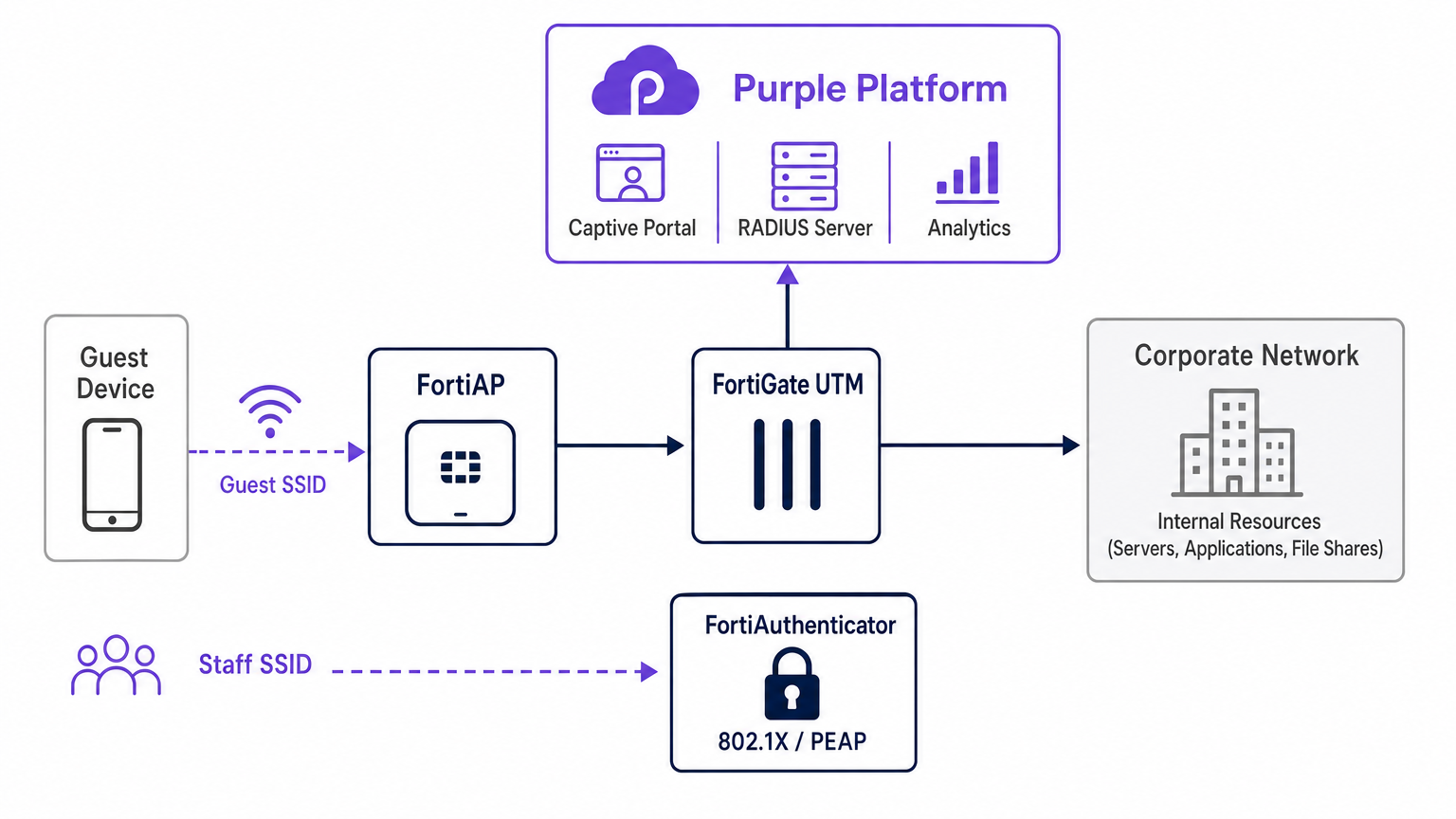
Um desafio arquitetónico frequente em ambientes Fortinet é gerir o acesso de convidados juntamente com a autenticação de funcionários quando um FortiAuthenticator (FAC) já está implementado para identidade corporativa. A abordagem recomendada é a segregação absoluta de SSID. Os dispositivos dos funcionários conectam-se a um SSID seguro utilizando IEEE 802.1X — tipicamente PEAP ou EAP-TLS — autenticados diretamente contra o FortiAuthenticator. Pelo contrário, os dispositivos de convidados conectam-se a um SSID aberto configurado para redirecionamento de captive portal externo, autenticando-se contra a infraestrutura RADIUS na cloud da Purple.
Esta separação garante que os dados de identidade de convidados — cruciais para WiFi Analytics — são geridos inteiramente dentro da plataforma Purple, enquanto as credenciais do Active Directory corporativo permanecem processadas de forma segura pelo FortiAuthenticator no local. O FortiGate gere o encaminhamento e a aplicação de políticas para ambos os fluxos de tráfego de forma independente, garantindo que não há cruzamento entre a VLAN de convidados e a VLAN corporativa. Esta arquitetura também satisfaz os requisitos PCI DSS para segmentação de rede, uma vez que o tráfego de convidados é física e logicamente isolado de qualquer infraestrutura de processamento de pagamentos.
Guia de Implementação
A implementação da integração FortiAP Purple requer configuração coordenada tanto no portal Purple como na infraestrutura Fortinet. Os passos seguintes descrevem o caminho crítico para uma implementação bem-sucedida utilizando a gestão de AP FortiCloud.
Passo 1: Configuração de Rede e RADIUS
Comece por definir a rede no FortiCloud Dashboard. Navegue para Configurar > Meu Servidor RADIUS e defina tanto o servidor de autenticação (Porta 1812) como o servidor de contabilidade (Porta 1813) utilizando as credenciais fornecidas no portal Purple. Ambos os servidores devem ser configurados — a contabilidade não é opcional. Purple depende dos dados de contabilidade RADIUS para preencher o dashboard WiFi Analytics com métricas de duração da sessão, consumo de largura de banda e frequência de visitantes. Defina o intervalo provisório de contabilidade para 120 segundos para visibilidade em tempo real.
Passo 2: Definição de SSID e Captive Portal
Crie um novo SSID dedicado ao acesso de convidados. Defina o método de autenticação para Aberto e ative a funcionalidade Captive Portal, selecionando a opção de portal externo ou personalizado. Deve introduzir o Access URL e o Redirect URL únicos fornecidos pelo ecrã de configuração do portal Purple.
A configuração do Walled Garden é o passo mais sensível em toda a implementação. Deve introduzir a lista abrangente de domínios necessários da Purple para garantir que os fornecedores de login social (Facebook, Google, X) e os ativos essenciais do portal carregam corretamente antes da autenticação. A falha na configuração precisa do walled garden resultará num fluxo de autenticação interrompido, uma vez que o dispositivo cliente não conseguirá aceder aos recursos externos necessários. Certifique-se também de que o tráfego DNS (porta UDP 53) é explicitamente permitido na política de pré-autenticação.
Passo 3: Atribuição de IP — Modo NAT vs Bridge
Ao definir o SSID, deve escolher entre o modo NAT e o modo Bridge para a atribuição de IP.
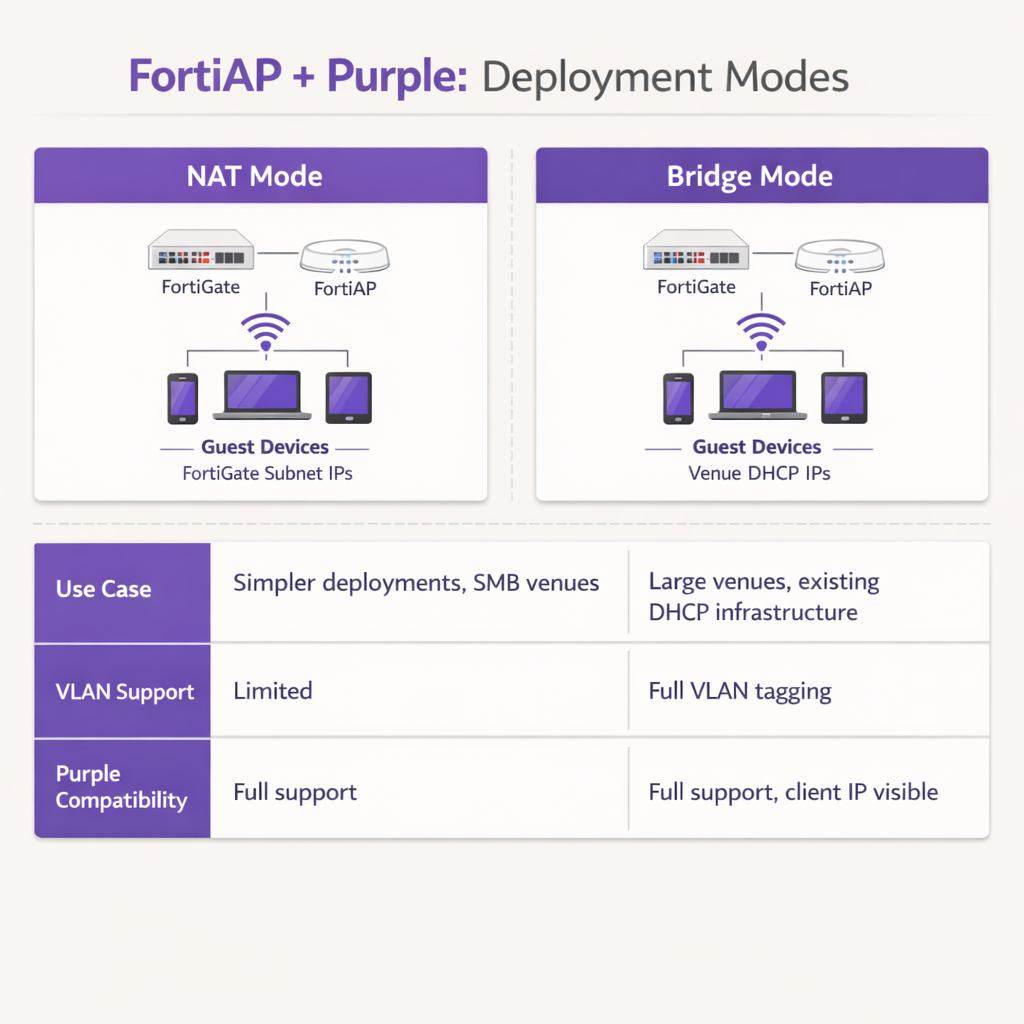
No modo NAT, o FortiGate fornece endereços DHCP a dispositivos de convidados a partir de uma sub-rede interna dedicada, traduzindo esses endereços à medida que o tráfego sai da firewall. Isto é adequado para implementações mais simples ou Retalho ambientes de filiais onde o FortiGate gere toda a sub-rede de convidados.
No modo Bridge, o FortiAP faz a ponte do tráfego de convidados diretamente para uma VLAN específica, permitindo que um servidor DHCP externo atribua endereços IP. O modo Bridge é fortemente recomendado para ambientes de alta densidade, como propriedades de Hospitality ou centros de Transport , pois oferece maior flexibilidade para a gestão de endereços IP, evita gargalos de DHCP no FortiGate e permite que a plataforma Purple veja o verdadeiro endereço IP do cliente para análises e resolução de problemas mais granulares.
Passo 4: Política de Firewall Pós-Autenticação
Uma vez concluída a autenticação, o FortiGate deve aplicar uma política de firewall pós-autenticação dedicada à VLAN de convidados. Esta política deve fazer referência aos perfis de FortiGuard Web Filtering e Application Control para impor restrições de conteúdo e bloquear o tráfego peer-to-peer. Aplique um perfil de Traffic Shaper para impor limites de largura de banda, impedindo que qualquer convidado sature o uplink do local. Certifique-se de que a política bloqueia explicitamente todos os destinos de espaço IP privado RFC 1918 para evitar que os convidados sondem recursos de rede internos.
Melhores Práticas
Ao arquitetar esta integração, siga as seguintes recomendações padrão da indústria para garantir estabilidade, segurança e conformidade.
A Segregação de VLAN é Obrigatória: Nunca implemente WiFi de convidados na mesma VLAN que os ativos corporativos ou sistemas de ponto de venda. A marcação rigorosa de VLAN deve ser aplicada ao nível da porta do switch para manter a conformidade com PCI DSS. O FortiGate deve aplicar políticas de firewall agressivas à VLAN de convidados, bloqueando todos os destinos de espaço IP privado RFC 1918 para evitar movimentos laterais.
Otimizar Temporizadores de Sessão: Configure o tempo de concessão DHCP e os intervalos provisórios de contabilidade RADIUS de forma apropriada. Um tempo de concessão DHCP de 3600 segundos combinado com um intervalo provisório de contabilidade de 120 segundos proporciona um equilíbrio ideal entre a conservação de endereços IP e relatórios de análise precisos em tempo real no painel Purple.
Aproveitar as Funcionalidades UTM da Fortinet Pós-Autenticação: A principal vantagem desta integração é a capacidade de aplicar as funcionalidades de segurança avançadas da Fortinet ao tráfego de convidados após a autenticação. Configure a política de firewall pós-autenticação para utilizar FortiGuard Web Filtering e Application Control. Isso mitiga o risco de os convidados utilizarem a largura de banda do local para atividades maliciosas, torrenting ou acesso a conteúdo inapropriado, protegendo assim a reputação IP pública do local e o acordo de serviço de internet.
Utilizar Certificados Públicos: Certifique-se de que o FortiGate apresenta um certificado SSL/TLS válido e publicamente confiável na interface de redirecionamento. Certificados autoassinados acionam avisos de segurança em dispositivos iOS e Android modernos, aumentando significativamente as taxas de abandono de convidados no portal.
Resolução de Problemas e Mitigação de Riscos
Mesmo com uma configuração meticulosa, as implementações podem encontrar atritos. Compreender os modos de falha comuns acelera significativamente a resolução.
Captive Portal Não Carrega: Se um convidado se conecta, mas a página inicial não aparece, o culpado mais comum é um walled garden incompleto. Verifique se todos os domínios necessários para Purple e quaisquer provedores de login social configurados são explicitamente permitidos na política de pré-autenticação. Certifique-se de que a resolução de DNS está a funcionar corretamente para clientes não autenticados; se o cliente não conseguir resolver o URL do portal Purple, o redirecionamento falhará completamente.
Timeouts de RADIUS: Se o portal carrega, mas a autenticação falha consistentemente, investigue o caminho de comunicação RADIUS. Verifique se o endereço IP externo do FortiGate está corretamente registado na configuração do router do portal Purple. Certifique-se de que os segredos partilhados correspondem exatamente — uma única diferença de caractere causará falhas de autenticação silenciosas — e que nenhum firewall intermédio está a bloquear as portas UDP 1812 e 1813 entre a infraestrutura Fortinet e os servidores RADIUS na cloud da Purple.
Erros de Certificado: Os sistemas operativos móveis modernos são altamente sensíveis a anomalias de certificado SSL/TLS durante a interceção do Captive Portal. Certifique-se de que o FortiGate está a apresentar um certificado válido e publicamente confiável para a interface de redirecionamento, em vez de um certificado autoassinado predefinido. Isso evita avisos de segurança alarmantes que dissuadem os convidados de concluir o fluxo de autenticação.
Lacunas na Contabilidade de Sessão: Se o painel de análise Purple mostrar dados de sessão incompletos ou métricas de largura de banda em falta, verifique se o servidor de contabilidade RADIUS (Porta 1813) está corretamente configurado e se o intervalo provisório de contabilidade está definido. Os dados de contabilidade são enviados separadamente da autenticação e requerem a sua própria definição de servidor.
ROI e Impacto nos Negócios
A integração da Fortinet e da Purple transforma um centro de custos padrão — WiFi de convidados — num ativo de negócios mensurável. Ao utilizar o Captive Portal da Purple, os locais capturam dados demográficos verificados e informações de contacto, permitindo campanhas de marketing direcionadas, crescimento de programas de fidelidade e reengajamento pós-visita. Para locais que operam nos setores de Retail ou Hospitality , estes dados de primeira parte são cada vez mais valiosos, uma vez que a depreciação de cookies de terceiros limita os canais de marketing digital tradicionais.
Para operações de TI, a delegação da autenticação de convidados para o RADIUS na cloud da Purple reduz significativamente a sobrecarga administrativa associada à gestão de bases de dados de utilizadores locais, impressão de vouchers físicos ou manutenção de infraestrutura RADIUS no local. A combinação do onboarding contínuo da Purple e da robusta inspeção de tráfego da Fortinet garante que o local oferece uma experiência de internet segura e de alto desempenho, gerando simultaneamente inteligência de negócios acionável através de WiFi Analytics . Esta arquitetura é altamente escalável, suportando desde um único hotel boutique para um campus empresarial distribuído, proporcionando um ROI consistente através da capacitação de marketing e da eficiência operacional.
Termos-Chave e Definições
External Captive Portal
A configuration where the network hardware (FortiGate/FortiAP) redirects unauthenticated user traffic to a splash page hosted on a third-party cloud server (Purple), rather than serving a page stored locally on the appliance.
IT teams use this to offload portal design, social login API maintenance, and GDPR consent capture to a specialized platform, reducing operational overhead on the network team.
Walled Garden
An explicit allowlist of IP addresses, domains, and subnets that a client device is permitted to access prior to successfully authenticating on the network.
Crucial for allowing devices to load captive portal graphics, process social media logins, and resolve DNS queries before they have full internet access. The most common source of captive portal failures when misconfigured.
RADIUS Accounting
The protocol mechanism utilizing UDP Port 1813 that tracks a user's session duration, bandwidth consumption, and data transfer volumes, reporting this data back to the RADIUS server.
Purple relies on accurate accounting data from the Fortinet hardware to populate analytics dashboards and enforce time or data limits on guest sessions. Must be configured separately from authentication.
FortiAuthenticator (FAC)
Fortinet's dedicated identity and access management appliance, used for internal staff 802.1X network authentication, single sign-on, and certificate management.
IT managers frequently need to ensure that deploying Purple for guests does not disrupt existing FAC infrastructure used by corporate employees. The answer is always SSID segregation.
Bridge Mode SSID
A wireless configuration where the access point acts as a transparent layer 2 bridge, passing client traffic directly onto a specific VLAN on the wired network rather than performing NAT.
Preferred in enterprise deployments as it allows existing core DHCP servers to manage IP addresses, prevents FortiGate DHCP bottlenecks, and exposes true client IPs to the Purple analytics platform.
Post-Authentication Policy
The firewall rules and Unified Threat Management (UTM) profiles applied to a user's traffic only after they have successfully authenticated via the captive portal.
This is where network architects apply web filtering, application control, and bandwidth shaping to protect the venue's network from malicious guest activity. Purple handles identity; FortiGate handles enforcement.
IEEE 802.1X
An IEEE Standard for port-based Network Access Control, providing a framework for authenticating devices wishing to attach to a LAN or WLAN using EAP methods such as PEAP or EAP-TLS.
Used for secure staff access via FortiAuthenticator, distinct from the open, portal-based authentication used for guests via Purple. The two authentication methods coexist on separate SSIDs.
RADIUS-as-a-Service
A cloud-hosted RADIUS infrastructure provided by Purple, eliminating the need for venues to deploy and maintain local RADIUS servers such as FreeRADIUS or Windows NPS.
Reduces infrastructure overhead for IT teams while ensuring high availability and seamless integration with the captive portal platform. Particularly valuable for distributed retail or hospitality deployments.
FortiGuard
Fortinet's cloud-based threat intelligence and content filtering subscription service, providing real-time web filtering, application control, and intrusion prevention signatures to FortiGate appliances.
Applied via post-authentication firewall policies to inspect and control guest internet traffic after Purple has authenticated the user, protecting the venue's network and IP reputation.
Estudos de Caso
A 200-room hotel currently uses a FortiGate 100F and FortiAPs. They use FortiAuthenticator for staff 802.1X authentication. They want to implement Purple WiFi for guests to capture marketing data, but the IT Director is concerned about the guest portal interfering with the existing staff authentication flow.
Deploy absolute SSID segregation. Maintain the existing Staff_WiFi SSID configured for WPA2-Enterprise, pointing to the FortiAuthenticator RADIUS server on Port 1812. Create a new, separate Guest_WiFi SSID configured as an Open network with External Captive Portal enabled. Configure the captive portal URL to point to Purple's splash page, and configure the RADIUS settings for this specific SSID to point to Purple's cloud RADIUS servers (Port 1812 for auth, Port 1813 for accounting). Map the Guest SSID to an isolated VLAN with a dedicated firewall policy. The FortiGate routes authentication requests based on the originating SSID, ensuring zero interference between the two authentication systems.
A retail chain is deploying FortiCloud APs across 50 locations. They want to use Purple WiFi for guest analytics. During testing at the first site, the guest connects to the WiFi, but their device displays a blank page or a connection timed out error instead of the Purple splash page.
The IT team must audit and update the Walled Garden configuration on the FortiCloud AP SSID settings. The FortiAP is currently blocking the client's HTTP/HTTPS requests to the Purple portal assets before authentication. The team must input the complete list of Purple's required domains — including CDN endpoints and social login provider domains — into the Walled Garden allowlist. They must also verify that the pre-authentication policy explicitly permits DNS traffic on UDP port 53, so the client device can resolve the portal hostname. Once corrected at the first site, this configuration should be templated and applied consistently across all 50 locations.
Análise de Cenários
Q1. Your deployment requires guests to authenticate via a Purple splash page. You have configured the SSID, the RADIUS servers, and the redirect URL. However, when connecting, guest devices immediately report No Internet Connection and the portal fails to pop up automatically. What is the most likely configuration omission?
💡 Dica:Consider what network access a device requires before it has fully authenticated on the network.
Mostrar Abordagem Recomendada
The Walled Garden (pre-authentication allowlist) is likely incomplete or missing entirely. The device needs explicit permission to reach Purple's portal domains, social login APIs (Facebook, Google), and perform DNS resolution before the FortiGate grants full access. Without this, the device's Captive Portal Assistant cannot reach the target URL to trigger the pop-up. Additionally, verify that DNS traffic on UDP port 53 is permitted in the pre-authentication policy.
Q2. A stadium deployment anticipates 15,000 concurrent guest connections during events. The current design proposes using the FortiGate in NAT mode to provide DHCP to the guest SSID from a single /20 subnet. Why might this architectural decision create operational problems, and what is the recommended alternative?
💡 Dica:Consider the processing overhead on the FortiGate firewall and the implications of DHCP lease churn at high scale.
Mostrar Abordagem Recomendada
Using NAT mode places the entire DHCP processing burden on the FortiGate, which may struggle with the rapid lease churn of 15,000 transient devices connecting and disconnecting throughout an event. A single /20 subnet provides only 4,094 usable addresses, which may be insufficient for peak concurrent connections. Furthermore, NAT mode obscures the true client IP from the Purple platform, limiting analytical depth. The recommended approach is Bridge mode, dropping guest traffic onto a dedicated VLAN managed by a robust external enterprise DHCP infrastructure with appropriately sized address pools.
Q3. The CISO mandates that guest WiFi traffic must not consume more than 20% of the venue's total internet bandwidth, and guests must be prevented from accessing peer-to-peer file sharing networks. Where in the Fortinet-Purple architecture is this policy enforced, and what specific Fortinet features are required?
💡 Dica:Determine which component handles traffic inspection and policy enforcement after the user's identity has been verified by Purple.
Mostrar Abordagem Recomendada
This policy is enforced on the FortiGate UTM appliance via the Post-Authentication Firewall Policy applied to the guest VLAN. While Purple handles authentication and identity capture, the FortiGate remains responsible for Layer 7 traffic inspection and enforcement. The network team must configure a FortiGuard Application Control profile to block P2P categories (BitTorrent, eDonkey, etc.) and apply a Traffic Shaper profile to the guest policy to enforce the 20% bandwidth cap. Both profiles must be referenced in the post-authentication firewall policy, not the pre-authentication walled garden policy.