Fortinet FortiAP and Purple WiFi Integrationshandbuch
Eine umfassende technische Referenz für die Integration von Fortinet FortiAP- und FortiGate-Infrastrukturen mit Purple WiFi. Dieser Leitfaden behandelt die Konfiguration externer Captive Portals, die Koexistenz von RADIUS-Authentifizierung mit FortiAuthenticator und das Design von Sicherheitsrichtlinien für Unternehmensbereitstellungen in den Bereichen Gastgewerbe, Einzelhandel und öffentlicher Sektor.
🎧 Diesen Leitfaden anhören
Transkript anzeigen
Zusammenfassung
Für IT-Teams in Unternehmen, die Fortinet-Infrastrukturen betreiben, ist die Integration externer Captive Portals für den Gastzugang unter Beibehaltung strenger Sicherheitsvorkehrungen eine gängige Anforderung. Die Integration zwischen Fortinet FortiAP Access Points, FortiGate Unified Threat Management (UTM)-Appliances und der Purple WiFi-Plattform ermöglicht es Unternehmen, die Gastauthentifizierung von der Kernnetzwerksicherheit zu entkoppeln. Dieser Leitfaden bietet technischen Architekten und IT-Managern die definitive Blaupause für die Bereitstellung von Purple als externem Captive Portal in einer Fortinet-Umgebung. Durch die Auslagerung des Gastidentitätsmanagements an den Cloud-RADIUS von Purple können Netzwerk-Teams die robusten Layer-7-Sicherheitsrichtlinien von Fortinet für die Verkehrsinspektion nutzen und gleichzeitig Erstanbieter-Demografiedaten erfassen, um den Geschäftswert zu steigern. Ob bei der Bereitstellung in einem verteilten Einzelhandelsnetzwerk oder einem Stadion mit hoher Dichte, diese Architektur gewährleistet die Einhaltung von PCI DSS und GDPR und bietet gleichzeitig ein nahtloses Guest WiFi -Erlebnis.
Technischer Überblick
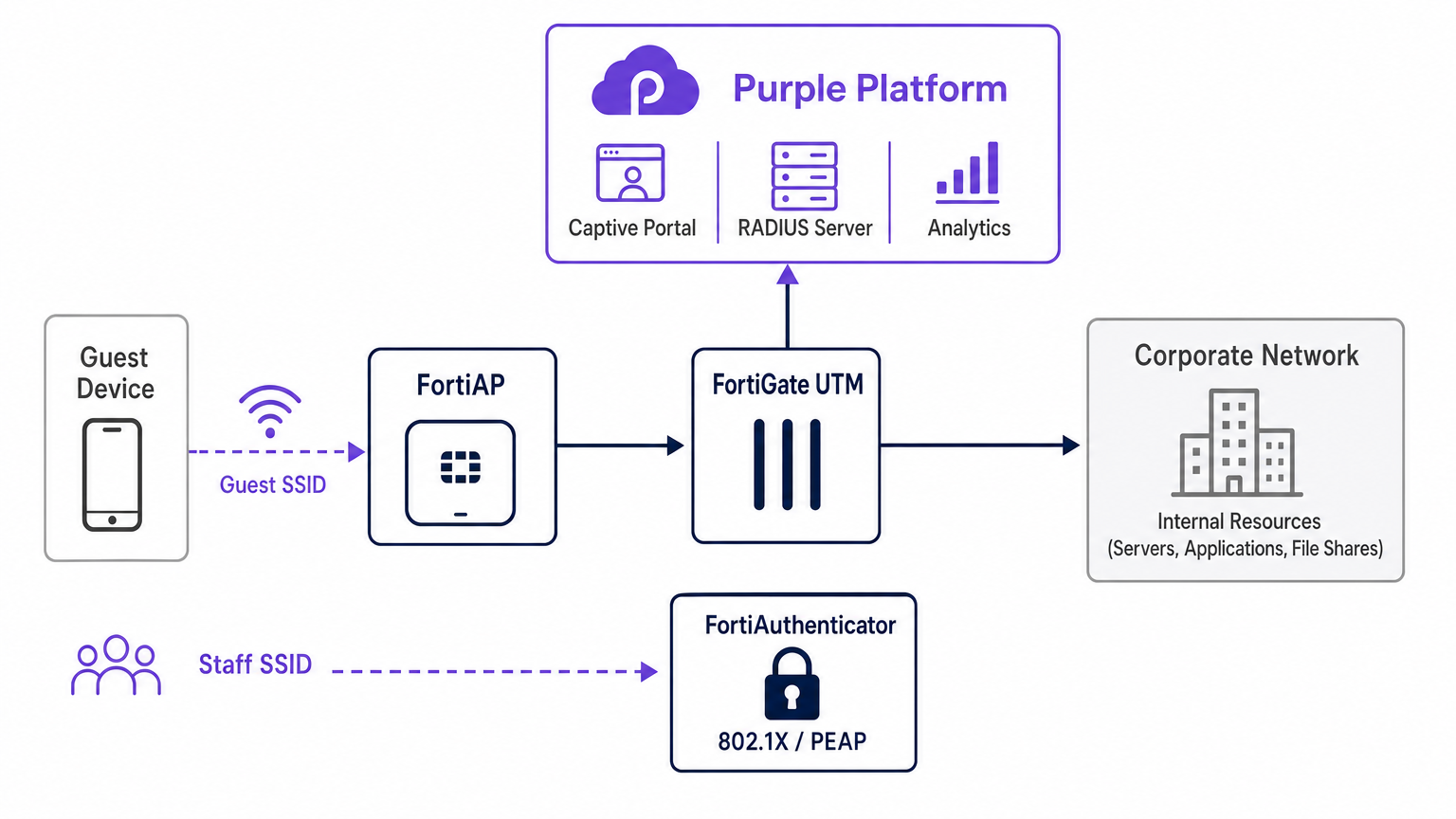
Die architektonische Integration zwischen Fortinet und Purple basiert auf Standard-RADIUS-Protokollen und HTTP-Umleitungsmechanismen. Wenn sich ein Gastgerät mit der dafür vorgesehenen offenen SSID verbindet, die von einem FortiAP ausgestrahlt wird, fängt die FortiGate die anfängliche HTTP/HTTPS-Anfrage ab. Anstatt ein lokales Captive Portal bereitzustellen, wird die FortiGate so konfiguriert, dass sie den Client auf die Cloud-gehostete Splash Page von Purple umleitet.
Während dieser Vorauthentifizierungsphase erzwingt die FortiGate einen Walled Garden – eine strikte Positivliste von IP-Adressen und Domains, die es dem Client-Gerät ermöglicht, die Captive Portal-Assets zu laden, soziale Logins durchzuführen und auf wesentliche Dienste (wie DNS) zuzugreifen, ohne vollen Internetzugang zu gewähren. Sobald sich der Benutzer auf dem Purple Portal authentifiziert hat, kommuniziert die Purple-Plattform über RADIUS Access-Accept-Nachrichten zurück an die FortiGate. Die FortiGate ändert dann den Sitzungsstatus des Clients von nicht authentifiziert zu authentifiziert und wendet die entsprechenden Firewall-Richtlinien nach der Authentifizierung an.
RADIUS-Koexistenz: Purple und FortiAuthenticator
Eine häufige architektonische Herausforderung in Fortinet-Umgebungen ist die Verwaltung des Gastzugangs neben der Mitarbeiterauthentifizierung, wenn bereits ein FortiAuthenticator (FAC) für die Unternehmensidentität eingesetzt wird. Der empfohlene Ansatz ist eine absolute SSID-Trennung. Mitarbeitergeräte verbinden sich mit einer sicheren SSID unter Verwendung von IEEE 802.1X – typischerweise PEAP oder EAP-TLS – und werden direkt gegen den FortiAuthenticator authentifiziert. Umgekehrt verbinden sich Gastgeräte mit einer offenen SSID, die für die Umleitung zu einem externen Captive Portal konfiguriert ist, und authentifizieren sich gegen die Cloud-RADIUS-Infrastruktur von Purple.
Diese Trennung stellt sicher, dass Gastidentitätsdaten – entscheidend für WiFi Analytics – vollständig innerhalb der Purple-Plattform verwaltet werden, während Unternehmens-Active Directory-Anmeldeinformationen sicher vom FortiAuthenticator vor Ort verarbeitet werden. Die FortiGate übernimmt das Routing und die Richtliniendurchsetzung für beide Datenströme unabhängig voneinander und gewährleistet so keine Überschneidungen zwischen dem Gast-VLAN und dem Unternehmens-VLAN. Diese Architektur erfüllt auch die PCI DSS-Anforderungen für die Netzwerksegmentierung, da der Gastverkehr physisch und logisch von jeder Zahlungsverarbeitungsinfrastruktur isoliert ist.
Implementierungsleitfaden
Die Bereitstellung der FortiAP Purple-Integration erfordert eine koordinierte Konfiguration sowohl im Purple Portal als auch in der Fortinet-Infrastruktur. Die folgenden Schritte beschreiben den kritischen Pfad für eine erfolgreiche Bereitstellung unter Verwendung des FortiCloud AP-Managements.
Schritt 1: Netzwerk- und RADIUS-Konfiguration
Beginnen Sie mit der Definition des Netzwerks im FortiCloud Dashboard. Navigieren Sie zu Konfigurieren > Mein RADIUS-Server und definieren Sie sowohl den Authentifizierungsserver (Port 1812) als auch den Accounting-Server (Port 1813) unter Verwendung der im Purple Portal bereitgestellten Anmeldeinformationen. Beide Server müssen konfiguriert werden – Accounting ist nicht optional. Purple verwendet RADIUS-Accounting-Daten, um das WiFi Analytics -Dashboard mit Metriken zur Sitzungsdauer, Bandbreitennutzung und Besucherfrequenz zu füllen. Stellen Sie das Accounting-Interim-Intervall auf 120 Sekunden ein, um Echtzeit-Sichtbarkeit zu gewährleisten.
Schritt 2: SSID- und Captive Portal-Definition
Erstellen Sie eine neue SSID, die dem Gastzugang gewidmet ist. Stellen Sie die Authentifizierungsmethode auf „Offen“ ein und aktivieren Sie die Captive Portal-Funktion, wobei Sie die Option für ein externes oder benutzerdefiniertes Portal auswählen. Sie müssen die eindeutige Zugriffs-URL und Umleitungs-URL eingeben, die auf dem Konfigurationsbildschirm des Purple Portals bereitgestellt werden.
Die Walled Garden-Konfiguration ist der sensibelste Schritt in der gesamten Bereitstellung. Sie müssen die umfassende Liste der erforderlichen Domains von Purple eingeben, um sicherzustellen, dass Social-Login-Anbieter (Facebook, Google, X) und wesentliche Portal-Assets vor der Authentifizierung korrekt geladen werden. Eine fehlerhafte Konfiguration des Walled Garden führt zu einem unterbrochenen Authentifizierungsfluss, da das Client-Gerät die erforderlichen externen Ressourcen nicht erreichen kann. Stellen Sie außerdem sicher, dass DNS-Verkehr (UDP-Port 53) in der Vorauthentifizierungsrichtlinie explizit zugelassen ist.
Schritt 3: IP-Zuweisung – NAT- vs. Bridge-Modus
Bei der Definition der SSID müssen Sie zwischen NAT-Modus und Bridge-Modus für die IP-Zuweisung wählen.
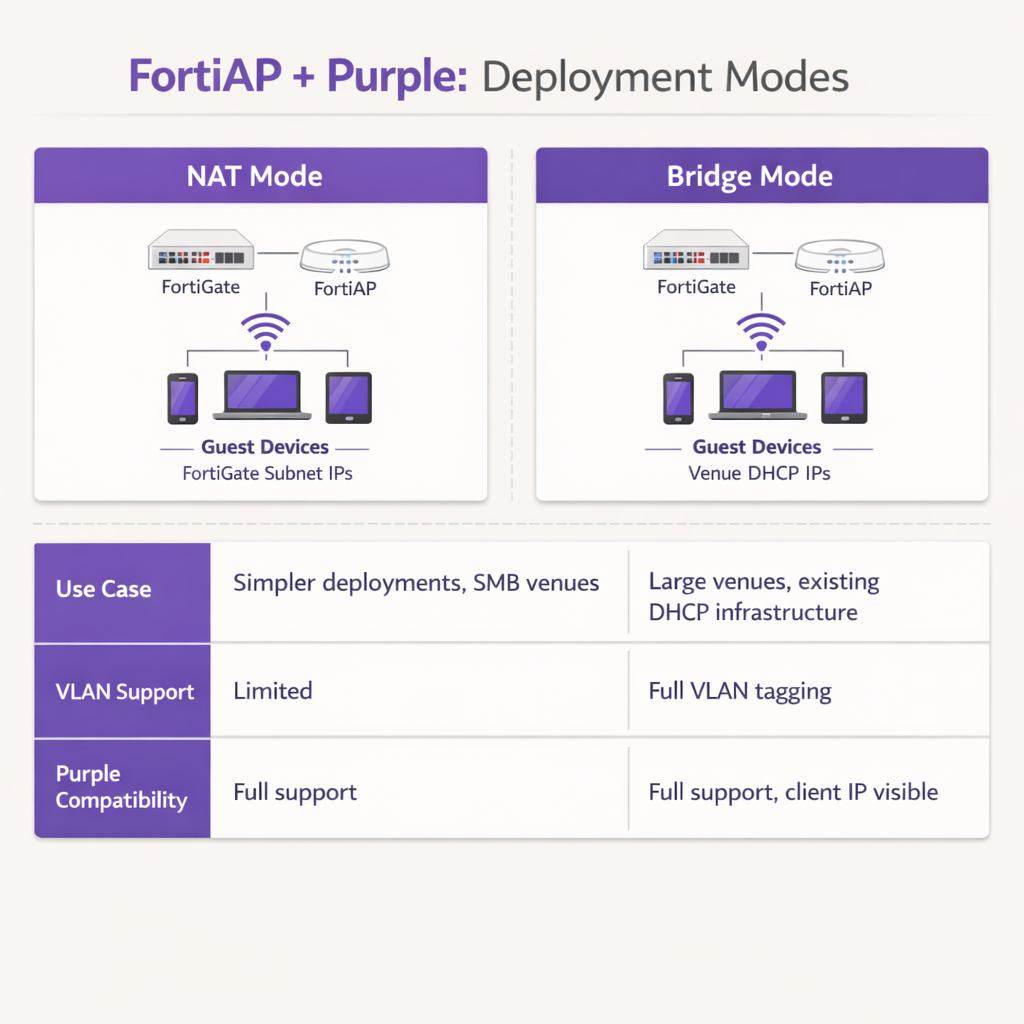
Im NAT-Modus stellt die FortiGate DHCP-Adressen für Gastgeräte aus einem dedizierten internen Subnetz bereit und übersetzt diese Adressen, wenn der Datenverkehr die Firewall verlässt. Dies ist für einfachere Bereitstellungen oder kleinere Retail Zweigstellenumgebungen, in denen die FortiGate das gesamte Gast-Subnetz verwaltet.
Im Bridge-Modus leitet der FortiAP den Gast-Traffic direkt auf ein bestimmtes VLAN weiter, wodurch ein externer DHCP-Server IP-Adressen zuweisen kann. Der Bridge-Modus wird dringend für Umgebungen mit hoher Dichte empfohlen, wie z.B. Gastgewerbe -Immobilien oder Verkehrs -Knotenpunkte, da er eine größere Flexibilität bei der IP-Adressverwaltung bietet, DHCP-Engpässe auf der FortiGate verhindert und der Purple Plattform ermöglicht, die wahre Client-IP-Adresse für detailliertere Analysen und Fehlerbehebung zu sehen.
Schritt 4: Firewall-Richtlinie nach der Authentifizierung
Sobald die Authentifizierung abgeschlossen ist, muss die FortiGate eine dedizierte Firewall-Richtlinie nach der Authentifizierung auf das Gast-VLAN anwenden. Diese Richtlinie sollte FortiGuard Web Filtering- und Application Control-Profile referenzieren, um Inhaltsbeschränkungen durchzusetzen und Peer-to-Peer-Traffic zu blockieren. Wenden Sie ein Traffic Shaper-Profil an, um Bandbreitenbegrenzungen durchzusetzen und zu verhindern, dass ein einzelner Gast den Uplink des Veranstaltungsortes überlastet. Stellen Sie sicher, dass die Richtlinie explizit alle RFC 1918 privaten IP-Adressziele blockiert, um zu verhindern, dass Gäste interne Netzwerkressourcen sondieren.
Best Practices
Bei der Architektur dieser Integration halten Sie sich an die folgenden branchenüblichen Empfehlungen, um Stabilität, Sicherheit und Compliance zu gewährleisten.
VLAN-Trennung ist obligatorisch: Setzen Sie niemals Gast-WiFi im selben VLAN wie Unternehmensressourcen oder Kassensysteme ein. Eine strikte VLAN-Kennzeichnung muss auf Switch-Port-Ebene durchgesetzt werden, um die PCI DSS-Compliance zu gewährleisten. Die FortiGate sollte aggressive Firewall-Richtlinien auf das Gast-VLAN anwenden, die alle RFC 1918 privaten IP-Adressziele blockieren, um laterale Bewegungen zu verhindern.
Sitzungs-Timer optimieren: Konfigurieren Sie die DHCP-Lease-Zeit und die RADIUS-Accounting-Interimsintervalle entsprechend. Eine DHCP-Lease-Zeit von 3600 Sekunden in Kombination mit einem Accounting-Interimsintervall von 120 Sekunden bietet ein optimales Gleichgewicht zwischen IP-Adressschonung und genauer Echtzeit-Analyseberichterstattung im Purple Dashboard.
Fortinet UTM-Funktionen nach der Authentifizierung nutzen: Der Hauptvorteil dieser Integration ist die Möglichkeit, die erweiterten Sicherheitsfunktionen von Fortinet auf den Gast-Traffic nach der Authentifizierung anzuwenden. Konfigurieren Sie die Firewall-Richtlinie nach der Authentifizierung so, dass FortiGuard Web Filtering und Application Control genutzt werden. Dies mindert das Risiko, dass Gäste die Bandbreite des Veranstaltungsortes für bösartige Aktivitäten, Torrenting oder den Zugriff auf unangemessene Inhalte nutzen, und schützt so den öffentlichen IP-Ruf und die Internet-Service-Vereinbarung des Veranstaltungsortes.
Öffentliche Zertifikate verwenden: Stellen Sie sicher, dass die FortiGate ein gültiges, öffentlich vertrauenswürdiges SSL/TLS-Zertifikat auf der Umleitungs-Schnittstelle präsentiert. Selbstsignierte Zertifikate lösen Sicherheitswarnungen auf modernen iOS- und Android-Geräten aus, was die Abbruchraten der Gäste am Portal erheblich erhöht.
Fehlerbehebung & Risikominderung
Auch bei sorgfältiger Konfiguration können Implementierungen auf Schwierigkeiten stoßen. Das Verständnis gängiger Fehlerursachen beschleunigt die Lösung erheblich.
Captive Portal lädt nicht: Wenn ein Gast sich verbindet, aber die Splash Page nicht erscheint, ist der häufigste Grund ein unvollständiger Walled Garden. Überprüfen Sie, ob alle erforderlichen Domains für Purple und alle konfigurierten Social Login-Anbieter in der Pre-Authentifizierungsrichtlinie explizit zugelassen sind. Stellen Sie sicher, dass die DNS-Auflösung für nicht authentifizierte Clients korrekt funktioniert; wenn der Client die Purple Portal-URL nicht auflösen kann, schlägt die Umleitung vollständig fehl.
RADIUS-Timeouts: Wenn das Portal lädt, die Authentifizierung jedoch durchgängig fehlschlägt, untersuchen Sie den RADIUS-Kommunikationspfad. Überprüfen Sie, ob die externe IP-Adresse der FortiGate in der Router-Konfiguration des Purple Portals korrekt registriert ist. Stellen Sie sicher, dass die Shared Secrets exakt übereinstimmen – eine einzige Zeichenabweichung führt zu stillen Authentifizierungsfehlern – und dass keine zwischengeschalteten Firewalls die UDP-Ports 1812 und 1813 zwischen der Fortinet-Infrastruktur und den Cloud-RADIUS-Servern von Purple blockieren.
Zertifikatsfehler: Moderne mobile Betriebssysteme reagieren während der Captive Portal-Abfangung sehr empfindlich auf SSL/TLS-Zertifikatsanomalien. Stellen Sie sicher, dass die FortiGate ein gültiges, öffentlich vertrauenswürdiges Zertifikat für die Umleitungs-Schnittstelle präsentiert und nicht ein selbstsigniertes Standardzertifikat. Dies verhindert alarmierende Sicherheitswarnungen, die Gäste davon abhalten, den Authentifizierungsfluss abzuschließen.
Lücken in der Sitzungsabrechnung: Wenn das Purple Analytics Dashboard unvollständige Sitzungsdaten oder fehlende Bandbreitenmetriken anzeigt, überprüfen Sie, ob der RADIUS-Accounting-Server (Port 1813) korrekt konfiguriert ist und ob das Accounting-Interimsintervall eingestellt ist. Accounting-Daten werden getrennt von der Authentifizierung gesendet und erfordern eine eigene Serverdefinition.
ROI & Geschäftsauswirkungen
Die Integration von Fortinet und Purple verwandelt ein Standard-Kosten-Center – Gast-WiFi – in einen messbaren Geschäftswert. Durch die Nutzung des Captive Portal von Purple erfassen Veranstaltungsorte verifizierte demografische Daten und Kontaktinformationen, was gezielte Marketingkampagnen, das Wachstum von Treueprogrammen und die erneute Kundenbindung nach dem Besuch ermöglicht. Für Veranstaltungsorte, die in den Bereichen Einzelhandel oder Gastgewerbe tätig sind, werden diese Erstanbieterdaten immer wertvoller, da die Abschaffung von Drittanbieter-Cookies traditionelle digitale Marketingkanäle einschränkt.
Für den IT-Betrieb reduziert die Auslagerung der Gast-Authentifizierung an den Cloud-RADIUS von Purple den administrativen Aufwand erheblich, der mit der Verwaltung lokaler Benutzerdatenbanken, dem Drucken physischer Voucher oder der Wartung einer lokalen RADIUS-Infrastruktur verbunden ist. Die Kombination aus Purple's nahtlosem Onboarding und Fortinet's robuster Traffic-Inspektion stellt sicher, dass der Veranstaltungsort ein leistungsstarkes, sicheres Interneterlebnis bietet und gleichzeitig durch WiFi Analytics umsetzbare Business Intelligence generiert. Diese Architektur ist hoch skalierbar und unterstützt alles von einem einzelnen Boutique-Hotel für einen verteilten Unternehmenscampus, der durch Marketing-Ermöglichung und operative Effizienz einen konsistenten ROI liefert.
Schlüsselbegriffe & Definitionen
External Captive Portal
A configuration where the network hardware (FortiGate/FortiAP) redirects unauthenticated user traffic to a splash page hosted on a third-party cloud server (Purple), rather than serving a page stored locally on the appliance.
IT teams use this to offload portal design, social login API maintenance, and GDPR consent capture to a specialized platform, reducing operational overhead on the network team.
Walled Garden
An explicit allowlist of IP addresses, domains, and subnets that a client device is permitted to access prior to successfully authenticating on the network.
Crucial for allowing devices to load captive portal graphics, process social media logins, and resolve DNS queries before they have full internet access. The most common source of captive portal failures when misconfigured.
RADIUS Accounting
The protocol mechanism utilizing UDP Port 1813 that tracks a user's session duration, bandwidth consumption, and data transfer volumes, reporting this data back to the RADIUS server.
Purple relies on accurate accounting data from the Fortinet hardware to populate analytics dashboards and enforce time or data limits on guest sessions. Must be configured separately from authentication.
FortiAuthenticator (FAC)
Fortinet's dedicated identity and access management appliance, used for internal staff 802.1X network authentication, single sign-on, and certificate management.
IT managers frequently need to ensure that deploying Purple for guests does not disrupt existing FAC infrastructure used by corporate employees. The answer is always SSID segregation.
Bridge Mode SSID
A wireless configuration where the access point acts as a transparent layer 2 bridge, passing client traffic directly onto a specific VLAN on the wired network rather than performing NAT.
Preferred in enterprise deployments as it allows existing core DHCP servers to manage IP addresses, prevents FortiGate DHCP bottlenecks, and exposes true client IPs to the Purple analytics platform.
Post-Authentication Policy
The firewall rules and Unified Threat Management (UTM) profiles applied to a user's traffic only after they have successfully authenticated via the captive portal.
This is where network architects apply web filtering, application control, and bandwidth shaping to protect the venue's network from malicious guest activity. Purple handles identity; FortiGate handles enforcement.
IEEE 802.1X
An IEEE Standard for port-based Network Access Control, providing a framework for authenticating devices wishing to attach to a LAN or WLAN using EAP methods such as PEAP or EAP-TLS.
Used for secure staff access via FortiAuthenticator, distinct from the open, portal-based authentication used for guests via Purple. The two authentication methods coexist on separate SSIDs.
RADIUS-as-a-Service
A cloud-hosted RADIUS infrastructure provided by Purple, eliminating the need for venues to deploy and maintain local RADIUS servers such as FreeRADIUS or Windows NPS.
Reduces infrastructure overhead for IT teams while ensuring high availability and seamless integration with the captive portal platform. Particularly valuable for distributed retail or hospitality deployments.
FortiGuard
Fortinet's cloud-based threat intelligence and content filtering subscription service, providing real-time web filtering, application control, and intrusion prevention signatures to FortiGate appliances.
Applied via post-authentication firewall policies to inspect and control guest internet traffic after Purple has authenticated the user, protecting the venue's network and IP reputation.
Fallstudien
A 200-room hotel currently uses a FortiGate 100F and FortiAPs. They use FortiAuthenticator for staff 802.1X authentication. They want to implement Purple WiFi for guests to capture marketing data, but the IT Director is concerned about the guest portal interfering with the existing staff authentication flow.
Deploy absolute SSID segregation. Maintain the existing Staff_WiFi SSID configured for WPA2-Enterprise, pointing to the FortiAuthenticator RADIUS server on Port 1812. Create a new, separate Guest_WiFi SSID configured as an Open network with External Captive Portal enabled. Configure the captive portal URL to point to Purple's splash page, and configure the RADIUS settings for this specific SSID to point to Purple's cloud RADIUS servers (Port 1812 for auth, Port 1813 for accounting). Map the Guest SSID to an isolated VLAN with a dedicated firewall policy. The FortiGate routes authentication requests based on the originating SSID, ensuring zero interference between the two authentication systems.
A retail chain is deploying FortiCloud APs across 50 locations. They want to use Purple WiFi for guest analytics. During testing at the first site, the guest connects to the WiFi, but their device displays a blank page or a connection timed out error instead of the Purple splash page.
The IT team must audit and update the Walled Garden configuration on the FortiCloud AP SSID settings. The FortiAP is currently blocking the client's HTTP/HTTPS requests to the Purple portal assets before authentication. The team must input the complete list of Purple's required domains — including CDN endpoints and social login provider domains — into the Walled Garden allowlist. They must also verify that the pre-authentication policy explicitly permits DNS traffic on UDP port 53, so the client device can resolve the portal hostname. Once corrected at the first site, this configuration should be templated and applied consistently across all 50 locations.
Szenarioanalyse
Q1. Your deployment requires guests to authenticate via a Purple splash page. You have configured the SSID, the RADIUS servers, and the redirect URL. However, when connecting, guest devices immediately report No Internet Connection and the portal fails to pop up automatically. What is the most likely configuration omission?
💡 Hinweis:Consider what network access a device requires before it has fully authenticated on the network.
Empfohlenen Ansatz anzeigen
The Walled Garden (pre-authentication allowlist) is likely incomplete or missing entirely. The device needs explicit permission to reach Purple's portal domains, social login APIs (Facebook, Google), and perform DNS resolution before the FortiGate grants full access. Without this, the device's Captive Portal Assistant cannot reach the target URL to trigger the pop-up. Additionally, verify that DNS traffic on UDP port 53 is permitted in the pre-authentication policy.
Q2. A stadium deployment anticipates 15,000 concurrent guest connections during events. The current design proposes using the FortiGate in NAT mode to provide DHCP to the guest SSID from a single /20 subnet. Why might this architectural decision create operational problems, and what is the recommended alternative?
💡 Hinweis:Consider the processing overhead on the FortiGate firewall and the implications of DHCP lease churn at high scale.
Empfohlenen Ansatz anzeigen
Using NAT mode places the entire DHCP processing burden on the FortiGate, which may struggle with the rapid lease churn of 15,000 transient devices connecting and disconnecting throughout an event. A single /20 subnet provides only 4,094 usable addresses, which may be insufficient for peak concurrent connections. Furthermore, NAT mode obscures the true client IP from the Purple platform, limiting analytical depth. The recommended approach is Bridge mode, dropping guest traffic onto a dedicated VLAN managed by a robust external enterprise DHCP infrastructure with appropriately sized address pools.
Q3. The CISO mandates that guest WiFi traffic must not consume more than 20% of the venue's total internet bandwidth, and guests must be prevented from accessing peer-to-peer file sharing networks. Where in the Fortinet-Purple architecture is this policy enforced, and what specific Fortinet features are required?
💡 Hinweis:Determine which component handles traffic inspection and policy enforcement after the user's identity has been verified by Purple.
Empfohlenen Ansatz anzeigen
This policy is enforced on the FortiGate UTM appliance via the Post-Authentication Firewall Policy applied to the guest VLAN. While Purple handles authentication and identity capture, the FortiGate remains responsible for Layer 7 traffic inspection and enforcement. The network team must configure a FortiGuard Application Control profile to block P2P categories (BitTorrent, eDonkey, etc.) and apply a Traffic Shaper profile to the guest policy to enforce the 20% bandwidth cap. Both profiles must be referenced in the post-authentication firewall policy, not the pre-authentication walled garden policy.