
How to deploy iPSK on Cisco Meraki, HPE Aruba and Ruckus
This hands-on reference guide shows how to deploy iPSK on Cisco Meraki, MPSK on HPE Aruba Central and DPSK on Ruckus SmartZone, with a short UniFi PPSK appendix. It focuses on key issuance, VLAN or policy placement, RADIUS decision flows and revocation tests that prove a deployment works in a live venue.
Video overview
Listen to this guide
View podcast transcript
Part of our core series: Multi-Family WiFi Guide →
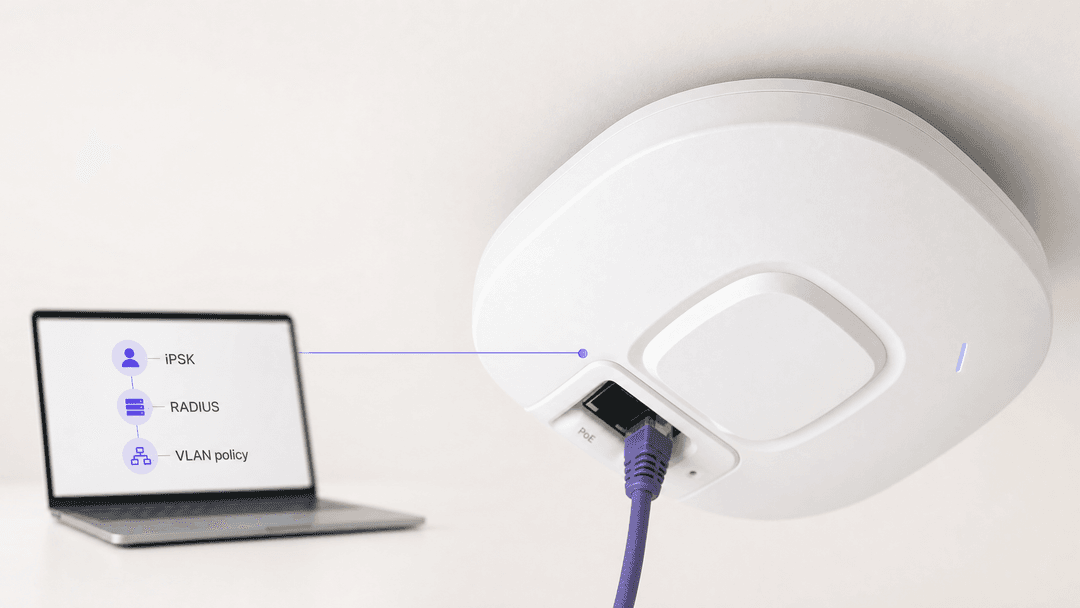
Cisco Meraki, HPE Aruba, and Ruckus each allow you to place different devices or groups on different policies without creating a separate SSID for each group. Configure a WPA2 Personal SSID, create or obtain a personal key, associate it with a VLAN or role, and then prove that deletion blocks new associations. 1 2 3
What does an iPSK deployment actually do?
An Identity Pre-Shared Key, or iPSK, provides a unique password to a device or group while maintaining a shared SSID. Vendors use different names for this. Cisco Meraki calls its RADIUS-backed option iPSK. HPE Aruba calls this Multi Pre-Shared Key, or MPSK. Ruckus calls this Dynamic PSK, or DPSK. Ubiquiti UniFi calls its local option Private Pre-Shared Key, or PPSK.
The practical result of this is controlled access on a single personal WiFi network. You can segregate a room device, resident device, or operational device without broadcasting a separate SSID for each use case. The control point varies by platform. Cisco Meraki can obtain key and VLAN overrides through RADIUS. HPE Aruba retrieves encrypted passphrases and authorization information from ClearPass. Ruckus can place a DPSK directly into a user role or VLAN. UniFi PPSK maps passwords to VLANs locally. 1 2 3 4
This is not an alternative to 802.1X. IEEE 802.1X provides port-based network access control, whereas iPSK is suitable for devices that require a shared SSID and personal-key access. 5
| Platform | Credential Control Plane | Supported Policy or VLAN Association via Stated Workflow | Key Design Constraint |
|---|---|---|---|
| Cisco Meraki | External RADIUS | Bridge-mode SSID with RADIUS VLAN override, plus Dashboard Group Policy | iPSK with RADIUS does not support WPA3, and it cannot operate on an SSID tunneled to an MX Concentrator. 1 |
| HPE Aruba | ClearPass Policy Manager | ClearPass Access-Accept includes authorization information and Aruba MPSK passphrase attribute | MPSK uses WPA2-PSK-AES and is mutually exclusive with manual MAC authentication. 2 |
| Ruckus SmartZone | SmartZone Dynamic PSK Store | User role and VLAN ID selected during DPSK creation | Operational ownership of bound, unbound, and group keys varies. 3 |
| Ubiquiti UniFi | UniFi Network Configuration | One PPSK password for each configured VLAN | PPSK is WPA2 only and does not work on the 6 GHz band. 4 |
What do you need before you begin?
Start with a forwarding design rather than the dashboard. Create target VLANs and ensure that any VLAN that can return an SSID is active on each AP uplink. Choose policy outcomes that operators can explain, such as resident, building operations, room device, and test. Decide whether keys will be per-device or by controlled group. Per-device keys allow precise revocation, while group keys reduce troubleshooting effort but increase the impact of a leak. 3 For a RADIUS-backed design, register the access points or their management subnet as RADIUS clients. Use the same shared secret on the access points and the RADIUS server. Cisco Meraki documents this relationship in its RADIUS server configuration. Keep the secret code in your approved secrets store and set a designated owner for each key population. 1
Record the SSID, policy outcome, key source, test device MAC address, and revocation result where applicable. MAC randomization can complicate MAC-bound workflows, which is cited by Cisco Meraki as a reason for Easy PSK. 1
How do you configure Cisco Meraki iPSK with RADIUS?
Use Cisco Meraki iPSK with RADIUS when you require centralized control. In the dashboard, open Wireless > Configure > Access control, select the target SSID, and choose Identity PSK with RADIUS. Set the splash page to None (Direct access), then add the RADIUS server details. Cisco Meraki's guide includes current screens and examples. 1
For MAC-based workflows, your RADIUS record binds the client MAC address and PSK via Tunnel-Password. In Easy PSK, the AP provides Meraki vendor-specific handshake attributes; RADIUS finds the iPSK and sends an Access-Accept, after which the AP restarts the key handshake. 1
Configure bridge mode where you require per-device VLAN placement. Set the default SSID VLAN under Client IP and VLAN, then enable the documented RADIUS override so that an Access-Accept can replace that default VLAN tag. If you also require firewall, traffic-shaping, or other dashboard policies, create a matching dashboard group policy under Network-wide > Configure > Group Policies. Cisco Meraki's validation sequence is to connect a test device, check the RADIUS live logs, and inspect the client in the dashboard. 1
Cisco Meraki does not support this iPSK with RADIUS capability on WPA3 or on SSIDs tunneled to an MX Concentrator. Confirm both before starting a pilot project. 1
How do you configure HPE Aruba MPSK in Aruba Central?
Use HPE Aruba MPSK with ClearPass when you require ClearPass to issue device-specific or group-specific passphrases and authorization decisions. The documented path in Aruba Central is Manage > Devices > Access Points > Config > WLANs. Add an SSID or edit an existing SSID, open Security, select Personal, select MPSK-AES under key management, select ClearPass Policy Manager as the primary server, and save. 2
The documented flow is straightforward. A device registers and receives a passphrase. It connects with WPA2-PSK-AES. The AP performs MAC authentication against ClearPass. ClearPass returns an Access-Accept with authorization information and the Aruba-MPSK-Passphrase vendor-specific attribute. The AP generates the PSK and completes the four-way key exchange. An incorrect passphrase or Access-Reject prevents connection. 2
Do not manually enable MAC authentication on the WLAN just because the flow includes a MAC lookup. Aruba states that MPSK and manual MAC authentication are mutually exclusive. It also notes that MPSK is mutually exclusive with blacklisting and internal RADIUS servers. Consider those restrictions as design review checkpoints before changing production profiles. 2
Plan revocation based on cache. Aruba's documentation states that the AP stores the MPSK passphrase in a local cache for roaming and can bypass MAC authentication when it finds a matching entry. Therefore, simply deleting a registration or changing a policy is not sufficient proof. Your acceptance test must include a new association after the cached state has stopped allowing the old credential. Use current Aruba and ClearPass operating documents to define cache-clearing or expiration processes for your release. 2
How do you generate Ruckus DPSK keys on SmartZone?
Use Ruckus DPSK when SmartZone is your operational control point and you want the controller to generate and revoke keys. First, ensure the WLAN is DPSK-enabled. Then go to Security > Access Control > Dynamic PSK and select Generate DPSKs. Select the WLAN, choose the number of keys, then enter or generate a username and passphrase. Select a user role, set the VLAN ID, and choose whether the key is a group DPSK. 3
Choose the DPSK type carefully. An unbound key is bound at first use, a group key can serve multiple devices, and a bound key can be imported by MAC address using a CSV. 3
Ruckus links the selected user role to the role's attributes and permissions, which include VLAN, UTP, and time restrictions. You can also set the VLAN ID during key creation. This allows you to use a consistent SSID while keeping the access control decision tied to the DPSK record or its role. 3
For revocation, select the DPSK in the Dynamic PSK list and use Delete. Test deletion with the same device used to issue the key. Forget the SSID or disconnect it, then attempt a new connection using the removed key. Record a denied join as a pass condition. Do not declare success based solely on the key's absence from the controller list. 3
How does RADIUS map a key to a VLAN or policy?
RADIUS does not make every vendor work the same way. It carries the authentication and authorization decision. The AP or controller determines which returned attributes they support. RFC 4675 describes RADIUS attributes for dynamic VLAN assignment in IEEE 802 networks and notes that a wireless network device can treat a security association as a virtual port. 6
| Phase | Cisco Meraki iPSK with RADIUS | HPE Aruba MPSK | Ruckus DPSK | What you must verify |
|---|---|---|---|---|
| Device initiates association | Client presents its configured PSK; AP forwards documented iPSK material to RADIUS. 1 | Client associates with MPSK passphrase. 2 | Client associates with DPSK-enabled WLAN. 3 | Correct SSID and current key are used. |
| Authorization lookup | RADIUS matches key flow and returns Access-Accept with key information. 1 | ClearPass returns Access-Accept with authorization information and MPSK passphrase VSA. 2 | SmartZone reads DPSK record and selected role or VLAN. 3 | Lookup source identifies device or key group. |
| Access outcome | RADIUS override can replace SSID default VLAN tag; Dashboard group policy can apply additional controls. 1 | Aruba documents authorization information from ClearPass. Create and verify your ClearPass policy independently. 2 | User role transfers its permissions, which include VLAN; VLAN can also be selected at key generation. 3 | Device receives expected subnet and policy. |
| Negative outcome | Absence of valid RADIUS acceptance means no successful iPSK association. 1 | Incorrect passphrase or Access-Reject fails authentication. 2 | Delete DPSK, then test new association. 3 | Logs show denial, not just client-side error. |
For Cisco Meraki, test both the default VLAN and RADIUS-override outcomes, then place the returned VLAN and AP trunk configuration in a change record. For Aruba, prove the ClearPass policy outcome in your own environment. For Ruckus, keep the role or VLAN selected during DPSK generation compatible with the switch and gateway design. 1 2 3
Got questions about your specific setup?
Our team works with venue operators, IT managers, and network engineers across 80,000 venues. Book a 20-minute call and we will show you how others like you solved it.
How do you test whether key revocation works?
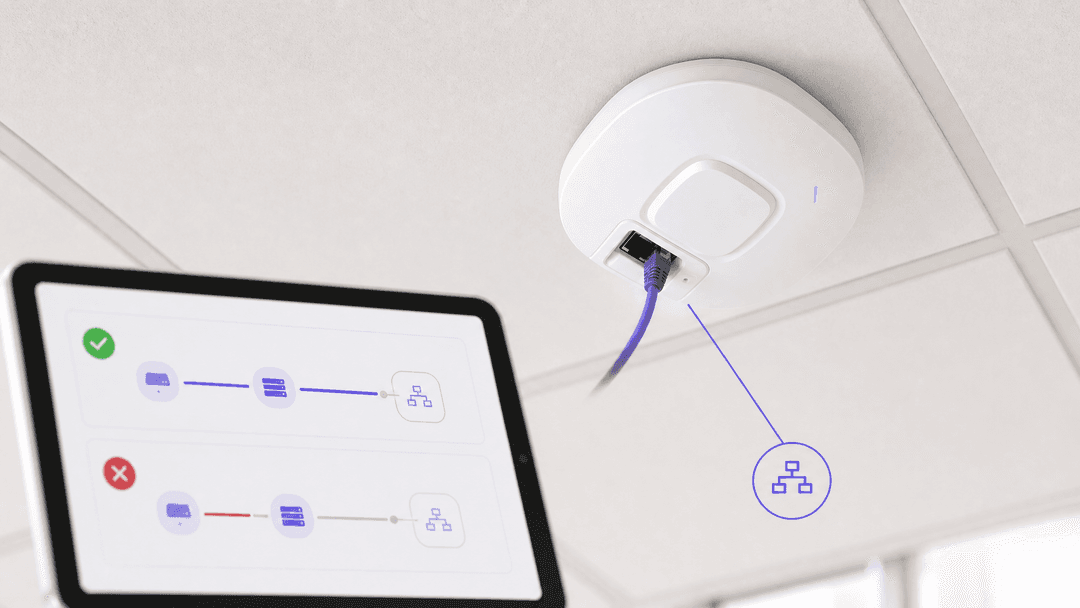
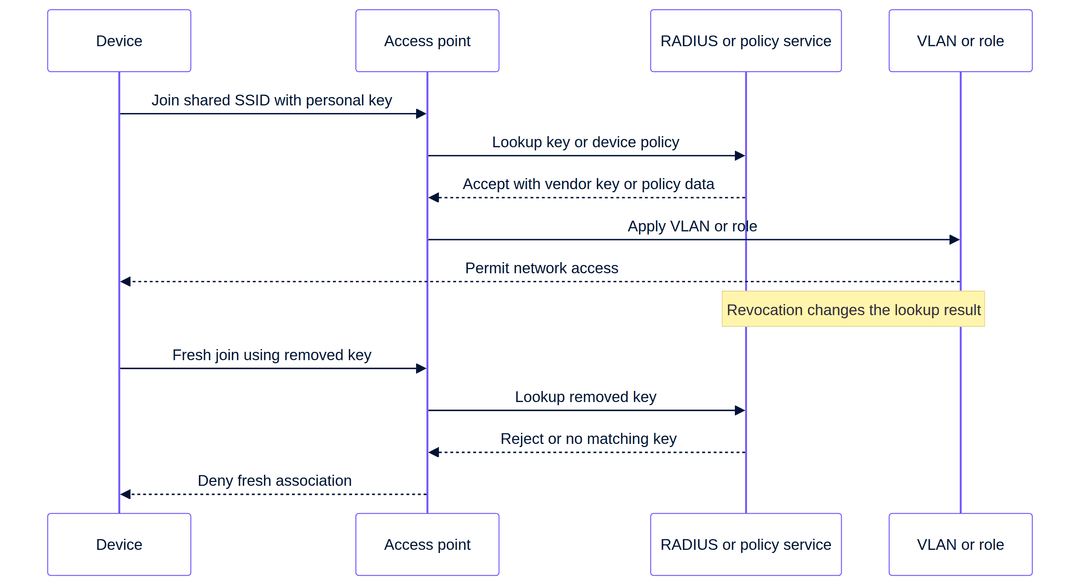
Include revocation in the very first deployment. You are testing the operational response to a lost local device, an offboarded contractor, or an incorrectly issued key. The success condition is not "we deleted the record". The success condition is "the device cannot complete a new association with the removed key, and the logs identify the reason".
Start with a positive test. Connect a test device using the issued key. Capture the controller or RADIUS acceptance event, the assigned client policy, and the network segment observed by the device. For Cisco Meraki, check the Dashboard client details and your RADIUS logs. For Ruckus, capture the DPSK record, role or VLAN, and association outcome. For Aruba, capture the ClearPass outcome as well as the AP outcome. 1 2 3
Then revoke the key from its source of truth. Remove or deny the corresponding Cisco Meraki RADIUS mapping. Remove the ClearPass registration or authorization that provides the Aruba MPSK decision. Delete the Ruckus DPSK. For UniFi PPSK, remove the password-to-VLAN mapping in the current UniFi configuration and validate it according to current UniFi documentation before using the workflow in a production environment. 1 2 3 4 Force a new association. Disable and re-enable WiFi or forget the SSID, then attempt to rejoin with the old key. Check the exact logs. For Aruba, additional caching must be considered because a cached MPSK can bypass a new MAC authentication lookup. A new test that uses a cached state does not demonstrate timely revocation. 2
Finally, test a nearby unaffected key on the same SSID. It should still join and receive its intended policy. This catches over-broad changes in the WLAN, RADIUS client registration, or switch trunks. Record the time from revocation to failed new association. That measurement tells venue operations what the joiners, movers, and leavers process can actually promise.
What goes wrong, and how do you fix it?
| Symptom | Potential Configuration Area | First Check |
|---|---|---|
| Client never joins with Cisco Meraki key | SSID mode or RADIUS return | Confirm Identity PSK with RADIUS, direct access, RADIUS reachability, and expected RADIUS outcome. 1 |
| Client joins but lands on incorrect Cisco Meraki subnet | VLAN override or AP uplink | Compare default SSID VLAN, RADIUS override outcome, and AP trunk allowance. 1 |
| Aruba MPSK join fails after profile edit | Unsupported combination | Confirm WPA2-PSK-AES, ClearPass as primary server, and no manual MAC authentication, blacklisting, or internal RADIUS combination. 2 |
| Aruba revocation appears slow | Roaming cache | Establish whether the AP used the documented local MPSK cache before declaring the design faulty. 2 |
| Ruckus key is shared unexpectedly | DPSK type | Review whether a group DPSK was selected instead of a key intended to be bound. 3 |
| UniFi PPSK missing from 6 GHz design | Security mode and band | PPSK is WPA2 only and does not work on 6 GHz. Use the cited UniFi guidance to redesign the access method. 4 |
Where does iPSK fit in Multi-Family WiFi design?
iPSK is an access-control pattern, not an entire WiFi operating model. It fits in Multi-Family WiFi where residents, building systems, and staff devices require different access decisions. Pair it with Guest WiFi for visitors. For building contract decisions, see Bulk internet agreement vs managed WiFi: which model fits your building.
This pattern applies in Hospitality, Retail, Transportation, and Healthcare. Purple can deliver its hardware-agnostic cloud overlay on Cisco Meraki, HPE Aruba, Ruckus, or Ubiquiti UniFi infrastructure. See Guest WiFi Management: Smart Authentication & Segmentation and Cloud WiFi Management: Secure Enterprise Connectivity 2026 for broader context.
Detailed example: In-room hotel devices and building operations
A 200-room hotel requires an operational SSID for in-room devices and a separate building operations segment, without creating a separate SSID for each device category. Network architects select Cisco Meraki iPSK with RADIUS in bridge mode. The RADIUS design contains a key record and desired VLAN decision for each device category. The SSID has a default VLAN, and only defined RADIUS responses can override it. 1
The measurable acceptance set is discrete. A test room device must connect with its issued key and receive the room-device segment. A building operations device must receive the operations segment. A key removed from the RADIUS store must fail a new association. Another valid key must still be able to connect. This proves that access, segmentation, and revocation processes work together rather than as isolated demonstrations.
Detailed example: Stadium operations and temporary event devices
A stadium uses Ruckus SmartZone for temporary event teams that require controlled access during setup. Engineers generate unbound DPSKs for single-device handovers and independently controlled group DPSKs for shared equipment. SmartZone contains clear role or VLAN options for each key. 3
The measurable outcome is the join matrix. A key that binds after first use must not grant access to an unplanned second device. A group key must land each authorized device on its intended VLAN. Once the event concludes, removing the key must prevent a new association by the original test device. This gives venue operations repeatable issue-and-revoke control without SSID sprawl.
Frequently asked questions
Can I deploy iPSK on existing Cisco Meraki access points?
Yes, Cisco Meraki documents iPSK with RADIUS on its wireless access-control configuration, subject to its stated feature limits. You configure the SSID, RADIUS servers, and bridge-mode VLAN overrides where required in the Dashboard. Ensure the SSID is not tunneled to an MX Concentrator, and do not plan for WPA3 with the documented iPSK with RADIUS workflow. 1
Is ClearPass required for HPE Aruba Central MPSK?
Yes, the stated HPE Aruba Central MPSK workflow selects ClearPass Policy Manager as the primary server. ClearPass provides device-specific or group-specific passphrases and returns documented Access-Accept authorization information. Check the combinations excluded by Aruba before rollout, specifically manual MAC authentication, denylisting, and internal RADIUS servers. 2
Can Ruckus DPSK place a device on a separate VLAN?
Yes, Ruckus SmartZone allows you to select a VLAN ID when generating a DPSK and allows you to assign a user role whose permissions include a VLAN. You must still ensure the WLAN, AP uplinks, switches, and gateways carry that segment. Create and test a key for each desired policy outcome before issuing keys at venue scale. 3
Are Ubiquiti UniFi Private PSK and RADIUS-assigned VLANs the same?
No, UniFi describes PPSK and RADIUS-assigned VLANs as separate options. PPSK maps passwords on a shared SSID to a VLAN. RADIUS-assigned VLANs use unique profiles and require WPA2 Enterprise or WPA3 Enterprise. UniFi PPSK is WPA2 only and does not work on the 6 GHz band. 4
How much effort is required for an iPSK deployment?
A pilot requires a defined SSID, target VLANs, an access control source, AP-to-RADIUS connectivity at relevant locations, and a revocation test. Effort scales with the number of key owners and policy outcomes, not the number of SSIDs. Start with two policies and a few devices, then document the issuance, support, and offboarding steps before a broader rollout.
Can iPSK help with GDPR or PCI-DSS compliance?
iPSK can support segmentation and access control design, but it does not certify compliance. CCPA/CPRA requires appropriate technical and organizational security measures. PCI-DSS provides technical and operational requirements to secure account data. Evaluate your actual data flows, logging, retention, access rights, and payment environment with your relevant compliance owner. 7 8
What should I test before issuing keys to residents or staff?
Test one permitted join, the expected VLAN or policy outcome, a denied join with a removed key, and one unaffected key on the same SSID. Capture controller and RADIUS or ClearPass evidence for each test. Aruba deployments must also consider the documented MPSK cache, as a cached passphrase can alter what is proven by an immediate retry. 1 2 3
References
Key Definitions
iPSK
A distinct pre-shared key used on a shared SSID, enabling an access decision per device or group.
Use it when devices need simpler onboarding than enterprise credentials but you still need traceable issue and revocation.
MPSK
HPE Aruba’s Multi Pre-Shared Key capability, documented with ClearPass-issued device-specific or group-specific passphrases.
Use it in an Aruba Central and ClearPass design that needs personal-key access control.
DPSK
Ruckus Dynamic PSK, created and managed in SmartZone for a DPSK-enabled WLAN.
Use it when SmartZone is the control point for issuing, binding and deleting keys.
PPSK
Ubiquiti UniFi Private Pre-Shared Keys, which map a password to a VLAN on a shared SSID.
Use it for UniFi local VLAN segmentation within the documented WPA2 and band constraints.
RADIUS
A protocol and service model for authentication, authorization and accounting decisions between an access point and a policy service.
Use it where the platform documents a RADIUS-backed iPSK or MPSK workflow and you need central control.
VLAN
A logical network segment that separates broadcast domains and can be assigned as part of an access decision.
Use it to keep resident, guest, operational and device traffic on distinct policy paths.
RADIUS Access-Accept
The success response from a RADIUS server, which may include vendor-specific key or authorization information.
Inspect it when troubleshooting why a device joined, which policy it received or why a VLAN outcome changed.
RADIUS override
A platform capability that lets a successful RADIUS response replace an SSID’s default VLAN tag.
Use it on supported Cisco Meraki bridge-mode designs when central policy should control the client VLAN.
Four-way key handshake
The WPA key-establishment exchange used after association to establish traffic protection keys.
It explains why a correct personal key and accepted policy result are both needed before a client can use the network.
Revocation test
A controlled fresh-association test showing that a removed or denied key no longer permits network access.
Run it before wider rollout and after any access-control change to prove the joiners, movers and leavers process.
Worked Examples
A 200-room hotel needs room devices and building operations on one SSID with separate network segments.
Configure Cisco Meraki iPSK with RADIUS in bridge mode. Maintain a RADIUS record and intended VLAN decision for each device category, set a default SSID VLAN and enable the documented RADIUS override. Validate a room-device join, an operations-device join, a revoked-key denial and an unaffected-key connection. [1]
A stadium needs controlled access for temporary event devices without creating multiple operational SSIDs.
In Ruckus SmartZone, generate unbound DPSKs for controlled single-device handover and a governed group DPSK for shared equipment. Assign the intended role or VLAN at generation. Validate that a newly bound key rejects an unplanned second device, the group key receives its policy and deletion blocks a fresh join after teardown. [3]
Sources
- Cisco Meraki: iPSK with RADIUS authentication
- HPE Aruba: Support for MPSK in WLAN SSID
- Ruckus SmartZone: Generating Dynamic PSKs
- Ubiquiti UniFi: PPSK and RADIUS for multiple VLANs
- RFC 3580: IEEE 802.1X RADIUS usage guidelines
- RFC 4675: RADIUS attributes for VLAN and priority support
- EUR-Lex: General Data Protection Regulation
- PCI Security Standards Council: PCI Data Security Standard
Continue reading in this series
Bulk internet agreement vs managed WiFi: which model fits your building
A practical procurement reference for property, IT and operations leaders comparing resident-paid retail broadband, a bulk internet agreement and managed WiFi. It clarifies ownership, resident move-in, security, cost scope and contractual exit, using US bulk-internet framing and UK equivalents.
Apartment WiFi solutions: a comprehensive guide for businesses
This guide covers the architecture, deployment, and business case for apartment WiFi solutions in Build to Rent and multi-dwelling unit properties. It explains how Identity Pre-Shared Key (iPSK) technology creates secure, isolated network bubbles for each resident while supporting smart devices and IoT. Property developers, landlords, and BTR operators will find actionable deployment guidance, ROI data, and worked implementation scenarios.
Cox business managed WiFi: a comprehensive guide for businesses
This guide details how property developers and BTR operators can deploy scalable, secure networks using Cox Business managed WiFi. It covers network architecture, vendor-neutral hardware deployment, and the business impact of transitioning connectivity from an operational headache to reliable infrastructure.
Got questions about your specific setup?
Our team works with venue operators, IT managers, and network engineers across 80,000 venues. Book a 20-minute call and we will show you how others like you solved it.