
如何使用 Microsoft Intune 將 WiFi 憑證推送至裝置
一份針對 IT 主管的完整技術參考指南,介紹如何透過 Microsoft Intune 部署 802.1X WiFi 憑證。內容涵蓋 SCEP 與 PKCS 架構比較、實作步驟、合規性對應,以及企業環境中的實際部署情境。
收聽此指南
查看播客逐字稿
核心系列的一部分:Enterprise WiFi Security Guide →
Microsoft Intune WiFi certificate profile and architecture advisor
Model your enterprise 802.1X certificate deployment. Compare SCEP vs PKCS vs Microsoft Cloud PKI, validate OS-specific key storage parameters, eliminate group targeting conflicts (error 0x87D1FDE8), and generate deployment profiles.
Certificate Enrollment Specifications
- Protocol: Simple Certificate Enrollment Protocol (RFC 8894)
- Key Security: Generated on client device (TPM / Secure Enclave) - never leaves endpoint
- Key Length: RSA 2048-bit (SHA-256 Signature Hash)
- Hardware Provider: TPM KSP (Microsoft Platform Crypto Provider) if present, fallback to Software KSP
- Subject Name Format:
CN={{UserName}},OU=WiFi Users,DC=corp,DC=internal - Subject Alternative Name (SAN):
User Principal Name (UPN) = {{UserPrincipalName}} - Renewal Threshold: 20% (Trigger certificate renewal at 80% of validity period)
AAA & RADIUS Integration Details
- RADIUS Engine: Purple Cloud RADIUS (Recommended)
- Architecture Mode: 100% Cloud Native AAA
- RadSec (RFC 6614): Supported (Encrypted TLS Tunnel)
- Directory Lookup: Direct REST API integration with Microsoft Entra ID for dynamic role mapping & group sync
- CRL & OCSP Validation: Real-time OCSP & Automated CRL distribution point polling
- Operating System Best Practice: Configure Identity Certificate reference in WiFi profile to avoid manual user certificate prompts.
Remove on-premises NPS and NDES with Purple Cloud RADIUS
Authenticate Microsoft Entra ID and Intune-enrolled devices natively with zero on-premises servers. Get dynamic role-based VLAN steering, RadSec encryption, and automated certificate revocation.
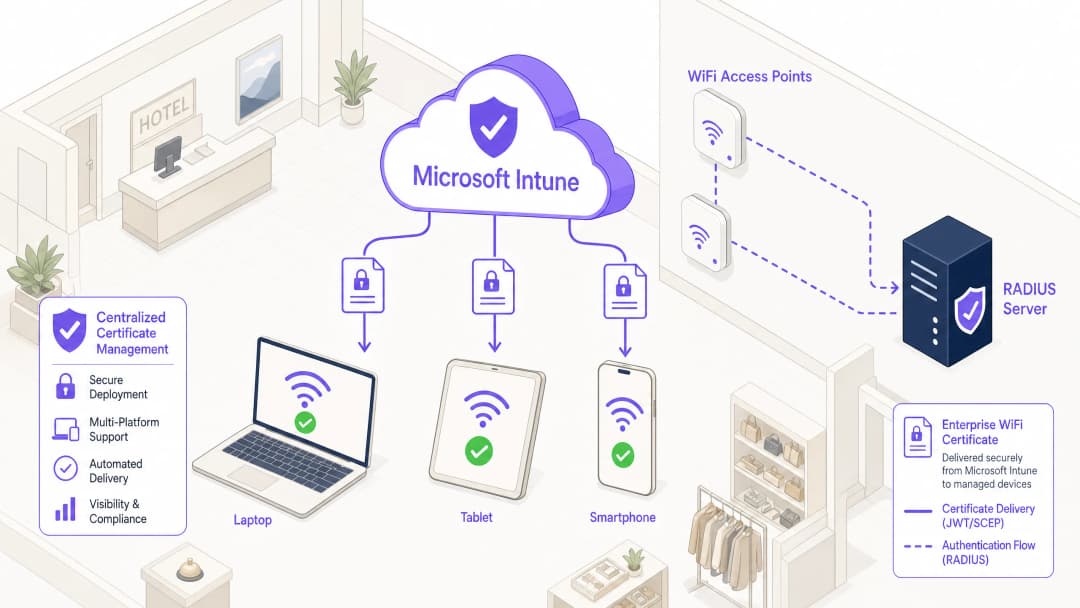
執行摘要
對於管理 旅宿業、零售業 或公共場所等大規模環境的企業 IT 領導者而言,安全的無線存取是一項基本的營運要求。仰賴共享的 PSK(預共用金鑰)或帳號/密碼驗證(PEAP-MSCHAPv2)會使網路面臨憑證遭竊、網路釣魚和合規性失效的風險。強大企業 WiFi 安全性的業界標準是採用 EAP-TLS(可延伸驗證協定傳輸層安全性)的 802.1X,這要求裝置與網路之間必須進行相互憑證驗證。
然而,以往採用 EAP-TLS 的主要障礙在於憑證生命週期管理的營運開銷。Microsoft Intune 透過自動化大規模向託管裝置派送、更新和撤銷數位憑證,解決了這個問題。
本技術文件詳細說明了透過 Microsoft Intune 推送 WiFi 憑證所需的架構、部署方法(SCEP 與 PKCS)以及實作步驟。它為網路架構師和系統工程師提供了具體可行的指引,協助其在確保企業通訊安全的同時,與訪客網路(例如由 Guest WiFi 平台管理的網路)保持嚴格隔離。
技術深入探討:架構與協定
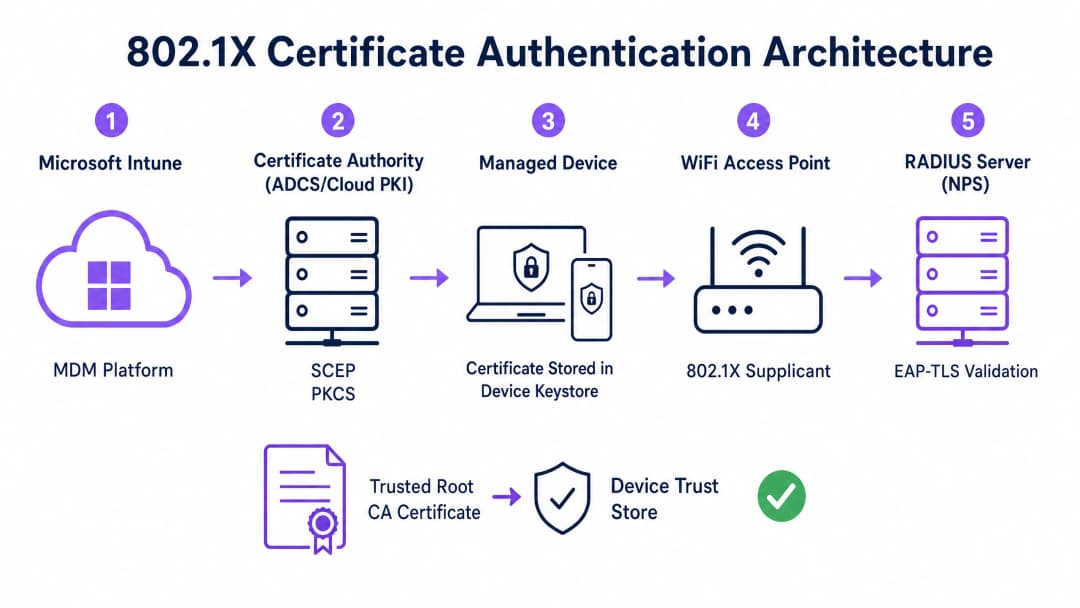
若要有效實作憑證架構的驗證,IT 團隊必須瞭解行動裝置管理(MDM)平台、公開金鑰基礎建設(PKI)與網路存取控制層之間的互動。
802.1X 驗證框架
IEEE 802.1X 標準定義了基於連接埠的網路存取控制。在無線環境中,它會阻止裝置傳輸任何流量(EAP 驗證框架除外),直到其身份得到驗證。該架構由三個元件組成:
- Supplicant(用戶端):請求網路存取的用戶端裝置(筆記型電腦、智慧型手機、平板電腦)。
- Authenticator(驗證器):在驗證成功前阻擋流量的無線存取點或無線區域網路控制器。
- Authentication Server(驗證伺服器):RADIUS(遠端使用者撥入驗證服務)伺服器(例如 Microsoft 網路原則伺服器 (NPS) 或 Cisco ISE),用於驗證憑證並授權存取。
EAP-TLS 與雙向驗證
EAP-TLS 是最安全的 EAP 方法,因為它需要雙向驗證。RADIUS 伺服器會向請求端出示其憑證以證明其為合法的企業網路(防止邪惡雙生攻擊),而請求端則向 RADIUS 伺服器出示其用戶端憑證以證明其為已授權的裝置或使用者。
Intune 憑證部署機制:SCEP 與 PKCS
Microsoft Intune 支援兩種用於向裝置部署用戶端憑證的主要協定。選擇合適的機制是一項關鍵的架構決策。
簡易憑證登錄協定 (SCEP)
使用 SCEP 時,私鑰會直接在用戶端裝置上產生。裝置會建立憑證簽署要求 (CSR),並透過 Intune 提交至網路裝置登錄服務 (NDES) 伺服器,該伺服器作為 Active Directory 憑證服務 (ADCS) 基礎架構的 Proxy。憑證授權單位 (CA) 會核發憑證,並將其傳回給裝置。
由於私鑰絕不會離開裝置,因此 SCEP 被視為高度安全,是 BYOD(攜帶自有裝置)部署與零信任架構的推薦方法。
公鑰密碼學標準 (PKCS)
使用 PKCS 時,Intune Certificate Connector 會代表裝置向 CA 要求憑證。CA 會產生公開憑證與私鑰,然後 Connector 會透過 Intune 將其安全地傳遞至裝置。
雖然 PKCS 簡化了基礎架構需求(不需要 NDES 伺服器),但私鑰會在網路中傳輸。此模式通常適用於公司擁有且完全受控的裝置群,在這些裝置群中,MDM 平台已經是高度受信任的元件。

對於您的特定設置有任何疑問嗎?
我們的團隊與超過 80,000 個場域的場域營運商、IT 經理和網路工程師合作。立即預約 20 分鐘的通話,我們將向您展示其他與您相似的用戶是如何解決此問題的。
實作指南:逐步部署步驟
透過 Intune 部署 WiFi 憑證需要精確的順序。未按順序部署設定檔是實作失敗最常見的原因。
步驟 1:準備公鑰基礎架構 (PKI)
無論是使用內部部署 ADCS 還是 Microsoft Cloud PKI 等雲端原生解決方案,憑證授權單位都必須設定適當的範本。
- 金鑰用途:範本必須包含「用戶端驗證」OID (1.3.6.1.5.5.7.3.2)。
- 金鑰大小:設定至少 2048 位元 (RSA) 的金鑰大小,以符合現代加密標準。
- 主體名稱:對於使用者憑證,主體別名 (SAN) 應設定為使用使用者主體名稱 (UPN)。對於裝置憑證,請使用 Azure AD 裝置 ID。
步驟 2:部署信任的根憑證
在裝置可以進行驗證之前,它必須信任核發 RADIUS 伺服器憑證的 CA。
- 以
.cer格式匯出根 CA 憑證(以及任何中介 CA 憑證)。 - 在 Intune 系統管理中心,導覽至 裝置 > 組態設定檔 > 建立設定檔。
- 選取平台並選擇 信任的憑證 設定檔類型。
- 上傳
.cer檔案並將設定檔指派給目標裝置或使用者群組。
注意:此設定檔必須先成功套用到裝置,然後才能繼續執行後續步驟。
步驟 3:部署用戶端憑證設定檔
建立 SCEP 或 PKCS 憑證設定檔,以將身分識別憑證傳遞給 supplicant。
- 導覽至 裝置 > 組態設定檔 > 建立設定檔。
- 選取平台並選擇 SCEP 憑證 或 PKCS 憑證。
- 根據您的身分識別需求(使用者對比裝置)設定主旨名稱格式和 SAN。
- 指定金鑰儲存提供者 (KSP) - 通常是硬體備份安全性的信賴平台模組 (TPM)。
- 將設定檔指派給在步驟 2 中定位的相同群組。
步驟 4:設定 WiFi 設定檔
最後一個元件會將憑證與無線網路設定進行繫結。
- 導覽至 裝置 > 組態設定檔 > 建立設定檔。
- 選取平台並選擇 WiFi 設定檔類型。
- 將 WiFi 類型設定為 企業 並輸入正確的 SSID。
- 將 EAP 類型設定為 EAP-TLS。
- 在 伺服器信任 下,指定 RADIUS 伺服器憑證的確切名稱,並選取在步驟 2 中部署的信任的根憑證設定檔。
- 在 用戶端驗證 下,選取在步驟 3 中部署的 SCEP 或 PKCS 憑證設定檔。
- 將設定檔指派給目標群組。
最佳實踐與策略建議
裝置對比使用者憑證
網路架構規劃人員必須決定是要將憑證核發給裝置(電腦驗證)還是使用者(使用者驗證)。
- 裝置憑證:允許電腦在使用者登入之前連線至 WiFi 網路。這對於初始裝置佈署、群組原則處理以及在登入畫面重設密碼至關重要。建議用於公司擁有的裝置。
- 使用者憑證:將網路存取權與個人身分識別進行綁定。這提供了精細的稽核與角色型存取控制。建議用於 BYOD 情境。
網路分段與訪客存取
一項基本的安全原則是將企業 802.1X 網路與訪客或公共存取網路進行嚴格的邏輯隔離。Intune 管理的基礎架構應專門用於企業裝置和已驗證的員工。若要提供訪客存取權限,企業應部署一個由 Captive Portal 支援的專用 Guest WiFi SSID。這能確保未託管的裝置被隔離,同時仍允許企業透過 WiFi Analytics 平台收集訪客分析數據。若要深入瞭解如何保護這兩個區段的 DNS 基礎架構,請參閱我們的指南:Protect Your Network with Strong DNS and Security。
解決 NPS 憑證對應需求
對於將 Microsoft Network Policy Server (NPS) 與已加入 Azure AD 裝置搭配使用的企業,Microsoft 推出了一項關鍵的設定變更。NPS 現在要求進行強功能憑證對應。
使用裝置憑證時,內部部署 Active Directory 中的電腦物件必須在其 altSecurityIdentities 屬性中填入憑證的詳細資料(通常為 X509IssuerSerialNumber)。IT 團隊必須實作排程指令碼或事件驅動工作流程,以便在 Intune 發行新憑證時更新此屬性,否則驗證將會失敗。
疑難排解與風險緩釋
當 802.1X 部署失敗時,問題幾乎總是出在憑證鏈或 Intune 設定檔順序中。
常見失敗模式
- 無聲 WiFi 設定檔失敗:如果 Intune WiFi 設定檔在用戶端憑證成功佈署之前套用到裝置,WiFi 設定檔通常會安裝失敗或無聲失敗。在對 WiFi 設定進行疑難排解之前,請務必先驗證裝置的個人憑證儲存區(Windows 上的
certmgr.msc)中是否存在憑證。 - 伺服器信任驗證錯誤:如果裝置拒絕 RADIUS 伺服器,請驗證 Intune WiFi 設定檔中指定的伺服器名稱是否與 RADIUS 伺服器憑證上的主體名稱或 SAN 完全相符。此外,確保整個憑證鏈(根憑證和中間憑證)都存在於裝置的受信任的根憑證授權單位儲存區中。
- 憑證撤銷清單 (CRL) 無法存取:如果 RADIUS 伺服器無法連線至憑證授權單位的 CRL 發佈點以驗證用戶端憑證的狀態,驗證將會被拒絕。請確保 CRL URL 具有高可用性,且可從 RADIUS 伺服器存取。
投資報酬率與業務影響
透過 Intune 轉換為憑證型 WiFi 驗證,可帶來顯著的營運與安全性投資報酬。
- 風險緩釋:消除憑證收割、Pass-the-Hash 攻擊以及透過共用 PSK 進行未經授權網路存取的風險。
- 營運效率:減少與密碼過期和 WiFi 連線問題相關的 IT 服務台支援票單。自動化的生命週期管理意味著憑證可在無需使用者介入的情況下以透明方式更新。
- 合規性啟用:滿足嚴格的法規要求。對於零售環境,它直接滿足了 PCI DSS 對於強大無線加密與驗證的要求。對於公共部門和醫療保健機構,它符合零信任網路存取 (ZTNA) 的原則。
透過利用 Microsoft Intune 進行憑證部署,IT 團隊可以實現流暢、高度安全的無線體驗,並在背景自動運行,讓企業能專注於核心業務。
關鍵定義
802.1X
一種用於權限連接埠網路存取控制的 IEEE 標準,在裝置成功驗證之前,阻止未授權的裝置存取 LAN 或 WLAN。
在企業環境中,以企業級驗證取代共用 WiFi 密碼的基本安全性通協定。
EAP-TLS
帶有傳輸層安全性的可延伸驗證協定。一種驗證架構,要求用戶端和伺服器雙方使用數位憑證證明其身分。
在 Intune WiFi 設定檔中設定的特定協定,用於強制執行雙向憑證驗證,消除憑證被盜的風險。
SCEP
簡單憑證註冊協定。一種機制,用戶端裝置藉此產生自己的私鑰,並透過媒介伺服器向 CA 要求憑證。
BYOD 環境的首選部署方法,因為私鑰永遠不會在網路中傳輸。
PKCS
Public Key Cryptography Standards(公鑰加密標準)。在 Intune 的環境中,這是一種部署方法,由 CA 產生私鑰,並由 Intune Connector 安全地將其傳遞到裝置。
一種較簡單的部署架構,通常用於企業擁有的裝置群,因為它不需要 NDES 伺服器。
NDES
Network Device Enrolment Service(網路裝置登冊服務)。這是一個 Microsoft 伺服器角色,用作代理程式,允許在沒有網域認證的情況下執行的裝置從 Active Directory 憑證授權單位取得憑證。
在內部部署 ADCS 環境中透過 SCEP 部署憑證時,這是必要的基礎設施元件。
RADIUS
Remote Authentication Dial-In User Service(遠端使用者撥入驗證服務)。一種提供集中式驗證、授權和計費(AAA)管理的網路協定。
接收來自 WiFi 存取點的驗證請求並驗證裝置憑證的伺服器(例如 Microsoft NPS 或 Cisco ISE)。
Supplicant
終端用戶裝置(筆記型電腦、智慧型手機)上用於啟動 802.1X 驗證程序之軟體用戶端。
Intune WiFi 設定檔會設定原生 OS 的 supplicant(例如 Windows WLAN AutoConfig)以使用正確的憑證和 EAP 方法。
Certificate Revocation List (CRL)
由憑證授權單位發佈、並經過數位簽章的清單,其中包含已被撤銷且不應再被信任的憑證序號。
這對安全合規性至關重要;RADIUS 伺服器必須檢查 CRL,以確保連接的裝置未被回報遺失或遭竊。
範例
一家擁有 400 個據點的零售連鎖店正在部署公司擁有的平板電腦以進行庫存管理。這些裝置透過 Intune 進行完全管理,並已加入 Azure AD。裝置在開機後、任何特定使用者登入之前,需要立即存取網路以同步庫存資料庫。網路基礎架構使用 Cisco ISE 作為 RADIUS 伺服器。最佳的憑證部署策略是什麼?
IT 團隊應實作 PKCS 裝置憑證。
- 在憑證授權單位 (CA) 上設定裝置憑證範本。
- 透過 Intune 將根 CA 憑證部署至平板電腦。
- 在 Intune 中建立 PKCS 憑證設定檔,將主旨名稱格式設定為 Azure AD 裝置 ID ({{AAD_Device_ID}})。
- 建立指定 EAP-TLS 的企業級 WiFi 設定檔,並參照 ISE 伺服器的憑證名稱以及已部署的 PKCS 設定檔。
- 將所有設定檔指派給包含平板電腦的裝置群組。
一家大型教學醫院允許醫護人員使用個人智慧型手機 (BYOD) 存取臨床排程應用程式。這些裝置透過工作設定檔註冊於 Intune 中。安全政策規定,個人裝置上不得儲存任何企業憑證,且如果裝置遭受入侵,必須立即撤銷其網路存取權限。應如何設計 WiFi 驗證?
醫院必須實作 SCEP 使用者憑證並結合 Intune 合規性政策。
- 部署 NDES 伺服器以向 CA 代理要求。
- 在 Intune 中建立 SCEP 使用者憑證設定檔,並將主體別名 (SAN) 設定為使用者主體名稱 ({{UserPrincipalName}})。
- 建立 Intune 合規性政策,要求最低作業系統版本、啟用螢幕鎖定且無越獄/根權限 (root)。
- 設定 CA 以發布高可用性的憑證撤銷清單 (CRL)。
- 設定 RADIUS 伺服器以在每次驗證嘗試時嚴格執行 CRL 檢查。
練習題
Q1. 您的組織正在將企業 WiFi 從 PEAP-MSCHAPv2(使用者名稱/密碼)轉移到 EAP-TLS。在試行階段,數台 Windows 11 筆記型電腦成功接收了 Intune 設定檔,但無法連線至網路。查看 Windows 事件檢視器顯示事件 ID 20271,指出 RADIUS 伺服器憑證遭到拒絕。最可能的原因是什麼?
提示:思考雙向驗證所需的信任鏈。
查看標準答案
裝置缺少簽發 RADIUS 伺服器憑證的受信任根 CA 憑證。在 EAP-TLS 中,裝置必須驗證 RADIUS 伺服器的身分。IT 團隊必須確保包含根 CA(及任何中繼 CA)的「受信任的憑證」設定檔已透過 Intune 部署到裝置並成功安裝,然後 WiFi 設定檔才能嘗試連線。
Q2. 某公共部門場域正使用 Intune 和 PKCS 憑證為員工裝置部署 802.1X。他們還營運一個由 Guest WiFi 平台管理的獨立訪客網路。稽核員指出,如果員工的筆記型電腦失竊,該憑證在 12 個月內仍然有效。網路架構師該如何解決此風險?
提示:驗證伺服器如何得知憑證在到期前已不再有效?
查看標準答案
架構師必須實施健全的憑證撤銷流程。首先,確保 CA 將憑證撤銷清單(CRL)發佈到高可用性的發佈點。其次,設定 RADIUS 伺服器(例如 NPS),要求在每次驗證嘗試期間進行 CRL 檢查。最後,建立 Intune 營運程序,明確撤銷任何標記為遺失或遭竊之裝置的憑證,這將更新 CRL 並封鎖其網路存取。
Q3. 您正在為零售環境中的一組共享 Kiosk 裝置設計 Intune 部署。這些裝置每天都會重新啟動,且必須在任何使用者進行操作前,立即連線到企業網路以下載更新。您應該部署「使用者憑證」還是「裝置憑證」?以及應使用何種主體替代名稱(SAN)格式?
提示:思考裝置重啟後立即可用的狀態。
查看標準答案
您必須部署裝置憑證。由於資訊站(kiosk)在使用者登入前即需要網路連線,因此使用者憑證在開機時將無法使用。Intune 憑證設定檔中的主體別名(SAN)應設定為使用 Azure AD Device ID ({{AAD_Device_ID}}) 或裝置的完整網域名稱(FQDN),以便 RADIUS 伺服器驗證該特定硬體資產。
常見問題
What is the difference between SCEP and PKCS for Intune WiFi certificates?
SCEP (Simple Certificate Enrollment Protocol, RFC 8894) generates the private key directly on the endpoint hardware (TPM or Secure Enclave) through a one-time challenge password; the private key never leaves the client device. PKCS #12 generates the private key on the certificate authority (AD CS) and transfers the encrypted PFX file over TLS to the device. SCEP is strongly recommended for Zero-Trust enterprise 802.1X WiFi.
What on-premises infrastructure is required for SCEP deployment with Intune?
A standard SCEP deployment requires an Active Directory Certificate Services (AD CS) Enterprise Certificate Authority, the Network Device Enrollment Service (NDES) server role, the Microsoft Intune Certificate Connector, and an external publishing mechanism such as Microsoft Entra Application Proxy or a reverse proxy with valid public SSL certificates.
How does Microsoft Cloud PKI simplify 802.1X WiFi certificate management?
Microsoft Cloud PKI (included in Intune Suite) eliminates all on-premises Windows Servers, NDES roles, and connector agents by hosting the issuing and root certificate authorities entirely in the Microsoft cloud. Intune handles SCEP certificate requests natively, slashing maintenance overhead while supporting multi-platform 802.1X authentication.
In what order must Intune configuration profiles be assigned to endpoints?
Profiles must be assigned in a strict three-tier dependency sequence: first, the Trusted Root Certificate Profile containing the CA chain; second, the SCEP or PKCS Client Certificate Profile targeting user or device authentication; and third, the 802.1X WiFi Configuration Profile configured with WPA3-Enterprise and referencing the client certificate.
How does Purple integrate with Microsoft Intune and Entra ID for enterprise WiFi?
Purple provides a hardware-agnostic Cloud RADIUS AAA service with native Microsoft Entra ID and Intune integration. Purple validates SCEP and Cloud PKI X.509 certificates with automated revocation checking (CRL/OCSP), applies real-time directory-driven dynamic VLAN assignments, and isolates corporate and visitor traffic across all major enterprise access point vendors.
繼續閱讀本系列
網路管理員指南:如何為訪客 WiFi 設定 RADIUS 驗證
為網路管理員提供部署訪客 WiFi RADIUS 驗證的全面技術參考。涵蓋架構、不限廠商的設定步驟、安全最佳實作,以及常見部署失敗的疑難排解。
在高教機構中為安全 BYOD 與 802.1X WiFi 部署 SCEP
本技術指南詳細介紹高等教育 IT 團隊如何使用 SCEP 為數萬台 BYOD 裝置自動進行 802.1X 憑證登錄。內容涵蓋架構、安全效益以及實際部署步驟,旨在以安全、零接觸的網路存取模式取代手動上線。
為訪客與員工 WiFi 網路配置 RADIUS 驗證
本技術參考指南概述了企業訪客和員工 WiFi 網路的 RADIUS 驗證架構、配置與部署。它為網路架構師和 IT 經理提供了構建安全、可擴展的無線存取控制系統所需的確切協定、安全標準與疑難排解方法。
對於您的特定設置有任何疑問嗎?
我們的團隊與超過 80,000 個場域的場域營運商、IT 經理和網路工程師合作。立即預約 20 分鐘的通話,我們將向您展示其他與您相似的用戶是如何解決此問題的。